View workspace details
Use the workspace details page to check the status and IP addresses of your workspace and to reach its services, storage, keystores, certificates, and monitoring.
Open the workspace details
- Select Data platform → Workspace management, then select your workspace.
The top of the page shows a summary of the workspace. Below it are six tabs: Overview, Resource, Storage, Keystore, Certificate, and Monitoring. The Actions menu holds Delete. See Delete a workspace.
| Field | Description |
|---|---|
| Worker Status | The status of the worker nodes. |
| Status | The status of the workspace. |
| Type | Public or Private, as set when the workspace was created. |
| Created at | When the workspace was created, for example 4 months ago. |
| Private IP | The private IP address of the workspace. Select the copy icon to copy it. |
| External IP | The external IP address of the workspace. Select the copy icon to copy it. |
The workspace is ready when Worker Status is Succeeded and Status is Connected.
Overview tab
The Overview tab lists the services installed in the workspace under Services, with the status of each one. Use Category to filter the list by All, Ingestion, Processing, Lakehouse Analytics, or Governance & Security.
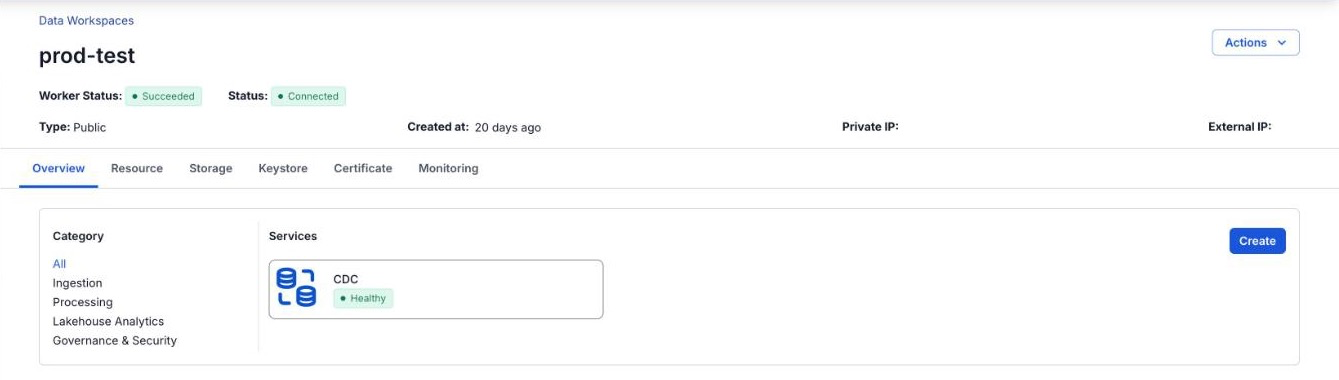
To add a service:
- On the Overview tab, select Create.
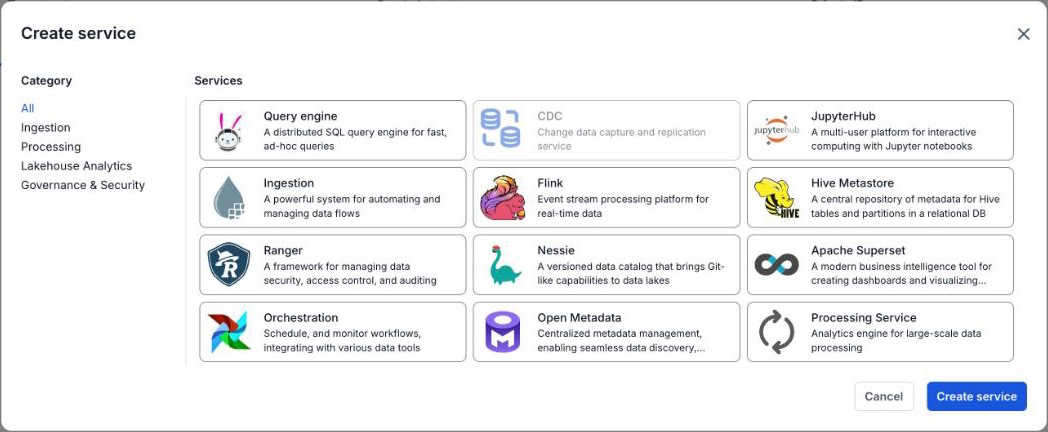
- In the Create service dialog, select the card of the service, then select Create service.
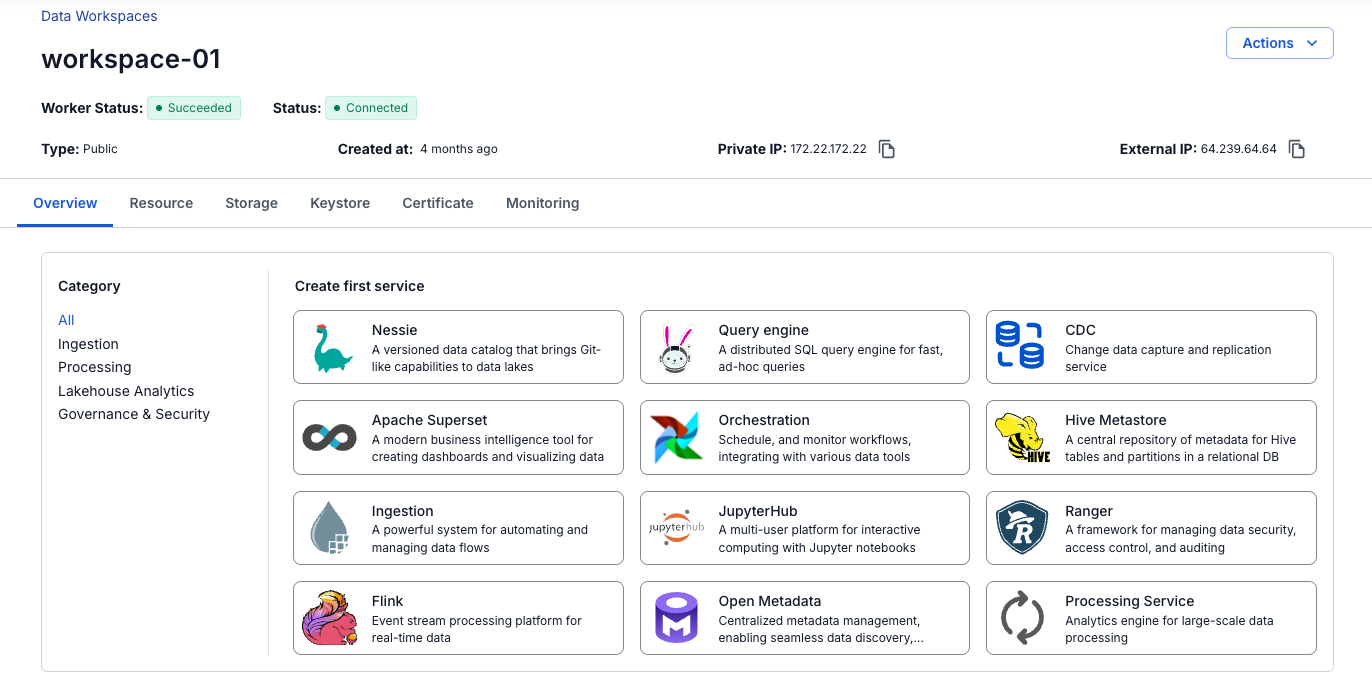
In a workspace with no services yet, the tab shows Create first service instead, and selecting a card opens the service's setup form directly.
Resource tab
The Resource tab shows the resource configuration of the workspace, one row per resource.
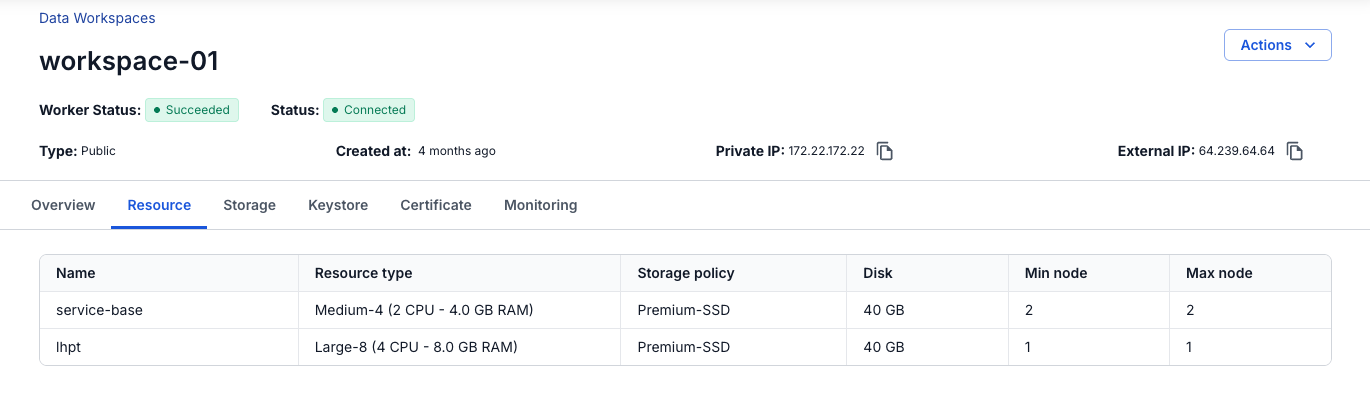
| Column | Description |
|---|---|
| Name | The resource name, for example service-base. |
| Resource type | The node type, for example Medium-4 (2 CPU - 4.0 GB RAM). |
| Storage policy | The storage policy of the disks. |
| Disk | The disk size. |
| Min node | The minimum number of nodes. |
| Max node | The maximum number of nodes. |
Storage tab
The Storage tab lists the S3 storage mounted on the workspace for its services, with the category, type, and status of each one. To add storage, see Manage workspace storage.
Keystore tab
The Keystore tab holds the keys, tokens, and credentials that services in the workspace use. See Manage keystores.
Certificate tab
The Certificate tab holds the SSL/TLS certificates that you apply to services in the workspace. See Manage certificates.
Monitoring tab
The Monitoring tab connects the workspace to the Monitoring Workspace, where you view the workspace metrics on a dashboard. See Monitor a workspace.