View workspace information
To view workspace information, follow these steps:
Step 1: In the menu bar, select Data Platform > select Data Management
Step 2: Click on a Workspace name
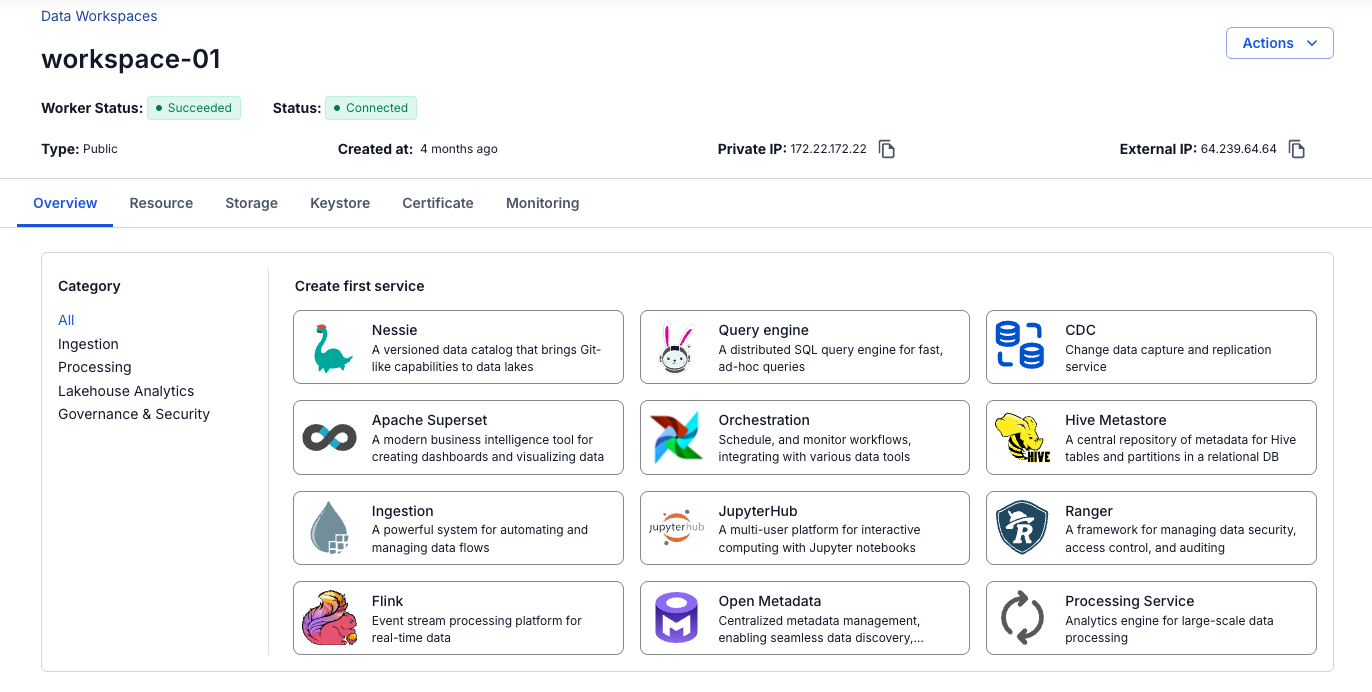
The screen displays 6 tabs: Overview, Resource, Storage, Keystore, Certificate, Monitoring
Overview Tab
The screen displays the Services installed in the Workspace
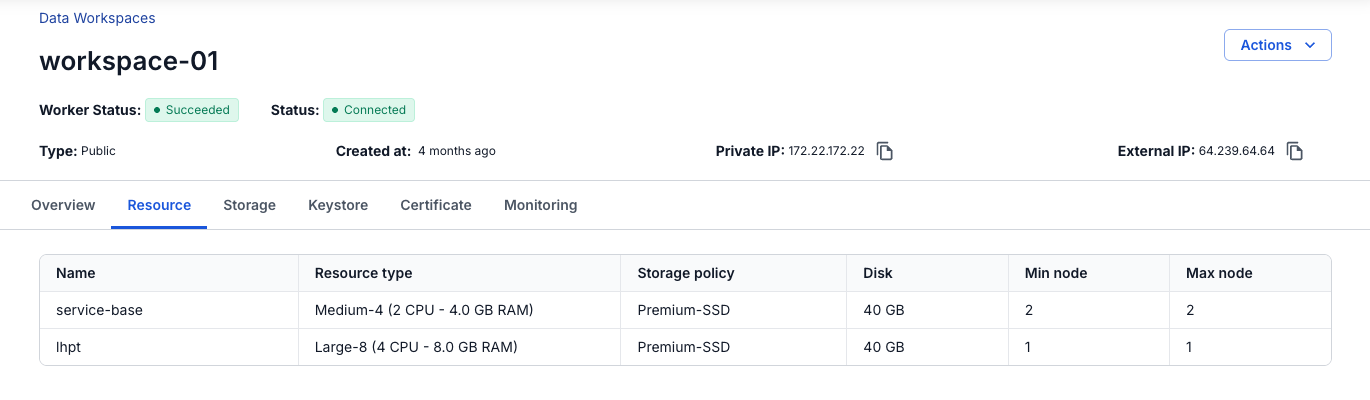
Resource Tab
Displays the Resource configuration for the workspace
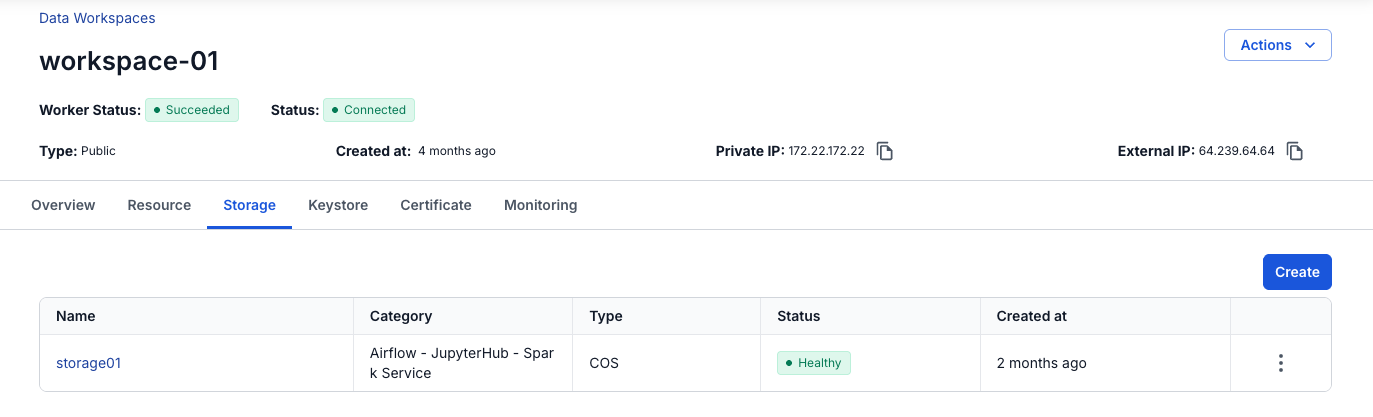
Storage Tab
Manages the integrated data sources (Mount) on the Workspace.
To create a storage, follow these steps:
Step 1: In the menu bar, select Data Platform > select Data Management > click on a Workspace name
Step 2: Select the Storage tab > click Create
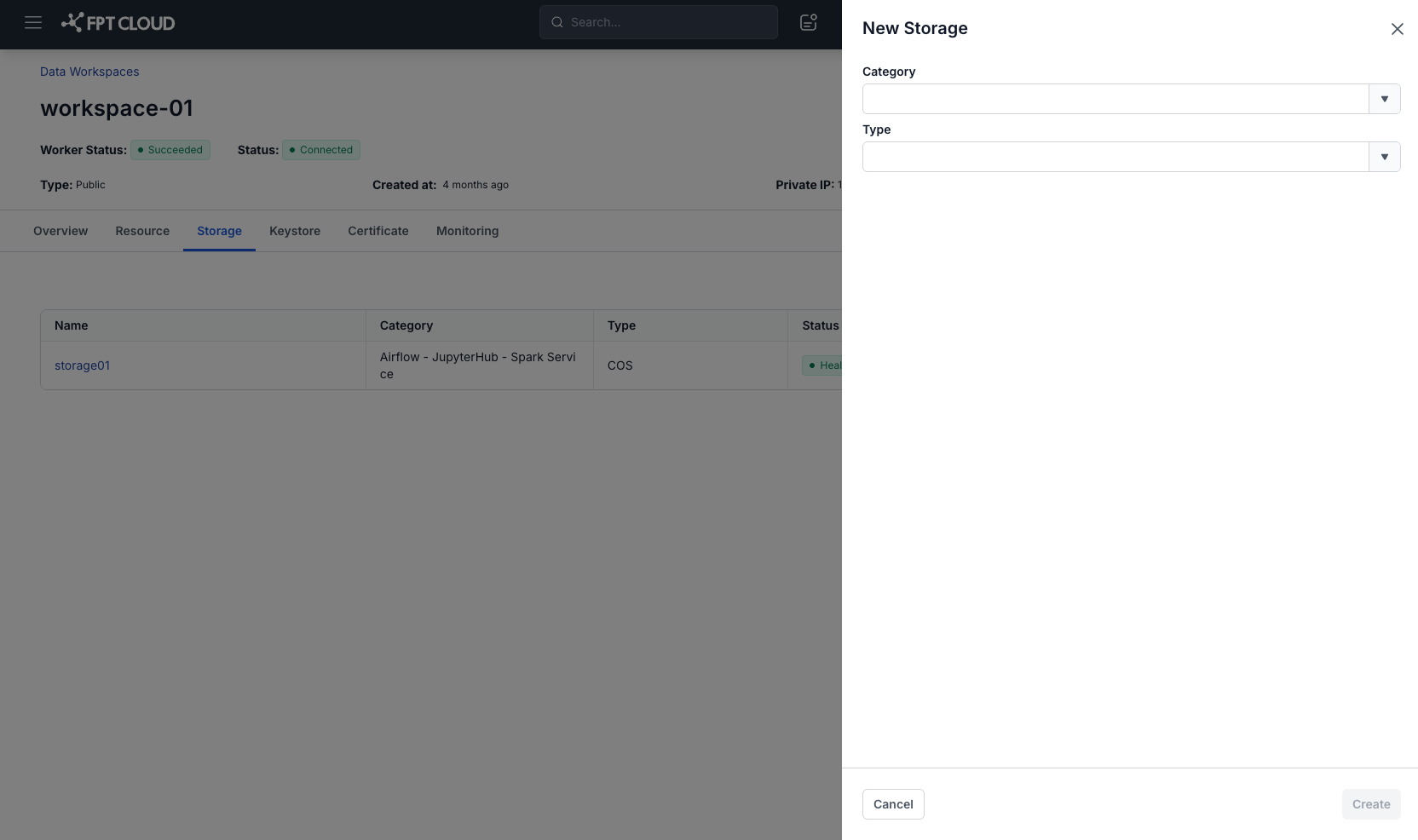
Step 3: A dialog box appears for you to select the following information:
- Category: Select the category
- Airflow - Jupyterhub - Spark service: Storage for the following services: Airflow, Jupyterhub, Spark service
- Flink: Storage for Apache Flink
- Ingestion service: Storage for Ingestion service
- Type: Select the storage type, including: S3, NFS
If Type is S3, the screen switches to the storage connection information form:
- Name (required): Storage name
- Bucket name (required): Bucket name
- Endpoint (required): Address
- Access key (required): Access key
- Secret (required): Secret key
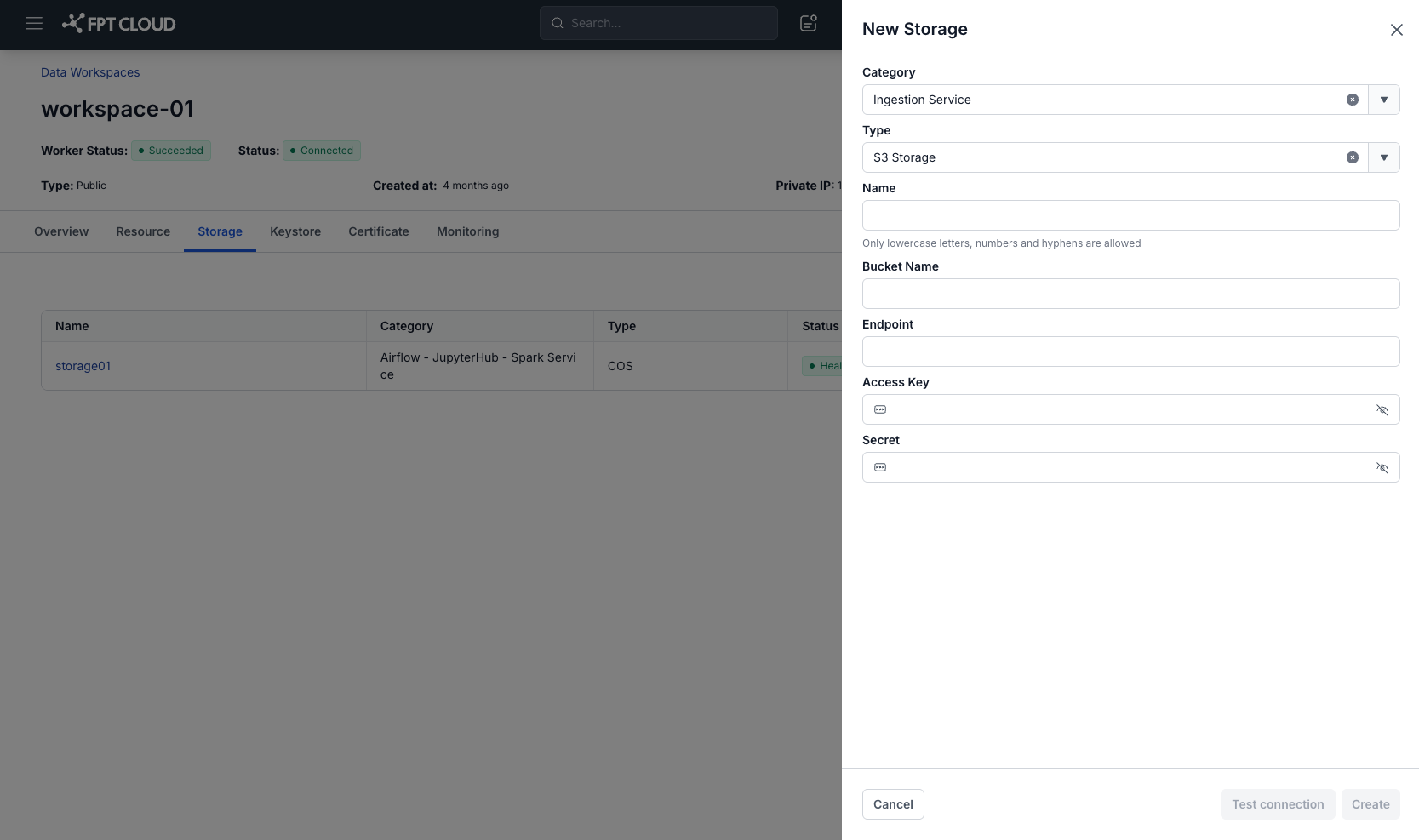
After entering the connection information, click Test connection to check the connection from the Workspace to the entered S3
If Type is NFS, the screen switches to the storage connection information form:
- Version (required): NFS version
- Port (required): Connection port
- Name (required): Storage name
- Server address (required): NFS server address
- Directory (required): Directory
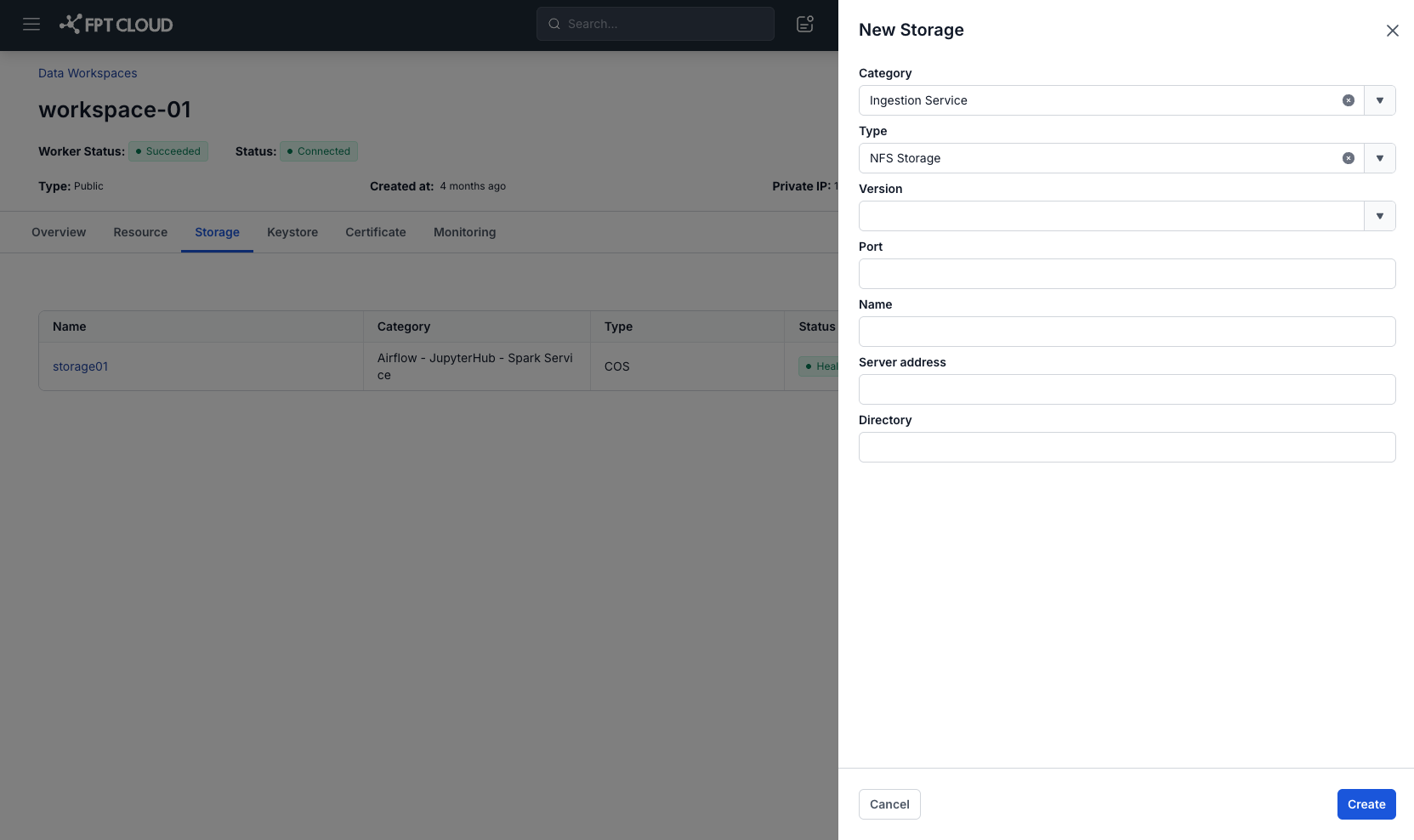
Step 4: Click Create to complete creating the Storage