Upgrade database version
Patch version upgrades move a cluster from its current patch to a higher one, picking up performance, security, and feature improvements.
The feature is available only when your cluster is not already on the latest patch offered. Downgrading is not supported.
Before you start
- Confirm you hold IAM permissions to manage and update the cluster.
- Disconnect every application and service connected to the database.
- Take a full backup. This is your only route back if the upgrade goes wrong.
- Verify your applications support the target version.
Version upgrades cannot be undone. If the upgrade fails, recovery means restoring from a backup taken beforehand — there is no rollback.
Upgrade
Step 1: Open the cluster overview
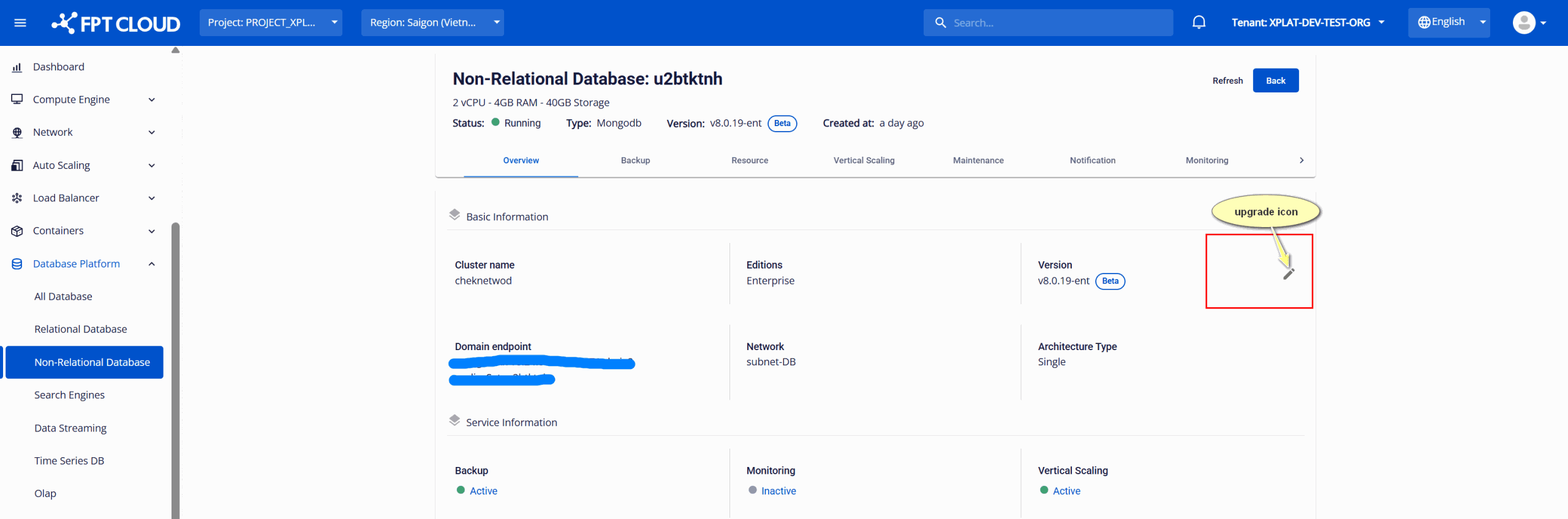
Log in to FPT Cloud Portal and open the Database cluster list. Select the cluster, then open its Overview page.
The current version is shown there. If a higher patch version exists, an Upgrade icon appears next to it.
Step 2: Run the upgrade
- Click the Upgrade icon next to the version.
- In the dialog, review the current version and pick a target version.
- Enter the confirmation keyword.
- Click Upgrade.
The cluster status changes to Updating and the cluster restarts as part of the process. Do not connect or make changes while it runs.
When it completes, the status returns to Running on the new version.
What to expect
| Consideration | Detail |
|---|---|
| Reversibility | None. Back out only by restoring a backup. |
| Client connections | Must all be stopped before starting. |
| Service impact | The cluster restarts, causing temporary downtime. |
| Replica Set | Reduces disruption compared to Single Node, but does not eliminate it. |
Next steps
- Database Engine Versions for the catalog and lifecycle dates
- Backup & Restore overview to take the pre-upgrade backup