View database cluster list
The Database cluster list is the consolidated view of every cluster in your VPC. It is where you check status at a glance and where most management actions start.
Open the list
Sign in to FPT Cloud Portal. From the main menu, select Database Platform → Non-Relational Databases.
What you see depends on whether clusters exist:
-
No clusters yet — the list is empty and offers a provisioning option.
-
Clusters exist — every cluster deployed in the VPC, with status and key details.
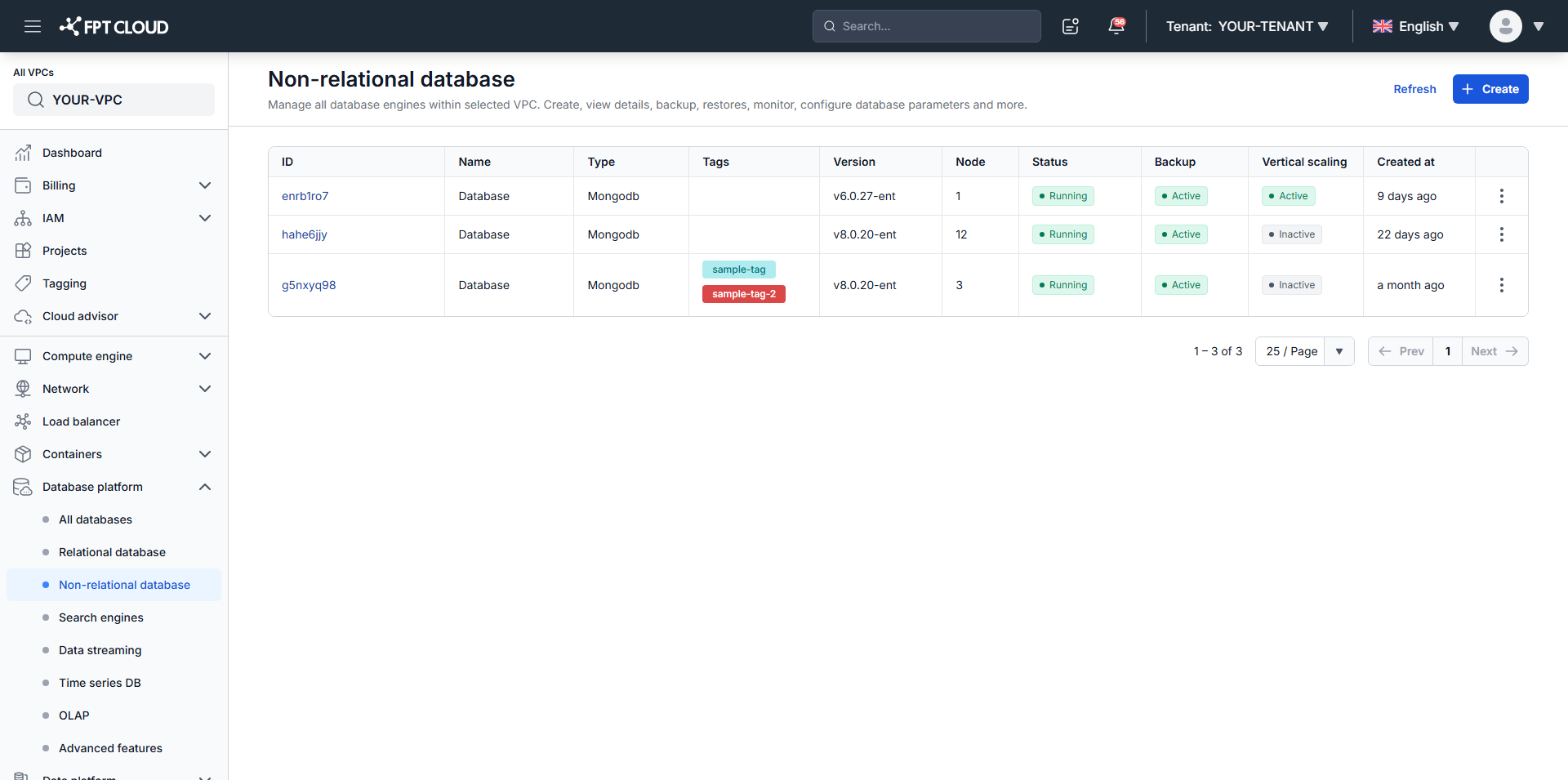
What the columns mean
| Column | Shows |
|---|---|
| ID | The cluster ID. Click it to open the cluster's detail page. |
| Name | The cluster name. |
| Type | The database engine type. |
| Tag | Tags assigned to the cluster. |
| Version | The engine version, with a lifecycle label where one applies — see below. |
| Node | Number of nodes in the cluster. |
| Status | Current state: Running, Warning, Processing, Failed. |
| Backup | Whether the Backup service is enabled. |
| Monitoring | Whether Monitoring is enabled. |
| Created at | Creation timestamp. |
| Action | Available operations — Restart, Delete, and others depending on status. |
Version labels
The Version column doubles as a lifecycle indicator:
| Label | Meaning |
|---|---|
| Beta | Preview version, no SLA |
| (no label) | General Availability |
| Dep. | Deprecated — plan an upgrade |
| EoS | End of Support — no longer supported |
See Database Engine Versions for what each stage commits to.
The Backup column showing enabled means the backup service is on, not that backups exist. Data is protected only once a backup job has been created and has run. Check the cluster's Backup tab to confirm.
Next steps
- View database cluster information for a single cluster's full detail
- Operate a database cluster to restart or delete