Notification
Notifications tell you when something happens to a cluster — a backup fails, a resource threshold is crossed, scaling fires, maintenance is coming. They are delivered by email or Telegram.
Setting these up is also a prerequisite for Auto Vertical Scaling, which refuses to enable without a recipient.
What can be notified
| Category | Covers |
|---|---|
| Backup & restore | Enabling/disabling the backup service, backup job success and failure, restore job results |
| Resource | vCPU, RAM, or disk usage reaching a threshold you define |
| Vertical scaling | Automatic scaling events |
| Maintenance | Maintenance affecting the cluster |
Create an alert rule
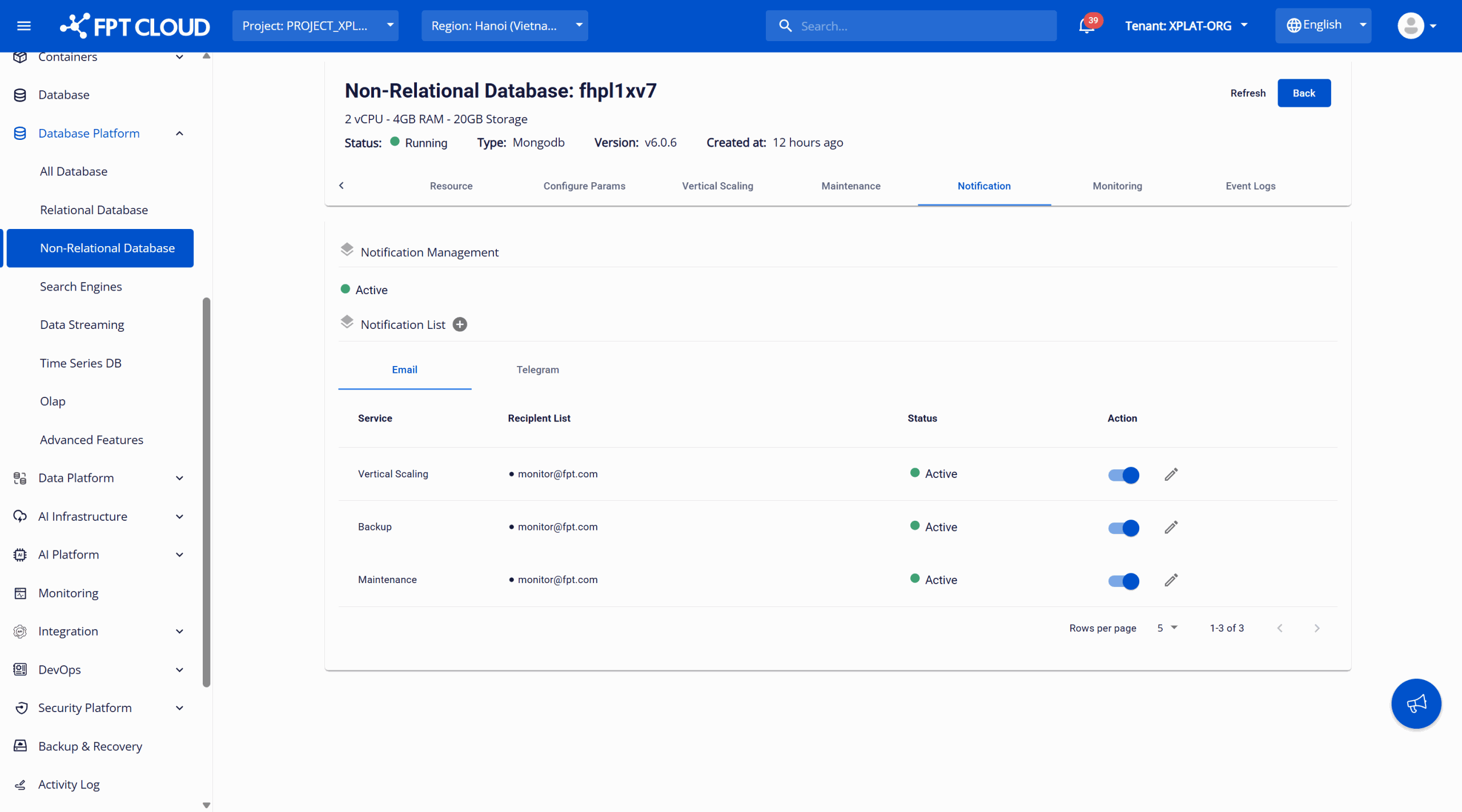
Step 1: Open the Notification tab
Sign in to FPT Cloud Portal. From the left navigation, select Database Platform → your engine category. Select the Cluster ID and open the Notification tab.
Step 2: Add the rule
Click Add New Alert List — the plus icon next to Notification List.
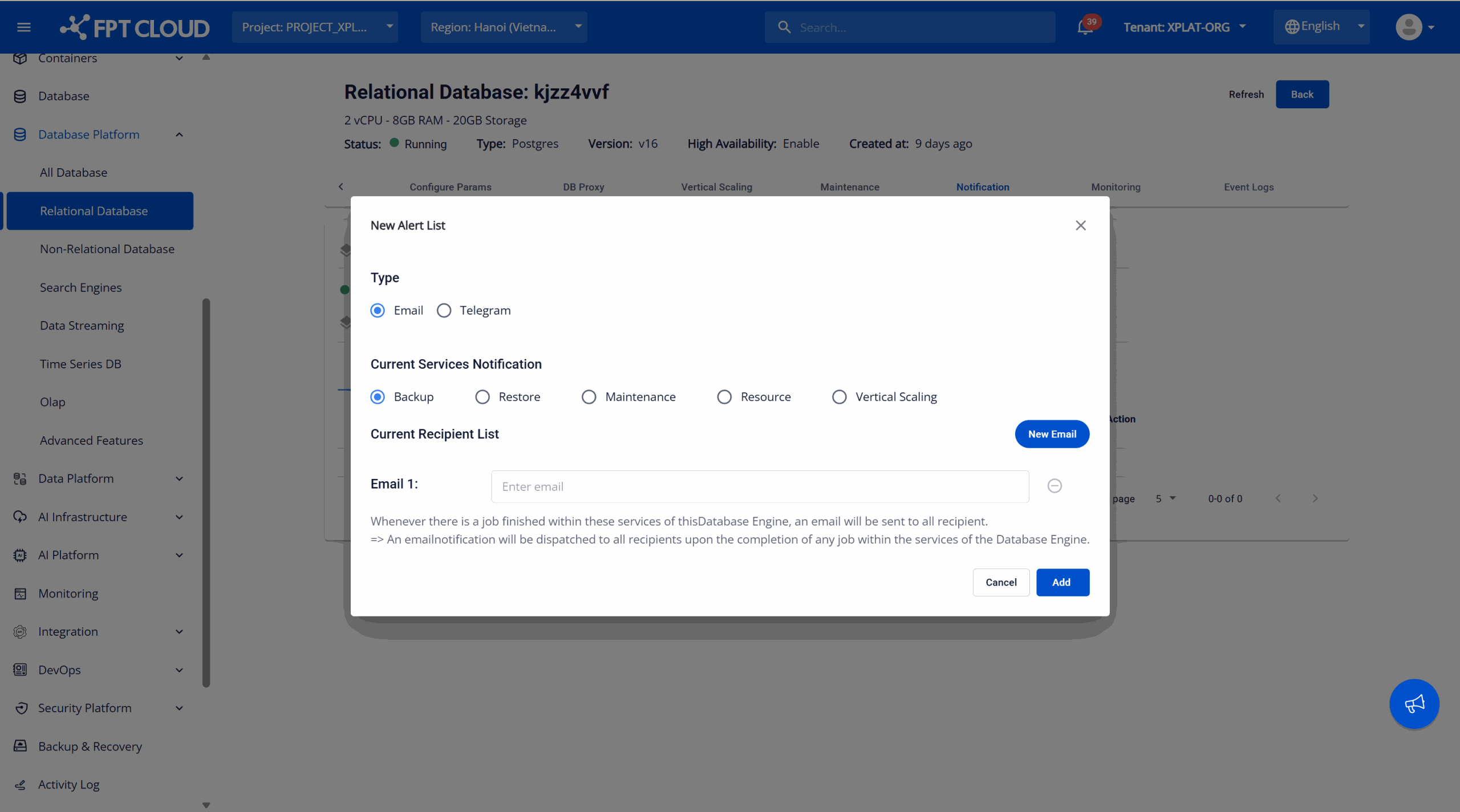
| Field | What to enter |
|---|---|
| Type | Email or Telegram. |
| Current Services Notification | Which services trigger this alert: Backup, Restore, Maintenance, Resource, Vertical Scaling. |
| Current Recipient List | For Email, the address. For Telegram, the channel ID — see below. |
When Current Services Notification is Resource, three thresholds appear:
- vCPU more than (%)
- RAM more than (%)
- Storage more than (%)
An alert fires when any one condition is met. If all three are met, you get three notifications.
Click Add to save.
Telegram does not support the Maintenance service. Maintenance notices, including the 7-day and 1-day warnings before a maintenance window, can only reach you by email. Configure at least one email recipient even if you prefer Telegram otherwise.
Manage existing rules
Configured alerts appear in the Notification tab list with their recipients, type, monitored services, and status:
- Edit Alert List — the pencil icon, to update recipients or services.
- Disable Alert — turn a rule off temporarily without deleting it.
- Enable Alert — turn a disabled rule back on.
Set up a Telegram channel
To send notifications to Telegram you need a channel ID.
-
Create a channel. In Telegram, create a new private channel — for example
FDE Notify. -
Add the bot. Search for @fde_notify_bot in the member search and select FDE NOTIFY.

-
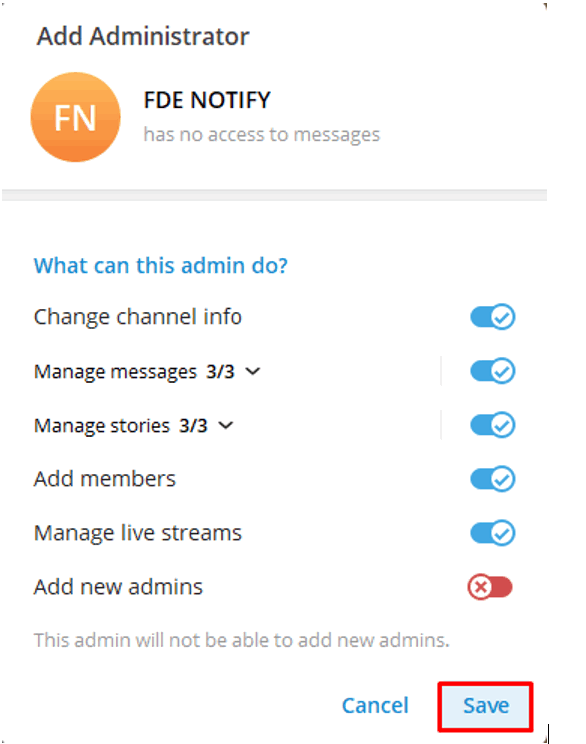
Make the bot an administrator of the channel so it can post.
-
Get the channel ID. Search for @username_to_id_bot.
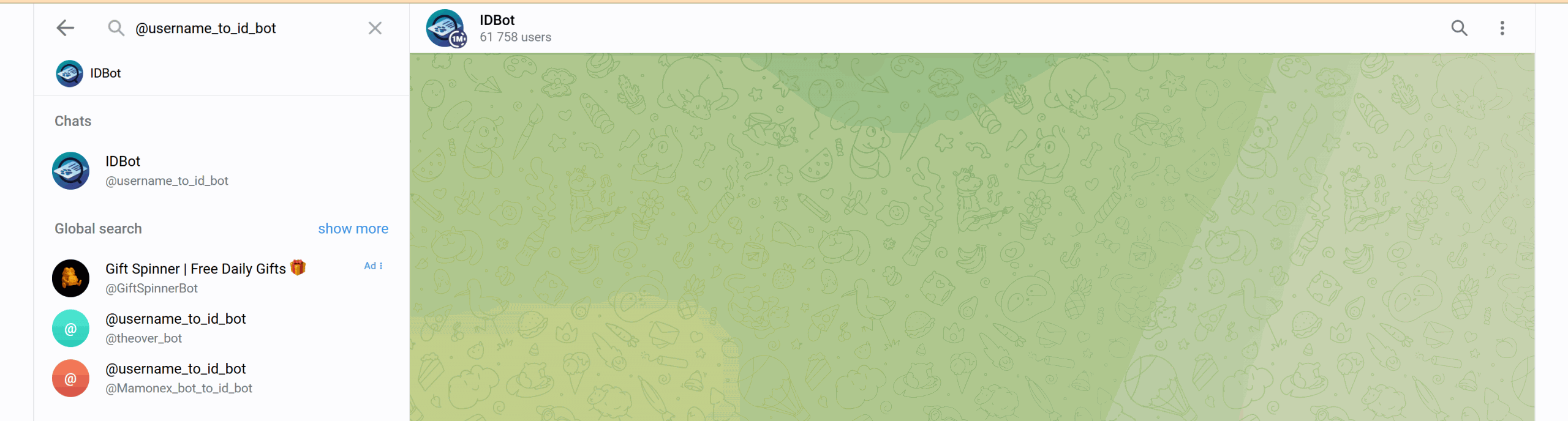
Open the chat, select Start, then open the keyboard shortcuts menu and choose Channel.
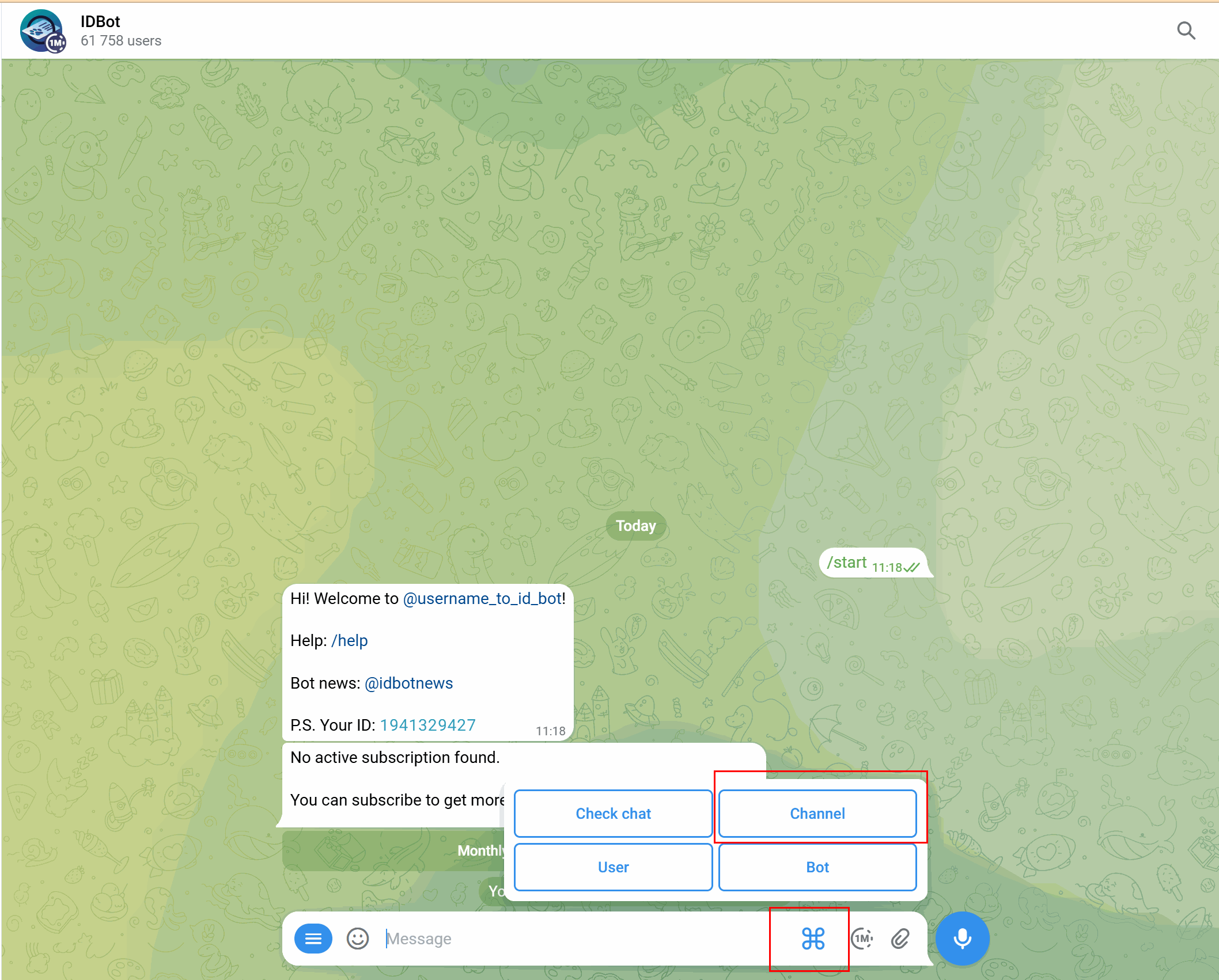
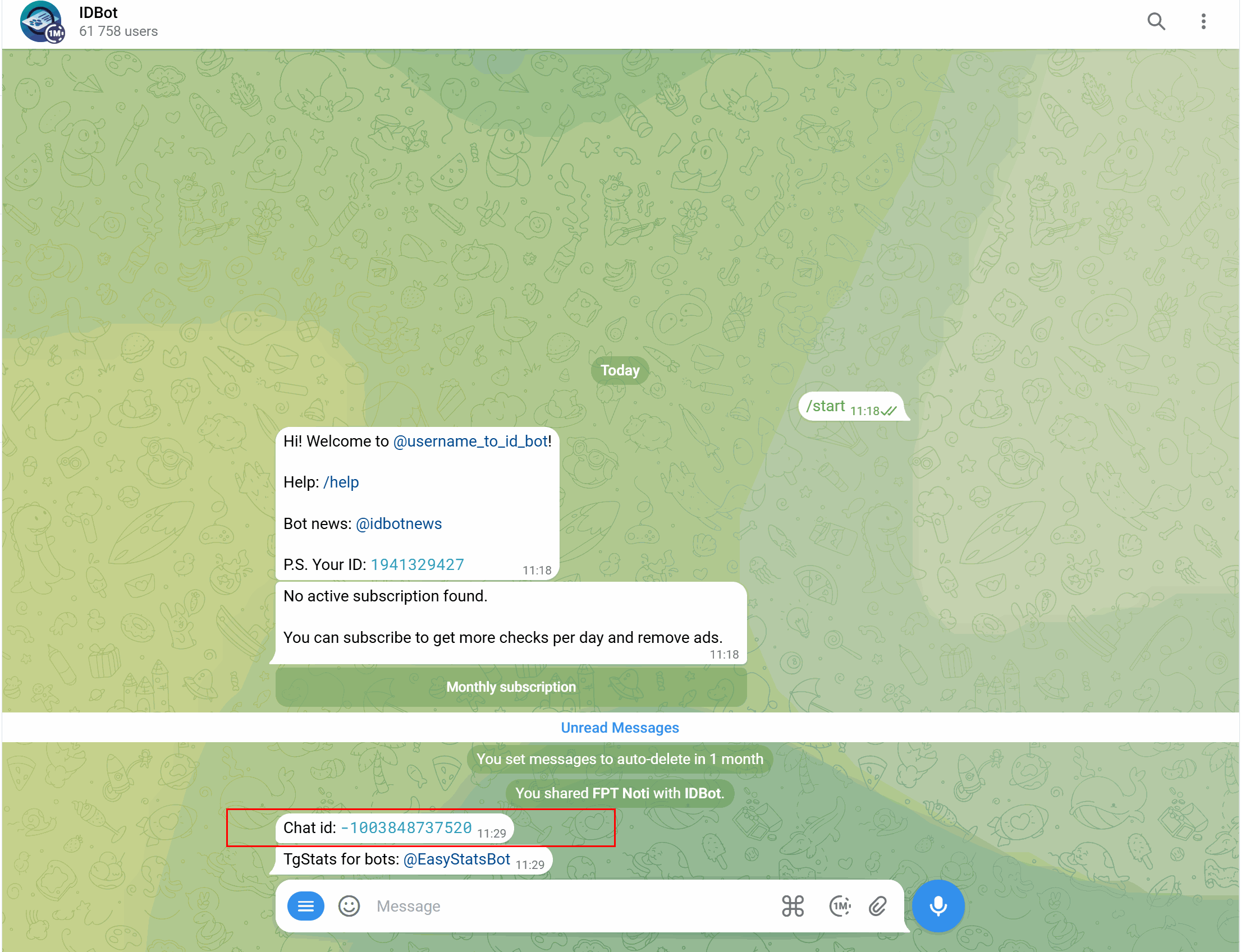
Select the channel you created and click Send. Telegram returns the channel ID.
-
Register it by creating an alert rule with Type Telegram and pasting the channel ID.
Repeat steps 1–4 for each additional channel.
Best practices
- Configure alerts before enabling auto scaling — it is required, and it means the first scaling event is not a surprise.
- Use thresholds that reflect real problems, so alerts stay meaningful.
- Send alerts to operational and DBA teams rather than individuals.
- Pair alerts with Monitoring dashboards for full observability.
Next steps
- Configure Auto Vertical Scaling, which requires this
- Manage Maintenance Window for maintenance notices