Manual report export
Manual export pulls backup activity statistics for a period you choose and downloads them as CSV. Use it to review backup history, check execution status, or produce evidence for an audit.
For recurring delivery, use Report schedules instead.
Step 1: Open the export screen
-
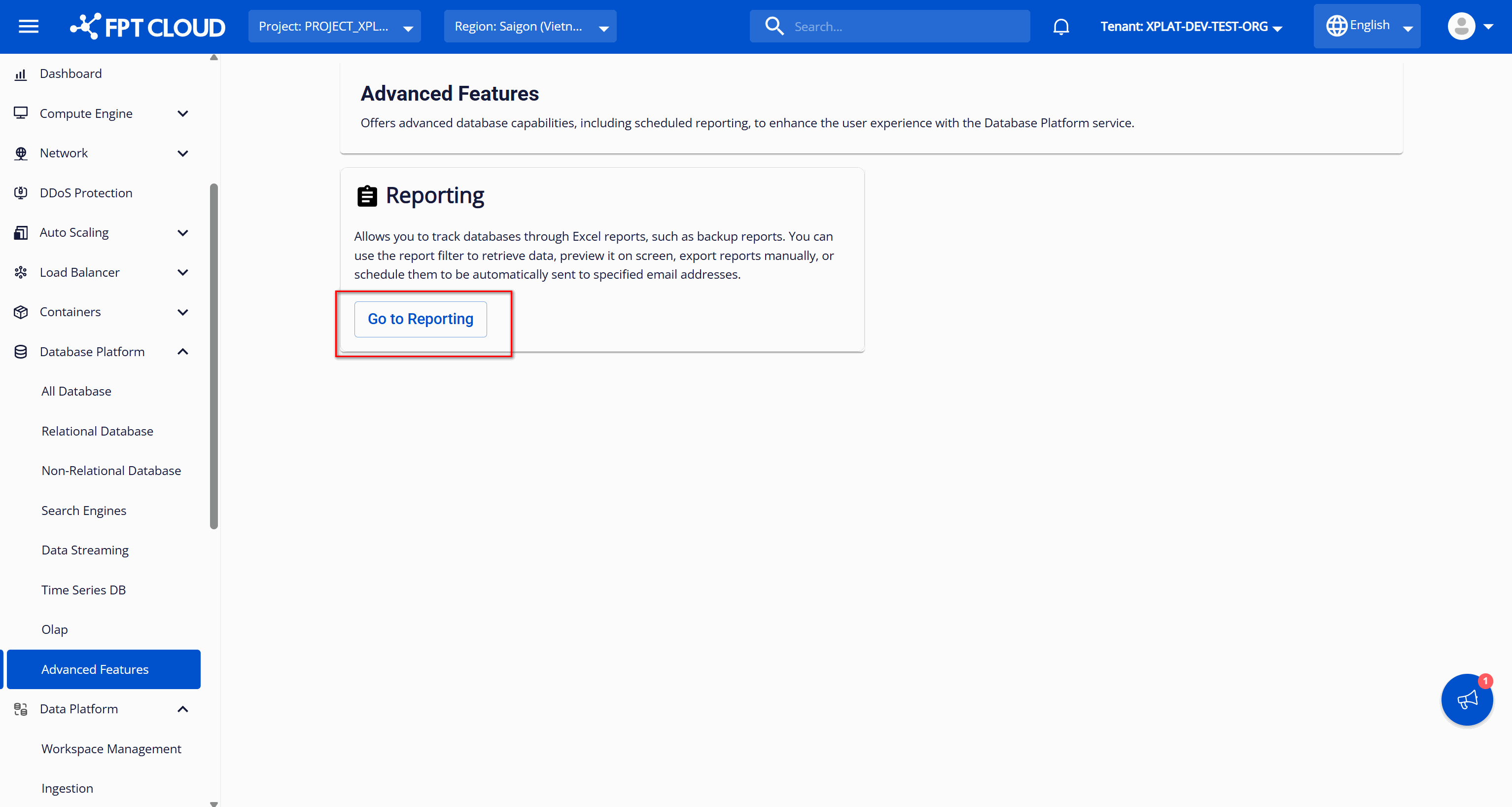
Select Database Platform on the menu bar, then Advanced Features.
-
Click Go to Reporting, then select the Report Export tab.
Step 2: Set the filters
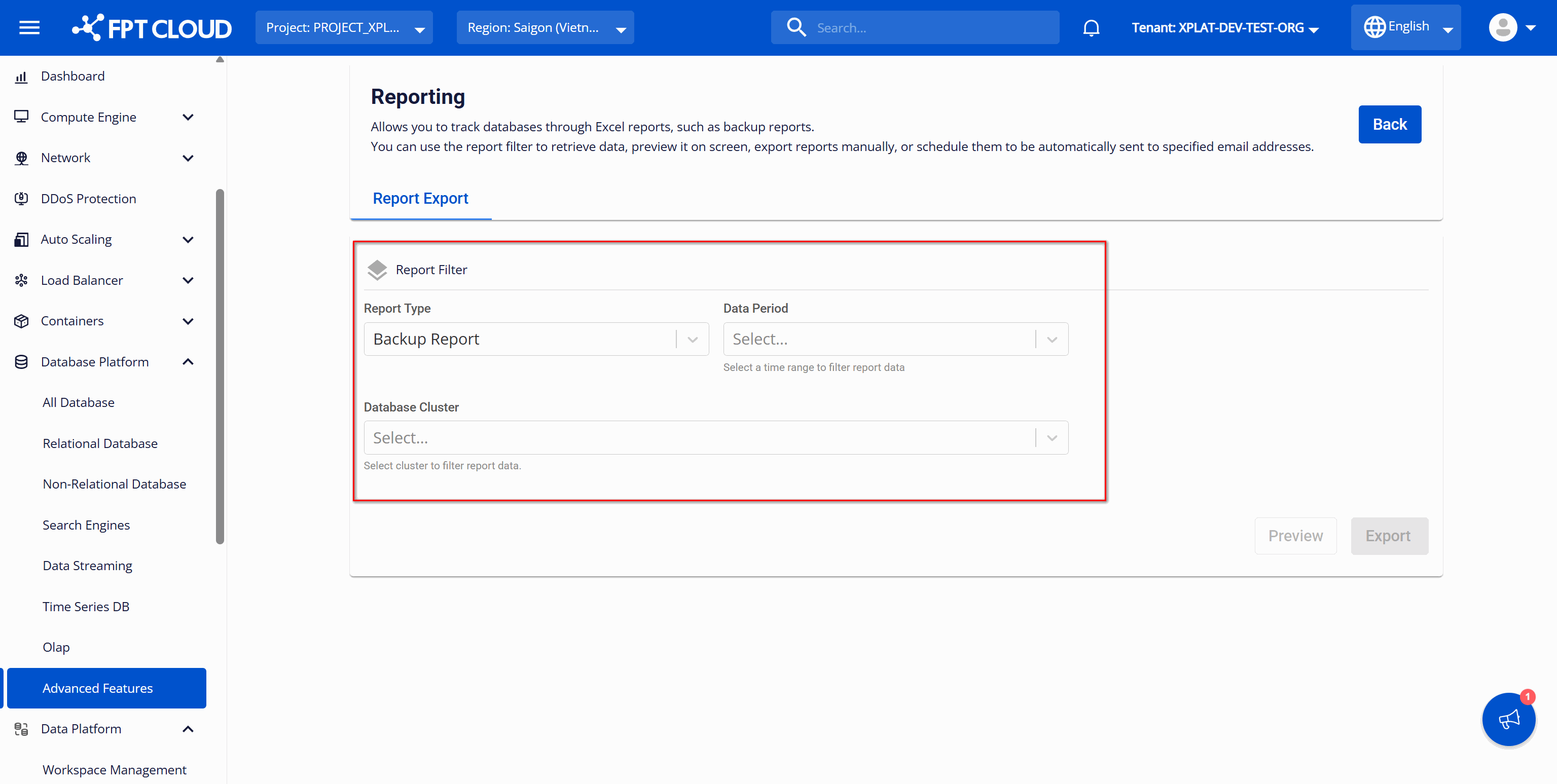
| Field | What to enter |
|---|---|
| Report Type | Currently only Backup Report, selected by default. |
| Data Period | The window to collect data for — see below. |
Data Period options:
| Option | Covers |
|---|---|
| Yesterday | 00:00:00 of the previous day up to now |
| Last 7 days | 00:00:00 of (today − 7) up to now |
| Last 30 days | 00:00:00 of (today − 30) up to now |
| Custom Range | 00:00:00 of the start date to 23:59:59 of the end date |
Choosing Custom Range reveals a Date Range field.
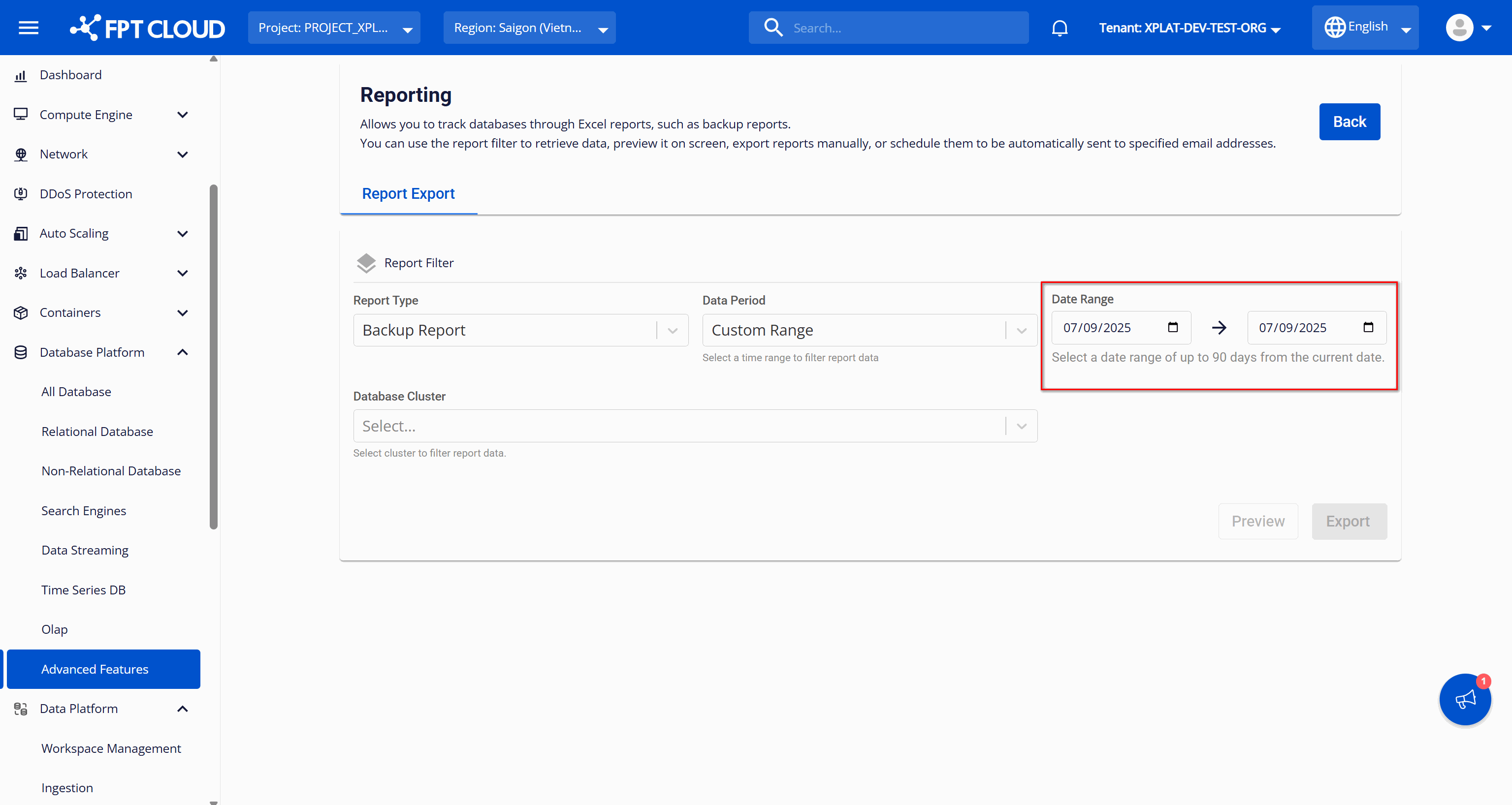
Two constraints apply: the range cannot exceed 90 days back from today, and To Date cannot be in the future.
- Preview and Export stay disabled until every required field is valid.
- Changing any filter hides the current preview. Click Preview again after each change to see the data before exporting.
Step 3: Preview
Click Preview to see the report on screen. If no clusters ran backup jobs in the period, it shows "Nothing Found."
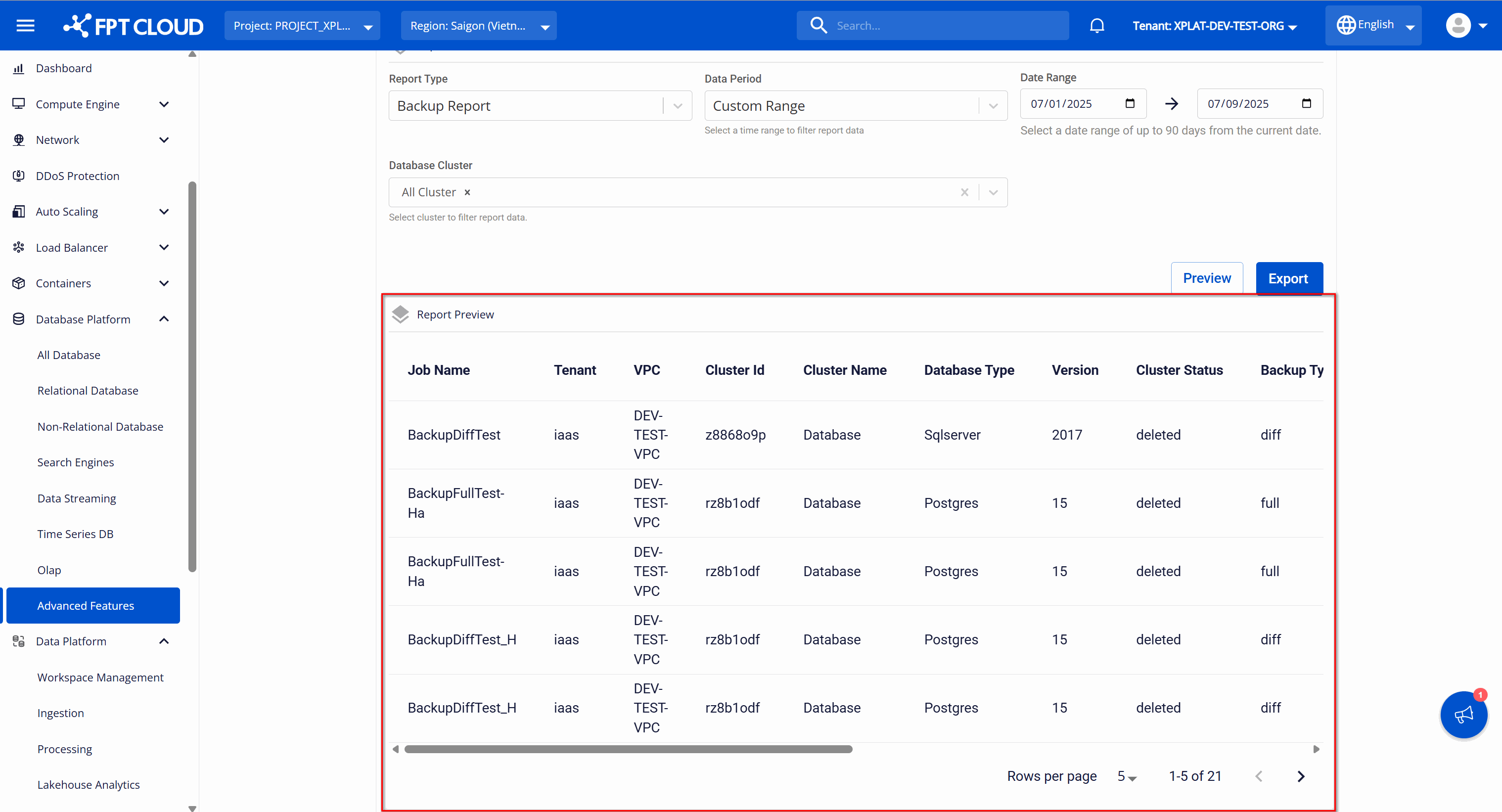
| Column | Shows |
|---|---|
| Job Name | The backup job name |
| Tenant | The tenant |
| VPC | VPC containing the cluster |
| Cluster Id / Cluster Name | The cluster that ran the job |
| Database Type | Engine type |
| Version | Engine version |
| Cluster status | Status at the time data was retrieved |
| Backup Type | full or diff |
| Backup Retention | Retention value for the backup file |
| Retention Type | day (max storage days) or quantity (max number of files) |
| Backup Usage (GB) | Backup storage consumed |
| Backup File Name | Name of the file created |
| Backup State | successful or deleted |
| Start Time / Finish Time | When the backup ran |
Step 4: Export
Click Export to download the CSV.
The file is named {reportType}_{vpcName}_{exportTime}, where exportTime uses ddMMyyyyHHmmss format. Its columns match the preview table.
Next steps
- Report schedules to have this delivered automatically
- Change backup schedule if the report shows missing backups