Configure auto scaling
Enable the service on the database, then configure compute scaling, storage scaling, or both. For what the thresholds mean and how the flavor list is used, see Auto scaling overview.
Required permissions
| Permission | Action type | Description |
|---|---|---|
manageDatabase:Configuration | Edit | Change database configuration, including parameters and scaling settings. |
Prerequisites
The Notification service must be enabled first, with at least one email or Telegram recipient configured for scaling alerts. Without it, the console blocks activation with a dialog:
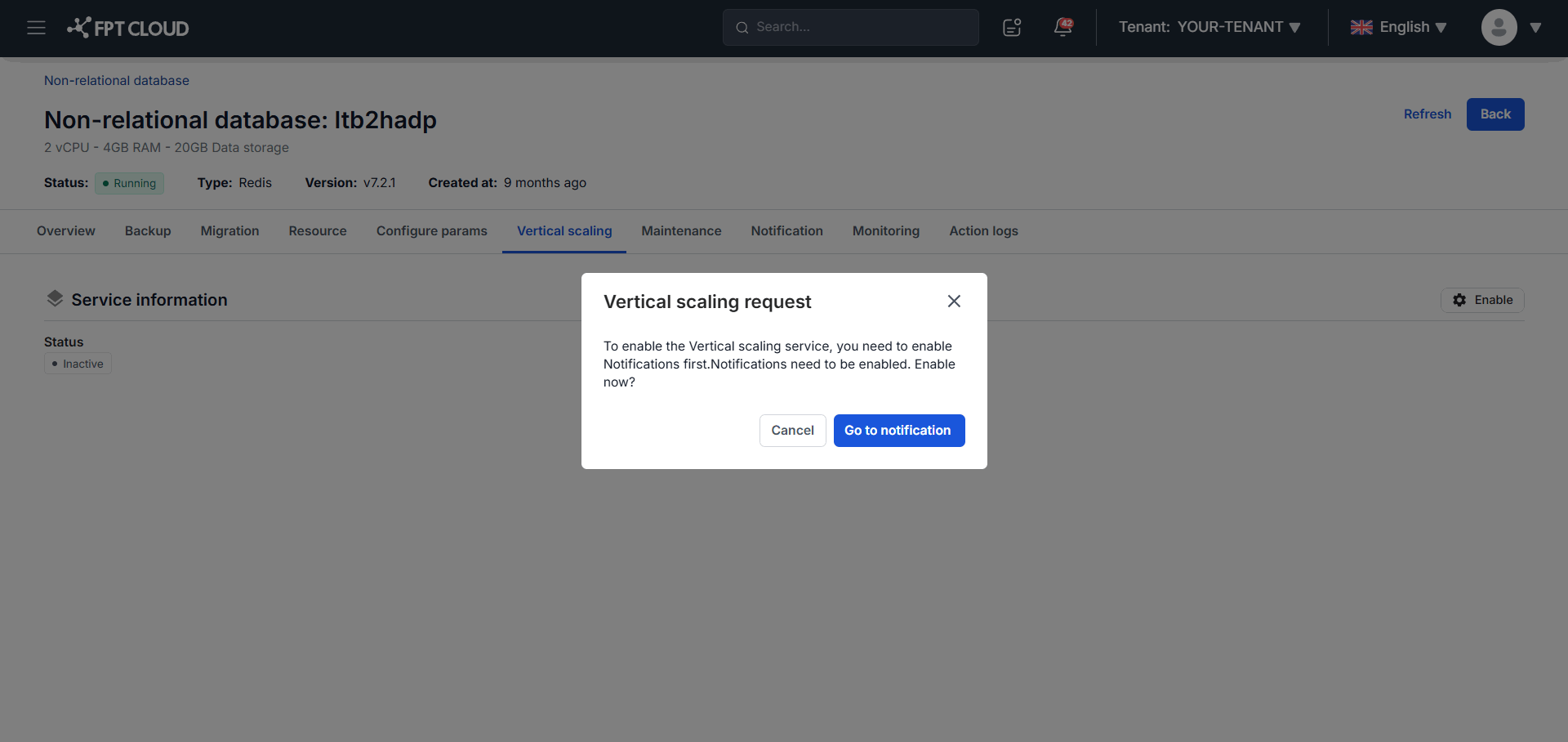
Click Go to Notification and follow Manage alert rules.
Enable the service
You can enable auto scaling during provisioning, in the additional services step of Create a database, or afterward using the steps here.
-
Log in to FPT Cloud Portal and select Database Platform → All Database.
-
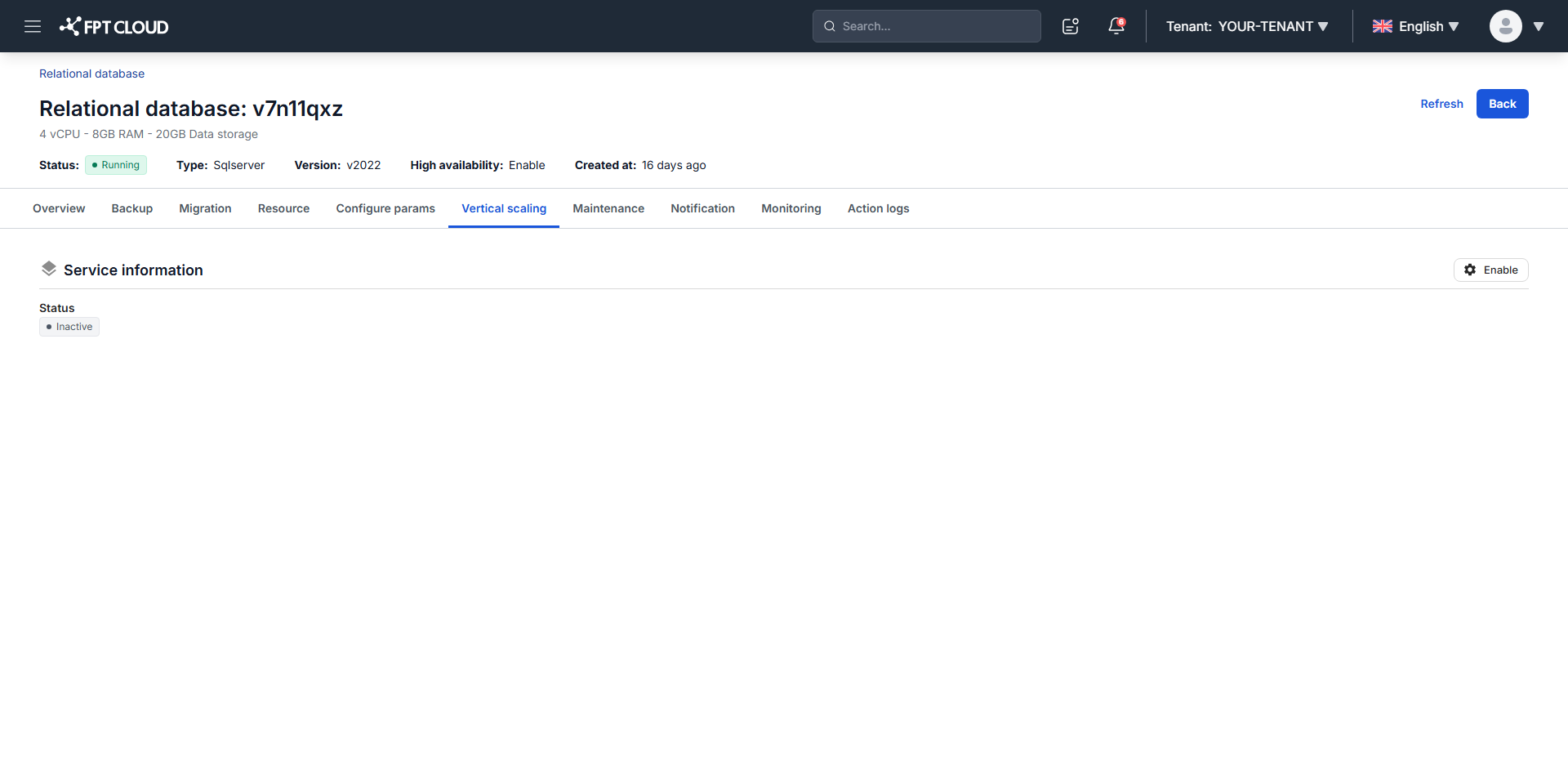
Click the database ID, then open the Vertical Scaling tab. Before activation it reads Inactive.
-
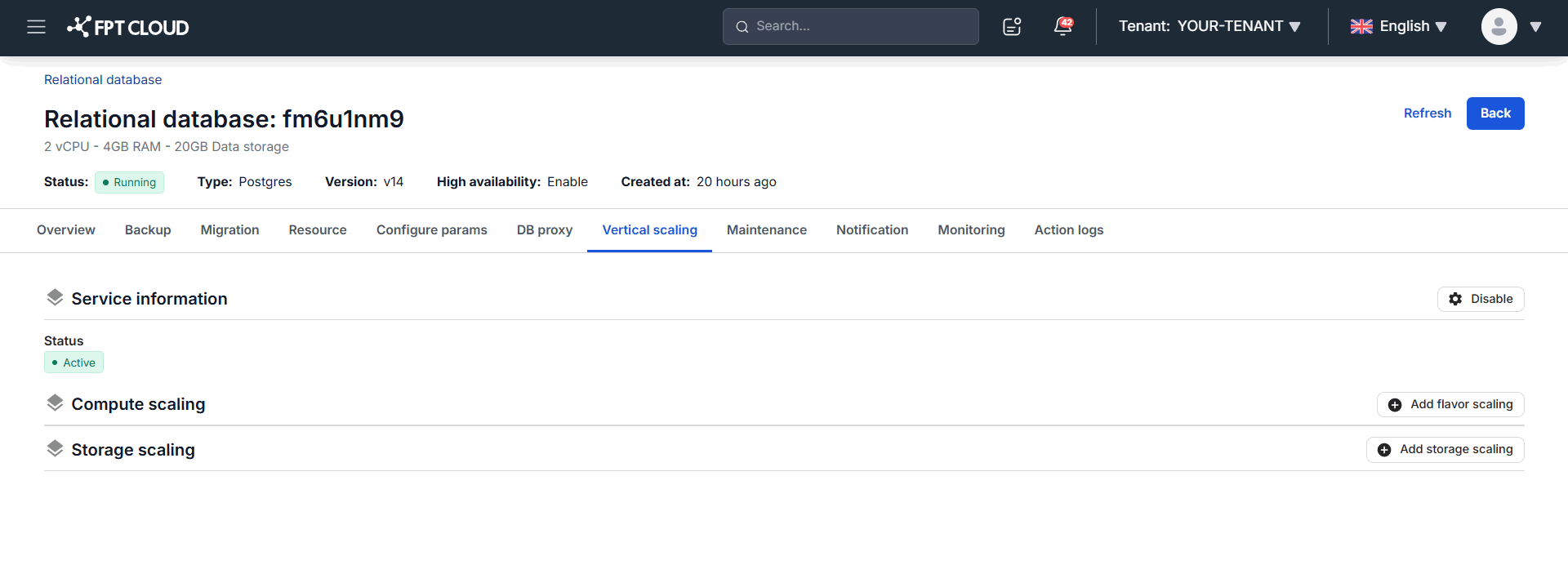
Click Enable in the Service information block, then confirm.
The status changes to Active.
Configure compute scaling
-
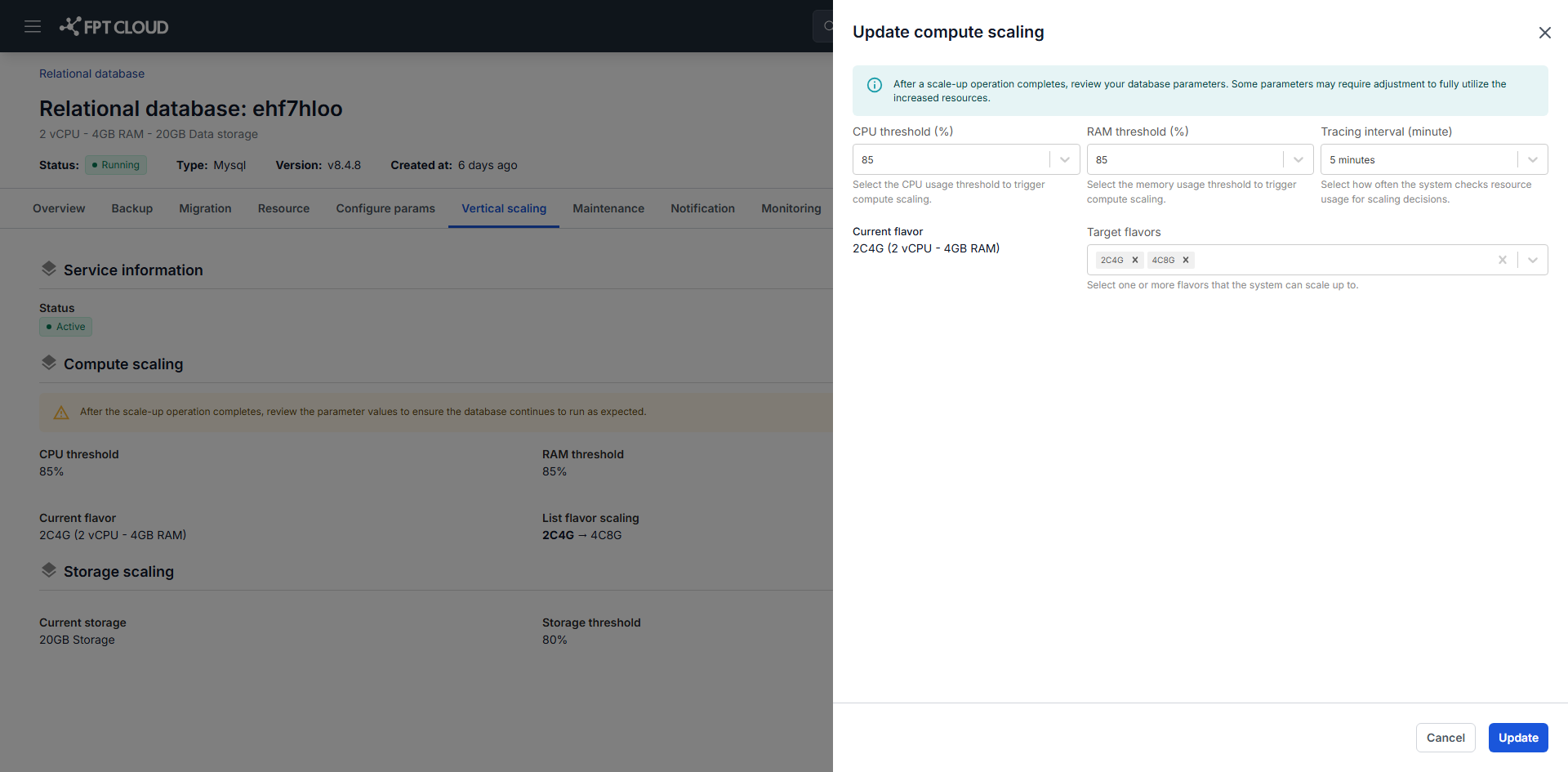
On the Vertical Scaling tab, click Edit settings in the Compute scaling block.
-
Fill in the fields:
- CPU Threshold (%): the CPU usage that triggers scaling. At 60%, the system scales once CPU passes 60%.
- RAM Threshold (%): the memory usage that triggers scaling.
- Tracing Interval: how often, in minutes, the system samples usage. At 5 minutes it evaluates average CPU and RAM every 5 minutes.
- Current Flavor: the database's current flavor, shown for reference.
- List Flavor Scaling: the flavors the system may scale up to, used in order. With a current flavor of Medium-4 and a list of Medium-8 and Large-2, the system moves to Medium-8 first, then to Large-2 if the threshold is still exceeded.
-
Click Add.
The system begins monitoring and scales when the conditions are met.
To change the configuration later, click Edit settings again. To stop automatic compute scaling, click Disable compute scaling.
PostgreSQL, OpenSearch, and ClickHouse require a restart before scaled compute resources take effect. The scaling operation completes, but the database keeps running on the old configuration until you restart it yourself.
Configure storage scaling
-
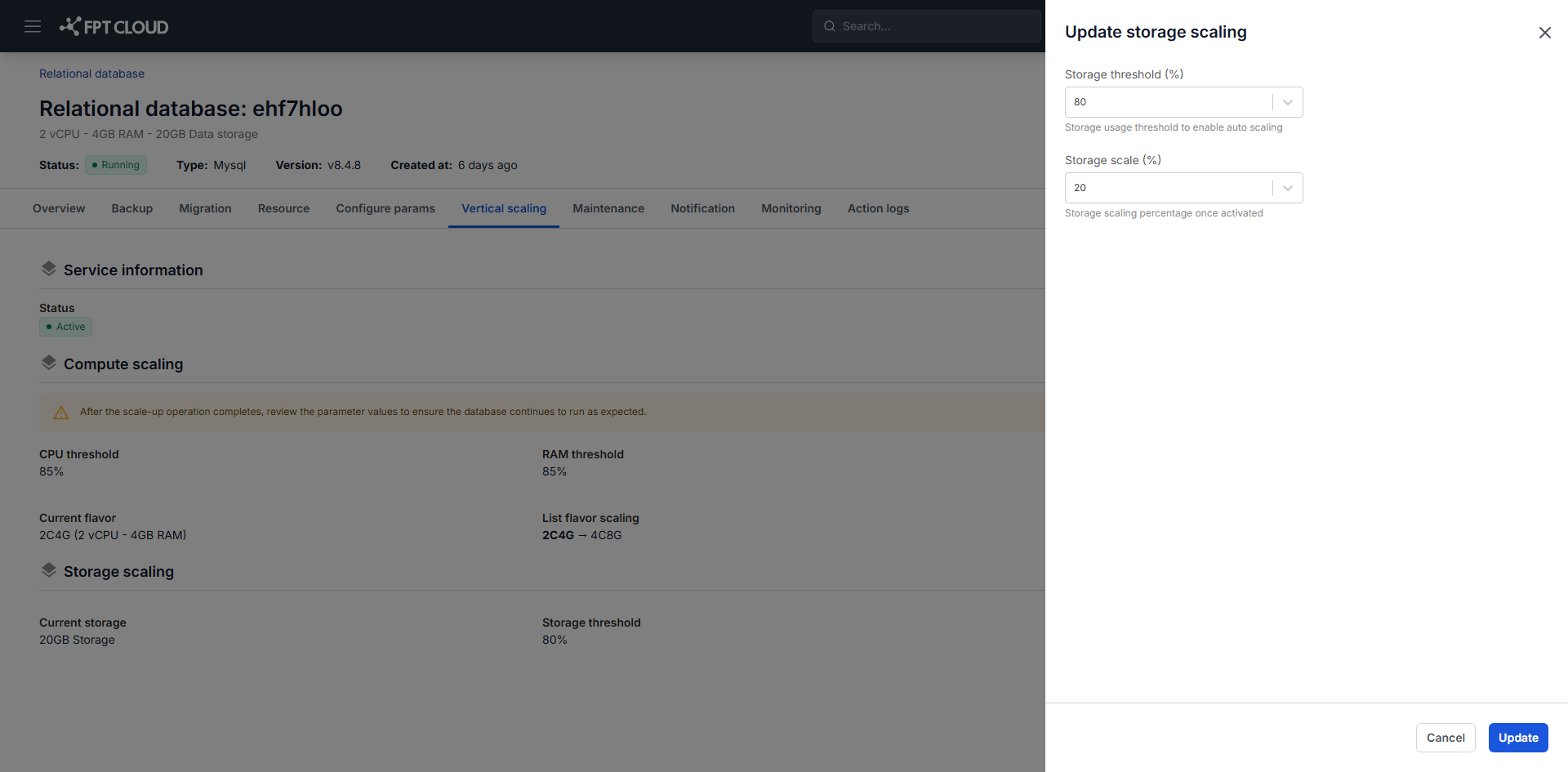
On the Vertical Scaling tab, click Edit settings in the Storage scaling block.
-
Fill in the fields:
- Storage Threshold (%): the storage usage that triggers expansion.
- Storage Scale (%): how much capacity to add each time, as a percentage of current capacity. At 20%, a 100 GB disk becomes 120 GB.
-
Click Add.
Storage scaling runs online and does not interrupt service.
To change the configuration later, click Edit settings again. To stop automatic storage scaling, click Disable storage scaling.
Storage cannot be scaled back down. Every expansion is permanent and continues to be billed, so set the threshold at 70% or above rather than letting small fluctuations trigger growth.
Next steps
- Change database resource configuration to resize manually
- Monitor database with FMON to watch utilization trends
- Stop, start & restart database to run a required restart