Configure backup schedule
A backup job is the schedule that actually produces restore points. The backup service reserves capacity, but nothing is backed up until a job exists.
There are two job types. A full backup job copies the whole cluster. A differential backup job copies only what changed since the last full backup, and is supported on relational engines only.
Prerequisites
- The backup service is enabled on the cluster. See Manage Backup service.
Create a full backup job
-
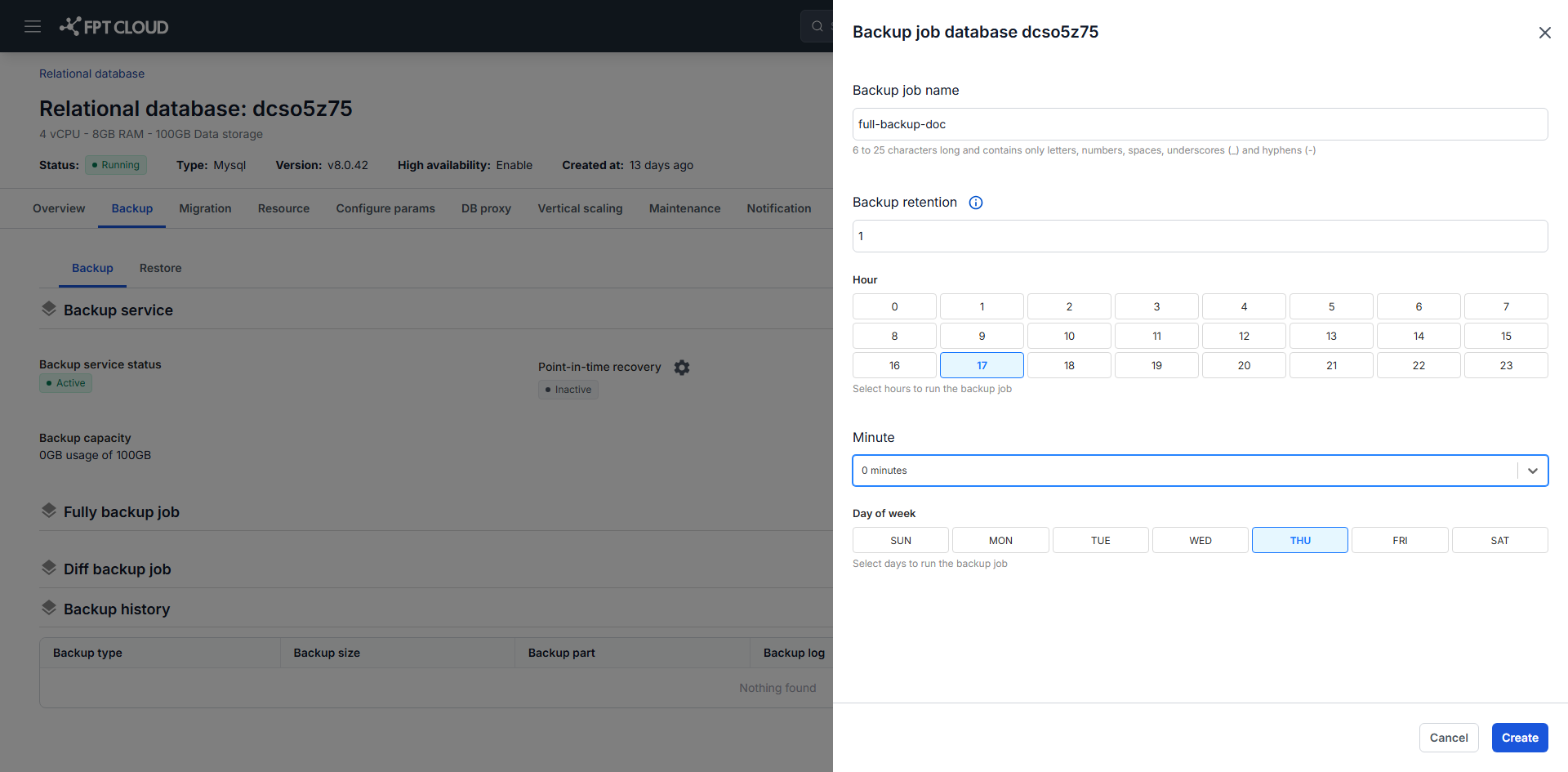
On the Backup tab, click Add backup job in the Fully backup job block.
-
Fill in the fields:
- Backup job name: 6 to 25 characters, containing only letters, numbers, spaces, hyphens, and underscores.
- Backup retention: how many backup copies to keep, as a positive integer.
- Hour / Minute / Day of week: when the job runs.
-
Click Create.
Creation takes 5 to 10 minutes, during which the job shows Creating. It then reads Ready and runs on the schedule you set.
Deleting a full backup under the retention policy also deletes every differential backup and archived log tied to it. Set retention against your recovery requirements, not just your storage budget.
Backup jobs are no longer available on Kafka or RabbitMQ. Backup on those engines was removed on 15 September 2026, and the backup files that existed were permanently deleted.
Create a differential backup job
Differential backup jobs support relational engines only: PostgreSQL, MySQL, MariaDB, and Microsoft SQL Server.
FPT Cloud recommends at least one full backup per week with differential backups on the remaining days, particularly for large clusters.
You must create a full backup job first.
- On the Backup tab, click Add backup job in the Diff backup job block.
- Fill in the fields as you would for a full backup job, then create it.
Differential backups inherit the retention of their full backup job. When that full backup is deleted, its differential backups go with it.
Run a job on demand
A job runs on its schedule automatically. Run it manually when you need a restore point immediately, such as before a risky change.
- On the Backup tab, click Run now in the job's block.
- Type
runin the confirmation dialog, then click Confirm.
The new backup appears as a restore point on the Restore tab. Success or failure is recorded in the Backup Request table.
Update a job
- On the Backup tab, click Edit in the job's block.
- Change the settings, then click Update.
Delete a job
- On the Backup tab, click Delete in the job's block.
- Complete the confirmation dialog, then click Confirm.
A full backup job can only be deleted after all its differential backup jobs are deleted.
Next steps
- Enable & Disable PITR to recover to a moment between two scheduled backups
- Restore from backup to use a backup one of these jobs produced
- Push backup data to S3 to keep a copy outside the platform