Recover to point in time
Point-in-time recovery reconstructs your data as it stood at a moment you choose, down to the second. It is what you want after an incident with a known time, such as a bad migration or an accidental DELETE, where recovering to the last scheduled backup would lose everything since.
It works by replaying archived transaction logs on top of a full backup, which is why both have to be in place before the moment you want to recover to.
Supported on PostgreSQL, MySQL, and MariaDB only. Other engines fall back to Restore from backup, except Kafka and RabbitMQ, which have neither backup nor restore.
Recovery creates a new database. It does not overwrite the existing one, so plan for the additional quota and update your application's connection details afterward.
Prerequisites
- PITR is enabled on the database. See Enable & Disable PITR.
- At least one full backup exists, taken after PITR was enabled.
- The archived logs covering your target time are available.
- Enough remaining quota for a second database, because recovering to a point in time builds a new one and leaves the original running.
Recover the database
-
Click the database ID, open the Backup tab, then the Restore sub-tab.
-
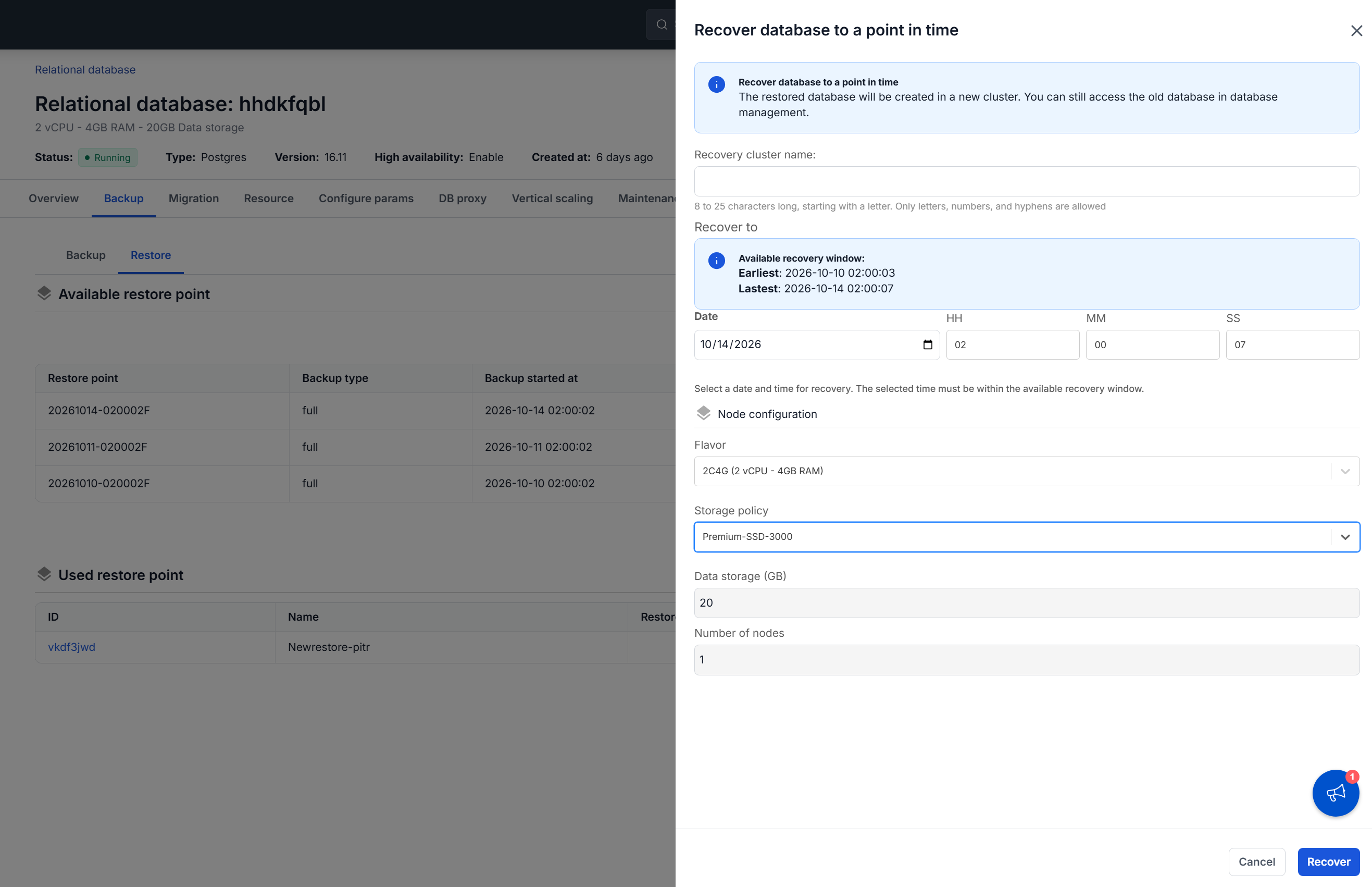
Click Recover to point in time.
-
The dialog opens on the source database's configuration. Fill in the fields:
- Recovery cluster name: the name for the new database. 8 to 25 characters, starting with a letter, and only letters, numbers, and hyphens.
- Recover to: the moment to recover to, entered as a date plus hours, minutes, and seconds. The dialog states the Available recovery window above the fields, giving the earliest and latest moments you can pick, and a time outside it is rejected.
- Flavor: the compute configuration for the new database.
- Storage policy: the policy that sets IOPS performance.
- Data storage (GB) and Number of nodes are inherited from the source database and shown read-only.
-
Click Recover.
The system creates a new database holding your data as it stood at that moment.
You can only recover to a time after the first full backup that followed PITR activation. Until that backup runs, PITR is unavailable, and changes made before it cannot be recovered. Enabling PITR is not the moment protection begins.
Choosing the recovery time
Pick the last moment you know the data was good, not the moment the problem was noticed. Those are rarely the same, and recovering to the second one brings the problem with it.
If you are unsure, recover to a candidate time, connect to the new database, and check. Recovery does not touch the original, so you can repeat it with a different timestamp as often as you need.
Next steps
- Connect to database with Floating IP to verify the recovered data before switching traffic
- Enable & Disable PITR to check the retention window you have to recover within
- Stop, start & restart database to remove the database you replaced