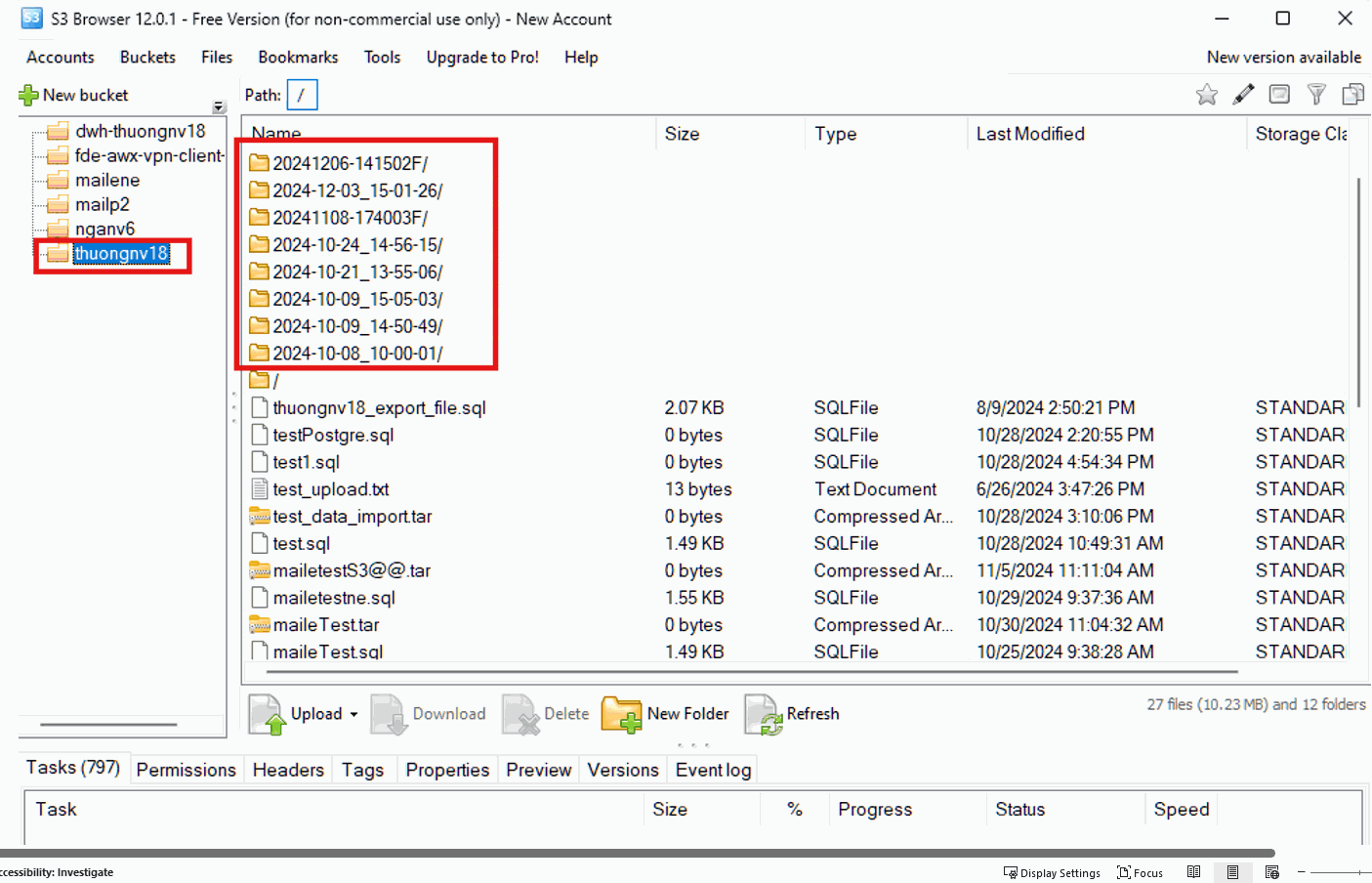
Push backup data to S3
Pushing backups to S3 copies your backup files to S3-compatible storage you control. Use it for long-term retention, off-site copies, disaster recovery, or handing data to another system.
This feature supports PostgreSQL, MySQL, MariaDB, SQL Server, Redis, MongoDB, and TimescaleDB.
Set up an S3 configuration once, then push individual restore points to it as needed.
Add an S3 configuration
Prerequisites
- An existing S3 bucket.
- An access key and secret key with permission on that bucket.
- An S3 endpoint reachable from the system.
Steps
-
Log in to FPT Cloud Console and open the Database list page.
-
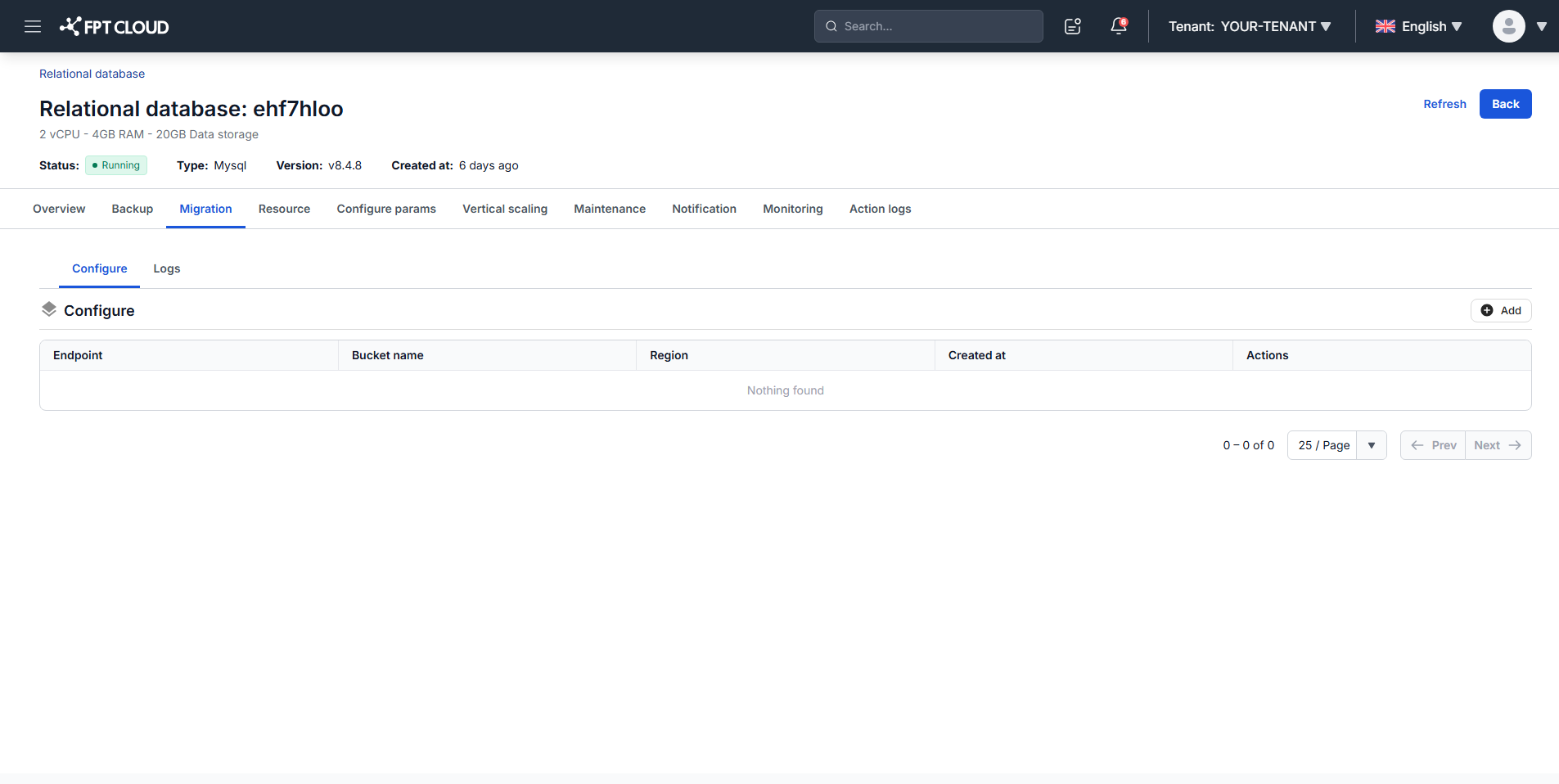
Click the cluster ID, then open the Migration tab.
-
Click Add on the Configure sub-tab.
-
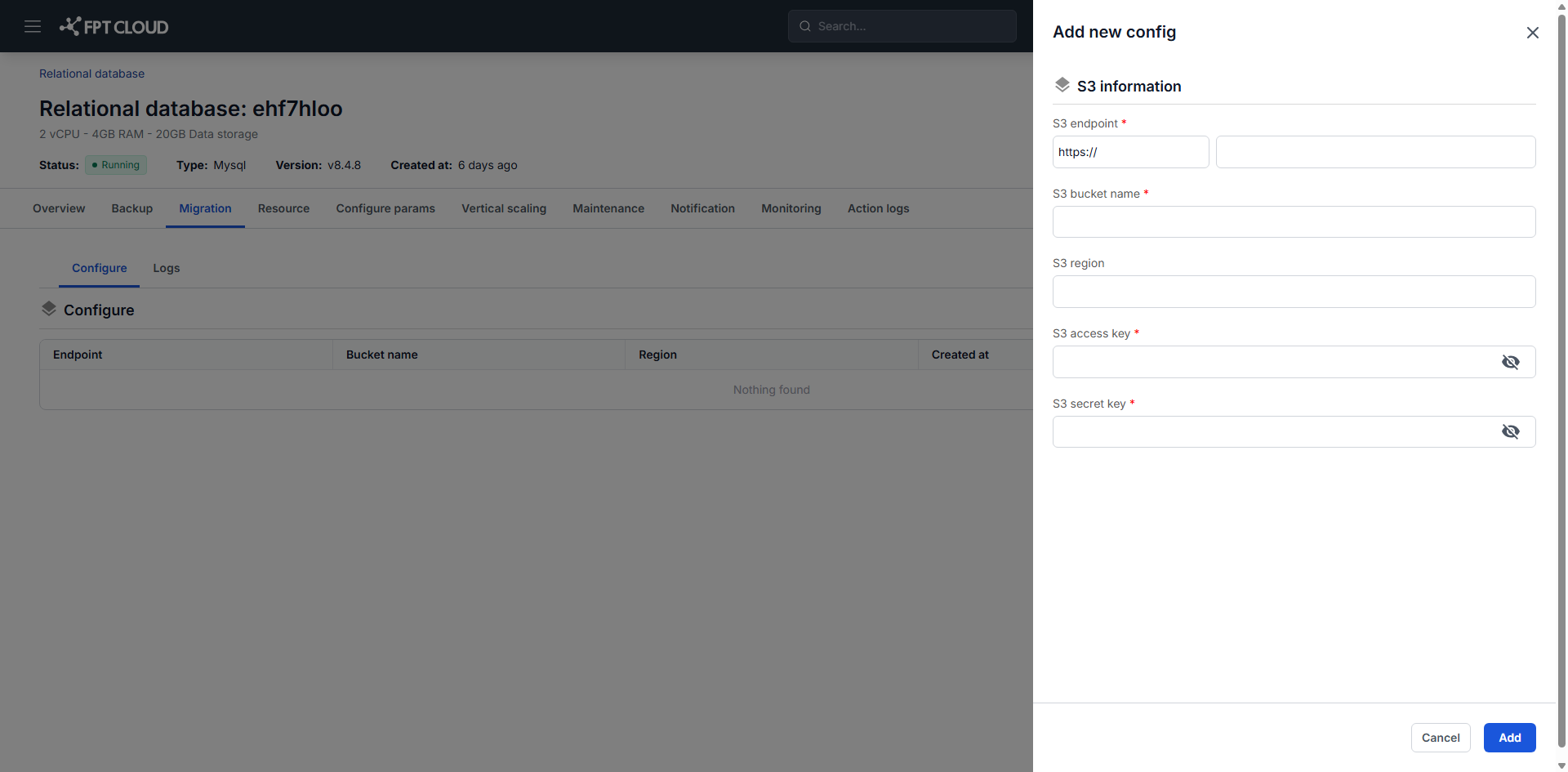
Fill in the fields:
- S3 endpoint: the endpoint URL of the S3 service, for example
https://s3.amazonaws.comfor AWS S3. - S3 bucket name: the bucket that stores the backup data.
- S3 region: the bucket's region, for example
us-east-1. - S3 access key: the access key used to authenticate.
- S3 secret key: the secret key paired with that access key.
- S3 endpoint: the endpoint URL of the S3 service, for example
-
Click Add.
Keys are encrypted and masked on entry. Treat them as you would any production credential and do not share them outside your team.
The configuration is now available to the push operation, subject to engine support.
Edit or delete a configuration
On the Migration tab, click the pencil icon for a configuration to update it, or the trash icon to remove it. Confirm in the dialog.
Push a backup to S3
Prerequisites
- An S3 configuration exists.
- The cluster has at least one successful backup.
- The engine supports this feature.
Steps
-
From the main menu, select Database Platform → All Database, or your engine category.
-
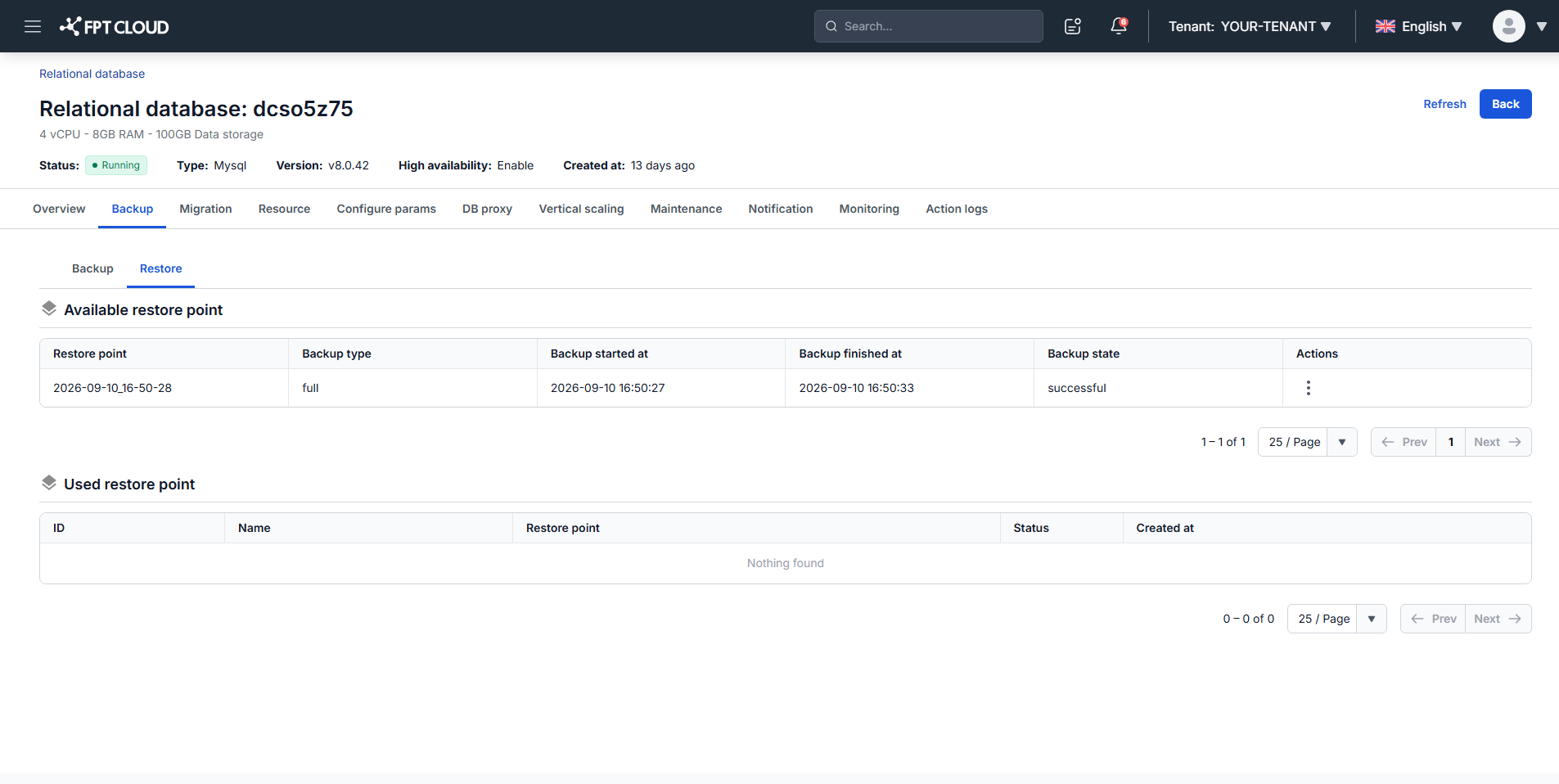
Click the cluster ID, open the Backup tab, then the Restore sub-tab. The page lists Available restore point with each backup's type.
-
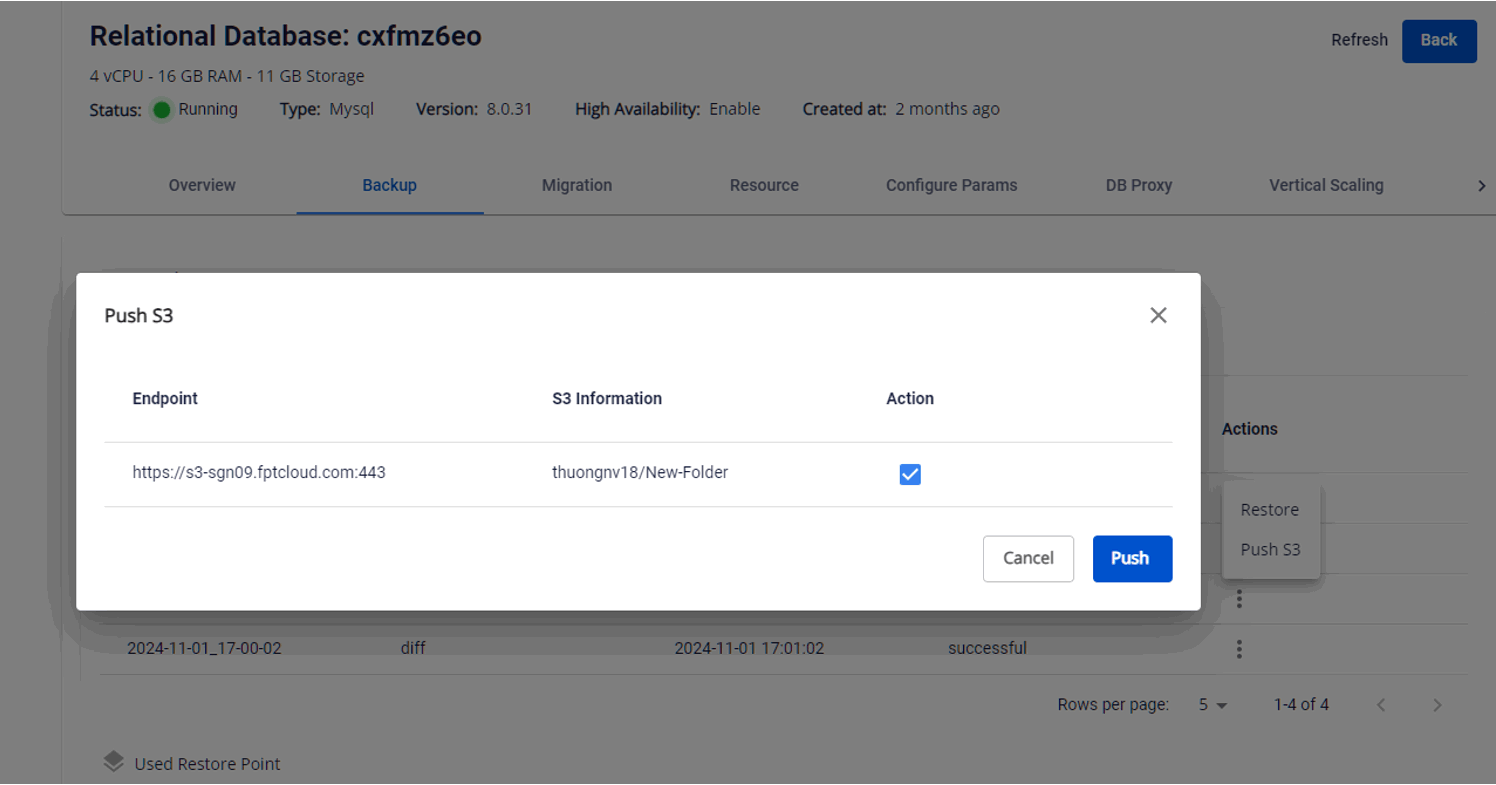
In the Actions column, click the ellipsis icon for your restore point, then select Push S3.
-
Select the target S3 configuration using the checkbox in the Action column, then click Push.
Track progress
Open the Migration tab and select the Logs sub-tab.
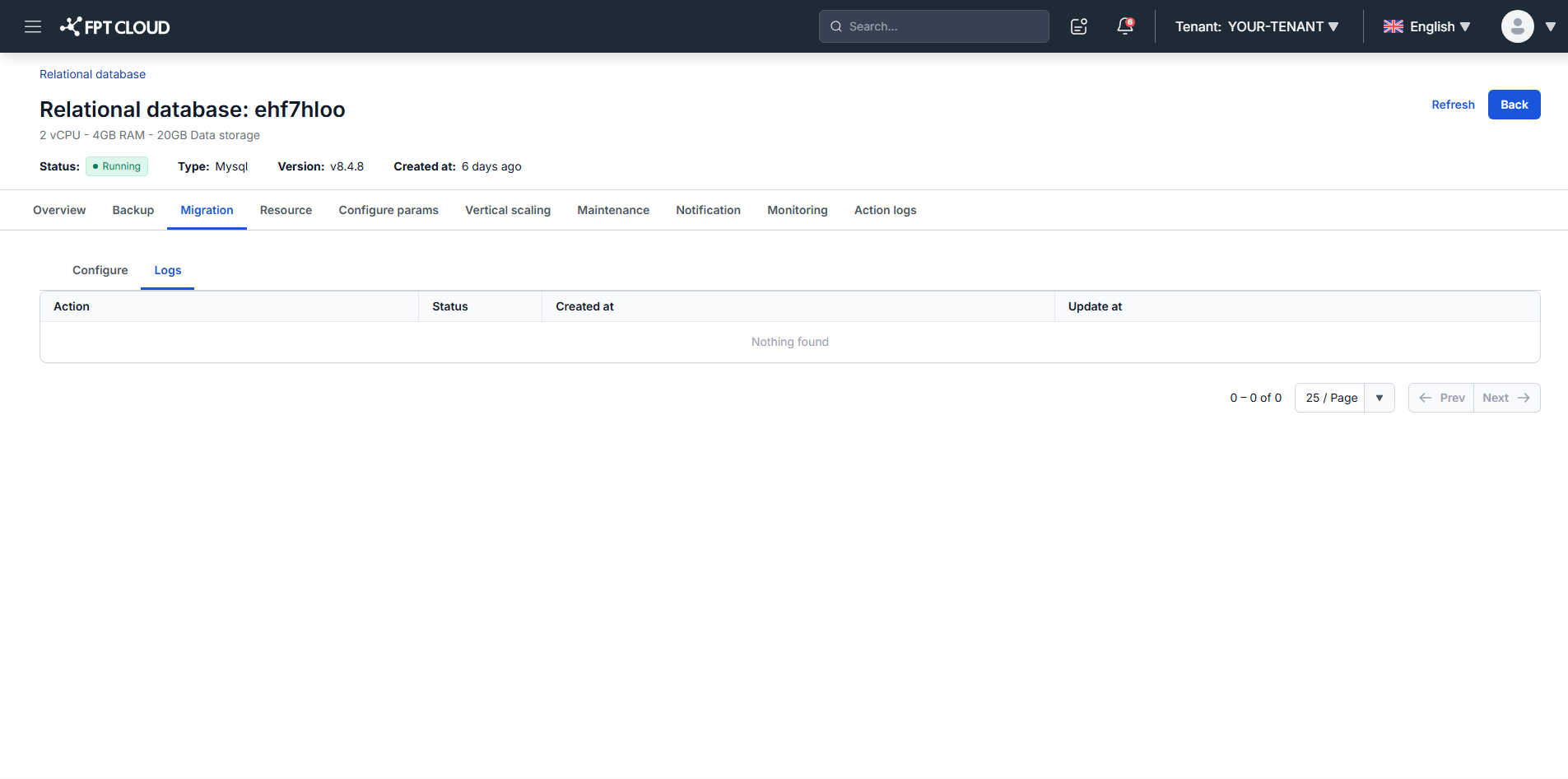
Once the push completes, verify the files landed by opening S3 Browser or your own S3 management tool.