Create a database
Provisioning deploys a managed database cluster without you setting up any infrastructure. The wizard takes three steps: database configuration, additional services, then review and create.
Prerequisites
- The FPT Database Engine service is active in your VPC. See Activate FPT Database Engine service.
- An Edge Gateway and a Network or Subnet exist in the VPC.
- Enough available quota for the flavor and disk size you plan to use.
Open the provisioning wizard
- Open the database list for the engine you want to deploy.
- Click Create, or Create a database engine when the category is empty. The Create a <category> page opens.
Define the database configuration
This first step sets the engine, network, credentials, and node resources. Available fields vary by engine.
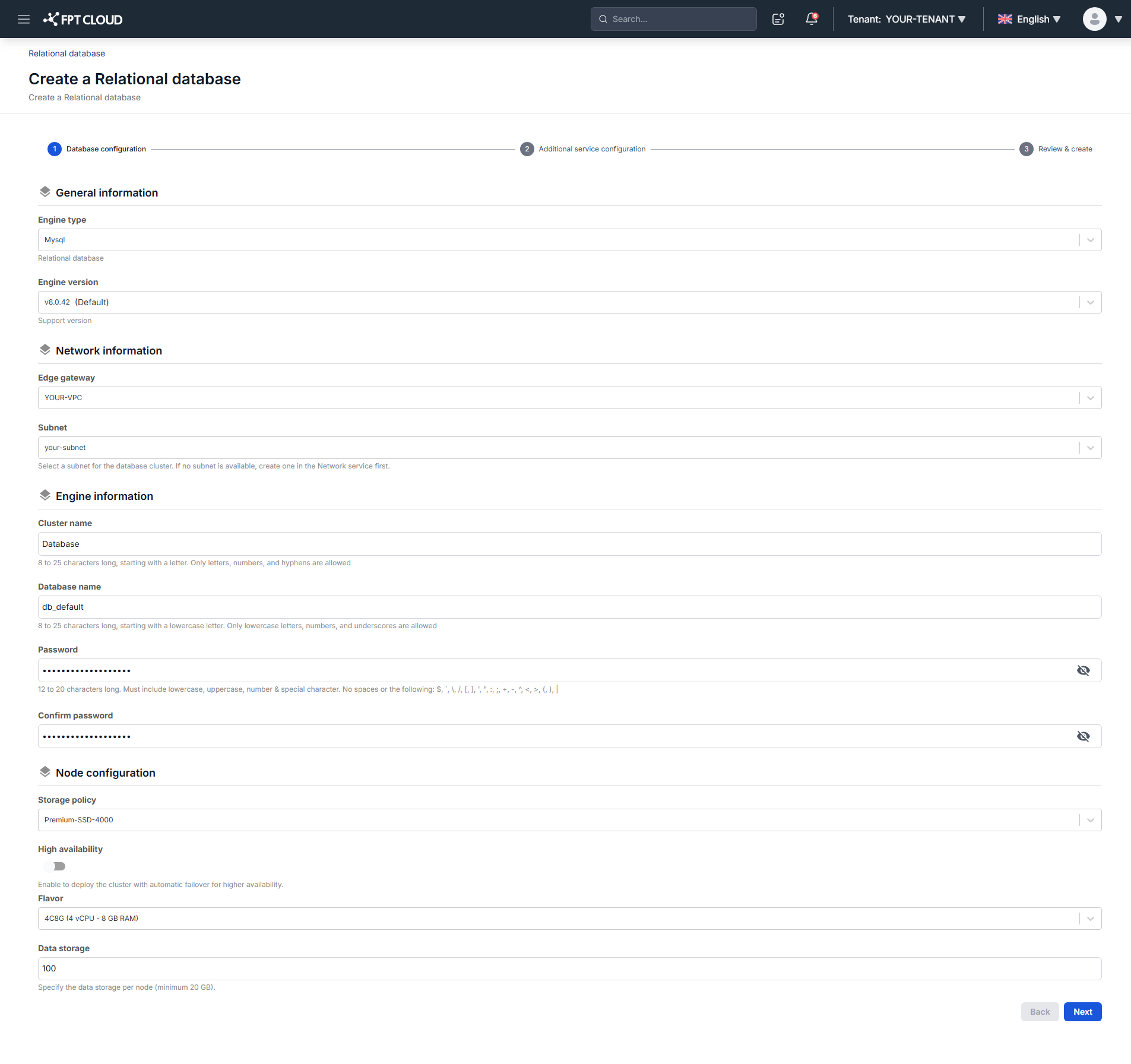
General information
| Field | Description |
|---|---|
| Engine type | The database engine. Options depend on the category you opened: Relational Databases offers PostgreSQL, MySQL, MariaDB, and SQL Server. NoSQL offers MongoDB, Cassandra, and Redis. Search Engine offers OpenSearch. Data Streaming offers Kafka. Time Series Database offers TimescaleDB. OLAP offers ClickHouse. |
| Edition | The engine edition: Enterprise, Standard, or Web. Displayed for SQL Server only. |
| Engine version | A supported version, governed by the database engine version policy. |
Network information
| Field | Description |
|---|---|
| Edge gateway | The Edge Gateway that routes traffic between the cluster and other systems. |
| Network | The Network or Subnet where the cluster is deployed. This sets the access scope and network isolation. |
Engine information
| Field | Description |
|---|---|
| Cluster name | The cluster name. 8 to 25 characters, starting with a letter, containing only letters, numbers, and hyphens. |
| Database name | The default database created in the cluster. 8 to 25 characters, starting with a lowercase letter, containing only lowercase letters, numbers, and underscores. Not shown for Redis or Kafka. |
| VHost Name | The default VHost created in the cluster. Same character rules as Database Name. Shown for RabbitMQ only. |
| Password / Confirm password | The password for the administrative account. 12 to 20 characters, including uppercase, lowercase, a number, and a special character. Spaces and these characters are not allowed: / \ " ' < > ? % ; : $ ! [ ] { } ( ) , & + |
Node configuration
| Field | Description |
|---|---|
| Storage policy | The storage policy that sets IOPS performance. |
| High availability | Deploys a multi-node cluster with automatic failover. Not shown for Cassandra. |
| Number Of Nodes | The node count for the cluster. Shown for Cassandra only. |
| Flavor | The compute resources per node, as vCPU and RAM. |
| Data storage (GB) | The data disk allocated to the cluster, minimum 20 GB. |
For production, choose a Storage Policy rated at 4,000 IOPS or higher. Lower policies affect stability under load.
Enabling High Availability on ClickHouse creates replicas for each shard, but a table only replicates if you create it with a replicated table engine from the MergeTree family. A plain MergeTree table stays on the node that received the write, even with HA enabled.
See the ClickHouse - High Availability FAQ for the supported engines and how replication interacts with sharding.
Click Next Step to continue.
Configure additional services
This step enables backup, auto scaling, maintenance, and notifications. Turn backup and vertical scaling on here rather than later, so the cluster is protected from its first day.
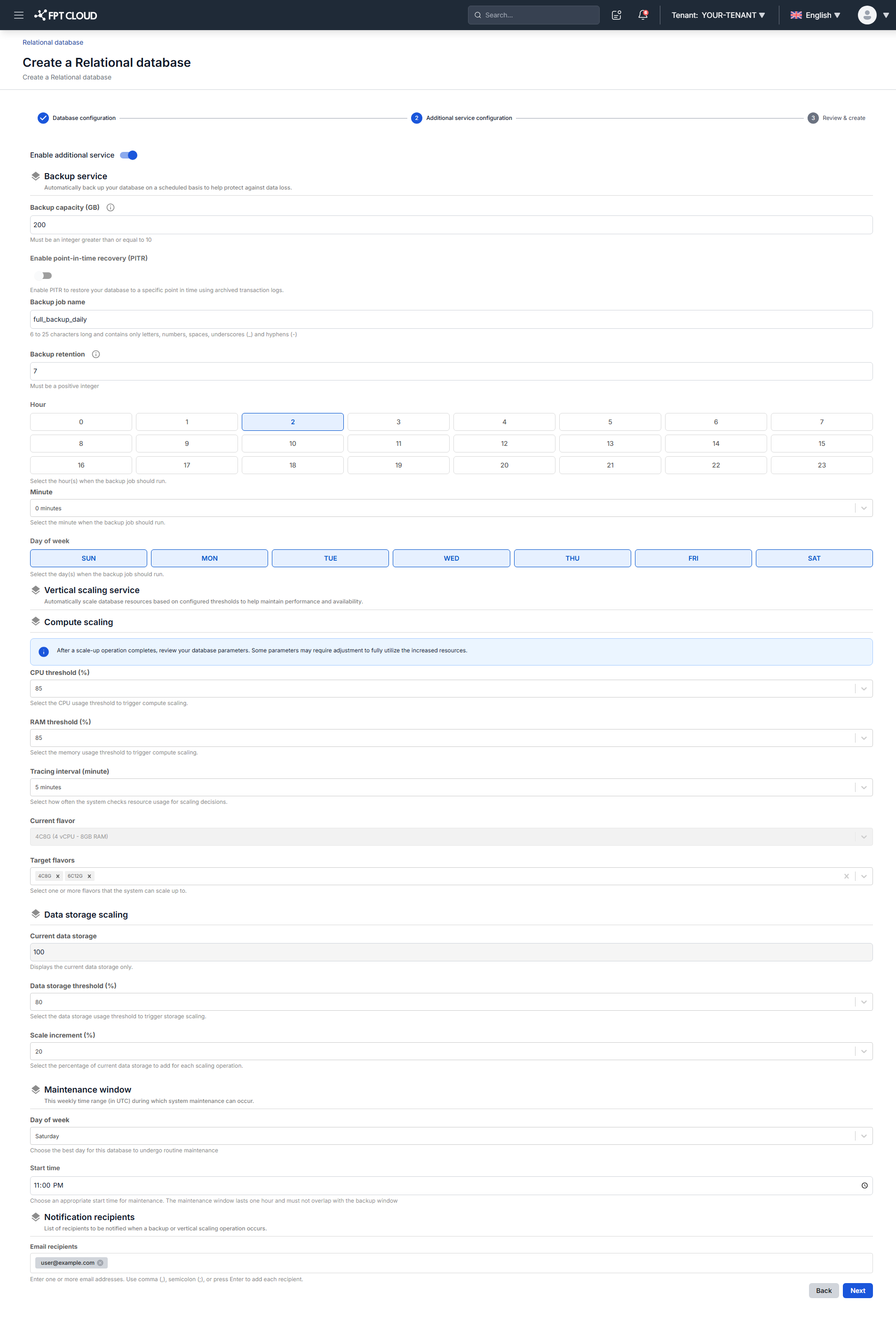
Enable additional service turns these add-ons on or off as a group. If you leave it off, the cluster is created without them and you can enable each one afterward.
Backup service configuration
| Field | Description |
|---|---|
| Backup capacity (GB) | Storage allocated for backups, minimum 10 GB. |
| Storage policy | The backup storage policy, defining performance and durability. |
| Enable point-in-time recovery (PITR) | Enables PITR. Shown for PostgreSQL, MySQL, and MariaDB only. |
| Backup job name | The backup job name. 6 to 25 characters, containing only letters, numbers, spaces, hyphens, and underscores. |
| Backup retention | How many full backups to keep. The oldest are deleted automatically once the limit is passed. |
| Hour / Minute / Day of week | The recurring backup schedule. |
Backup is not available on Kafka or RabbitMQ, so the fields above do not apply when you create a cluster on either engine. See Backup & Restore overview.
Vertical scaling configuration
Compute scaling:
| Field | Description |
|---|---|
| CPU threshold (%) | The CPU usage that triggers scaling. |
| RAM threshold (%) | The memory usage that triggers scaling. |
| Tracing interval | How often the system evaluates resource usage. |
| Current flavor | The flavor currently assigned to the node. |
| List flavor scaling | The flavors the system may scale up to, sorted smallest to largest. |
Storage scaling:
| Field | Description |
|---|---|
| Current storage (GB) | The cluster's current storage allocation. |
| Storage threshold (%) | The storage usage that triggers scaling. |
| Storage scale (%) | How much storage is added per scaling operation. |
Maintenance window
- Day of week: the day maintenance may run, Monday through Sunday.
- Start time: when maintenance may begin. Maintenance runs for one hour from this time.
Notification recipients list: the email addresses that receive backup and scaling notifications. Click + to add another address.
Click Next Step to continue.
Review and create
Check every setting before you confirm. Click Back to correct anything, or Create to deploy.
After you confirm, the system verifies resource availability and starts deploying. You are returned to the database cluster list, where the new cluster appears at the top in Processing status.
Provisioning takes approximately 5 to 7 minutes. The cluster then moves to Running.
If provisioning fails, delete the failed cluster and create it again.
Next steps
- Connect to database with Floating IP to reach the new cluster from your application
- Stop, start & restart database when you need to take the cluster down or bring it back
- Manage Backup service if you left backup off in step 2