Database proxy overview
A DB Proxy sits between your application and the database, pooling connections, balancing load, and routing each connection to the node that should serve it. Your application connects to the proxy endpoint instead of a node, so a failover needs no code or configuration change on your side.
That indirection is the point. Without a proxy, an application holds connections to a specific node and has to reconnect somewhere else when that node stops being the primary.
Where it is available
DB Proxy supports MySQL, PostgreSQL, and MariaDB, and only on databases deployed in High Availability mode. Both conditions have to hold.
The DB Proxy tab only appears when the database was created with High Availability and runs a supported engine. If you do not see it, check both.
Required permissions
| Permission | Action type | Description |
|---|---|---|
manageDatabase:ListProxy | View | View the list of DB Proxies for the database. |
manageDatabase:CreateProxy | Create | Create a DB Proxy for the database. |
manageDatabase:DeleteProxy | Delete | Delete a DB Proxy for the database. |
Open the DB Proxy page
- Log in to FPT Cloud Portal and select Database Platform → All Database.
- Click the database ID, then open the DB Proxy tab.
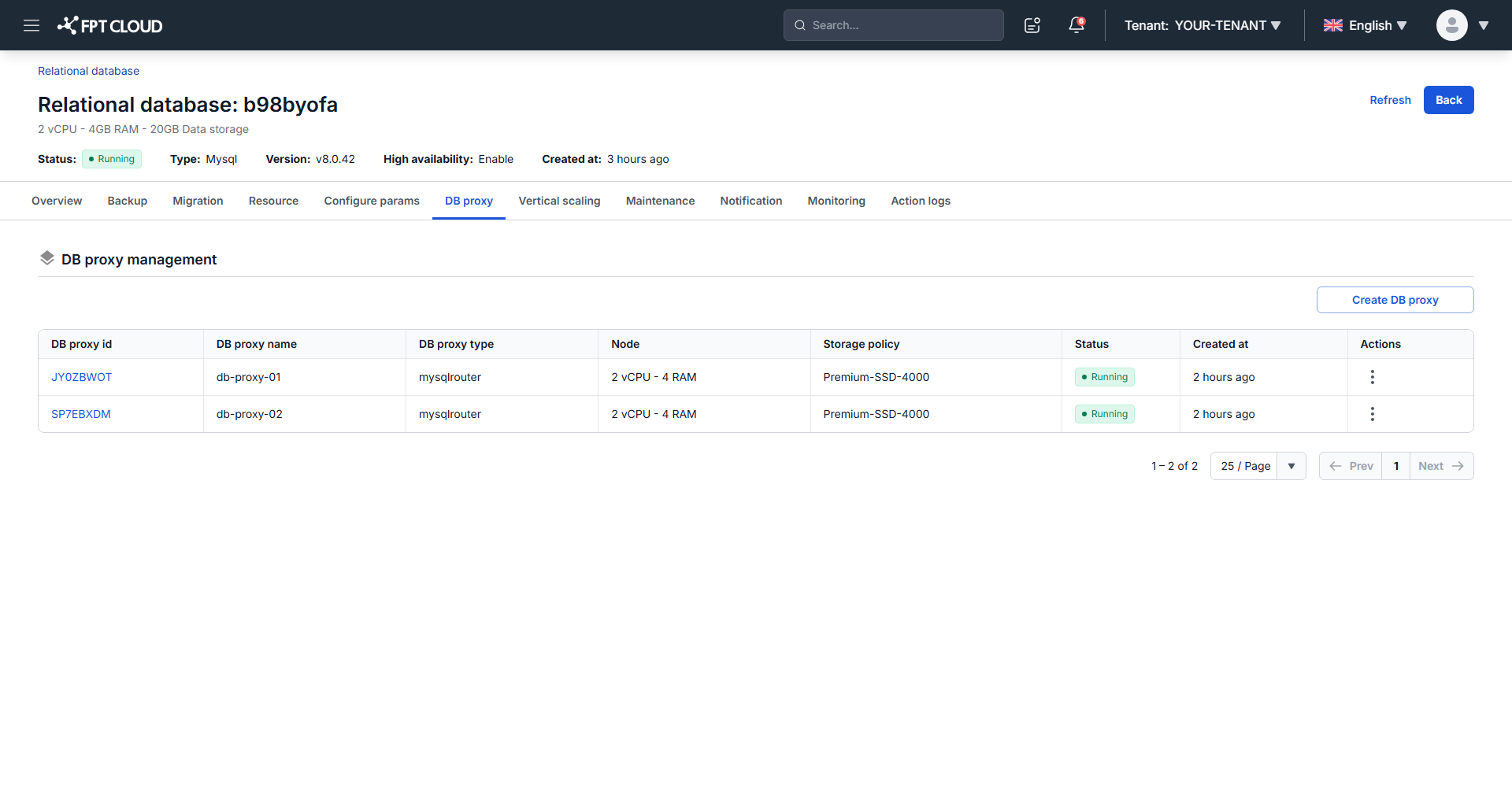
View connection information
On the DB Proxy page, click the proxy ID to open its detail dialog.
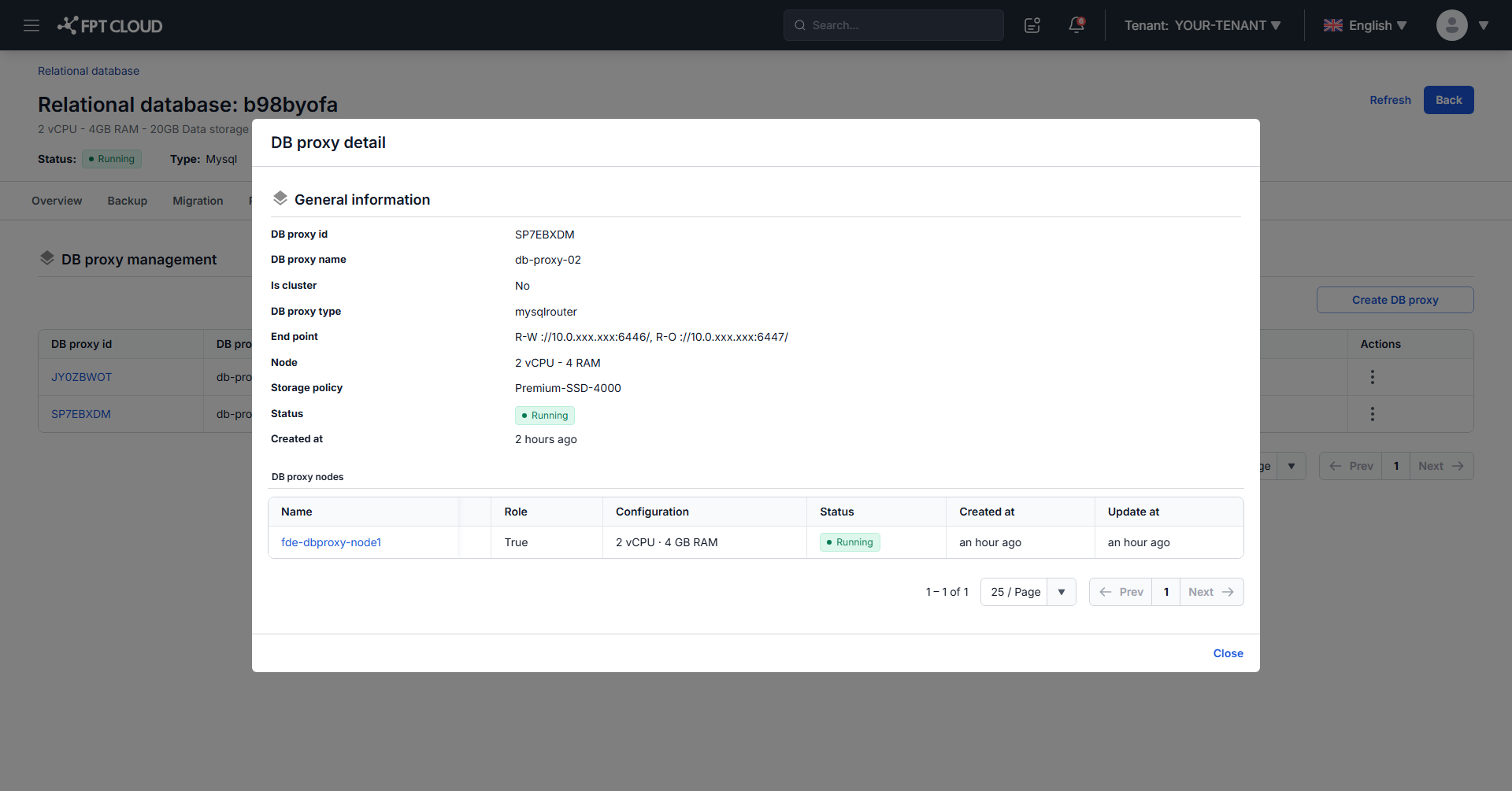
A Running status means the proxy accepts connections. Point your application at the address shown in End Point.
Proxy status
| Status | Meaning | Available operations |
|---|---|---|
| Processing | The proxy is being initialized. | Delete |
| Running | The proxy is operating normally. | Stop, Restart, Resize, Delete |
| Stopped | The proxy has been stopped. | Start, Delete |
| Resizing | Proxy resources are being adjusted. | Delete |
| Failed | The proxy hit an unknown error. Delete it to free the resources, or contact FPT Support. | Delete |