Manage alert rules
Notifications tell you when something happens to a cluster: a backup finished, a resource crossed a threshold, or FPT is about to run maintenance. You configure recipients per cluster and per service, delivered to email or a Telegram channel.
Set this up early. Both the backup service and auto vertical scaling refuse to activate until a recipient exists, so a missing notification configuration blocks those features rather than just leaving you uninformed.
What you can be notified about
| Service | Sends an alert when |
|---|---|
| Backup | A backup job runs, and when the backup service is enabled or disabled. |
| Restore | A restore is performed. |
| Resource | vCPU, RAM, or storage use crosses a threshold you set. |
| Vertical Scaling | Resources are scaled automatically. |
| Maintenance | FPT performs maintenance affecting the cluster. |
Maintenance alerts go to email only. Telegram is not available for that service.
Set up a notification
-
Log in to FPT Cloud Portal.
-
From the main menu, select Database Platform → All Database.
-
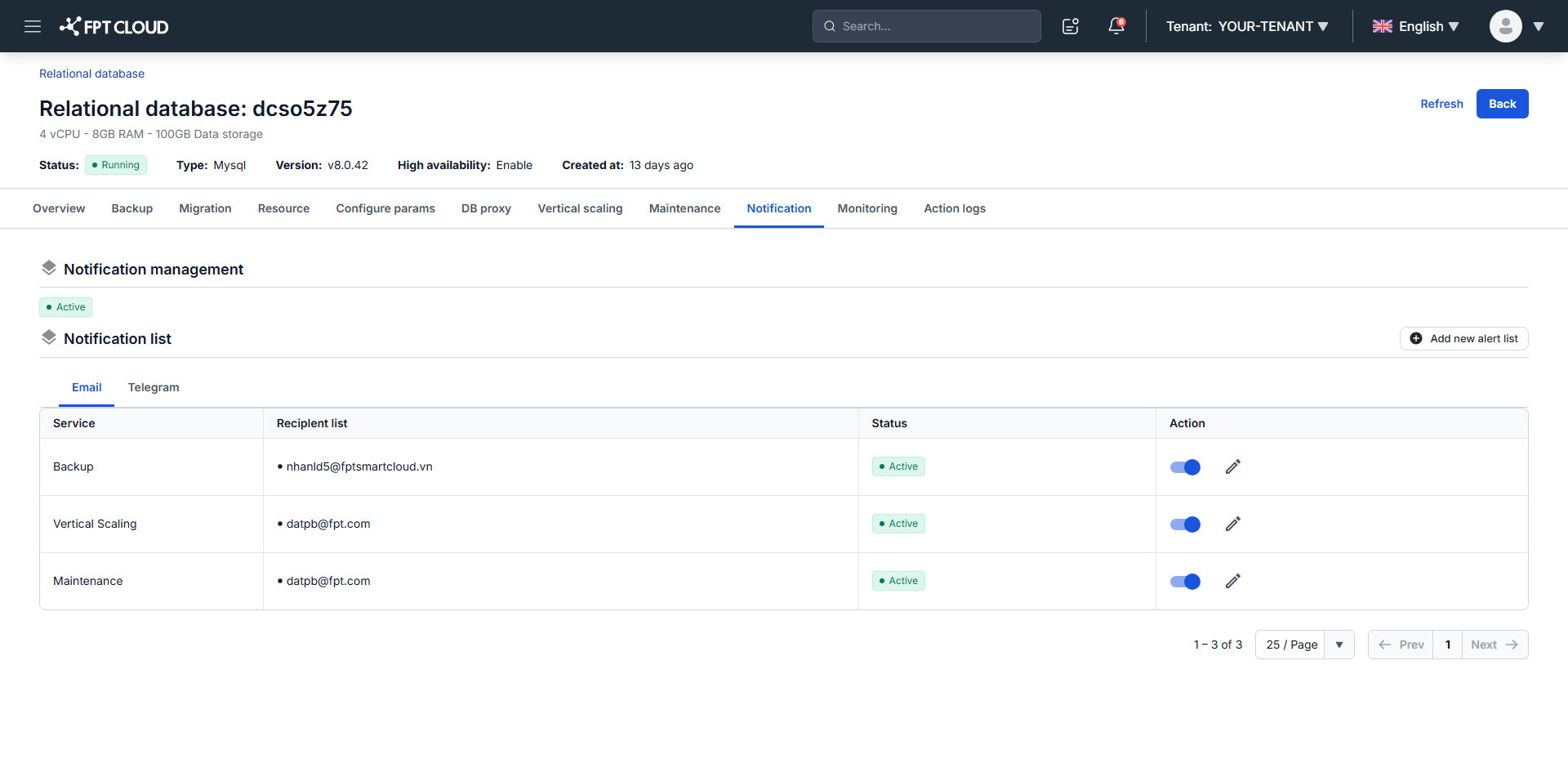
Click the cluster ID, then open the Notification tab.
-
Click Add new alert list above the notification table.
-
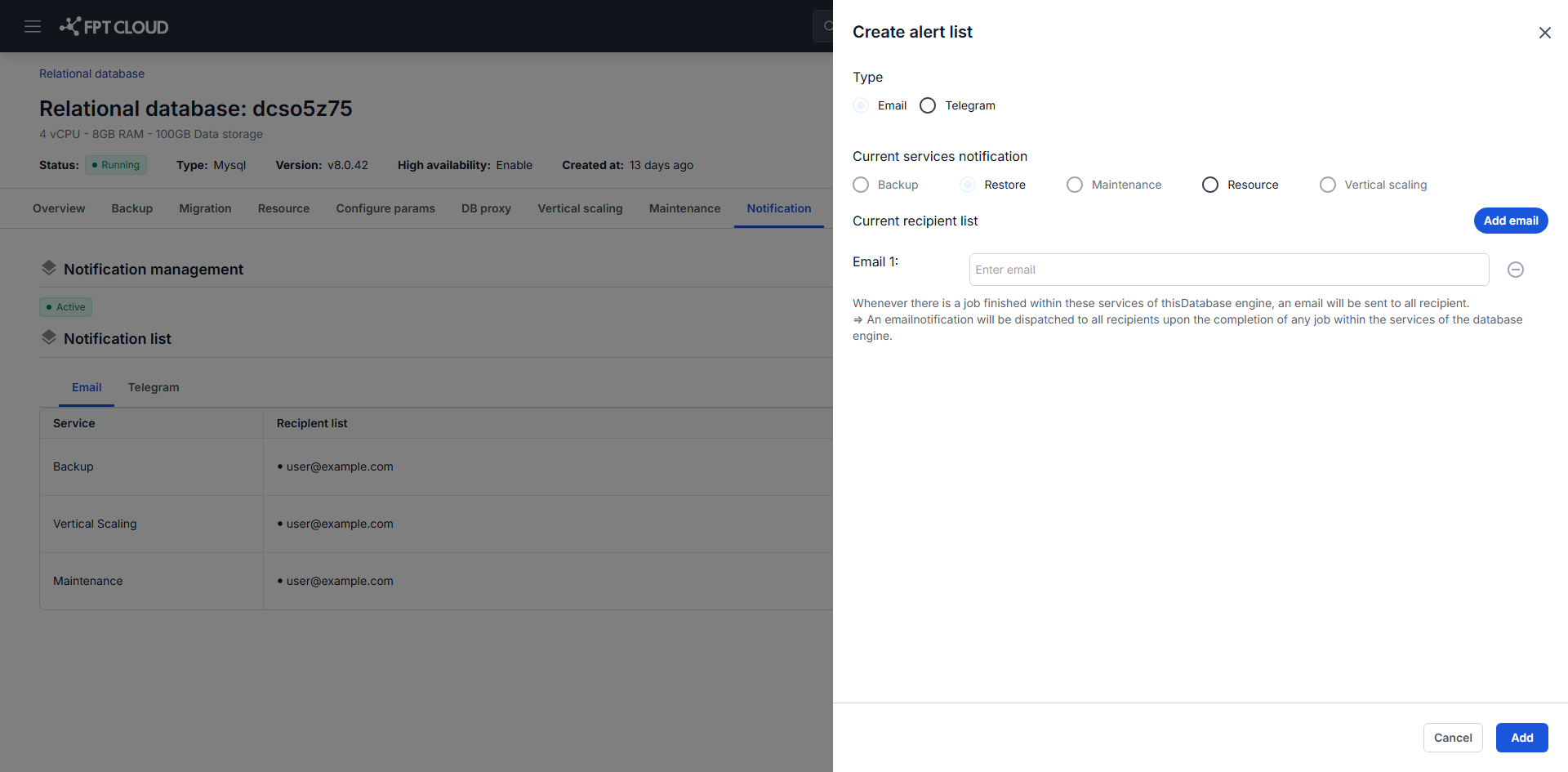
Fill in the fields described below.
-
Click Add.
The new alert appears in the Notification List on the same tab.
Notification fields
| Field | What to enter |
|---|---|
| Type | How the alert is delivered. Email sends to an address. Telegram sends to a channel, and is not available for the Maintenance service. |
| Current Services Notification | Which service triggers the alert: Backup, Restore, Maintenance, Resource, or Vertical Scaling. |
| Current Recipient List | For Email, the addresses that receive alerts. For Telegram, the channel ID. To get one, see Get a Telegram channel ID. |
Choosing Resource adds three threshold fields, each a percentage of use: vCPU more than (%), RAM more than (%), and Storage more than (%).
An alert fires as soon as any one threshold is crossed. If all three are exceeded at once you get three separate notifications, not one combined alert, which is worth keeping in mind when you set the values.
Set thresholds you would actually act on. Values that trip during normal peaks train the team to ignore the alerts, which costs you the one that mattered.
Manage configured alerts
The Notification List shows each alert's recipients, type, monitored service, and whether it is enabled. From there you can:
- Edit an alert with the pencil icon, to change recipients or the monitored service.
- Disable an alert to stop it temporarily, keeping the rule.
- Re-enable an alert you disabled earlier.
Get a Telegram channel ID
Telegram delivery needs a channel ID, which Telegram does not show directly. These steps get it.
-
In Telegram, create a new private channel to receive the alerts, for example
FDE Notify. -
Search for @fde_notify_bot in the member field and add FDE NOTIFY to the channel.

-
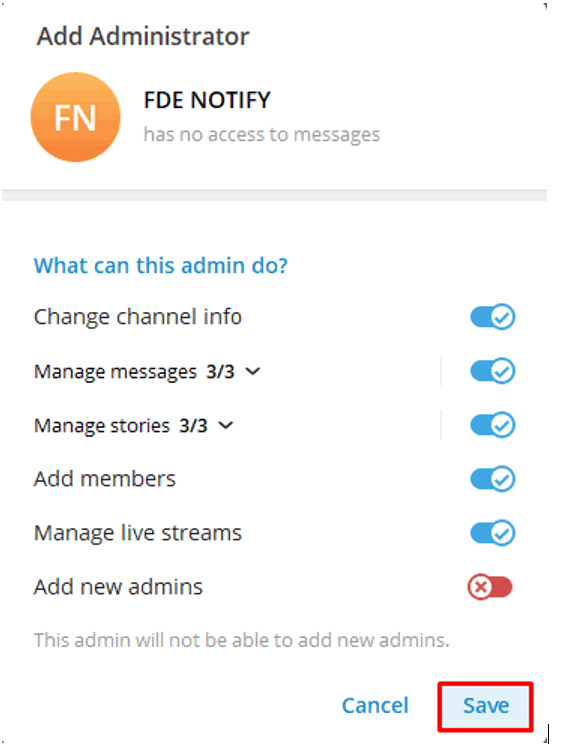
Promote @fde_notify_bot to Administrator of the channel, so it can post.
-
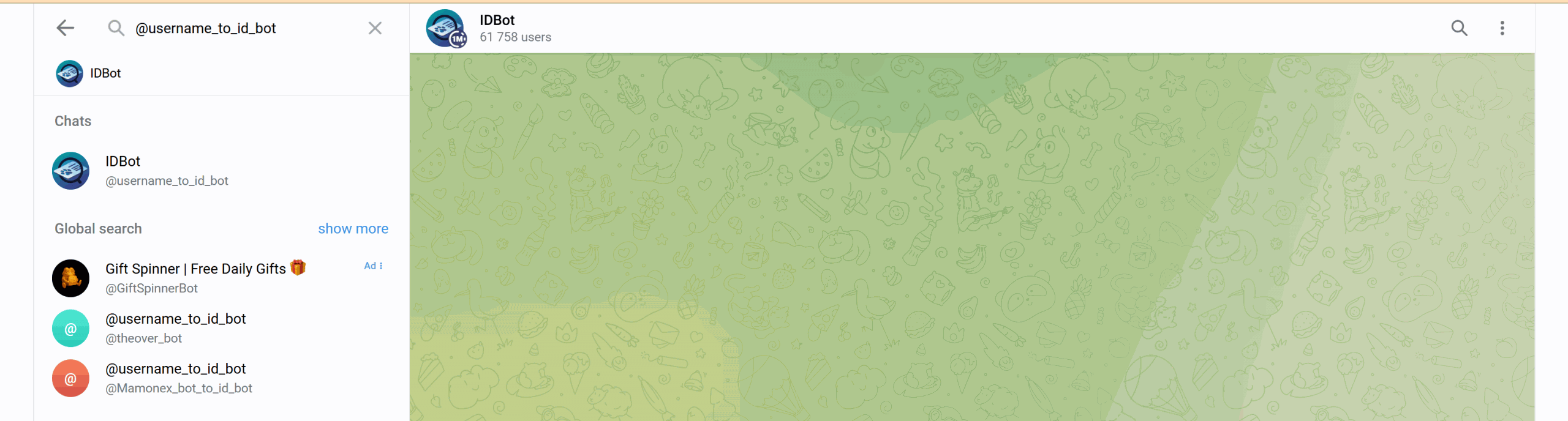
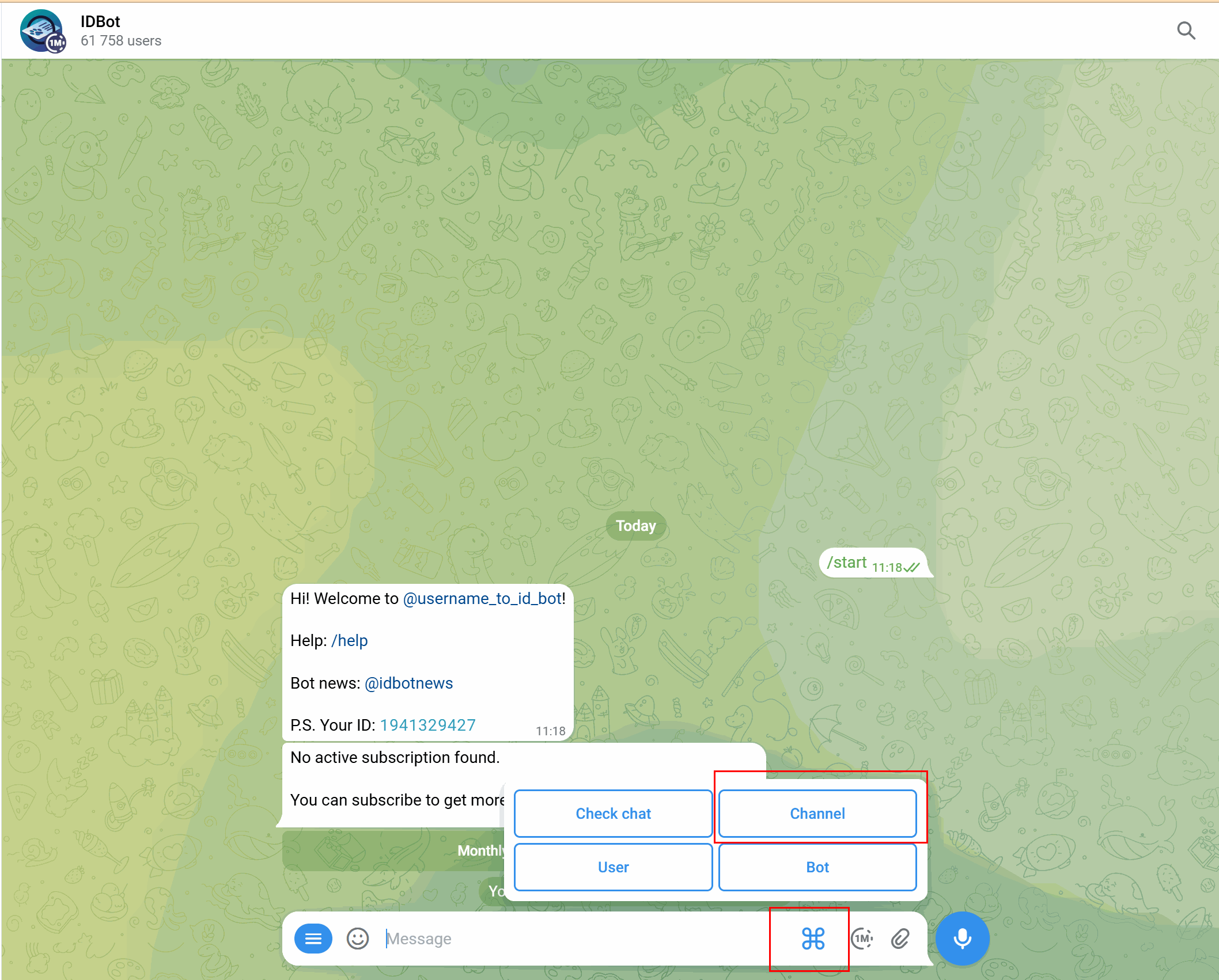
Search for @username_to_id_bot and open IDBot.
-
Click Start, open the keyboard shortcuts, and select Channel.
-
Select the channel you created and click Send. Telegram returns the channel ID.
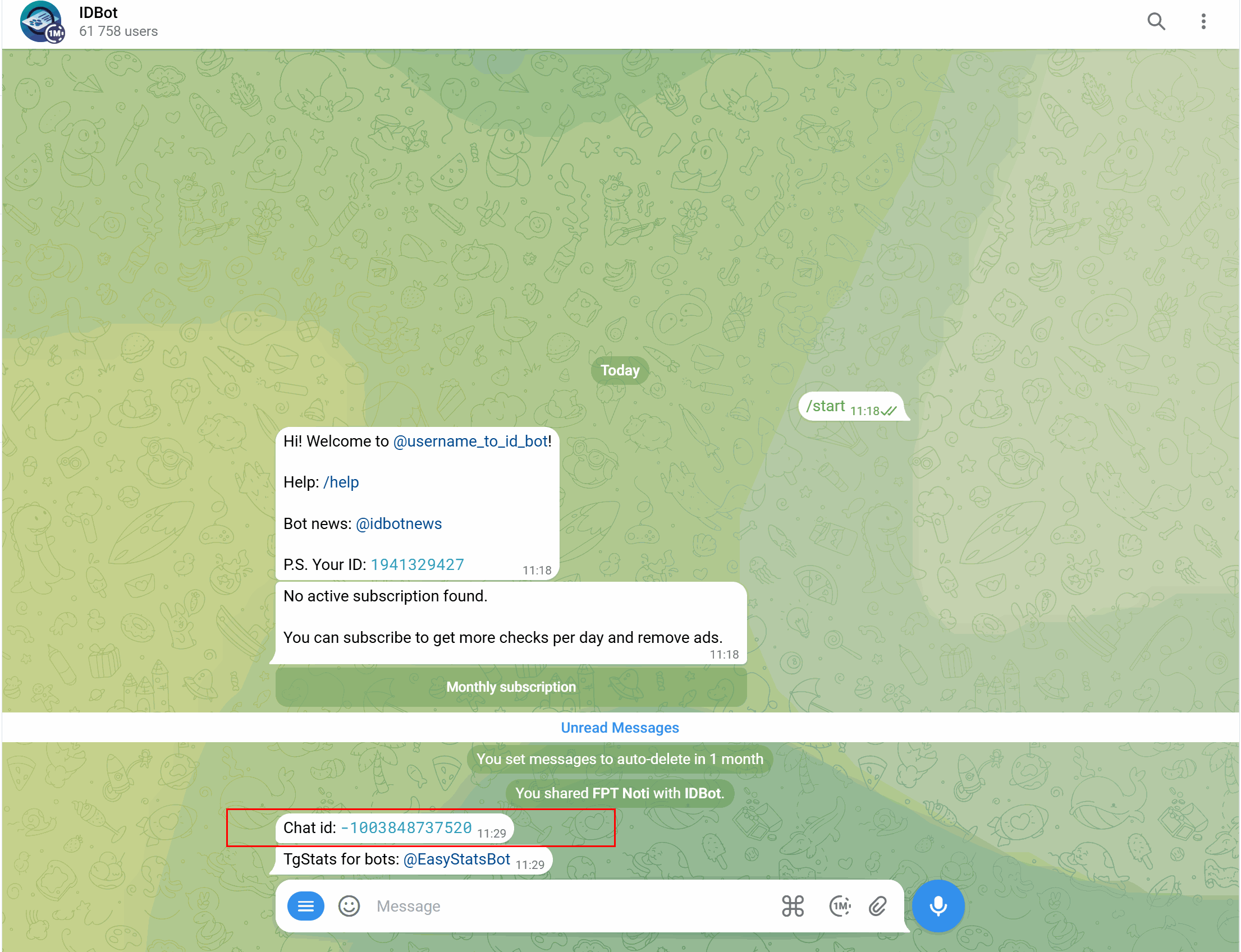
Keep that ID. Enter it as the recipient when you set up a notification with Type set to Telegram.
Each channel has its own ID. To send alerts to more than one channel, repeat these steps per channel.
Practices worth adopting
Set up recipients before you need them. Two services refuse to activate without one: the backup service and auto scaling. Configuring alerts first turns that blocker into a non-event, and means the first scaling action or backup failure reaches someone instead of going unnoticed.
Send to a team, not a person. A distribution list or shared Telegram channel survives people changing roles, going on leave, or leaving the company. An individual address quietly stops being read.
Cover both channels where it matters. Telegram is faster to notice, but the Maintenance service does not support it. If maintenance notices matter to you, keep at least one email recipient regardless of what you prefer for everything else.
Set resource thresholds against real problems. A threshold that fires during normal peak traffic trains people to ignore the alert. Watch the FMON dashboards for a week first, then set the threshold above your normal ceiling rather than at a round number.
Remember that any one threshold fires the alert. vCPU, RAM, and storage are evaluated independently, so setting all three low means three notifications for a single busy period. Set only the ones that would actually make you act.
Pair alerts with dashboards. An alert tells you something crossed a line; the dashboard tells you why. Alerts on their own leave you reacting without context.
Next steps
- Manage Backup service, which cannot be enabled until a recipient exists
- Configure auto scaling, which has the same requirement
- Monitor database with FMON for the dashboards these alerts complement