View reports
Manual report export pulls backup activity statistics for a period you choose and downloads them as CSV. Use it to review backup history, verify jobs ran, or produce evidence for an operational audit.
For recurring reports, set up a schedule instead. See Configure report schedule.
Open the reporting page
-
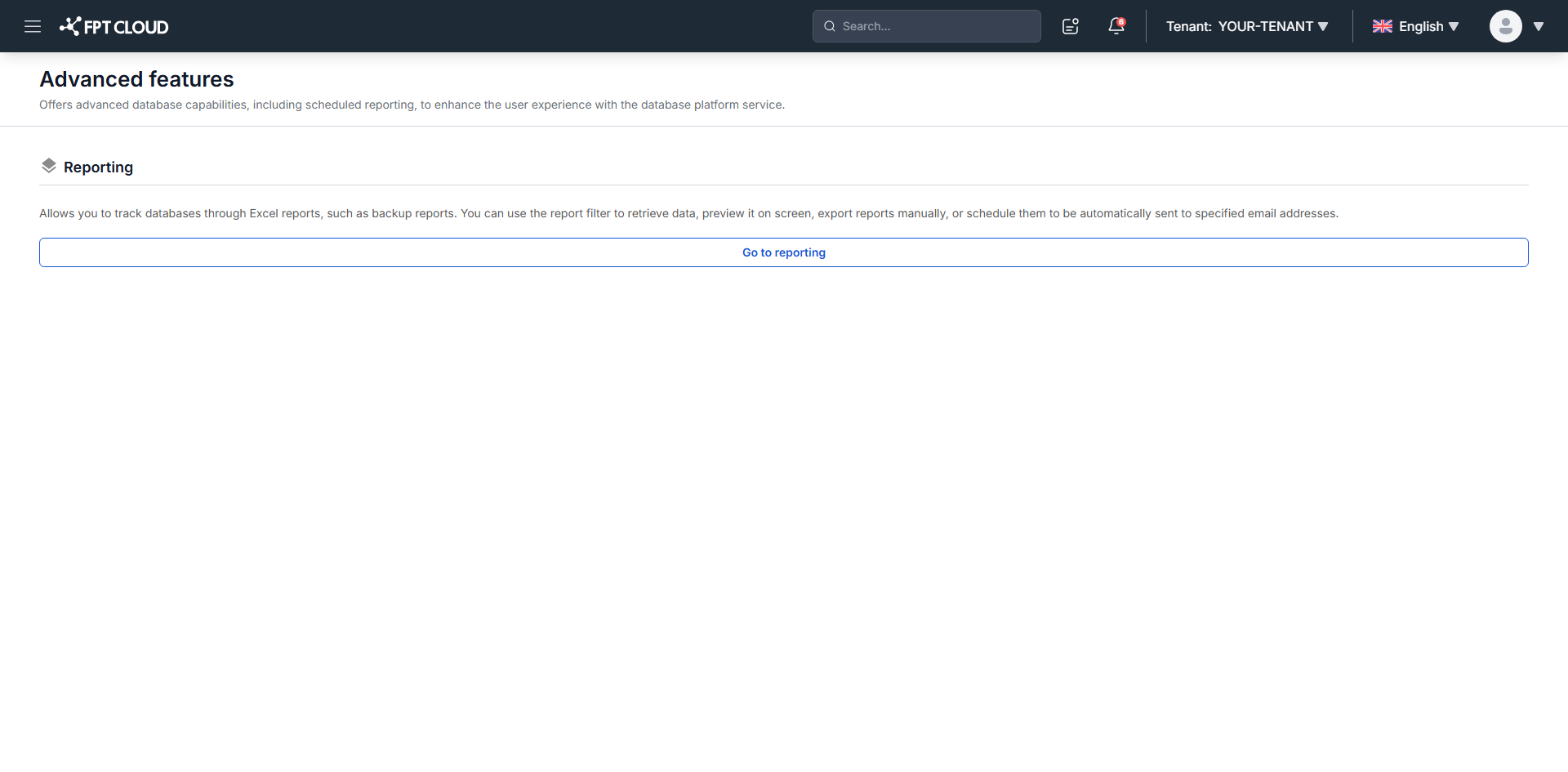
From the main menu, select Database Platform → Advanced Features.
-
Click Go to Reporting, then open the Report Export tab.
Set the filter conditions
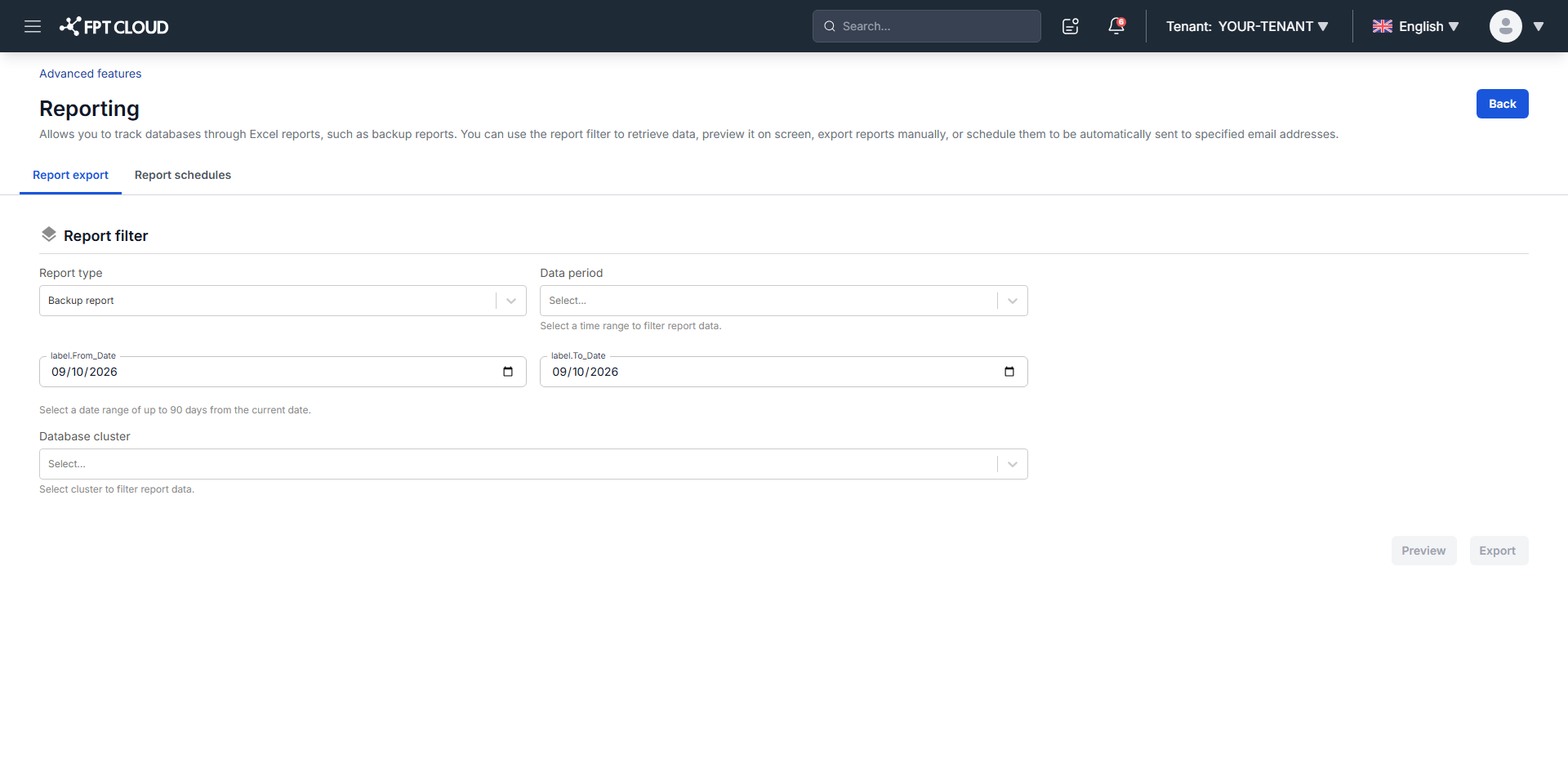
| Field | Description |
|---|---|
| Report Type | The report to export. Backup Report is currently the only type and is selected by default. |
| Data Period | The period the report covers. See the options below. |
| Database Cluster | The clusters to include. Select several at once, or choose Select All to include every cluster in the VPC. |
Data Period options:
- Yesterday: from 00:00:00 yesterday to now. Exporting at 11:00:00 on 17/04/2025 covers 00:00:00 on 16/04/2025 to 11:00:00 on 17/04/2025.
- Last 7 days: from 00:00:00 seven days ago to now.
- Last 30 days: from 00:00:00 thirty days ago to now.
- Custom Range: a period you define, from 00:00:00 on the start date to 23:59:59 on the end date.
Choosing Custom Range adds a Date Range field.
The range is limited to 90 days. From Date must fall on or after the current date minus 90 days, and To Date cannot be later than today. Both default to the current date.
Preview and Export stay disabled until every field holds a valid value. Changing any filter hides the current preview, so click Preview again after each change.
Preview the data
Click Preview to see the report on screen before exporting. If no cluster ran a backup job in the selected period, the page shows "Nothing Found".
| Column | Description |
|---|---|
| Job Name | The backup job name. |
| Tenant | The tenant name. |
| VPC | The VPC holding the database. |
| Cluster Id | The cluster that ran the job. |
| Cluster name | The cluster's name. |
| Database Type | The engine type. |
| Version | The engine version. |
| Cluster status | The cluster status when the data was retrieved. |
| Backup Type | full for a full backup, diff for a differential backup covering changes since the last backup. |
| Backup retention | The retention value for the backup file. |
| Retention Type | day when retention counts days stored, quantity when it counts files stored. |
| Backup Usage (GB) | Backup disk usage in GB. |
| Backup File Name | The file produced by the job. |
| Backup State | successful for a completed backup, deleted for one that ran and was later removed. |
| Start Time | When the backup started. |
| Finish Time | When it completed. |
Export the file
Click Export. The CSV downloads to your machine with every column shown in the preview.
The filename follows the pattern {reportType}{vpcName}{exportTime}, where exportTime uses the format ddMMyyyyHHmmss.