Change database resource configuration
Cluster resources are the flavor, which sets vCPU and RAM, the data disk size, and the storage policy, which sets IOPS. Adjust them as your workload grows.
Two constraints shape every change here: you cannot exceed your available quota, and you cannot shrink a data disk.
View resource information
- From the main menu, select Database Platform → All Database, or your engine category.
- Click the cluster ID, then open the Resource tab.
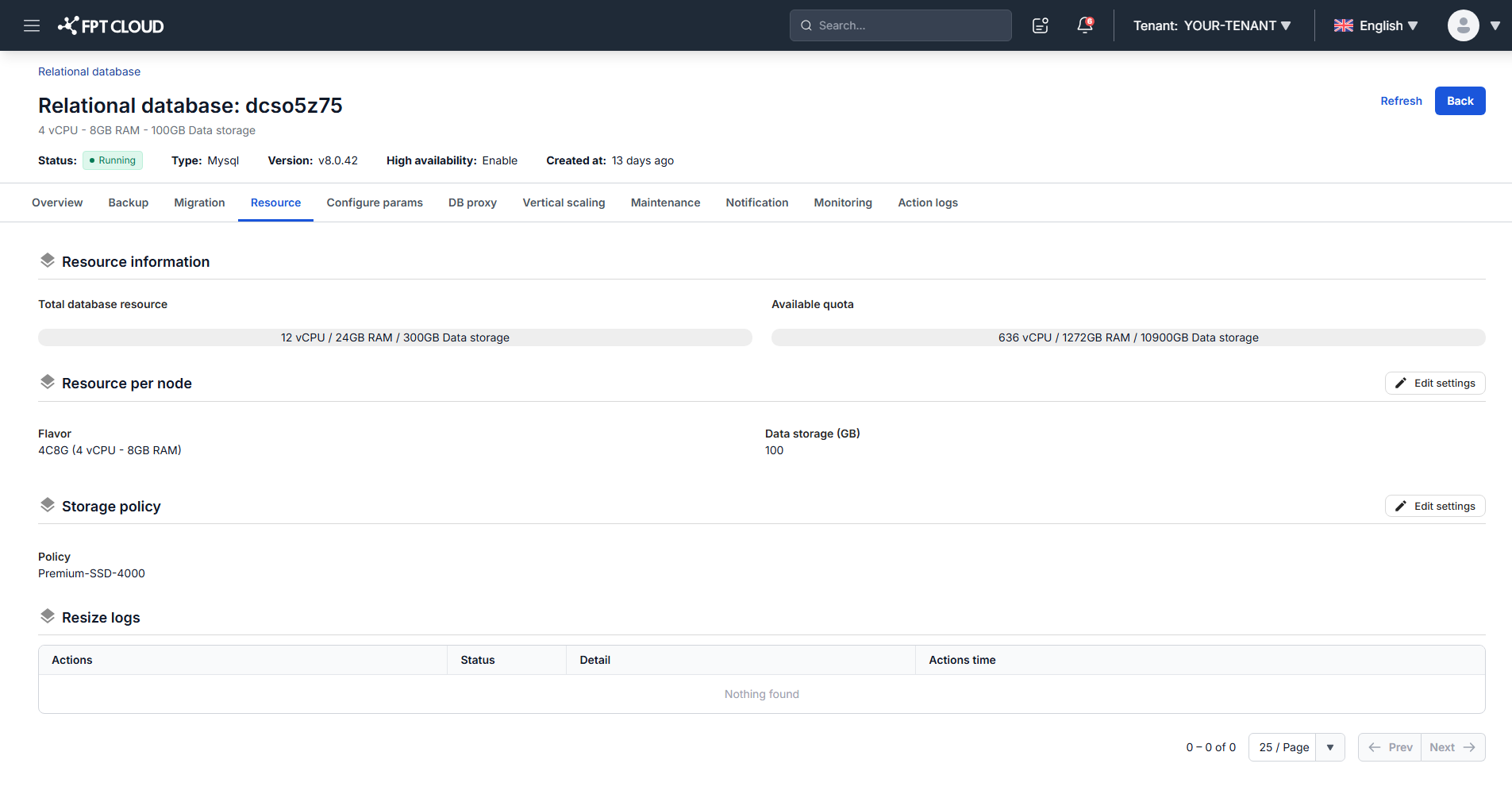
The page shows two figures for vCPU, RAM, and data disk size:
- Current Resource: what the cluster is running on now.
- Available Resource: the ceiling you can scale to.
Change compute or disk size
-
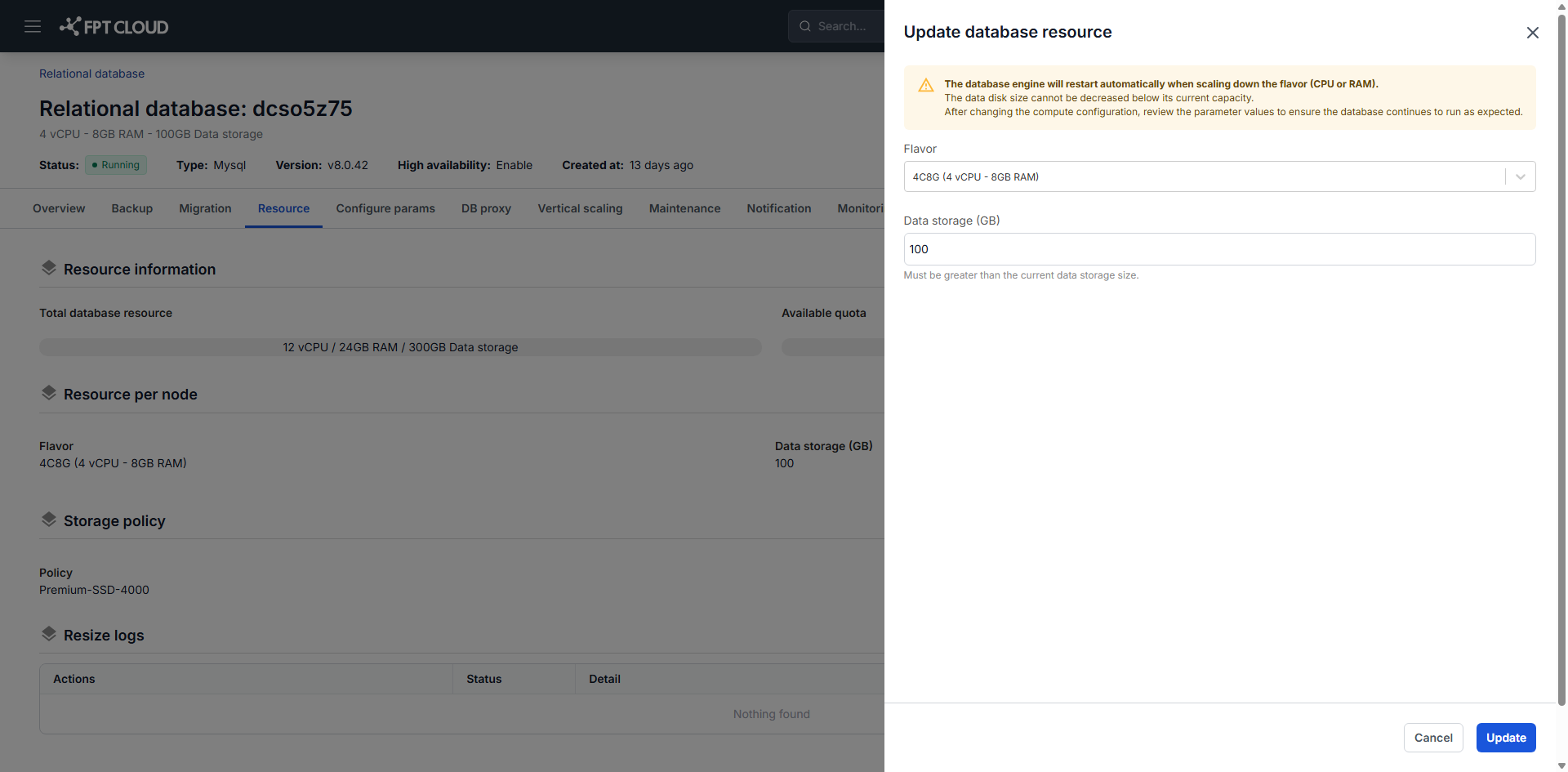
On the Resource tab, click Edit settings in the Resource per node block.
-
Make your changes:
- To change vCPU and RAM, select a different Flavor.
- To grow the disk, enter a larger value in Data disk size (GB).
-
Click Update.
The status changes to Resizing, then returns to Running. The update takes 5 to 10 minutes, and you should avoid other operations on the cluster while it runs.
Reducing vCPU or RAM restarts the engine automatically to apply the change.
Increasing vCPU or RAM does not restart automatically. On PostgreSQL, OpenSearch, and ClickHouse you must restart the cluster yourself before the new configuration takes effect. Until you do, the cluster runs on the old configuration and shows a warning icon in the cluster list.
Restarts interrupt service, so schedule them off-peak.
The data disk can only grow. Shrinking it is not supported, so increase capacity in steps you are willing to keep.
If a new configuration exceeds your available quota, the system rejects it and the change is not applied.
Change the storage policy
The storage policy sets I/O performance and affects cost.
-
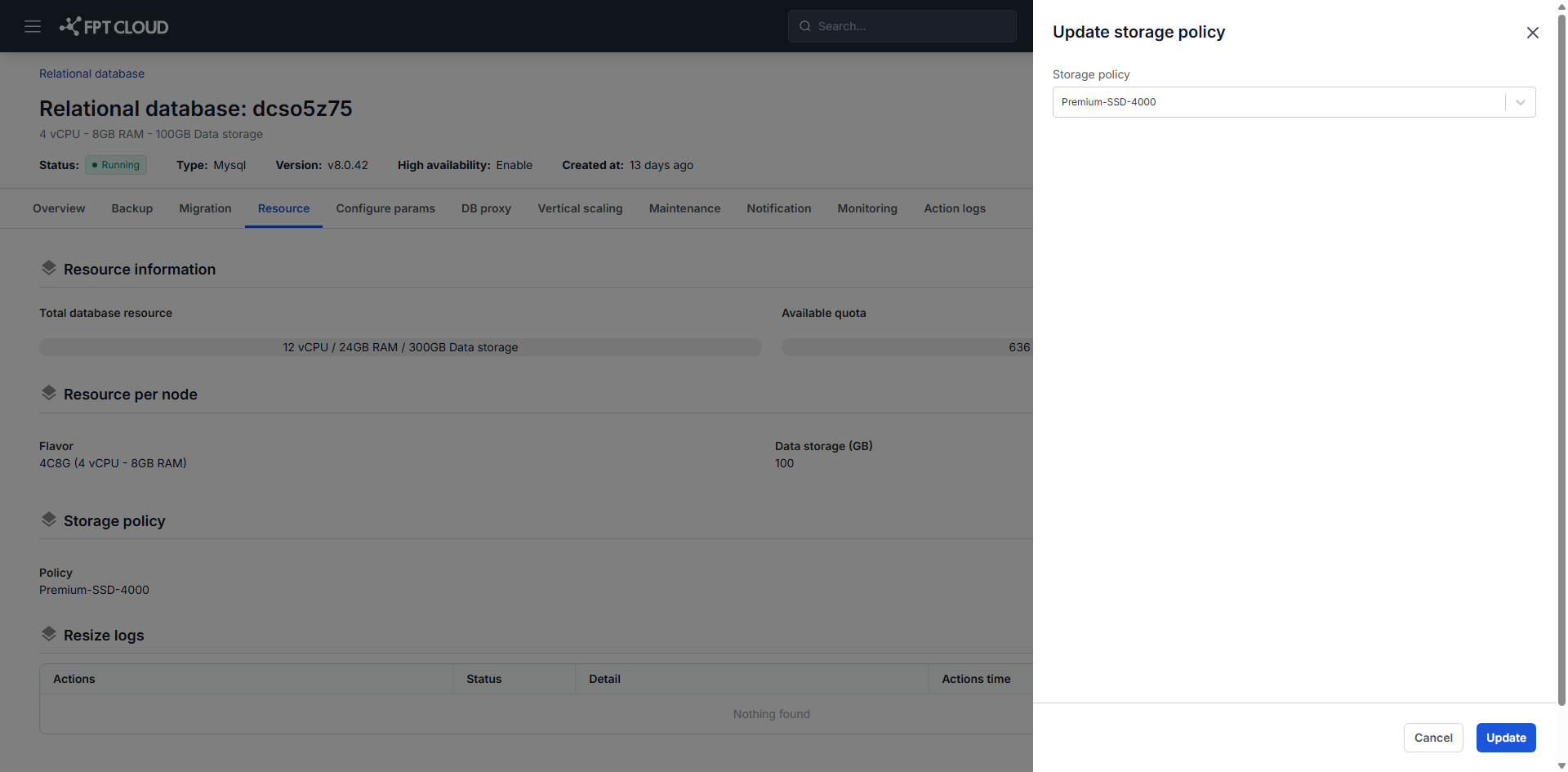
On the Resource tab, click Edit settings in the Storage policy block.
-
Select a policy that matches your workload, then click Update.
The update takes approximately 5 to 10 minutes. Avoid other operations on the cluster during that time.
For production, use a policy rated at 4,000 IOPS or higher to keep performance stable under load.
Next steps
- Configure auto scaling to adjust resources automatically
- Stop, start & restart database to run the restart some engines require
- Monitor database with FMON