Run & Monitor Pipeline
1. Before You Start
Make sure the following conditions are met:
- You have access to the Project.
- The Pipeline has been created and saved successfully.
- The Pipeline is ready to execute.
- You have permission to run the Pipeline.
2. Walkthrough: Run and Monitor a Pipeline
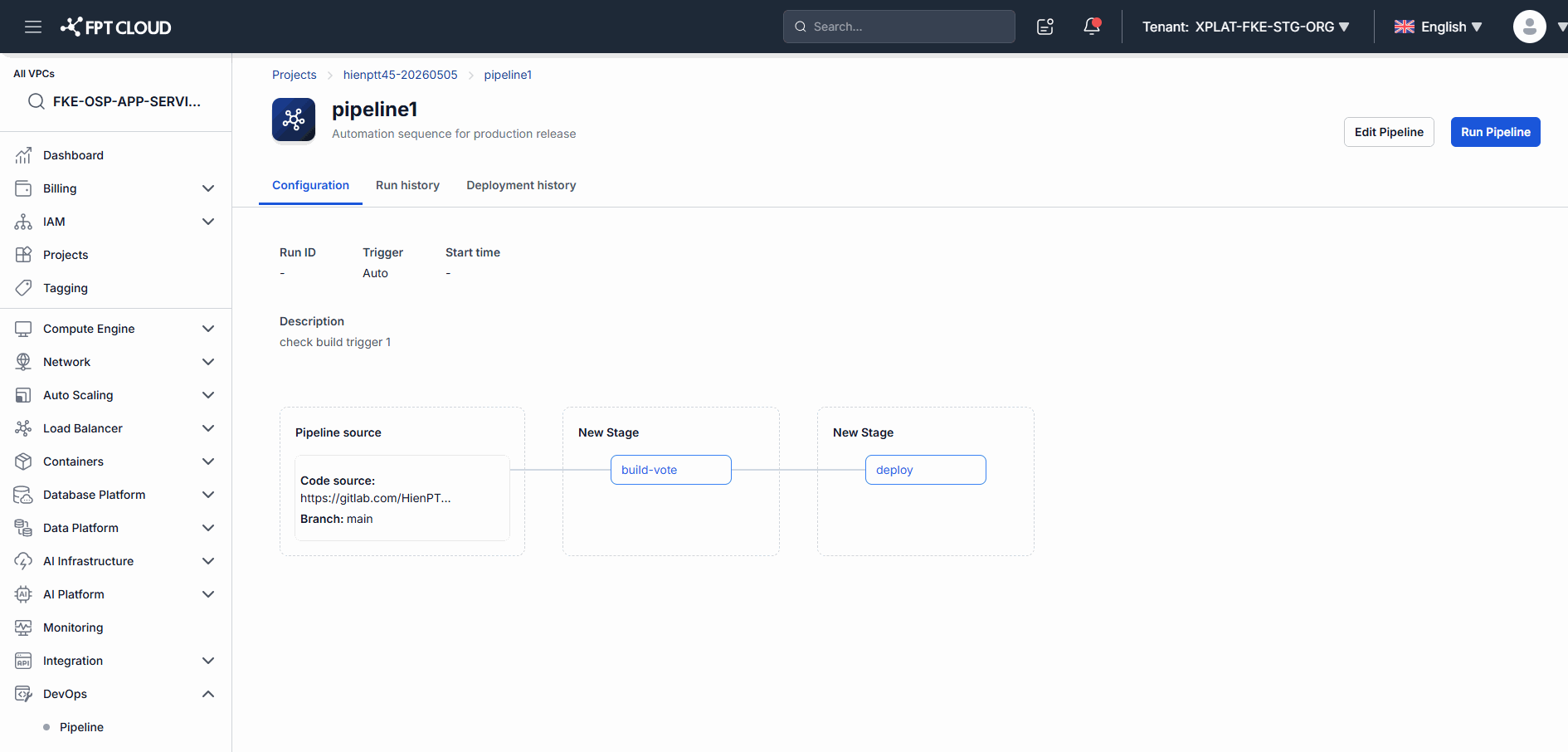
Step 1. Open Pipeline
Steps
- Go to the Project that contains the Pipeline.
- From the Pipeline list, select the Pipeline you want to run.
Expected Result
- The Pipeline detail page opens.
- The Pipeline information is displayed in full.
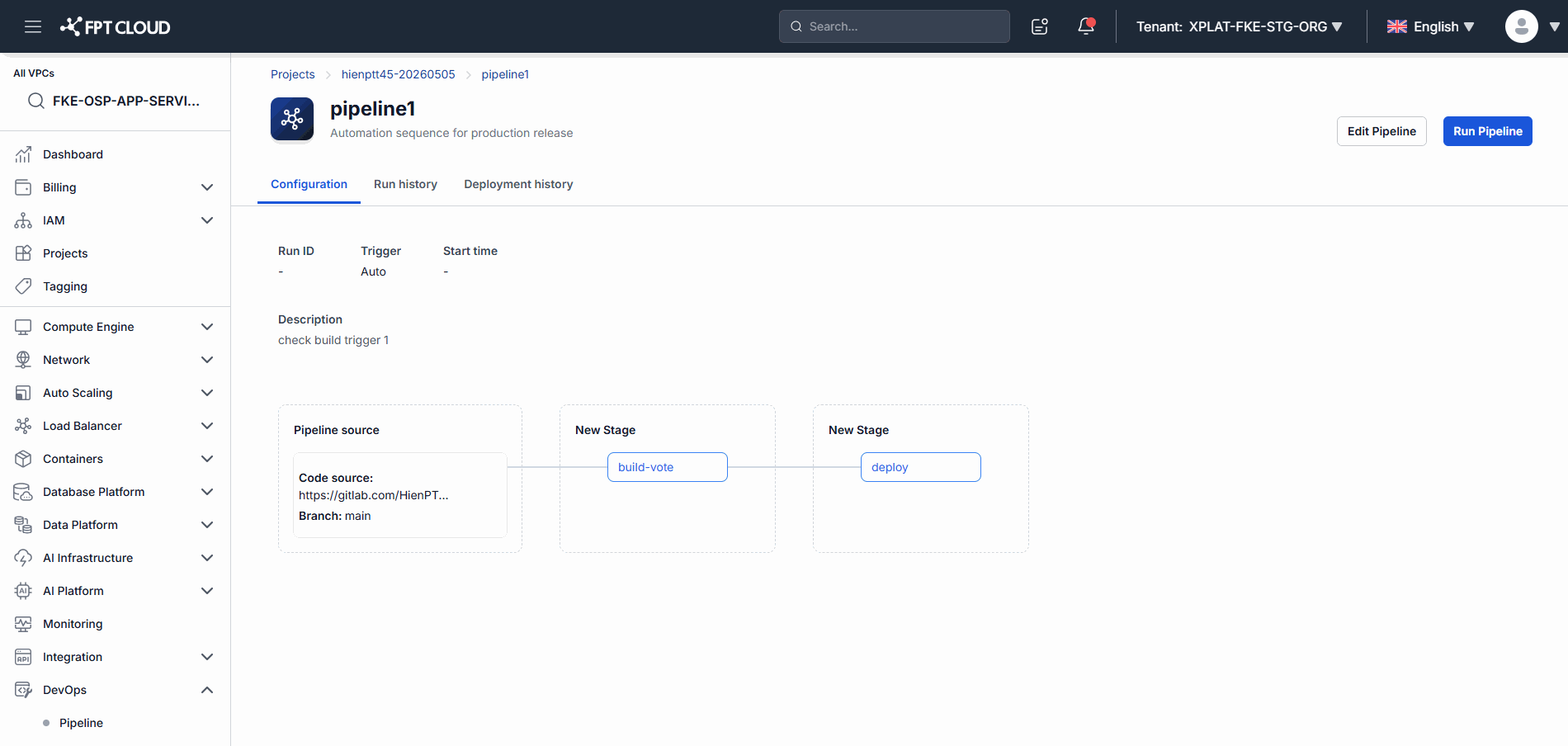
Step 2. Start Pipeline
Steps
- Click Run Pipeline.
Expected Result
- The system starts creating a new Pipeline Run.
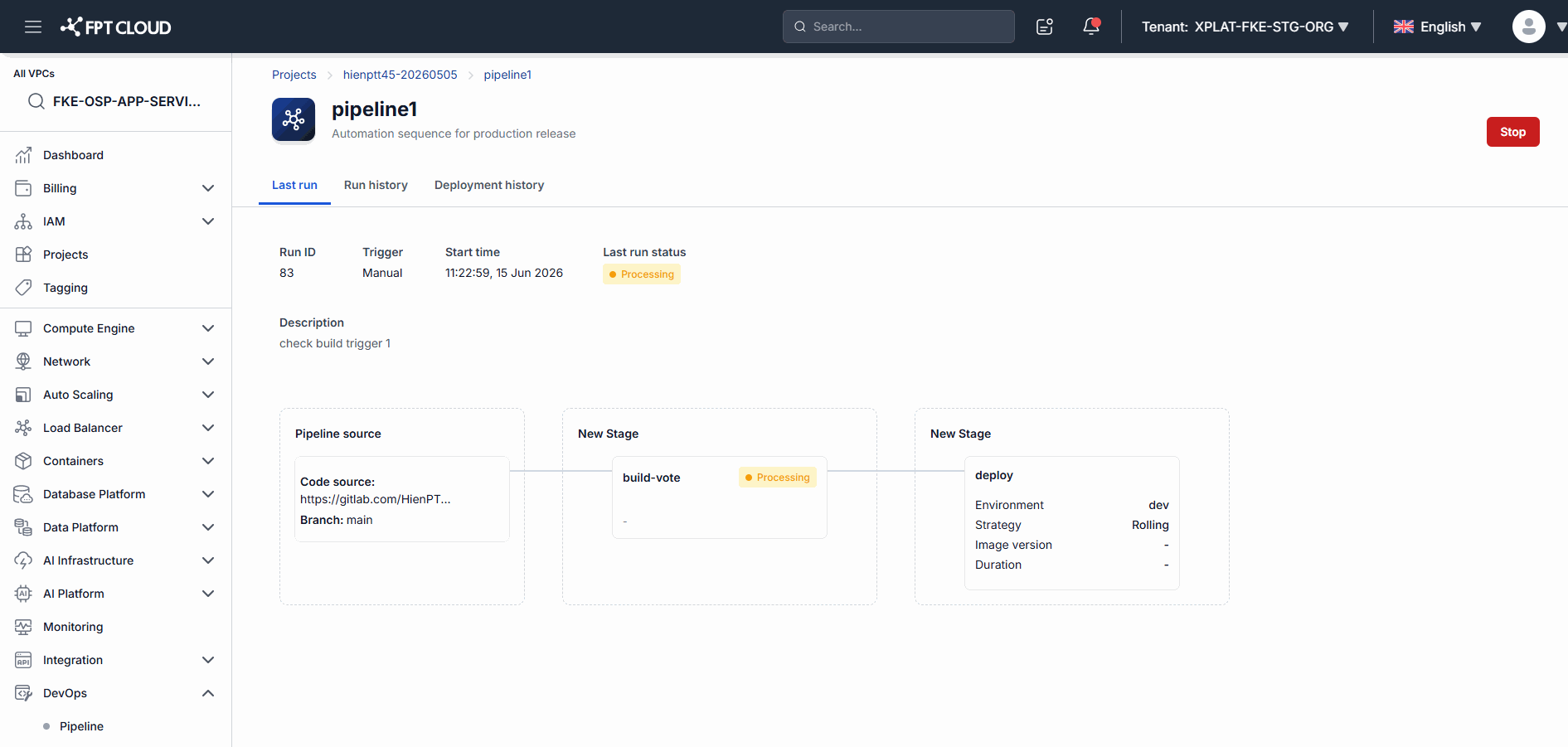
Step 3. Verify Pipeline Run Created
Expected Result
Once the run starts successfully:
- A new Pipeline Run is created.
- A Run ID is generated automatically.
- The Pipeline begins executing.
- The initial status is displayed.
Step 4. Monitor Pipeline Execution
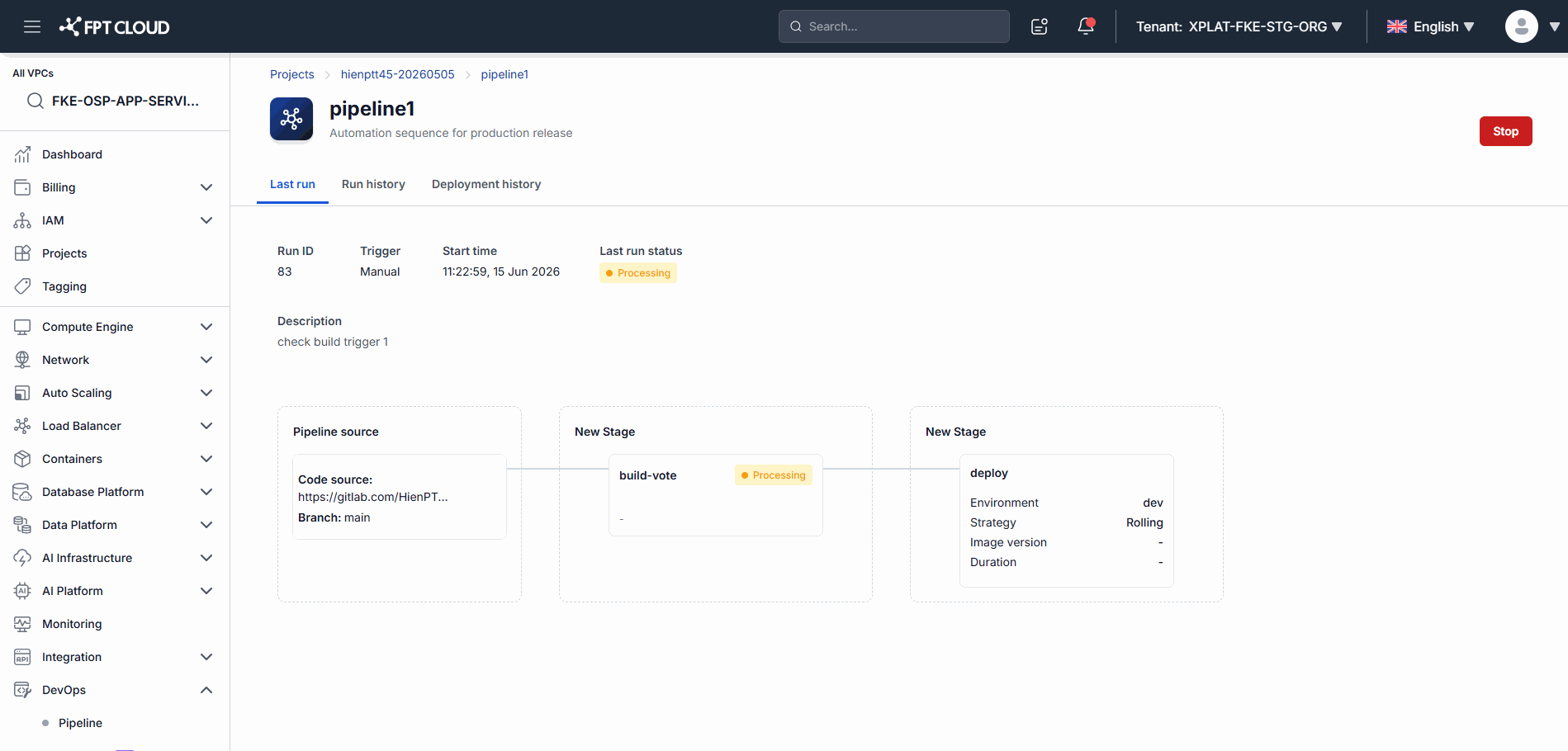
While the Pipeline runs, you can track:
- Run ID
- Trigger Time
- Trigger User
- Pipeline Version
- Current Stage
- Current Job
- Status
- Duration
Expected Result
- The information updates in real time.
- You can follow the Pipeline's execution progress.
If you need to stop a running Pipeline
Step 4.1 Open Running Pipeline
Open a Pipeline Run that is currently in the Running state.
Step 4.2 Stop Pipeline
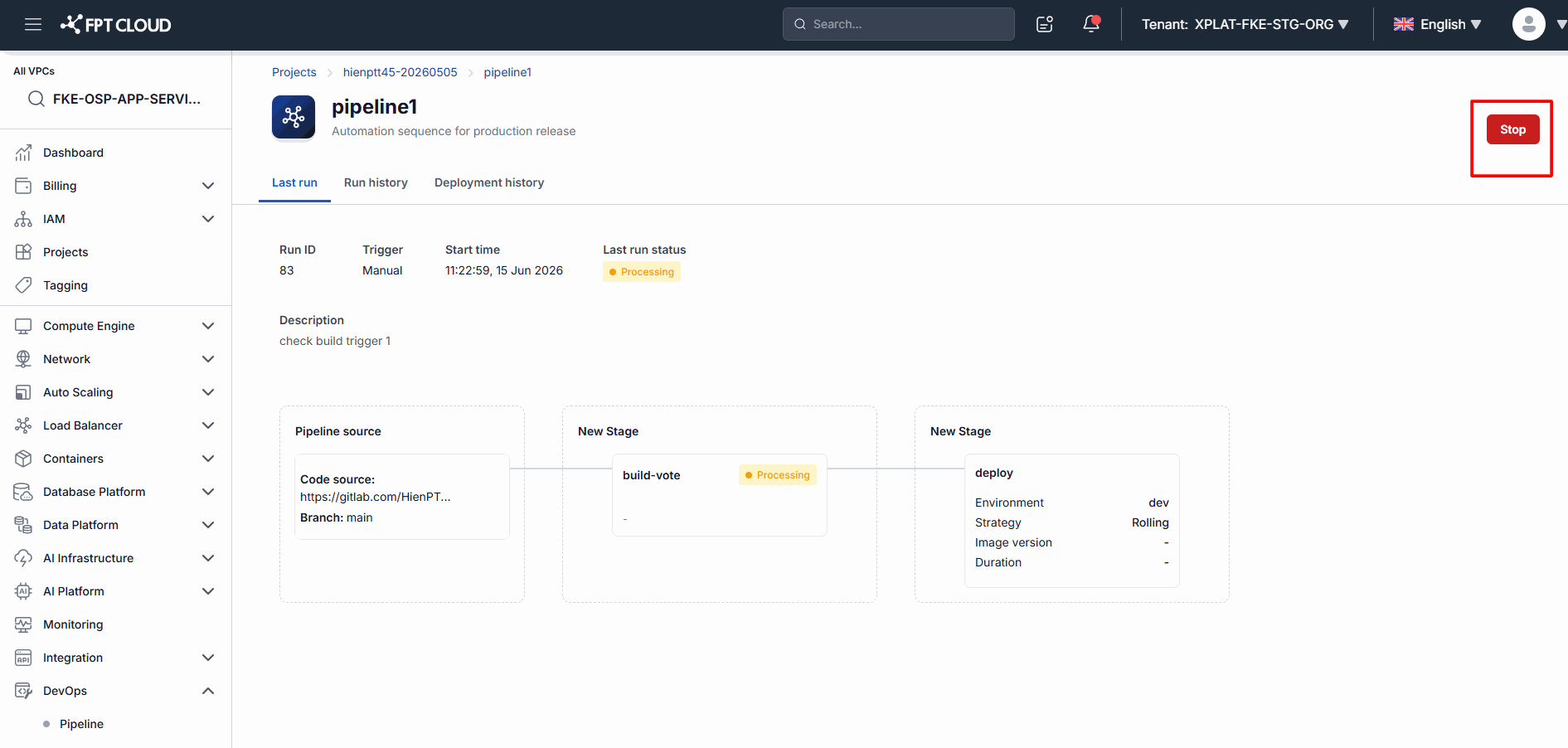
Steps
- Click Stop Pipeline.
- Confirm the action.
Step 4.3 Verify Cancellation
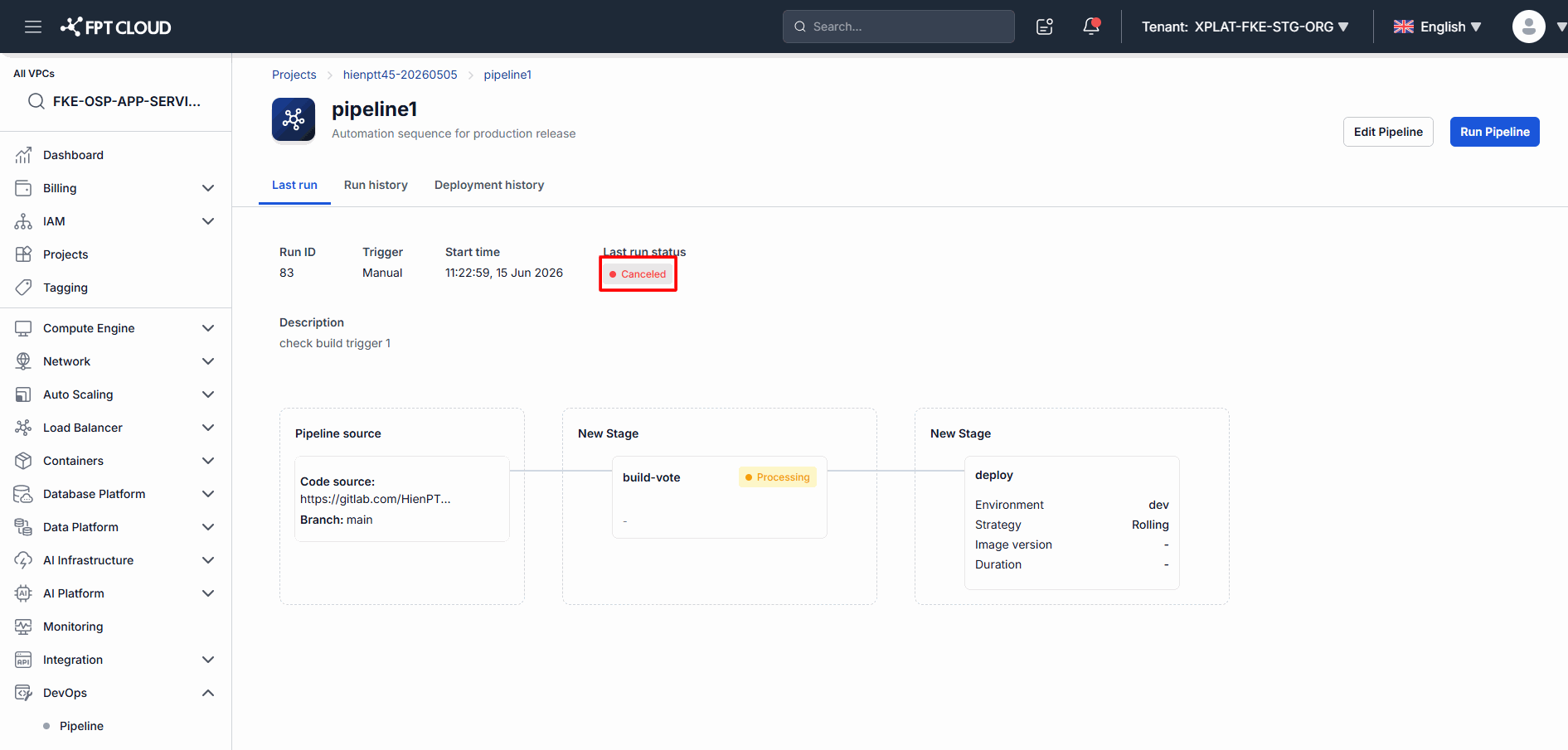
Expected Result
- The Pipeline Run is stopped.
- The status changes to Cancelled.
- Any running Stages and Jobs stop processing.
Step 5. Review Pipeline Run Information
After the Pipeline completes or is cancelled, you can review all information about the run.
This information includes:
- Run ID
- Triggered By
- Trigger Time
- Status
- Stage Information
- Job Information
- Start Time
- Duration
Expected Result
- You have all the information needed to monitor and evaluate the Pipeline run results.
3. Understanding Pipeline Run Information
| Field | Description |
|---|---|
| Run ID | The unique identifier of the Pipeline Run |
| Triggered By | The user who triggered the Pipeline |
| Trigger Time | When the Pipeline was executed |
| Status | The current status of the Pipeline Run |
| Stage | A processing phase within the Pipeline |
| Job | A task executed within each Stage |
| Start Time | When the run started |
| Duration | The total execution time |
| Stop Pipeline | Stop a running Pipeline |
4. Common Issues
The Pipeline does not run after I click Run Pipeline?
Possible causes:
- You do not have permission to run the Pipeline.
- The Pipeline is not fully configured.
- The system is experiencing a temporary error.
Recommendations:
- Check your access permissions.
- Contact the Project Admin if needed.
Why did the Pipeline Run fail?
A Pipeline may fail when:
- The build fails.
- A test fails.
- The deployment fails.
- The target environment is unavailable.
Recommendations:
- Check the Stage and Job Logs to identify the cause.
Can I run multiple Pipeline Runs at the same time?
Yes.
Each time you click Run Pipeline, the system creates a new Pipeline Run and manages it independently.
Can I stop a Pipeline that has already completed?
No.
The Stop Pipeline button is only available while the Pipeline is in the Running state.
After stopping a Pipeline, can I resume from the Stage where it stopped?
No.
You need to create a new Pipeline Run.
5. Notes
💡 Only a Pipeline that has been saved successfully can be executed.
💡 Each click of Run Pipeline creates a new Pipeline Run.
💡 You can monitor the execution status in real time.
💡 Check the Job Logs when a Pipeline fails.
⚠️ The Stop Pipeline action stops all running Stages and Jobs.
⚠️ After a Pipeline completes or is cancelled, it cannot be resumed from its previous state.
⚠️ Stopping a Pipeline may affect an in-progress Build or Deploy.