Add an approval gate
An approval gate pauses the Pipeline at a Gate stage until an approver explicitly approves or rejects — useful before a production Deploy Job runs. The person who triggered the run cannot approve their own run.
Prerequisites
- The Pipeline has been created and saved. See Create and configure a pipeline.
Add an Approval job
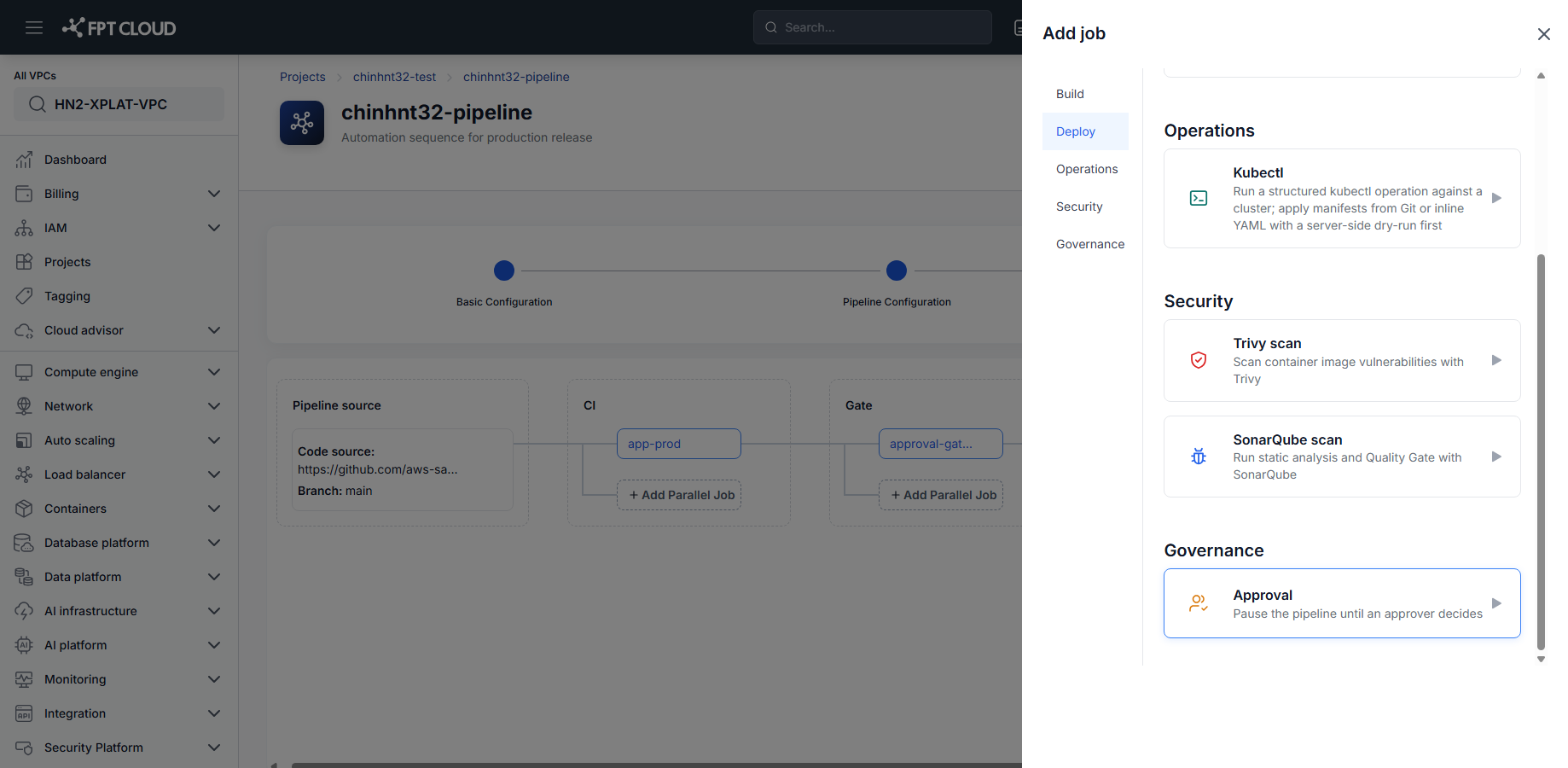
- In the Pipeline Editor, add a new Stage (or use an existing Gate stage) between the stages you want to gate.
- Click Add Job, then under Governance, select Approval.
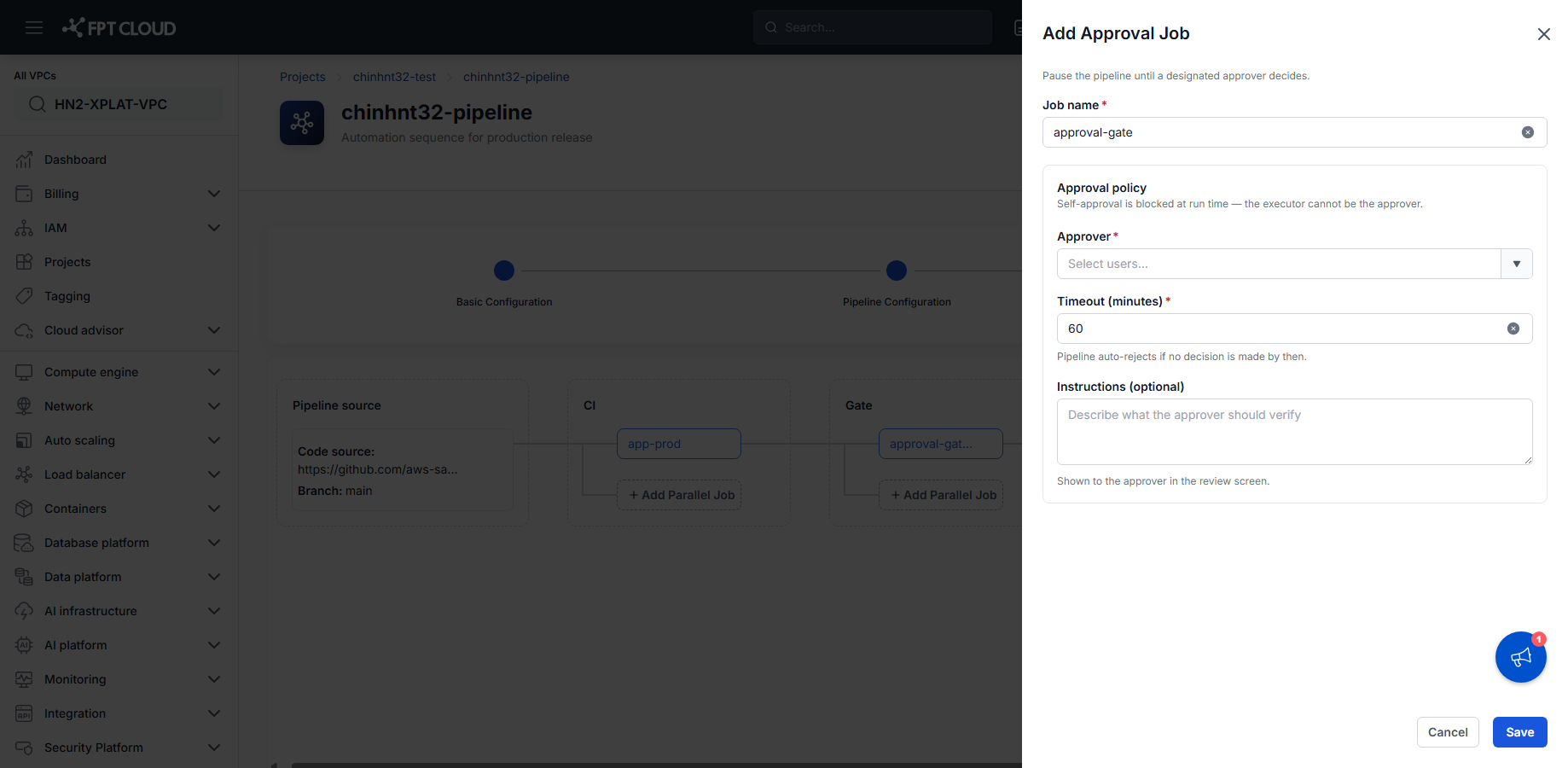
- Enter the Job name.
- Select the Approver — the user who must review this run.
- Set the Timeout (minutes) — the run is automatically rejected if no decision is made in time.
- Optionally enter Instructions for what the approver should verify.
- Click Save.
What the approver sees
When a run reaches the Gate stage, the approval job shows the configured Instructions and waits for the Approver to approve or reject from the run detail screen. Approving lets the Pipeline continue to the next Stage (typically CD); rejecting or timing out stops the run.
warning
Self-approval is blocked at run time — if the run's Actor matches the configured Approver, they cannot approve their own run.
Next steps
- Deploy config & deploy application — the stage that typically follows a Gate.
- Add a Kubectl job — pair a Gate with a Kubectl Job before a risky Delete or Exec operation.
- Approval gate reference — field reference.