Configure Pipeline Source
Every Pipeline needs exactly one Pipeline Source — a Code source (Git repository) or a Registry source (container registry) that supplies what the Pipeline builds, scans, or deploys. This tutorial covers updating the Pipeline Source on an existing Pipeline. For first-time setup while creating a Pipeline, see Configure the Pipeline Source in the Quick start.
Prerequisites
- The Pipeline has been created and saved. See Create and configure a pipeline.
- You have permission to edit the Pipeline.
- A Git Connection or Registry Connection is configured, if you intend to switch to one you haven't used yet. See Manage credentials.
Open the Update Pipeline Source panel
- Open the Pipeline you want to update, then click Edit Pipeline (or open the Pipeline Editor directly if it's already open).
- Click the Pipeline source button — it shows the current source summary, e.g.
Code source: <url> Branch: <name>.
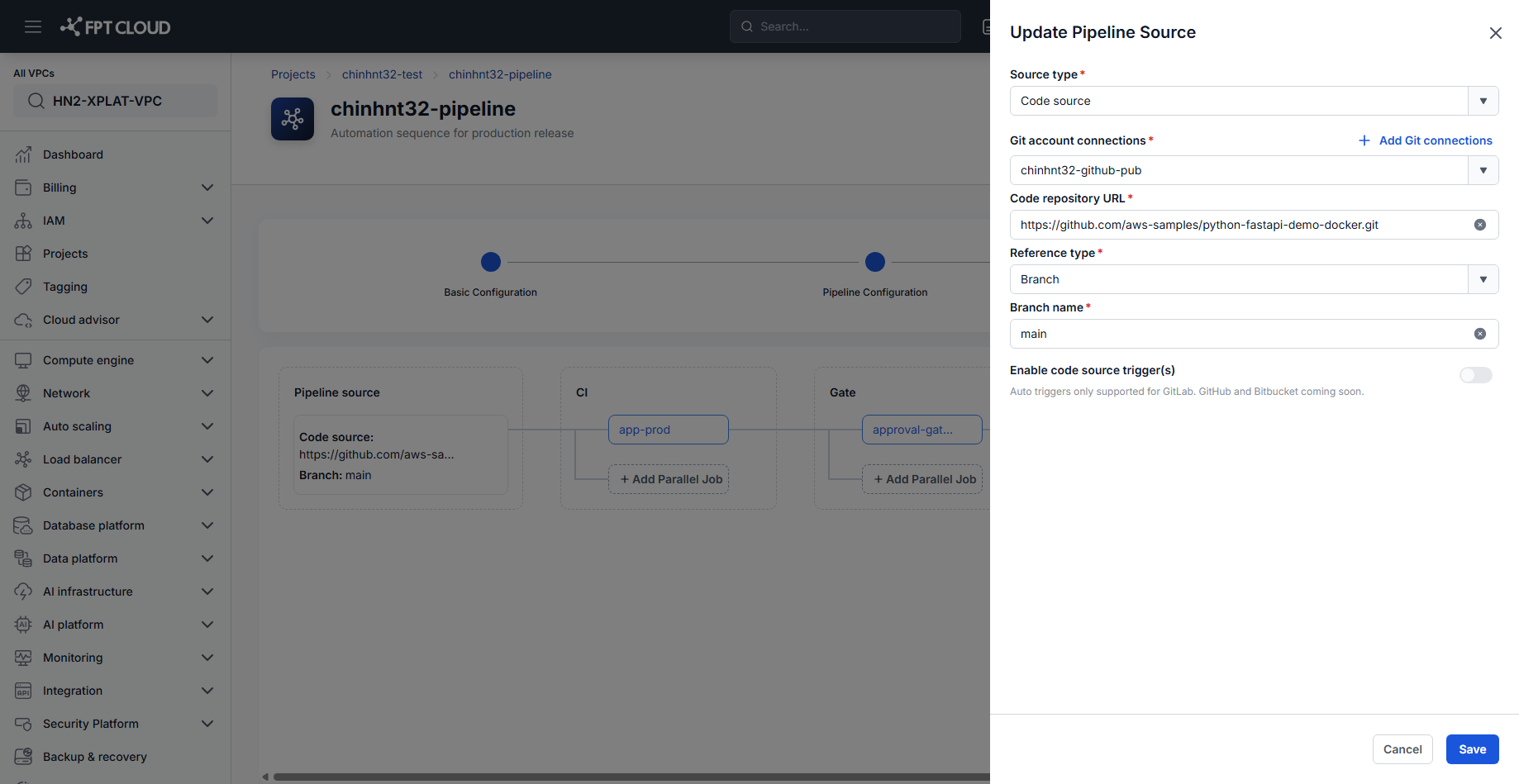
The Update Pipeline Source panel opens with the Pipeline's current source type and field values pre-filled.
You can also reach this same panel from the Triggers step's Edit icon — see Configure triggers.
Update a Code source
- Confirm Source type is set to Code source.
- Select a Git account connection, or click Add Git connections to create one.
- Update the Code repository URL.
- Select the Reference type — Branch or Tag — and update the branch or tag name.
See Understanding pipeline components for what each field controls.
Update a Registry source
- Set Source type to Registry source.
- Select a Container registry connection, or click Add registry connections to create one.
- Enter the image to deploy (e.g.
namespace/repository:tag).
Switch between Code source and Registry source
Changing Source type completely replaces the fields below it — switching from Code source to Registry source (or back) clears the fields for the previous type rather than keeping them in the background.
Switching Source type to Registry source also removes the Enable code source trigger(s) section from the panel entirely, since Auto Triggers apply to a Code source only. If the Pipeline already has a Trigger configured, switch away from Code source only after confirming you no longer need it.
Before switching Source type on a Pipeline that already has Stages and Jobs configured — for example, a Build and push Job that reads from the Code source — review those Jobs afterward to confirm they still make sense for the new source.
Save the updated source
- Click Save in the Update Pipeline Source panel.
- Click Save Pipeline to persist the change.
A Pipeline Source is required before the Pipeline can be saved.
Next steps
- Add a Build and push job — build from the Code source you just configured.
- Configure triggers — run the Pipeline automatically on a Code source event.
- Understanding pipeline components — field reference for the Pipeline Source.