Add a Kubectl job
A Kubectl Job runs a single kubectl operation against a Kubernetes cluster from within a Pipeline — deploy manifests, inspect resources, view logs, or run other cluster operations — with a full audit trail and no need to run kubectl manually from your own machine.
Prerequisites
- The Pipeline has been created and saved. See Create and configure a pipeline.
- An Environment (Kubernetes cluster) is configured, and you have access to it. See Manage environments.
- For the Apply operation with a Git-sourced manifest, a Git connection is configured. See Manage credentials.
Add a Kubectl job
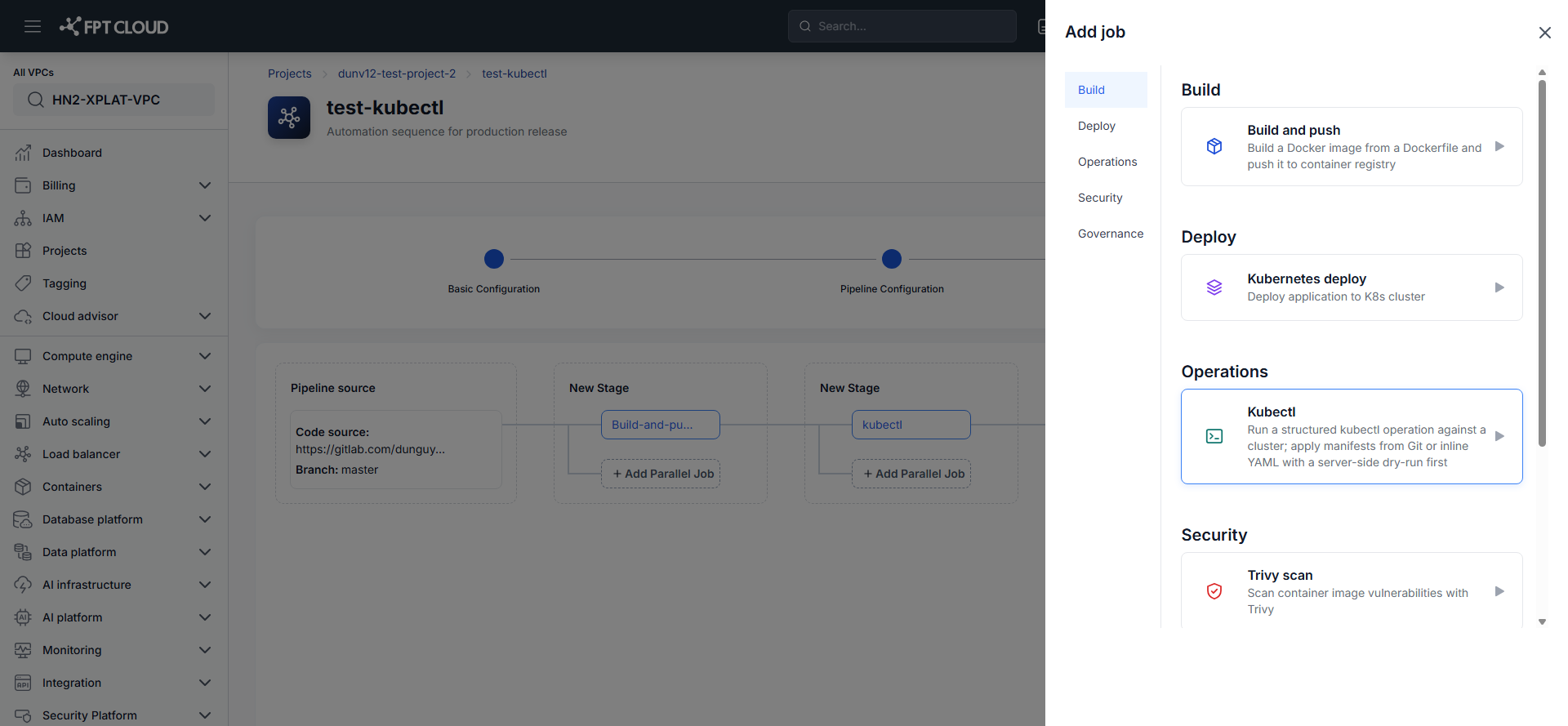
- In the Pipeline Editor, click Add Job (or Add Parallel Job) on the Stage you want to run the operation from.
- Under Operations, select Kubectl.
The Edit Job panel opens.
Configure the operation
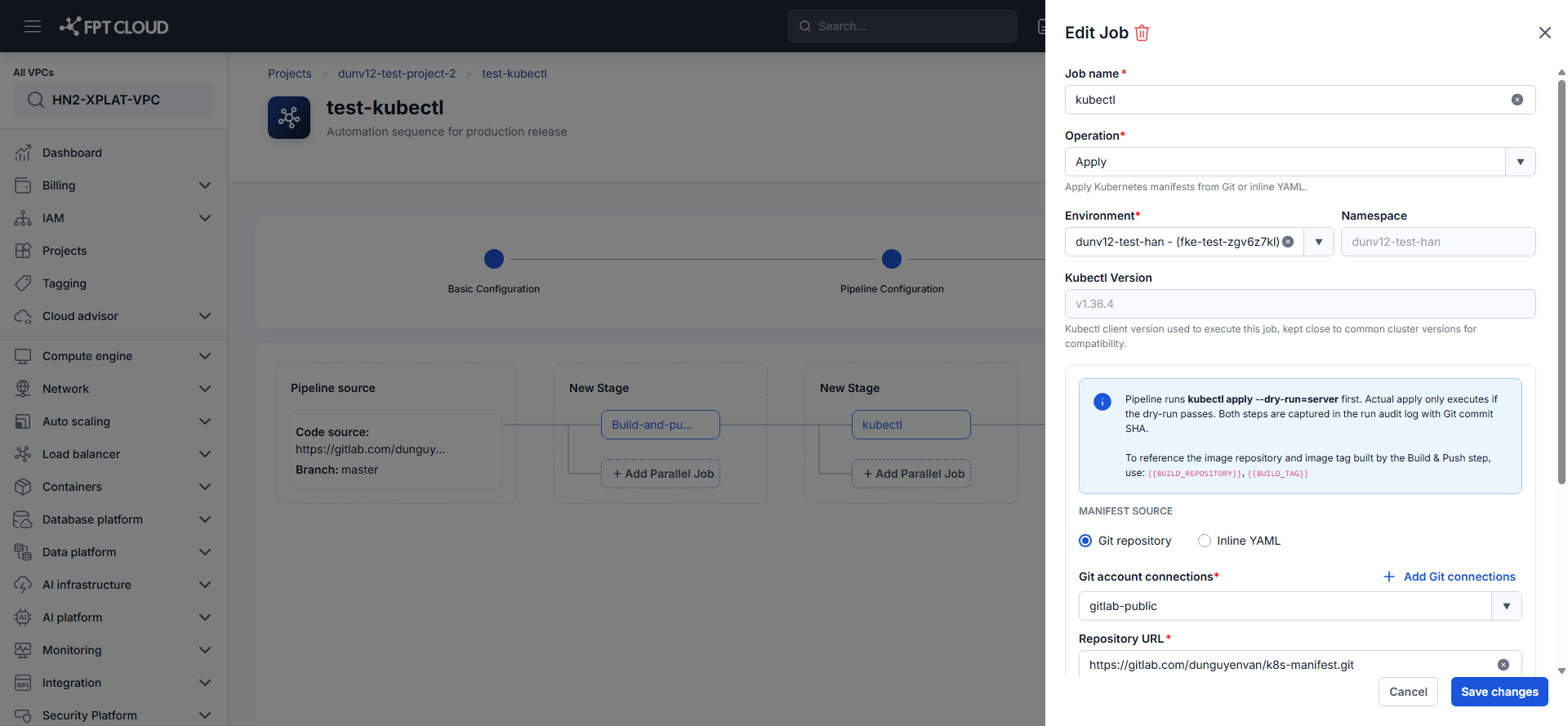
- Enter the Job name.
- Select the Operation — Apply, Create, Delete, Expose, Get, Logs, Rollout, Run, Set, Top, or Exec. See Kubectl job reference for what each one does.
- Select the target Environment. Namespace and Kubectl Version fill in automatically and can't be edited.
To reference the image built by an earlier Build and push Job, use {{BUILD_REPOSITORY}} and {{BUILD_TAG}} in the manifest or Arguments — the Kubectl Job substitutes the actual values at run time.
If Operation is Apply
- Under Manifest Source, choose Git repository or Inline YAML.
For a Git repository:
- Select a Git account connection, or click Add Git connections to create one.
- Enter the Branch (defaults to
main). - Enter the Manifest file or directory — a single YAML file, or a directory applied recursively.
For Inline YAML:
-
Paste the manifest content directly into the YAML Manifest field.
-
Optionally add extra Arguments — additional flags for the apply command.
Before applying for real, the Pipeline always runs kubectl apply --dry-run=server first. The actual apply only runs if the dry-run passes, and both steps are recorded in the run's audit log along with the Git commit SHA.
If Operation is anything other than Apply
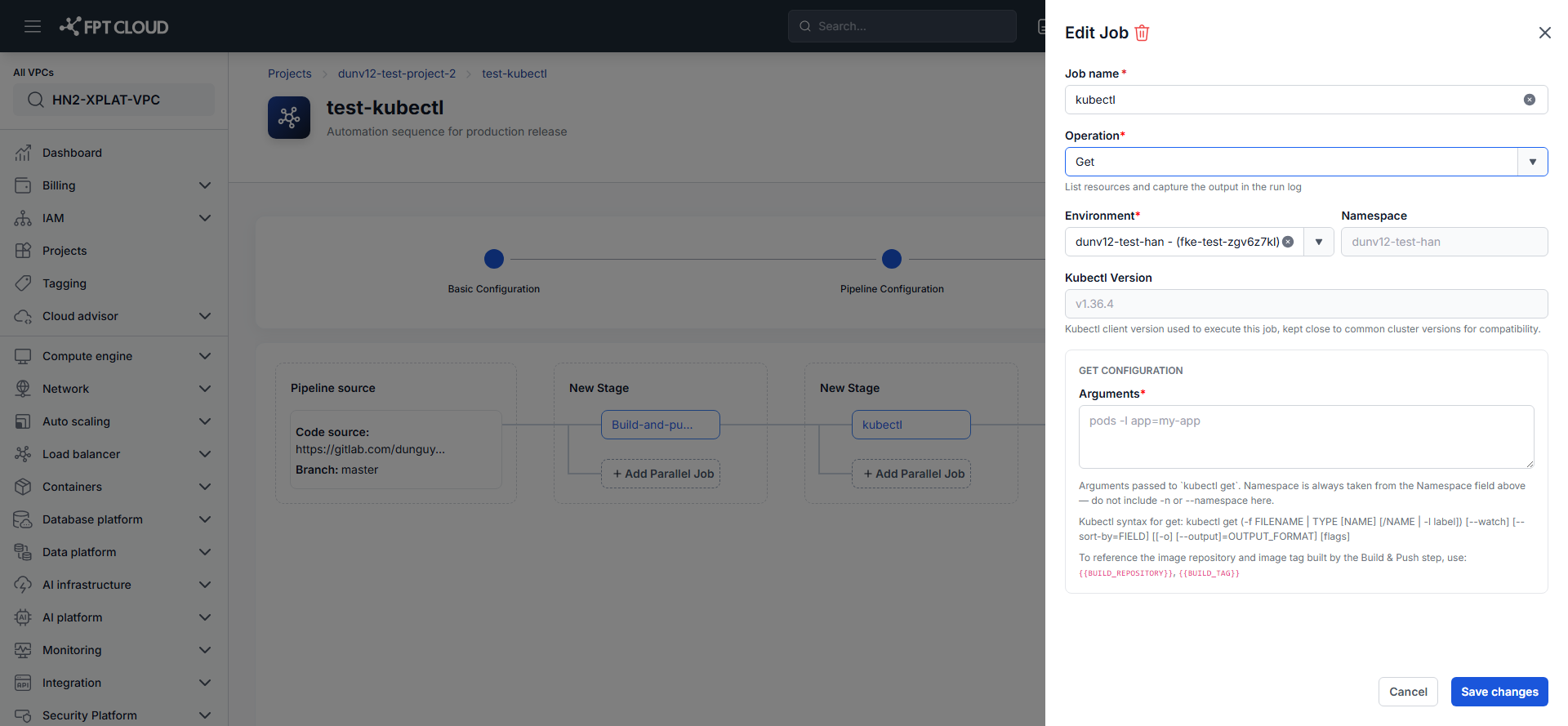
- Enter the Arguments for the selected operation — this field is required for every operation except Apply.
Don't include -n or --namespace in Arguments. The Namespace is always taken from the Environment field above.
Add an approval before a risky operation (optional)
For Delete or Exec, consider adding an Approval Job immediately before the Kubectl Job in the same Stage — the Pipeline pauses until the configured Approver decides. See Add an approval gate.
Save the job
- Click Save changes.
- Click Save Pipeline to persist the change.
Save changes only saves the Job within the current editing session — you still need to click Save Pipeline to persist it.
The Kubectl Job runs the next time its Stage executes, alongside the Pipeline's other Jobs.
Next steps
- Run and monitor a pipeline — run the Pipeline and watch the Kubectl Job execute.
- Pipeline history & logs — review past runs and check the Job Logs.
- Kubectl job reference — field reference.