Pipeline history & logs
Run History and Deployment History let you review every past run and deployment of a Pipeline, including status, actor, timing, and available actions.
Prerequisites
- You are logged in to FPT Cloud.
- You have access to the Project and the corresponding Pipeline.
- The Pipeline has run at least once, for Run History, or has at least one deployment, for Deployment History.
Open Run History
There are two ways to open the Run History screen.
From the Project Detail screen:
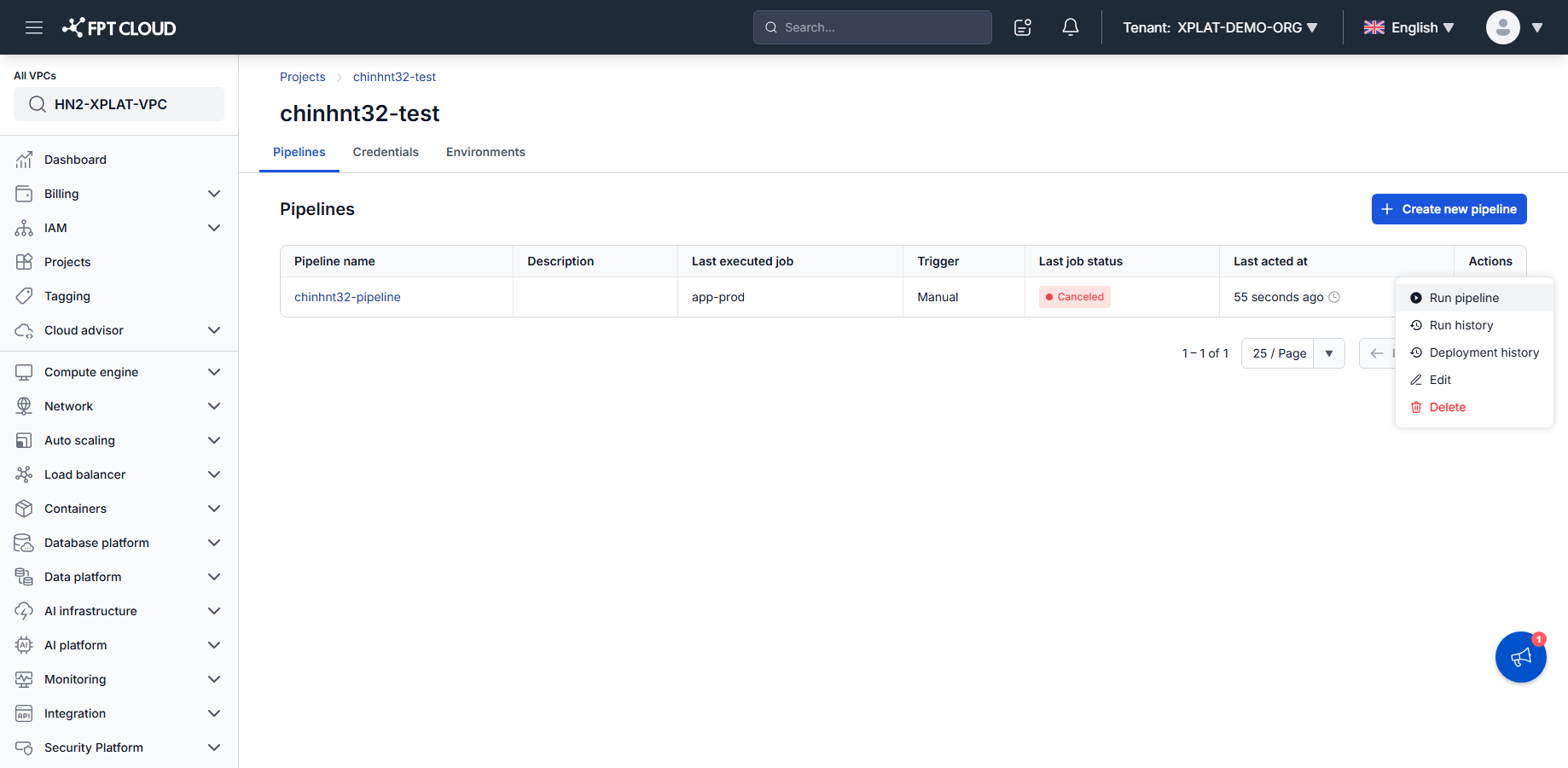
- On the Project Detail screen, find the Pipeline you want to inspect.
- Click the ⋮ icon in the Pipeline's row.
- Select Run history from the dropdown.
The "Run history" option is disabled if the Pipeline has never been run.
From the Pipeline Detail screen:
- Open the Pipeline detail screen.
- Click the Run history tab in the navigation bar.
Read the Run History screen
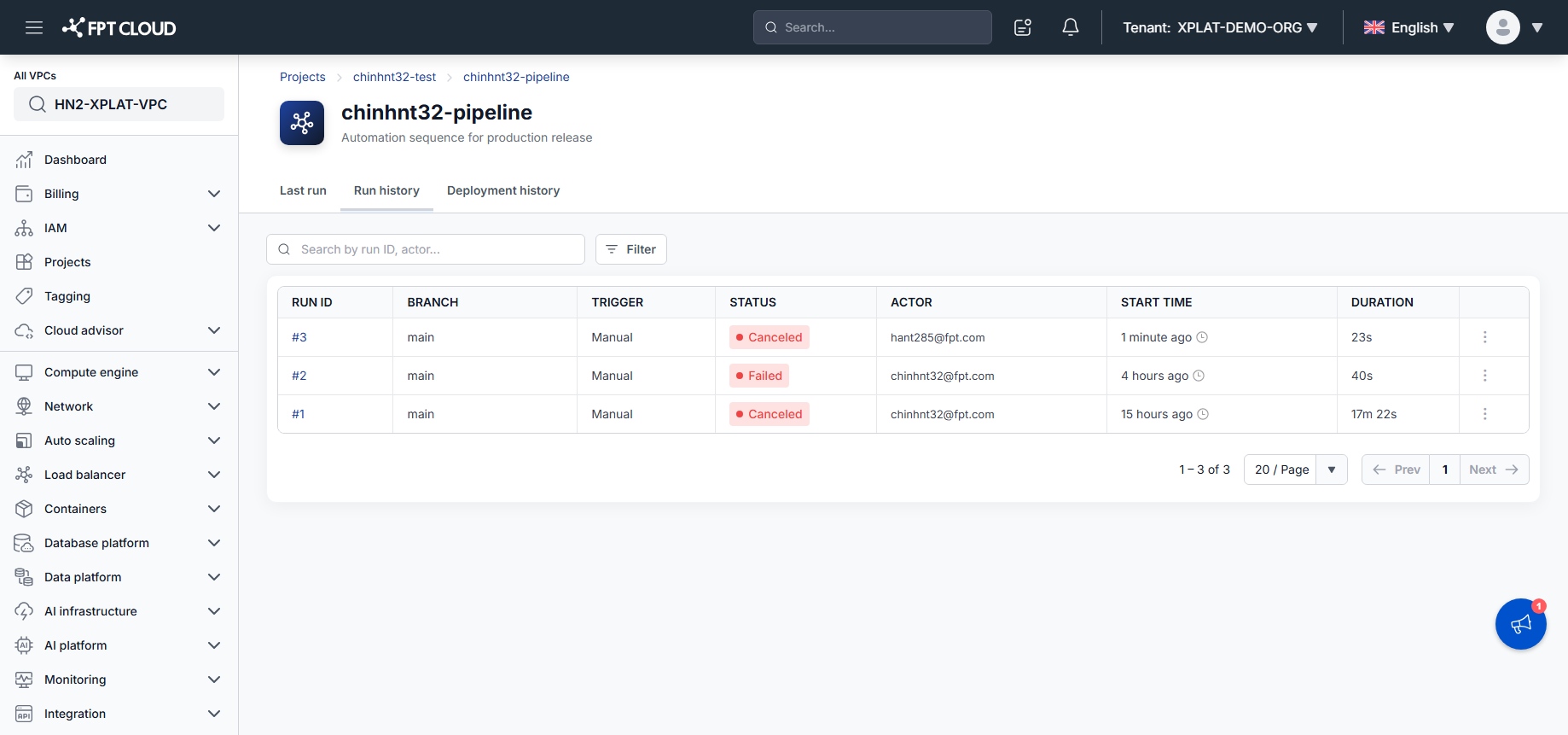
Each row represents one Pipeline run — see Pipeline history & logs reference for the full column reference.
Search runs
- Click the Search bar above the table.
- Enter a Run ID or an actor's name.
- Press Enter, or wait for the auto-search.
The table updates immediately with matching runs, or shows "No results found."
Search is case-insensitive. Enter at least 2 characters to activate it.
Filter runs
- Click the Filter button in the top-right corner of the table.
- Configure the filter options — see Pipeline history & logs reference for what each filter does.
- Click Apply, or Reset to clear all filters.
View a run's detail
Click the Run ID directly, or click the ⋮ icon in the run's row and select View details.
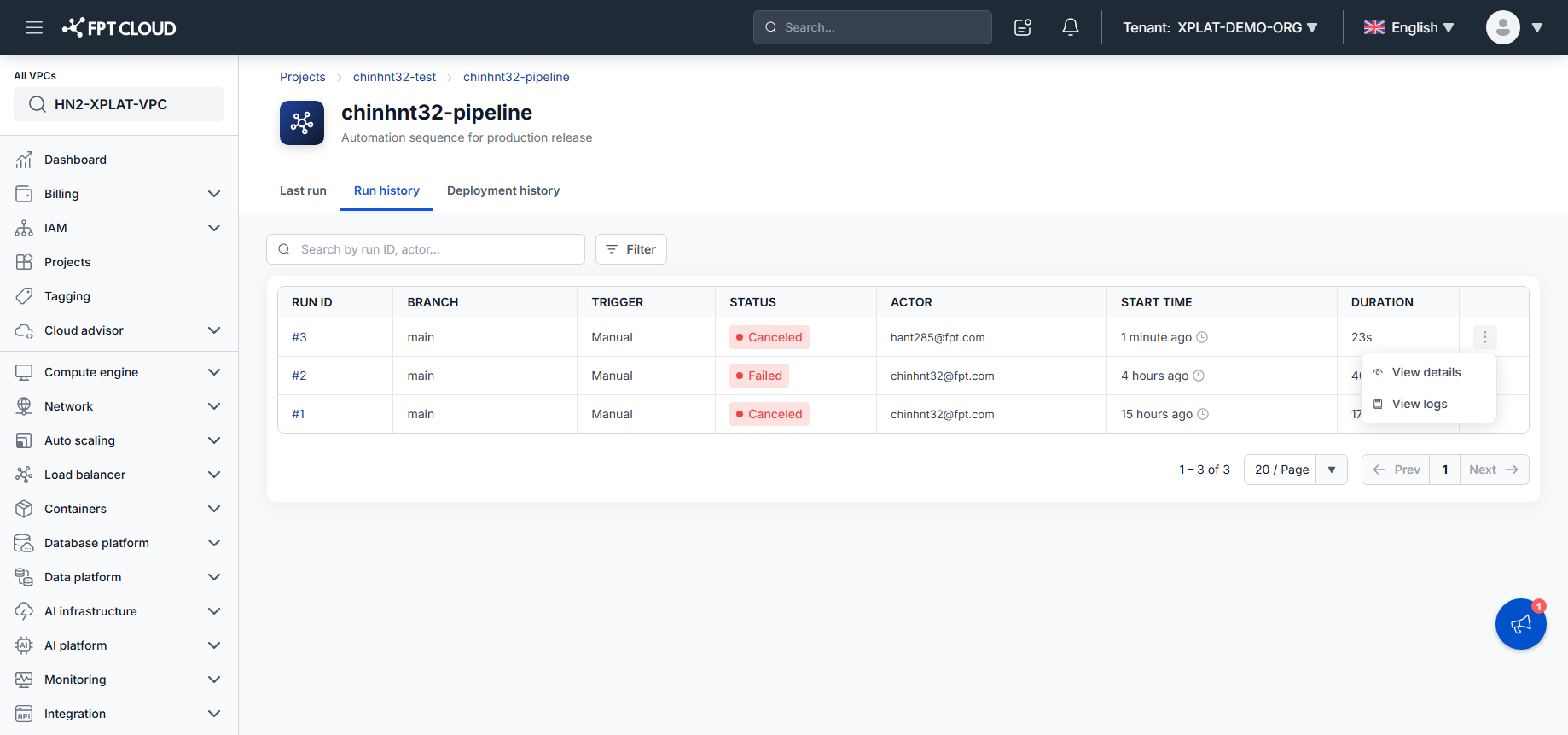
The system opens the Run Detail screen with full information about that run.
Open Deployment History
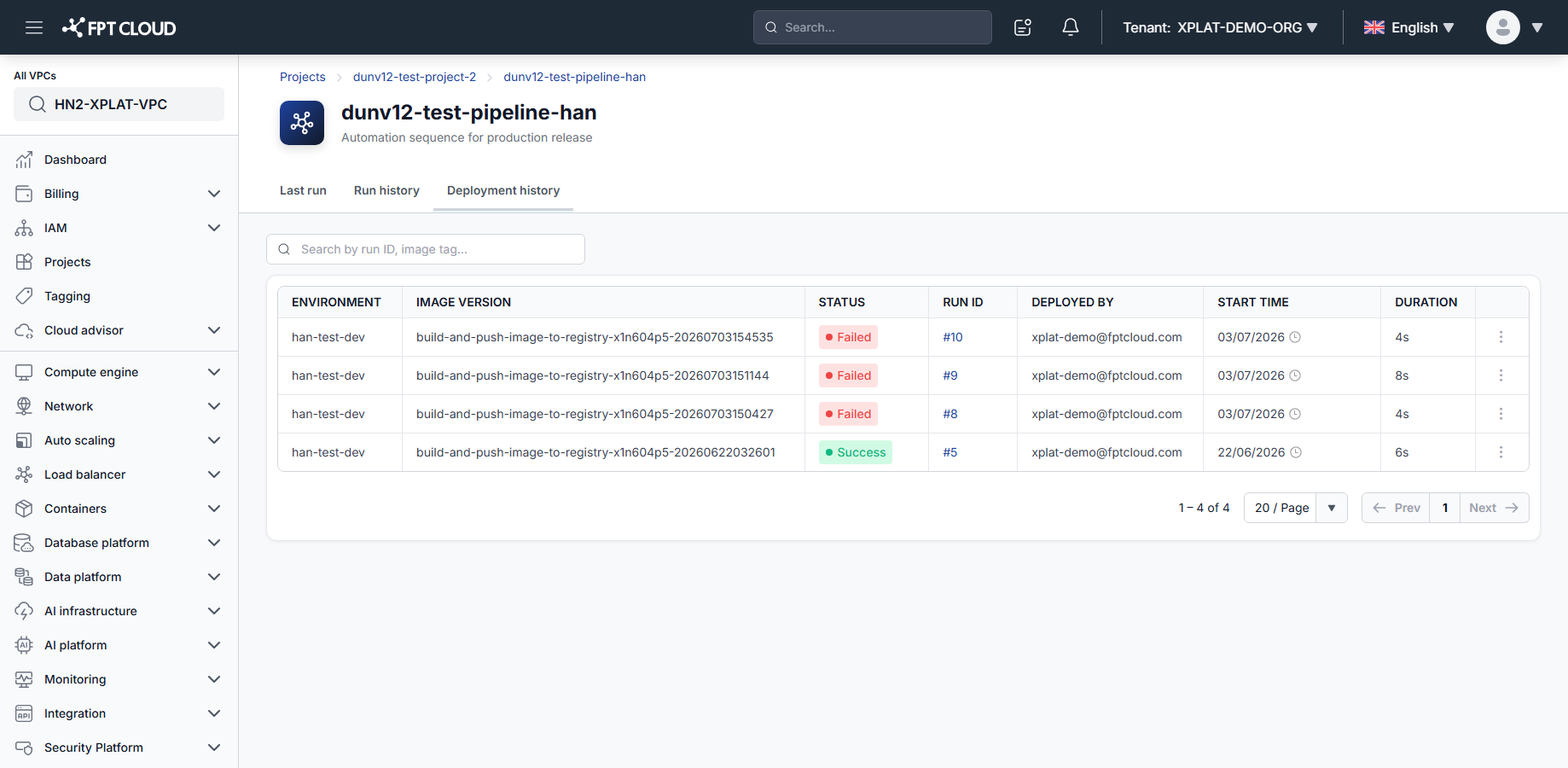
- From the Pipeline detail screen, click the Deployment history tab.
The deployment list loads, with a loading indicator shown while data is fetched.
This tab is only visible to users with Pipeline view permission. If no data is available, the system shows "Nothing found."
Read the Deployment History screen
See Pipeline history & logs reference for the full column reference.
Hover over the Image Version column to see the full image tag — useful for confirming exactly which build is running on the environment, especially when debugging or rolling back.
Compare a deployment against the previous one
Click a Run ID directly to open the Deployment Detail panel on the right side of the screen. The panel compares the deployment you clicked (Current) against the most recently completed deployment in the same Environment (Previous, selected automatically) — differences between the two are highlighted. See Pipeline history & logs reference for the full field list and color legend.
Turn on Show changes only, in the top-right of the panel, to hide every row where Previous and Current are identical — useful when a Pipeline has dozens of environment variables and you only want to see what changed.
If Previous and Current belong to different Environments, the panel shows a warning banner — differences between two different environments are expected, not a sign of a problem.
Secret values are always masked, but a masked row is still highlighted if the underlying value changed between the two deployments — so you always know whether a secret changed, without ever seeing its value. Next to the Image digest, a copy icon lets you copy the full sha256:... string to cross-check against your container registry or scan results.
Click × to close the panel and return to the list.
Every time you open the Deployment Detail panel, the view is recorded in the audit log — who viewed it, which run, which environment, and when.
View the run that created a deployment
To go to the Run Detail screen instead of comparing, click the ⋮ icon in the deployment's row and select View run.
If the Run ID no longer exists in the system, View run is disabled.
Next steps
- Run and monitor a pipeline — start another run.
- Pipeline history & logs reference — full column and filter reference.