Add a security scan job
Security jobs run automated checks inside your Pipeline — a Trivy scan checks a container image for known vulnerabilities, and a SonarQube scan runs static code analysis against a Quality Gate. Add either as a Job within a Stage, typically in your Test stage.
Prerequisites
- The Pipeline has been created and saved. See Create and configure a pipeline.
- For a SonarQube scan, a SonarQube connection is configured. See Manage credentials.
Add a Trivy scan
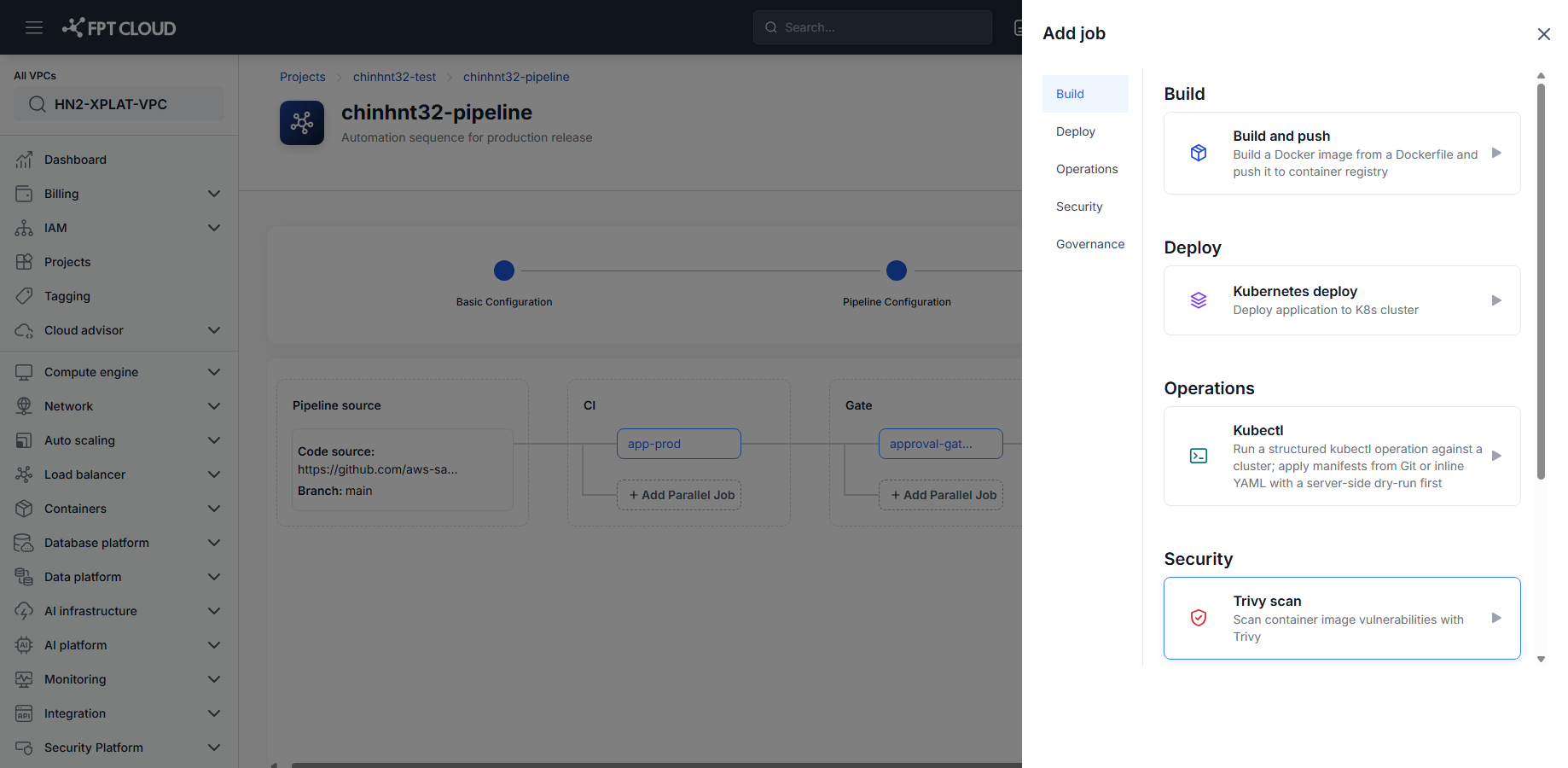
- In the Pipeline Editor, click Add Job (or Add Parallel Job) on the Stage you want to scan from.
- Under Security, select Trivy scan.
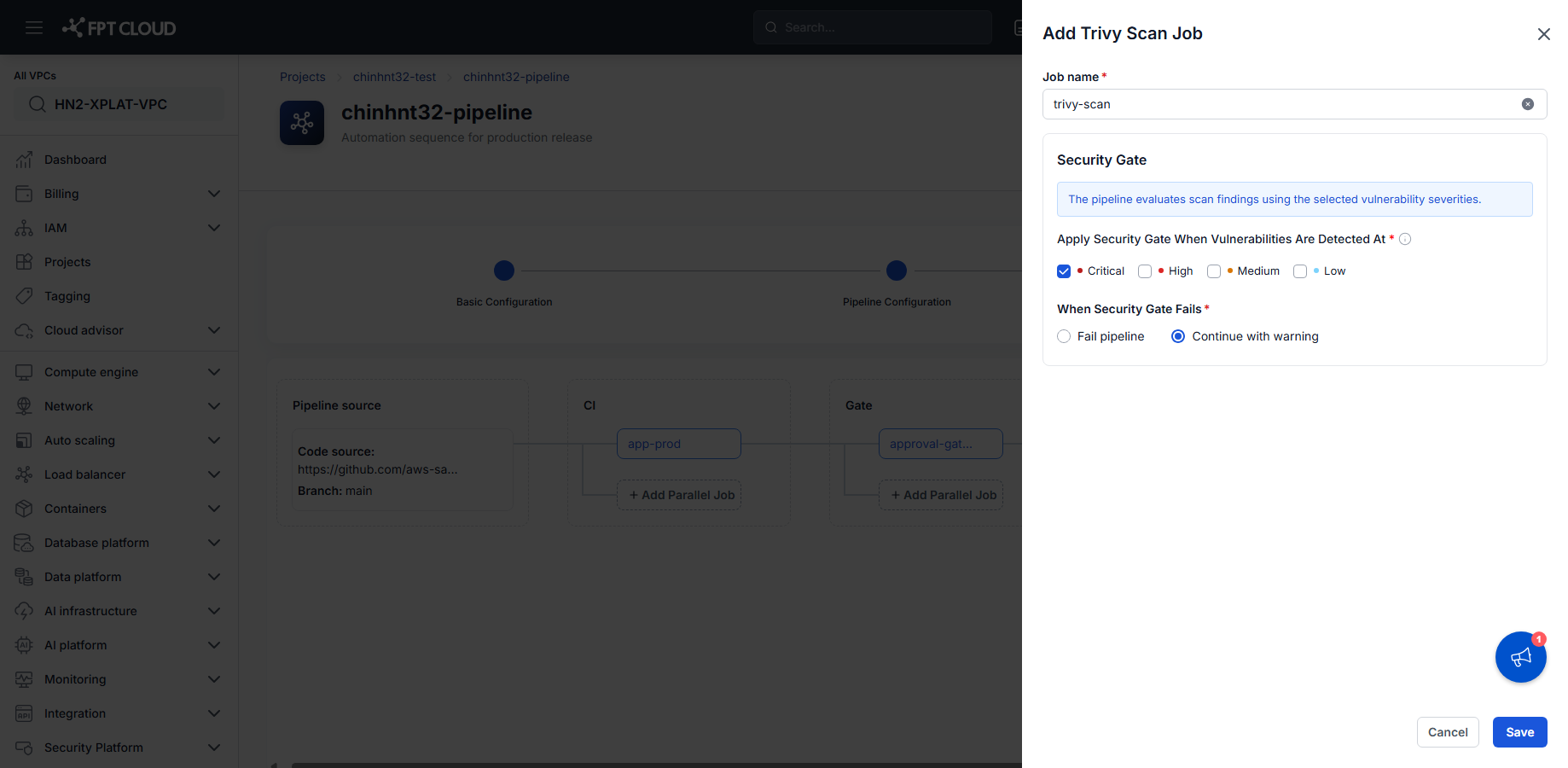
- Enter the Job name.
- Under Security Gate, select which severities (Critical, High, Medium, Low) should trigger the gate.
- Choose what happens When Security Gate Fails: Fail pipeline or Continue with warning.
- Click Save.
The Trivy scan runs against the image produced earlier in the Pipeline and reports findings by severity.
Add a SonarQube scan
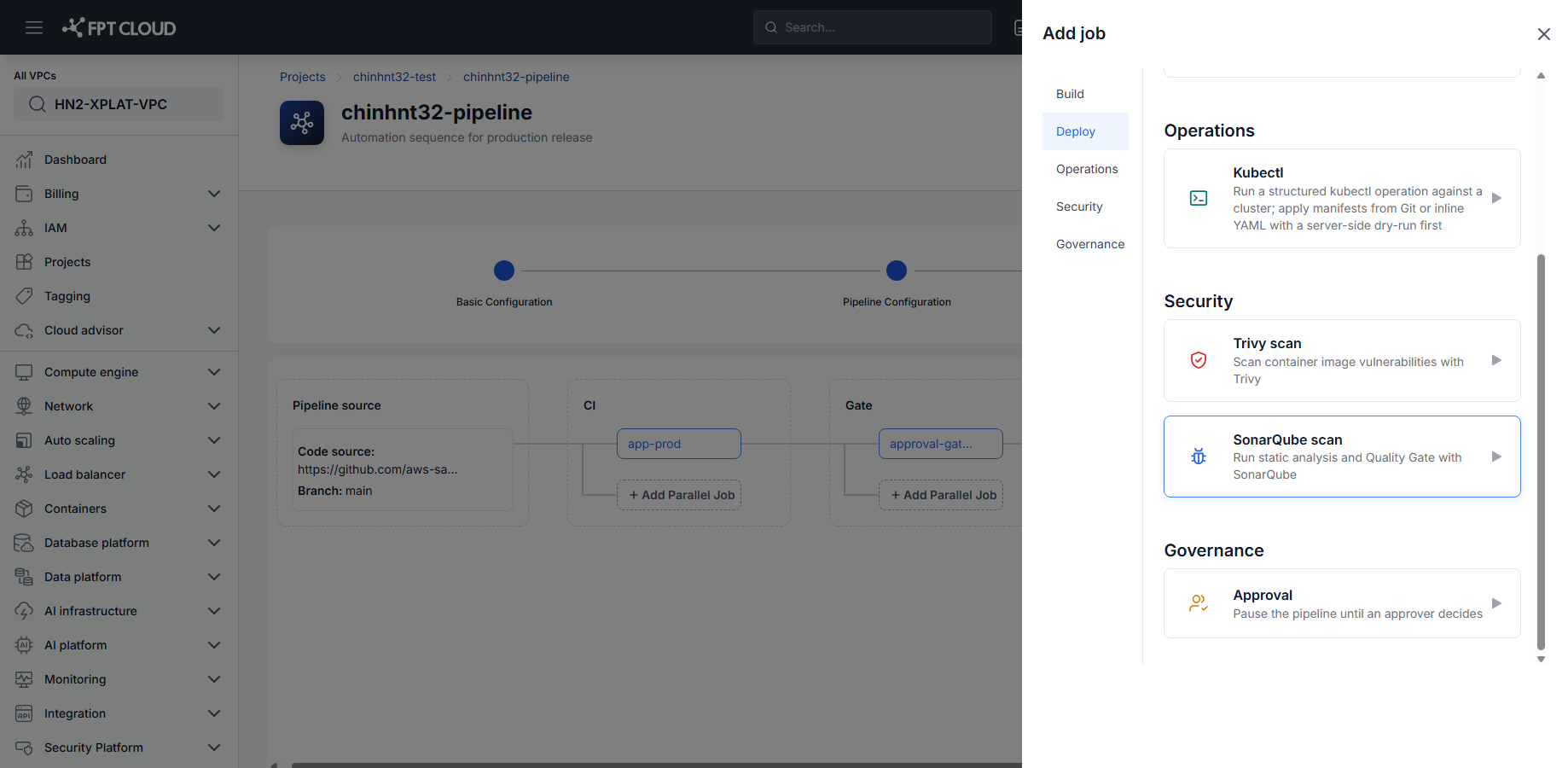
- In the Pipeline Editor, click Add Job on the Stage you want to scan from.
- Under Security, select SonarQube scan.
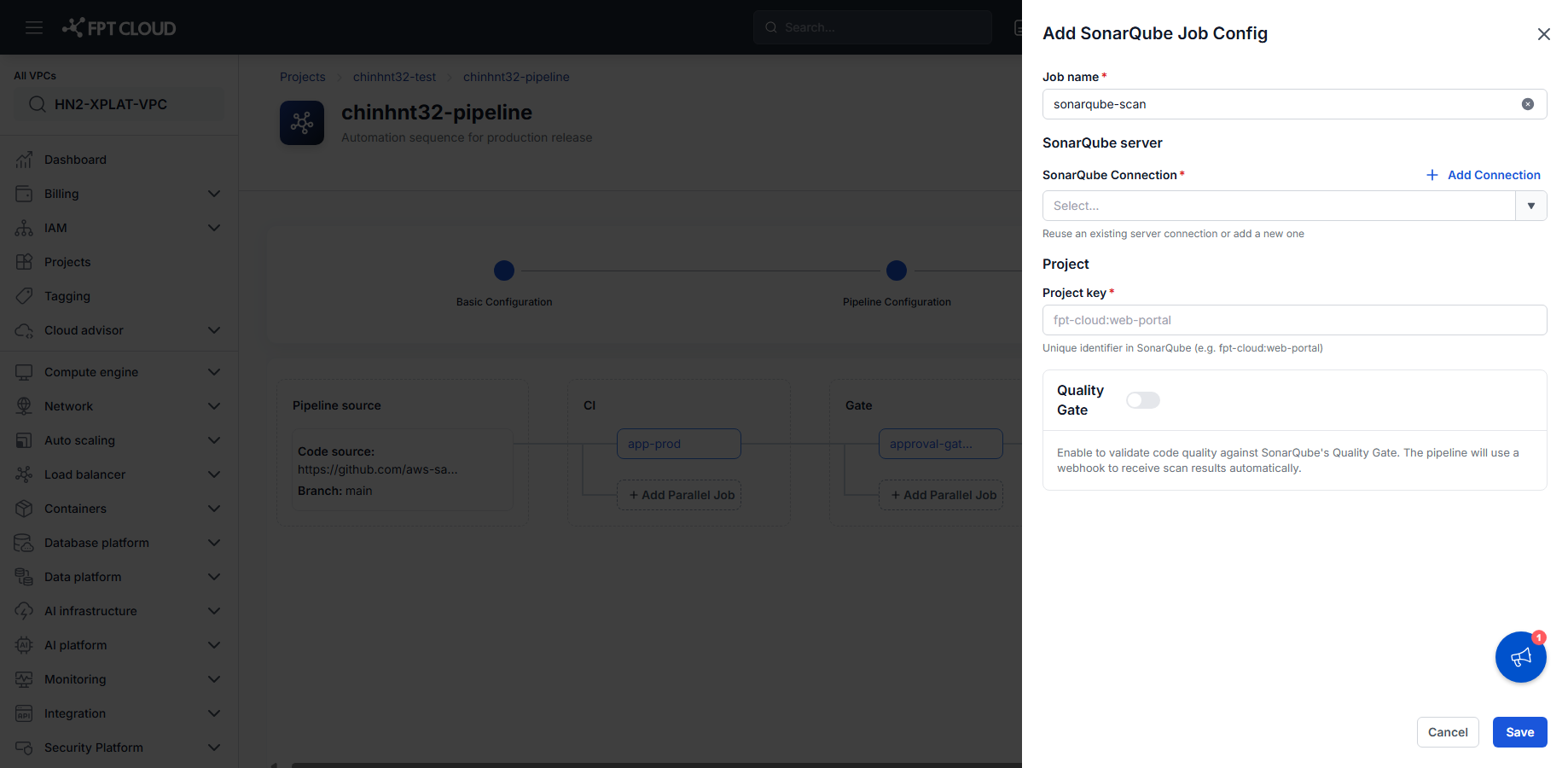
- Enter the Job name.
- Select an existing SonarQube Connection, or click Add Connection to create one. See Manage credentials.
- Enter the Project key — the project's unique identifier in SonarQube.
- Optionally enable Quality Gate to validate results against SonarQube's Quality Gate via webhook.
- Click Save.
tip
Enabling Quality Gate means the Pipeline waits for SonarQube's webhook response before continuing — make sure the SonarQube server can reach this Pipeline.
Next steps
- Add an approval gate — pause the Pipeline for review after a scan.
- Security scan jobs reference — field reference for both job types.