Import a Certificate
You need a Certificate before you add a Custom Domain, so the API Gateway can serve that domain over HTTPS. The Certificate is stored for the whole organization and can be reused by Custom Domains on any API Gateway.
Prepare the Certificate and its private key in PEM format before you import them:
- The Certificate starts with
-----BEGIN CERTIFICATE-----. If it has intermediate certificates, put the whole chain in the Certificate field. - The private key starts with
-----BEGIN PRIVATE KEY-----or-----BEGIN RSA PRIVATE KEY-----. - The Domains (SAN) of the Certificate must include the Custom Domains you plan to add, for example
*.yourcompany.com.
Click the image to zoom in.
Import a Certificate
To import a Certificate, follow these steps:
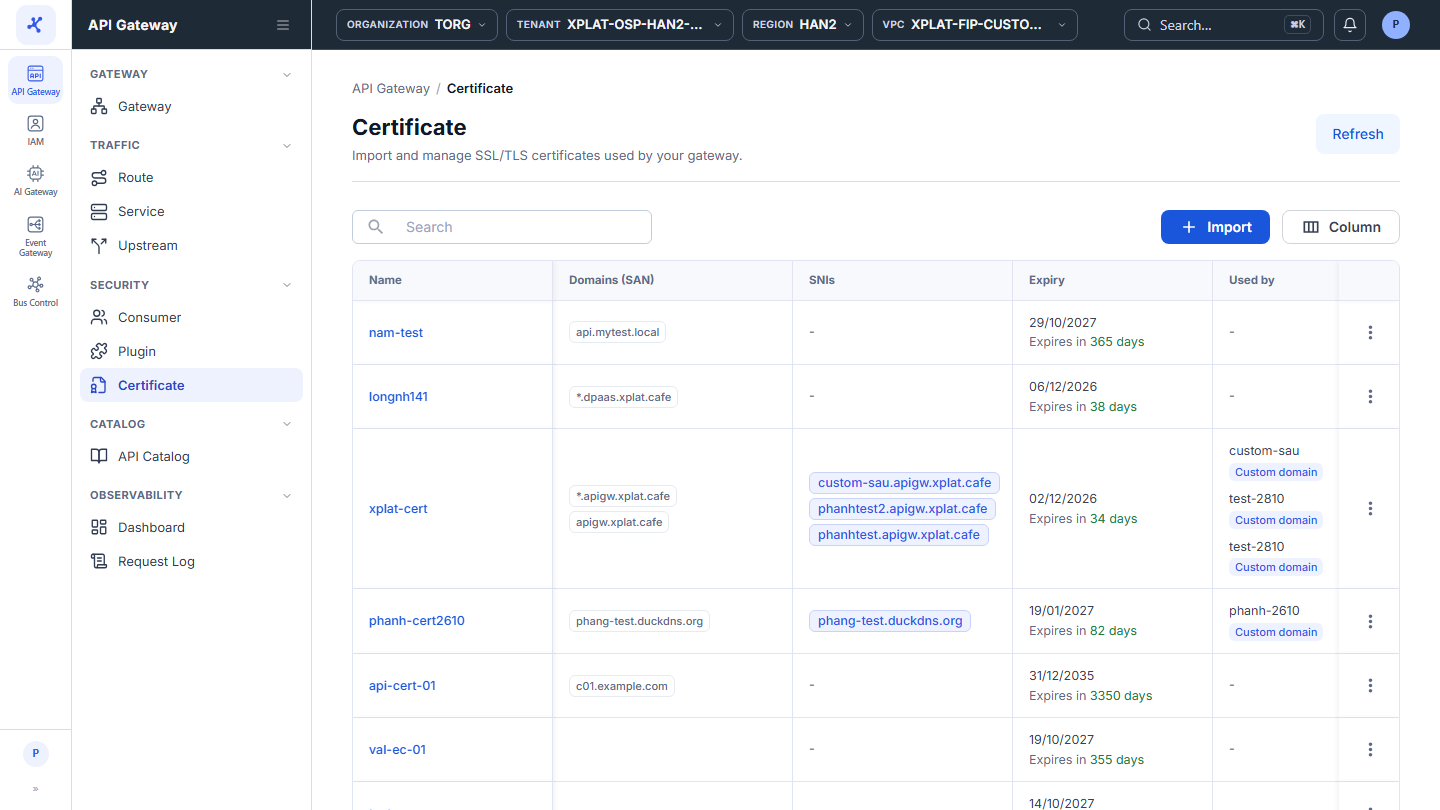
- In the left menu, select API Gateway → Certificate, then click Import.
When the organization has no Certificate yet, click New certificate in the middle of the screen.
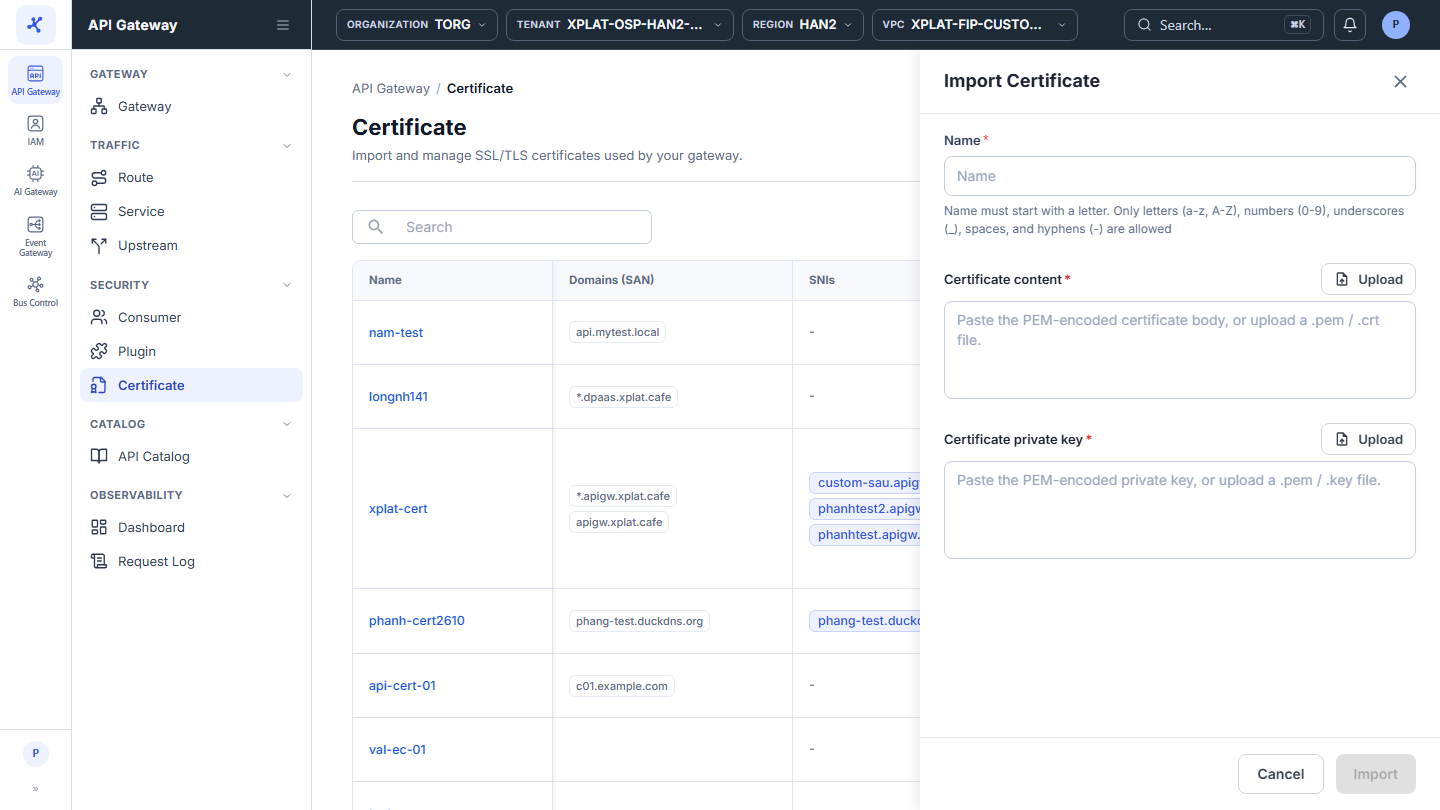
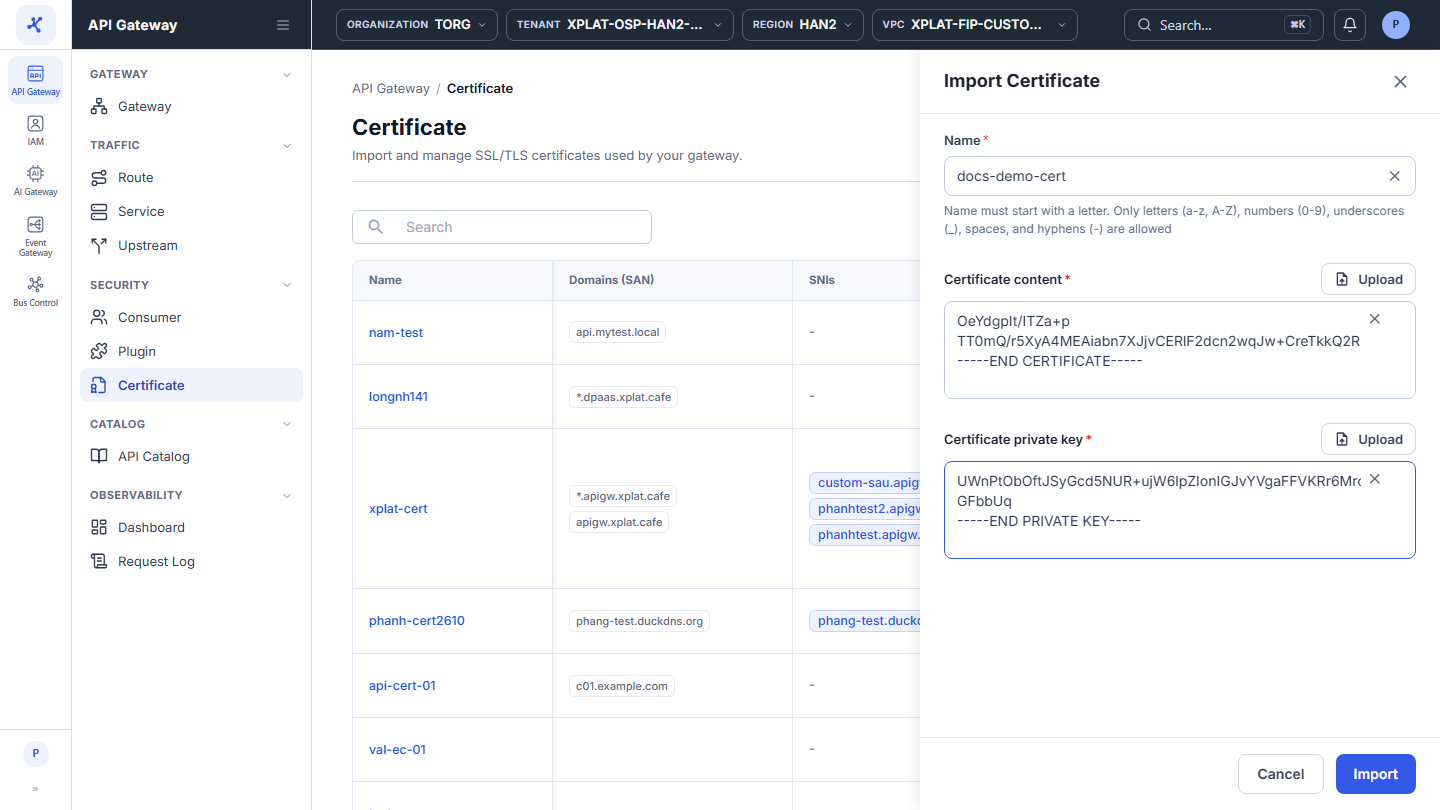
- Enter the following information in the Import Certificate form:
| Field | Required | Description |
|---|---|---|
| Name | Y | Certificate name. Up to 255 characters, starting with a letter, using only letters, numbers, _, -, and spaces. Must be unique among the Certificates of the organization. |
| Certificate content | Y | The Certificate in PEM format. Paste it, or click Upload to load a .pem or .crt file (up to 1 MB). |
| Certificate private key | Y | The private key that goes with the Certificate, in PEM format. Paste it, or click Upload to load a .pem or .key file (up to 1 MB). |
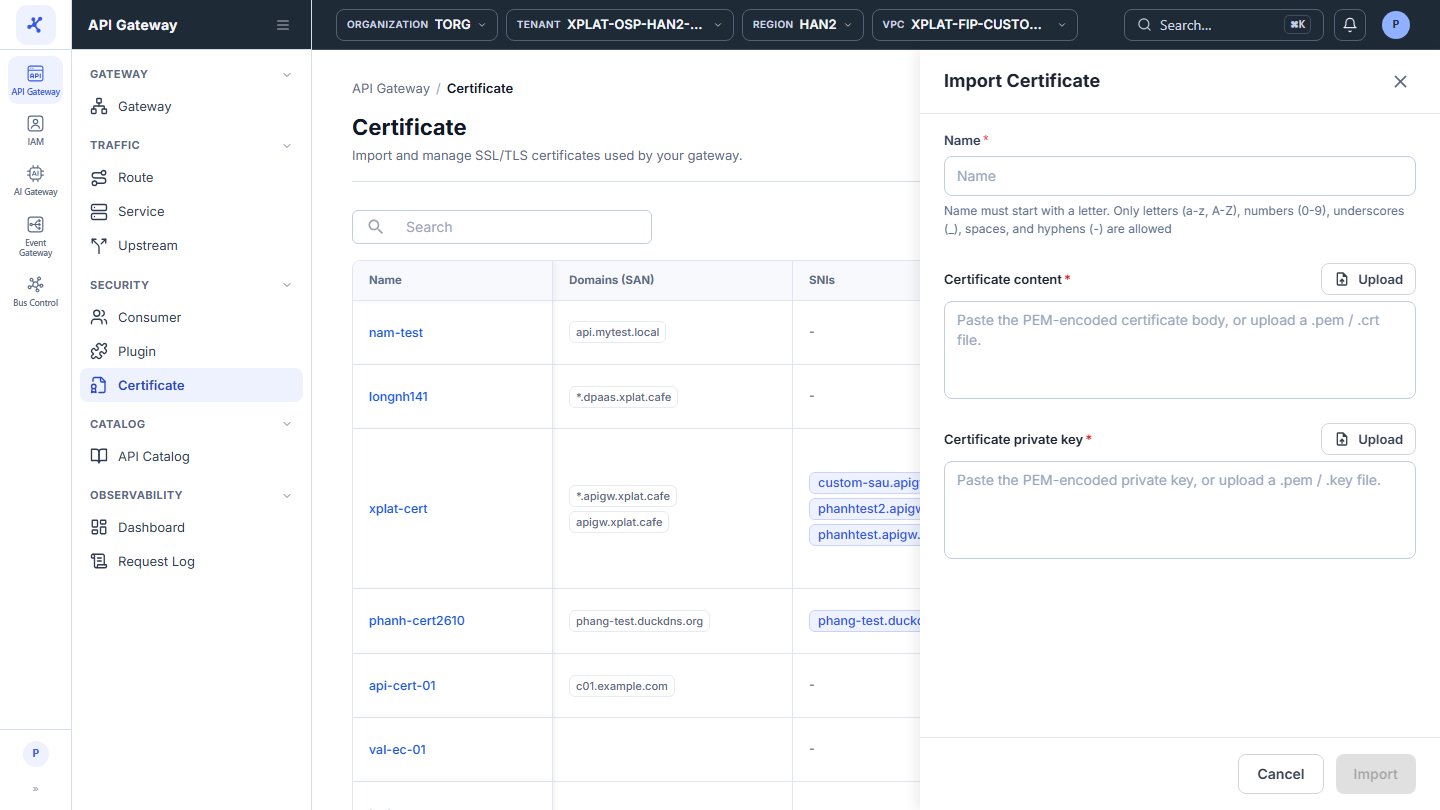
- Click Import. The button is enabled only after you fill in the 3 fields with a valid name.
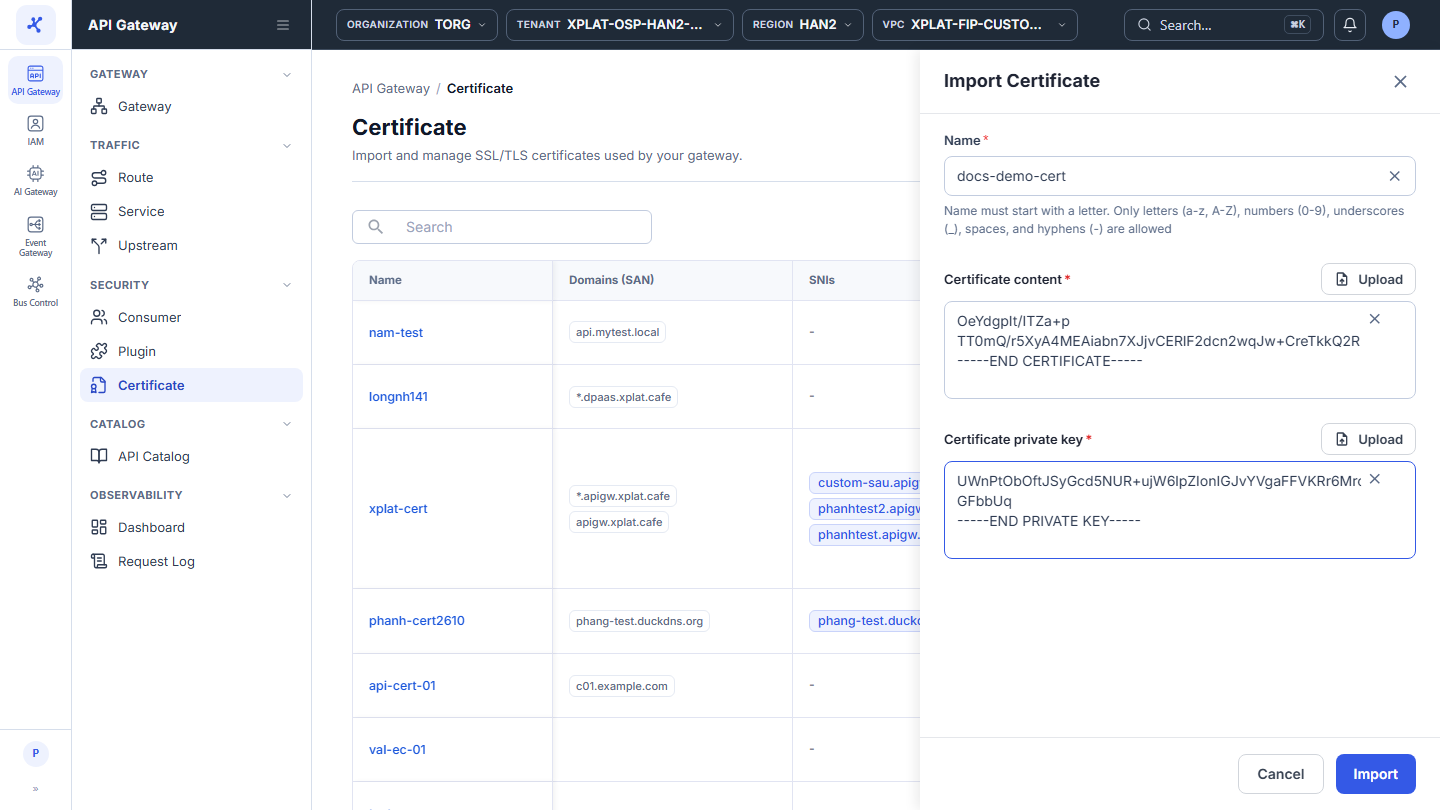
The message Imported successfully. appears, and the new Certificate is at the top of the list. The SNIs and Used by columns show - until a Custom Domain uses the Certificate.
After the import, the private key is never shown again on any screen.
Common issues
| Error | Cause | Solution |
|---|---|---|
| The certificate body provided is not in a valid PEM format. | Certificate content is not a Certificate in PEM format | Paste the whole block, from -----BEGIN CERTIFICATE----- to -----END CERTIFICATE-----. |
| The certificate private key provided is not in a valid PEM format. | Certificate private key is not a private key in PEM format, for example a public key was pasted | Paste the private key block. |
| Key provided does not match the certificate. | The private key belongs to another Certificate | Use the private key that was generated with this Certificate. |
| The certificate is expired. / The certificate has been revoked. | The Certificate has expired or was revoked | Get a new Certificate from your certificate authority. |
| Name already exists. | Another Certificate in the organization has this name | Choose another name. |
| This certificate is already imported as "<name>" (same issuer and serial number). | This Certificate is already in the organization | Use the existing Certificate. |
| "<file>" is not a supported file. / is too large / does not contain PEM content. | The uploaded file has the wrong format, is larger than 1 MB, or has no PEM content | Upload a .pem, .crt, or .key file in PEM format, up to 1 MB. |
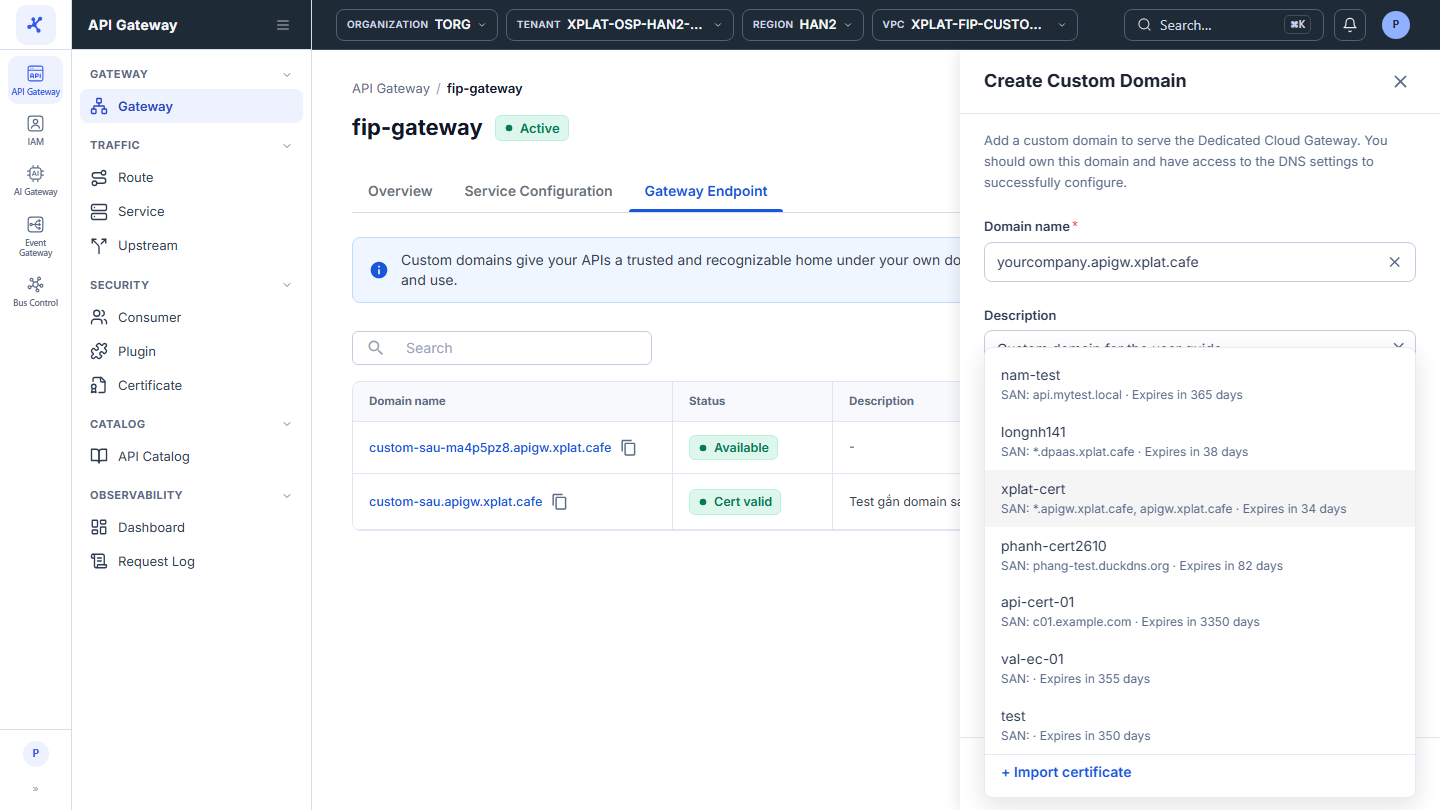
Import a Certificate from a Custom Domain form
You can also import a Certificate when you add a Custom Domain, edit a Custom Domain, or set up the endpoint when you create an API Gateway. Open the Certificate list, click + Import certificate at the bottom of the list, then follow Steps 2 and 3 above. After the import, the system takes you back to the previous form with the new Certificate already selected.