View Certificate details
The Certificate screen lists the SSL/TLS Certificates of your organization. A Certificate is shared by the whole organization, so one Certificate can serve Custom Domains on several API Gateways.
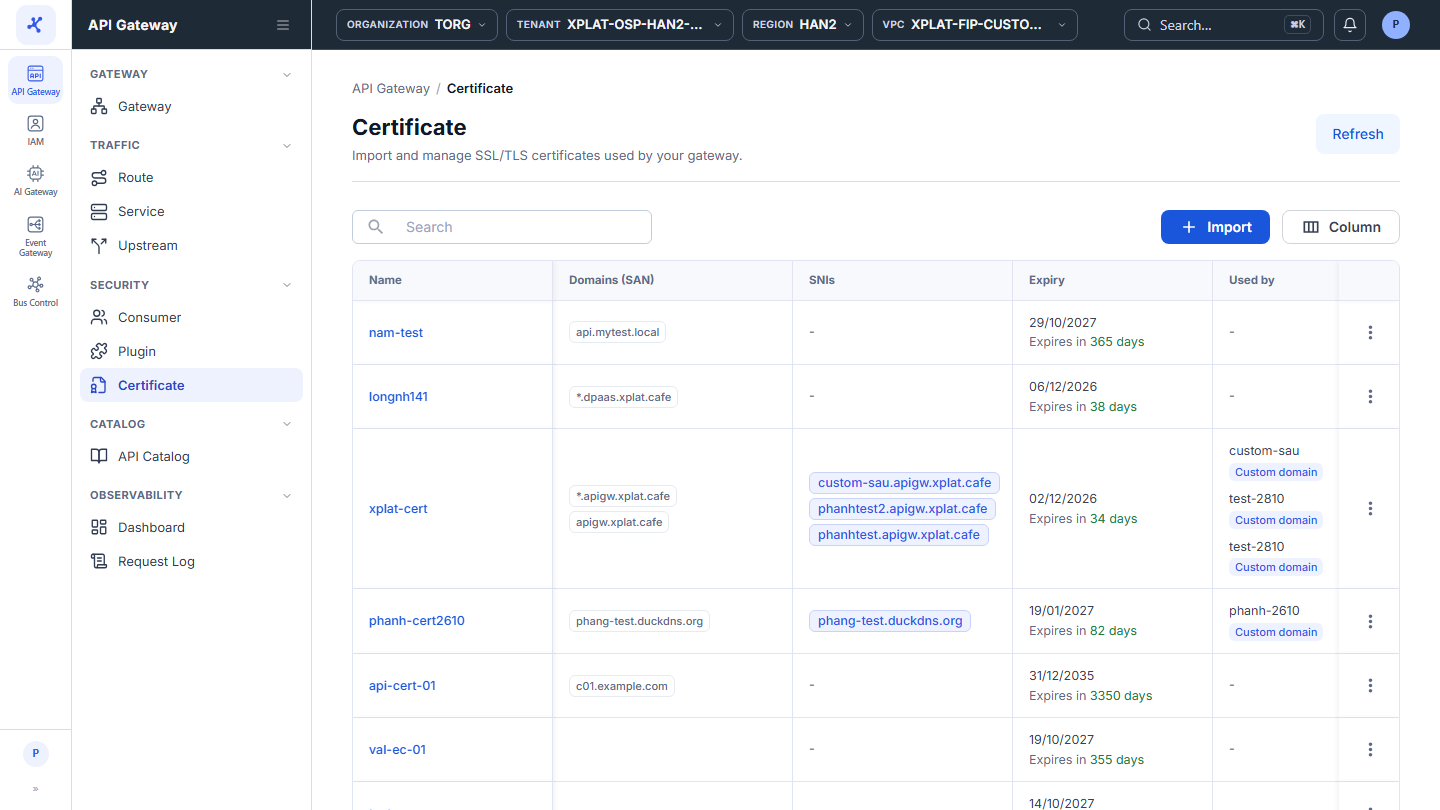
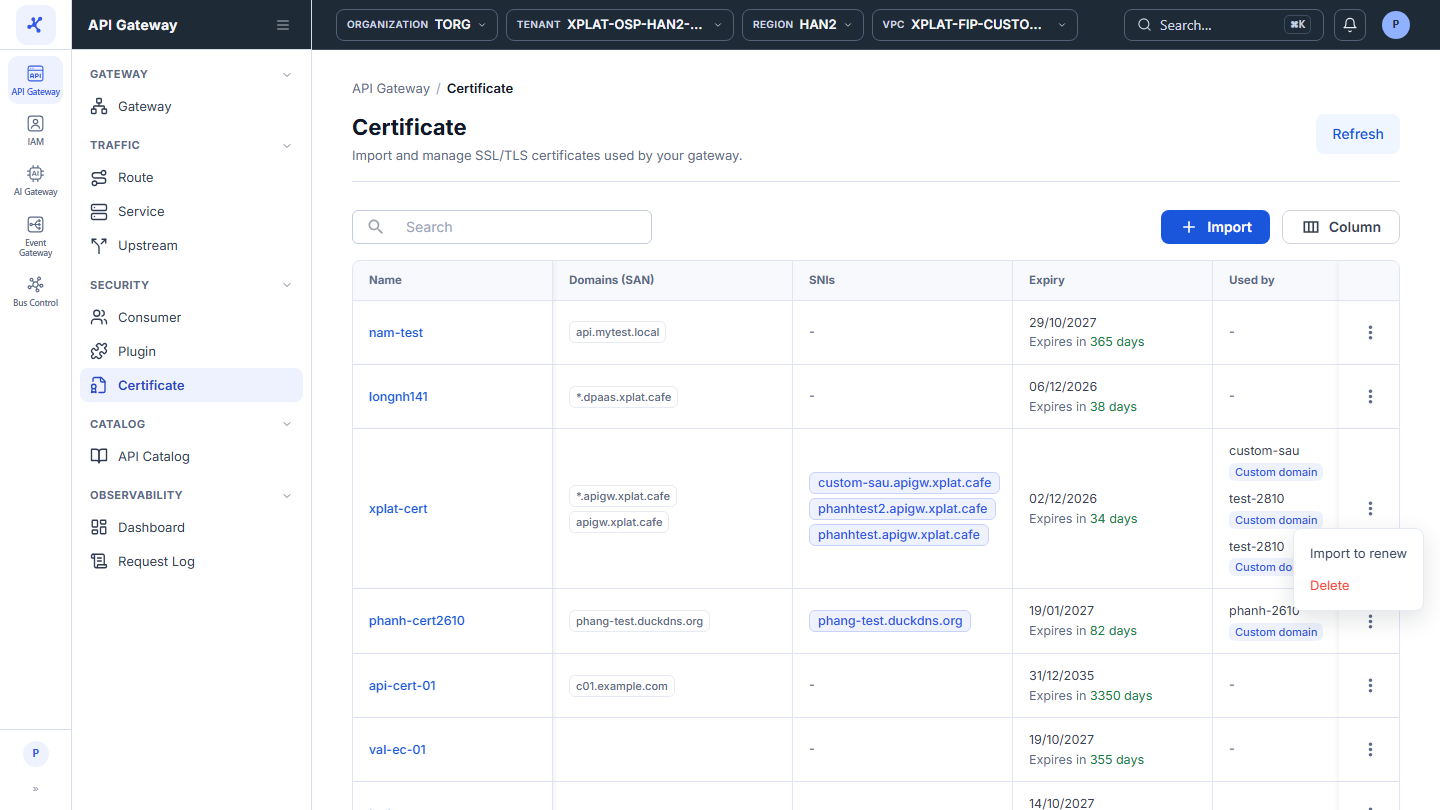
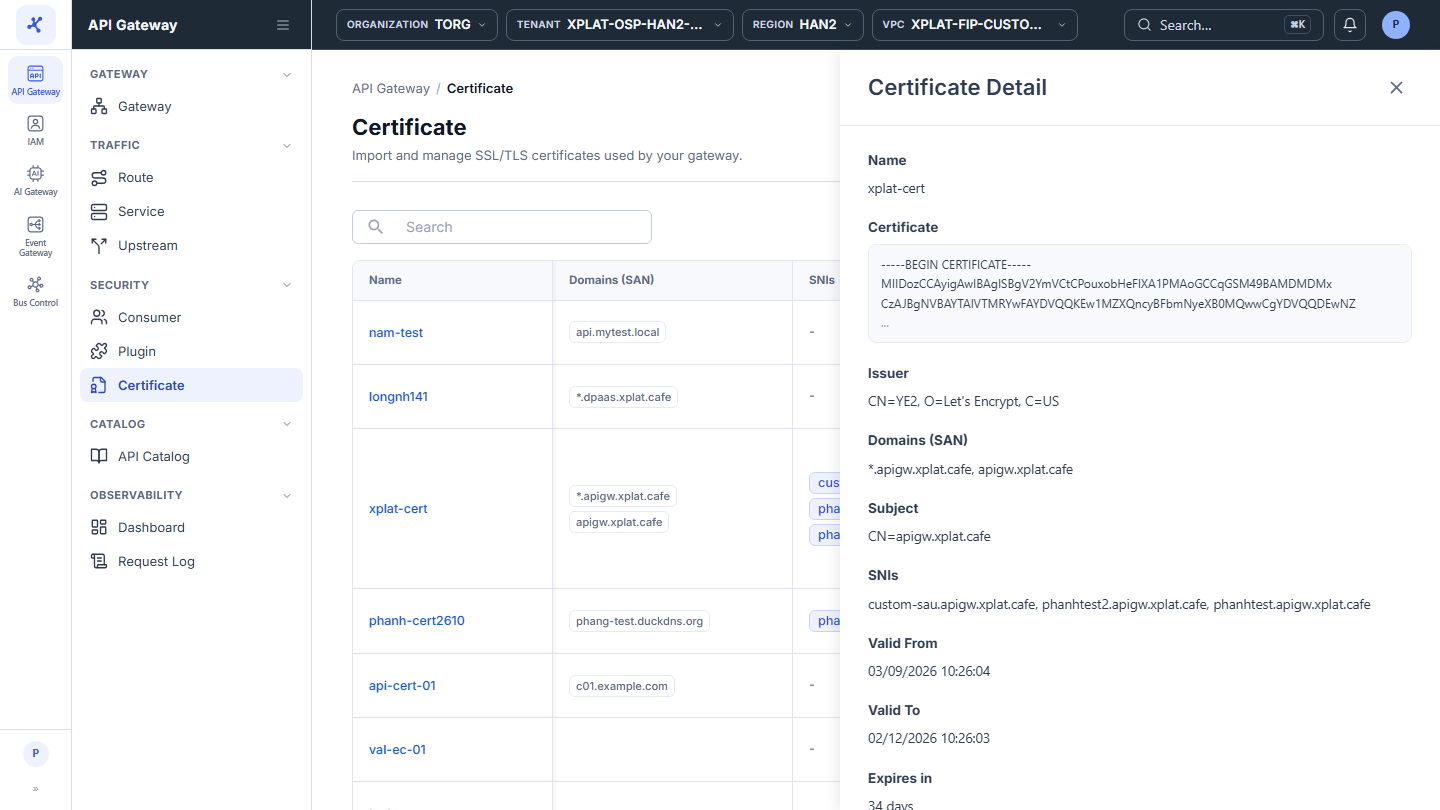
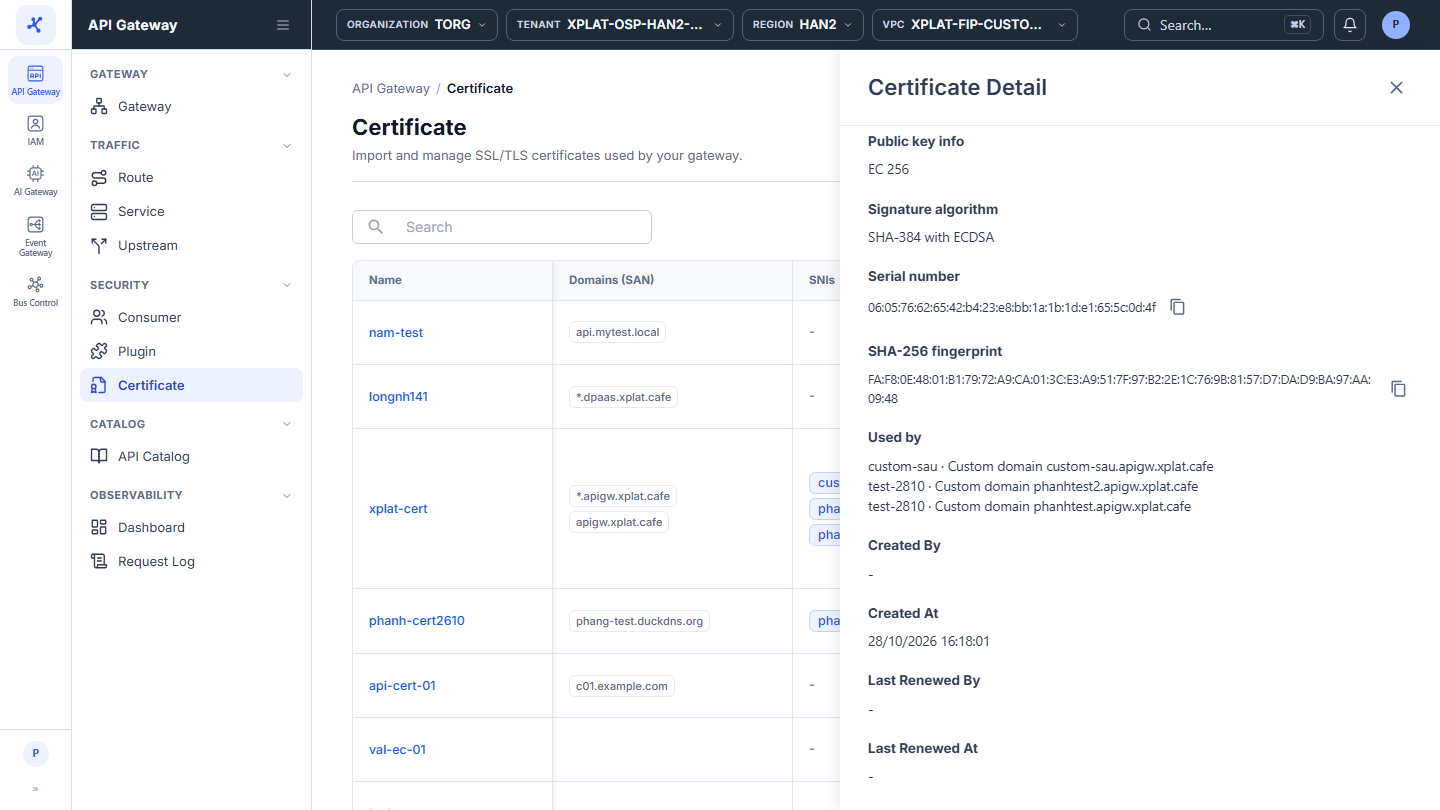
Click the image to zoom in.
View the Certificate list
- In the left menu, select API Gateway → Certificate.
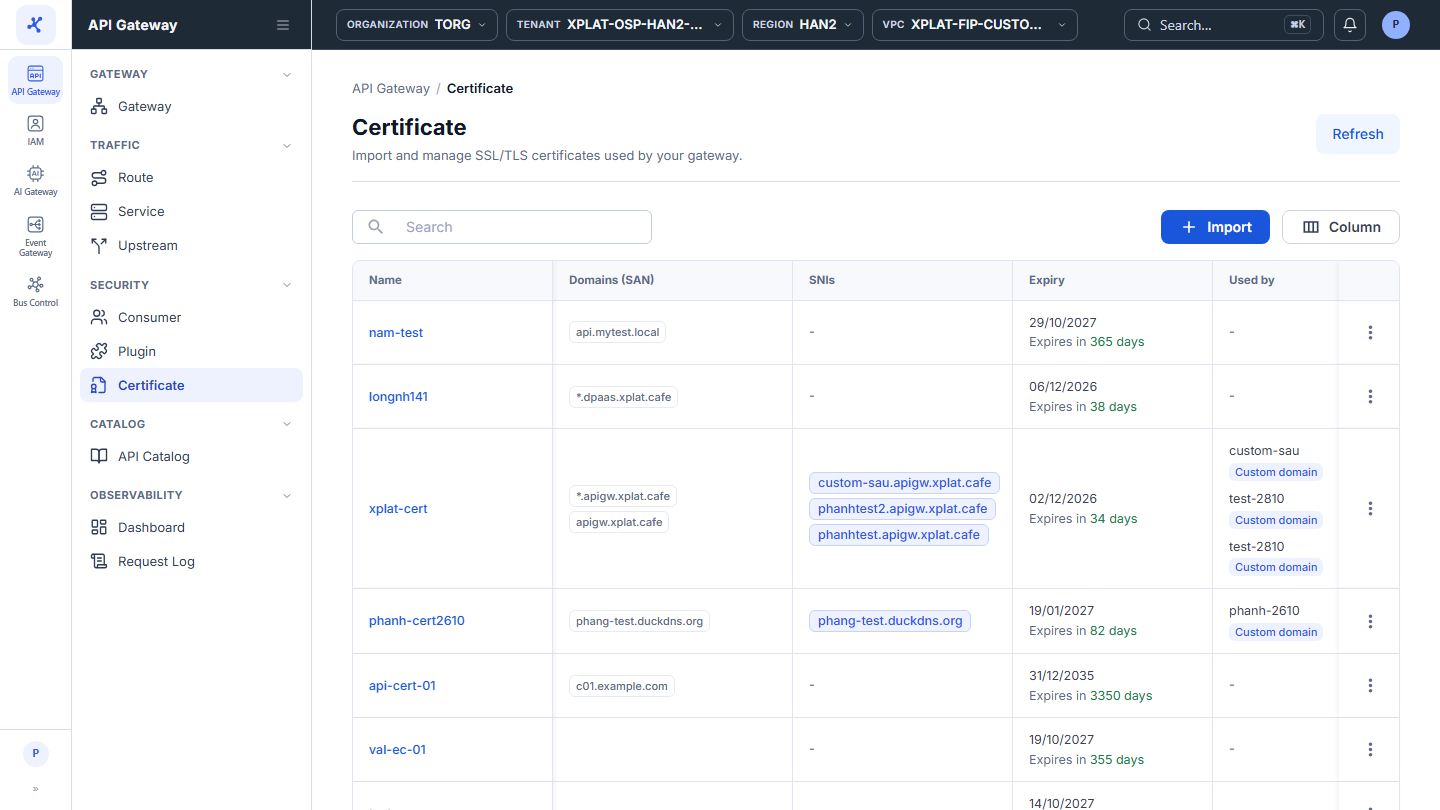
The list includes every Certificate of the organization and is not filtered by API Gateway. It has the following columns:
| Column | Description |
|---|---|
| Name | Certificate name. Click the name to open the detail screen. |
| Domains (SAN) | The domains the Certificate applies to (Subject Alternative Name), one tag per domain, for example *.yourcompany.com and yourcompany.com. |
| SNIs | Custom Domains that use the Certificate. Shows - when no Custom Domain uses it. |
| Expiry | Expiry date (Valid To). Below it is Expires in N days (red when 5 days or fewer are left), Expired, or Not yet valid. |
| Used by | API Gateways that use the Certificate, each with the Custom domain tag. Shows - when unused. |
| Created At, Created By | When and by whom the Certificate was imported. |
| Last Renewed At, Last Renewed By | When and by whom the Certificate was last renewed. Shows - when it has never been renewed. |
| ⋮ | Action menu on each row, see the action table below. |
The toolbar has the Search box to find Certificates by keyword (it also searches hidden columns), the Import button to import a Certificate, and the Column button to choose, hide, and order the columns. The Refresh button in the top-right corner reloads the list.
When the organization has no Certificate yet, the screen shows the message Configure your first certificate with the New certificate button.
The ⋮ menu at the end of each row has 2 actions:
| Action | Description |
|---|---|
| Import to renew | Replace the Certificate with a new one. See Renew a Certificate. Available only when a Custom Domain uses the Certificate. |
| Delete | Delete the Certificate. See Delete a Certificate. |
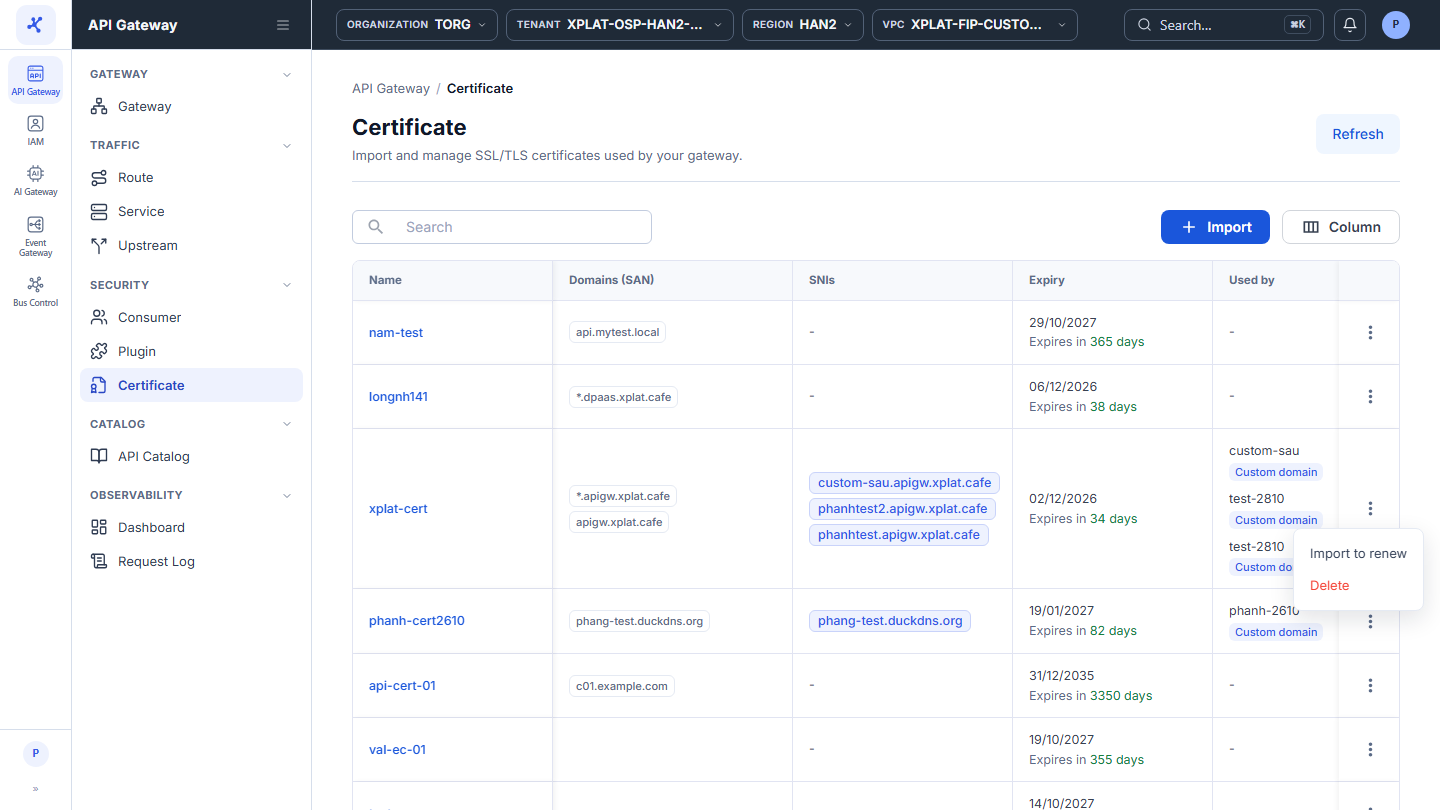
View the details of a Certificate
- Click the Name of the Certificate you want to view. The Certificate Detail panel opens on the right, read-only.
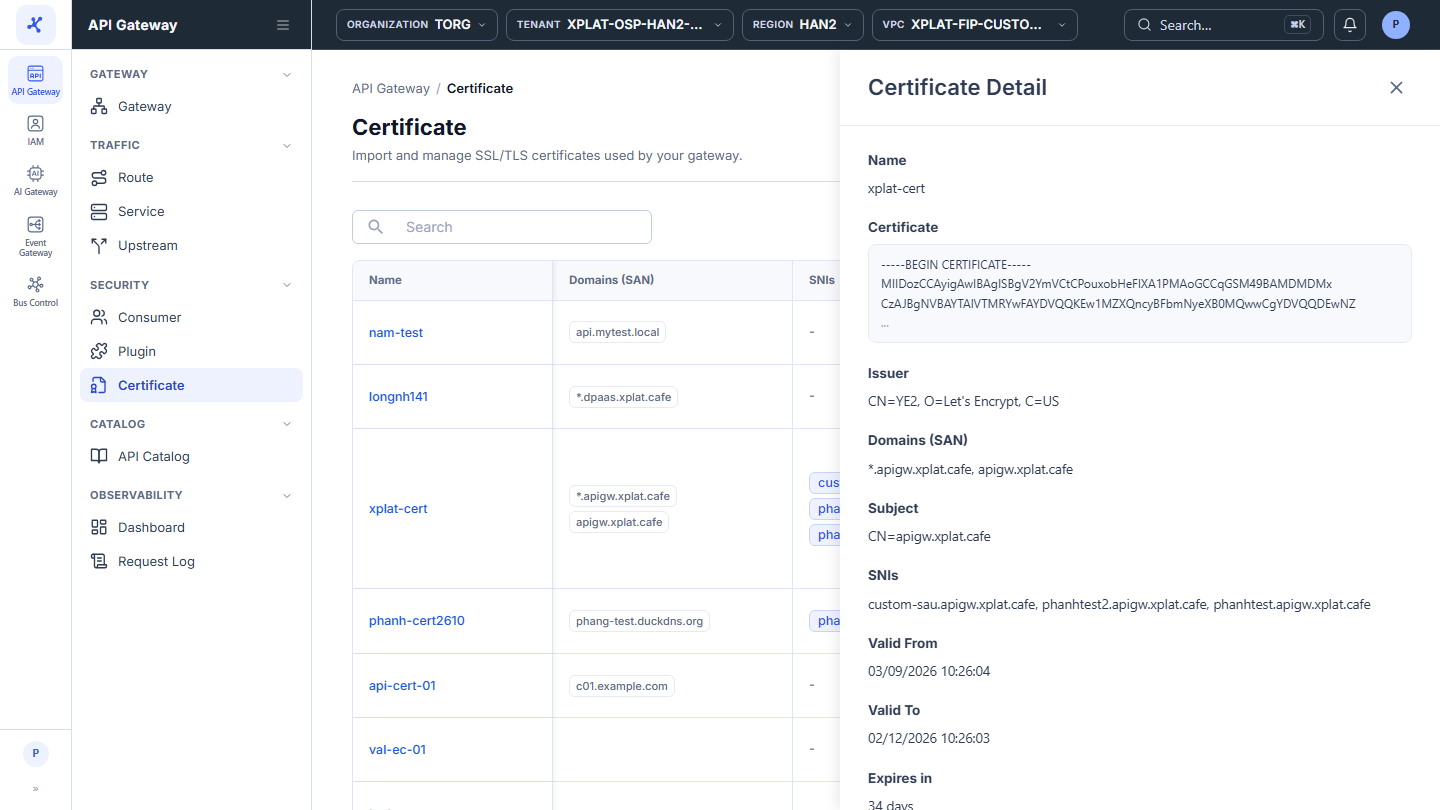
| Field | Description |
|---|---|
| Name | Certificate name. |
| Certificate | First lines of the Certificate in PEM format. The private key is not shown. |
| Issuer | Organization that issued the Certificate, for example CN=YE2, O=Let's Encrypt, C=US. |
| Domains (SAN) | The domains the Certificate applies to. |
| Subject | Subject of the Certificate, for example CN=yourcompany.com. |
| SNIs | Custom Domains that use the Certificate. Hidden when no Custom Domain uses it. |
| Valid From, Valid To, Expires in | Validity period and the days left. |
| Public key info, Signature algorithm | Key type and size (for example EC 256), and the signing algorithm (for example SHA-384 with ECDSA). |
| Serial number, SHA-256 fingerprint | Identifiers of the Certificate, each with a copy icon. |
| Used by | Each use of the Certificate on its own line, for example fip-gateway · Custom domain api.yourcompany.com. |
| Created By, Created At, Last Renewed By, Last Renewed At | Import and renewal history. |
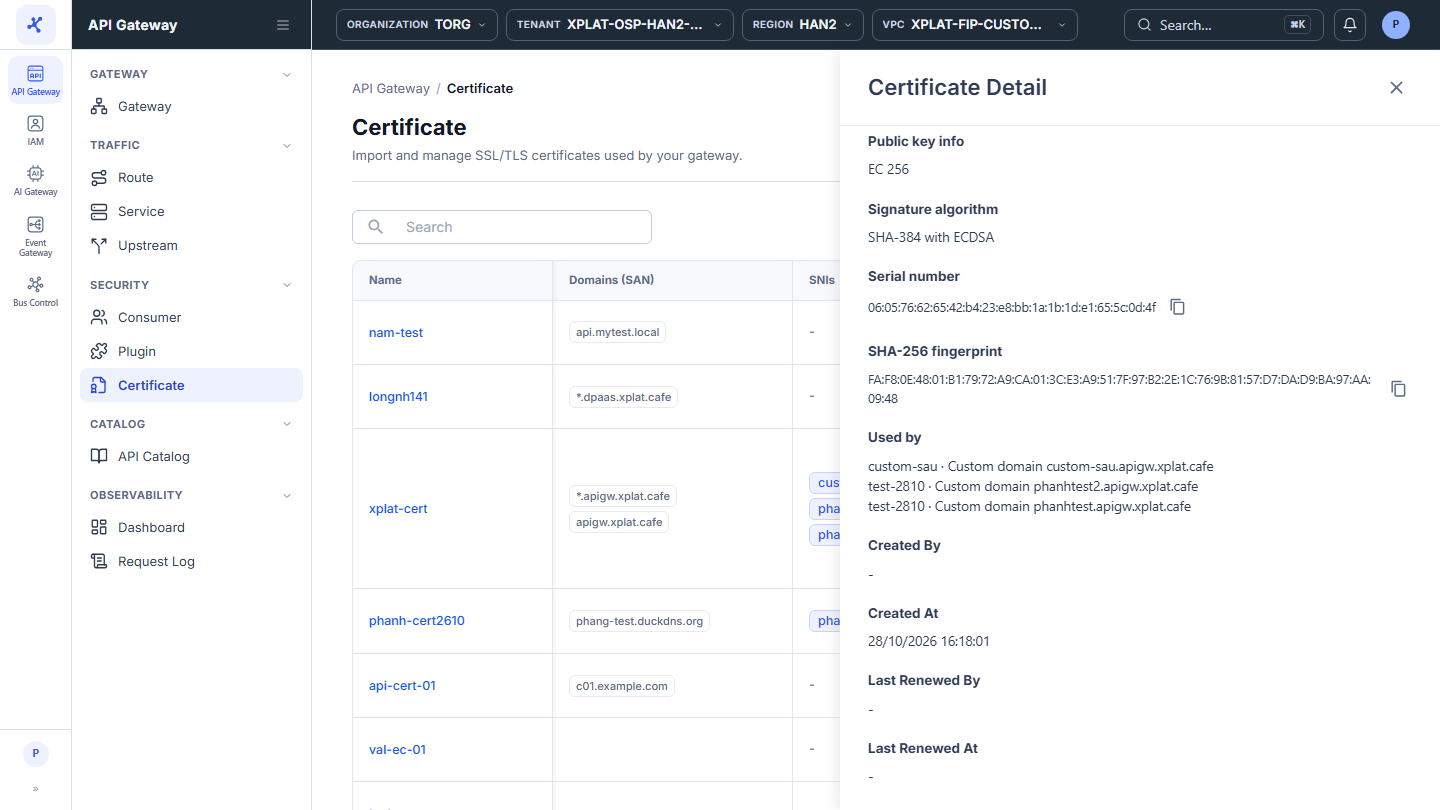
Click ✕ to close the panel.