Create a Consumer
A Consumer represents an application or user that calls APIs through the API Gateway. You attach Credentials (for example JWT) to a Consumer so the API Gateway can identify and authenticate its requests on Routes and Services that have an authentication plugin turned on.
Typical flow:
- Create a Consumer (this page).
- Add a Credential to the Consumer, see Manage JWT credentials.
- Turn on the matching authentication plugin (for example JWT Auth) on a Route or a Service.
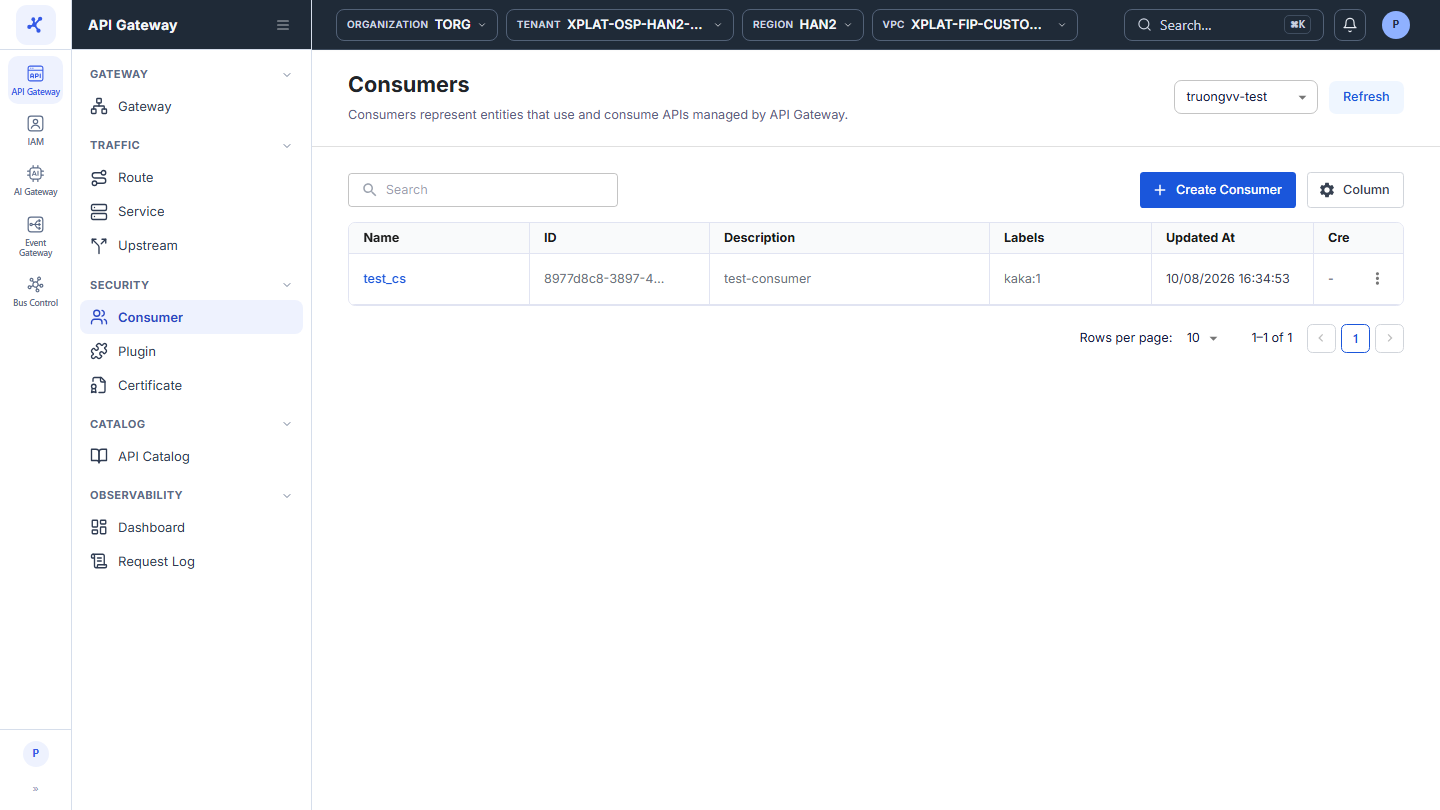
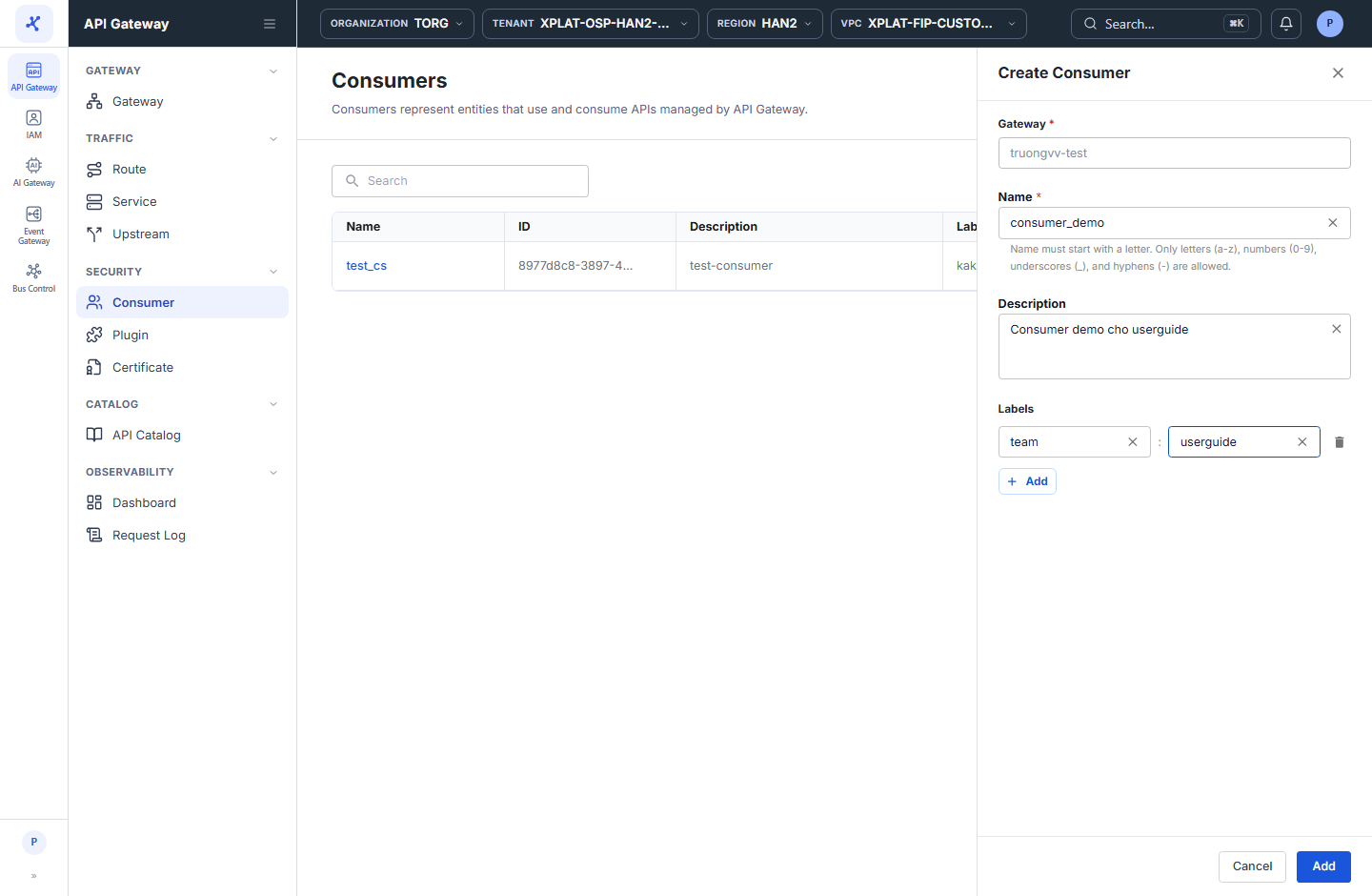
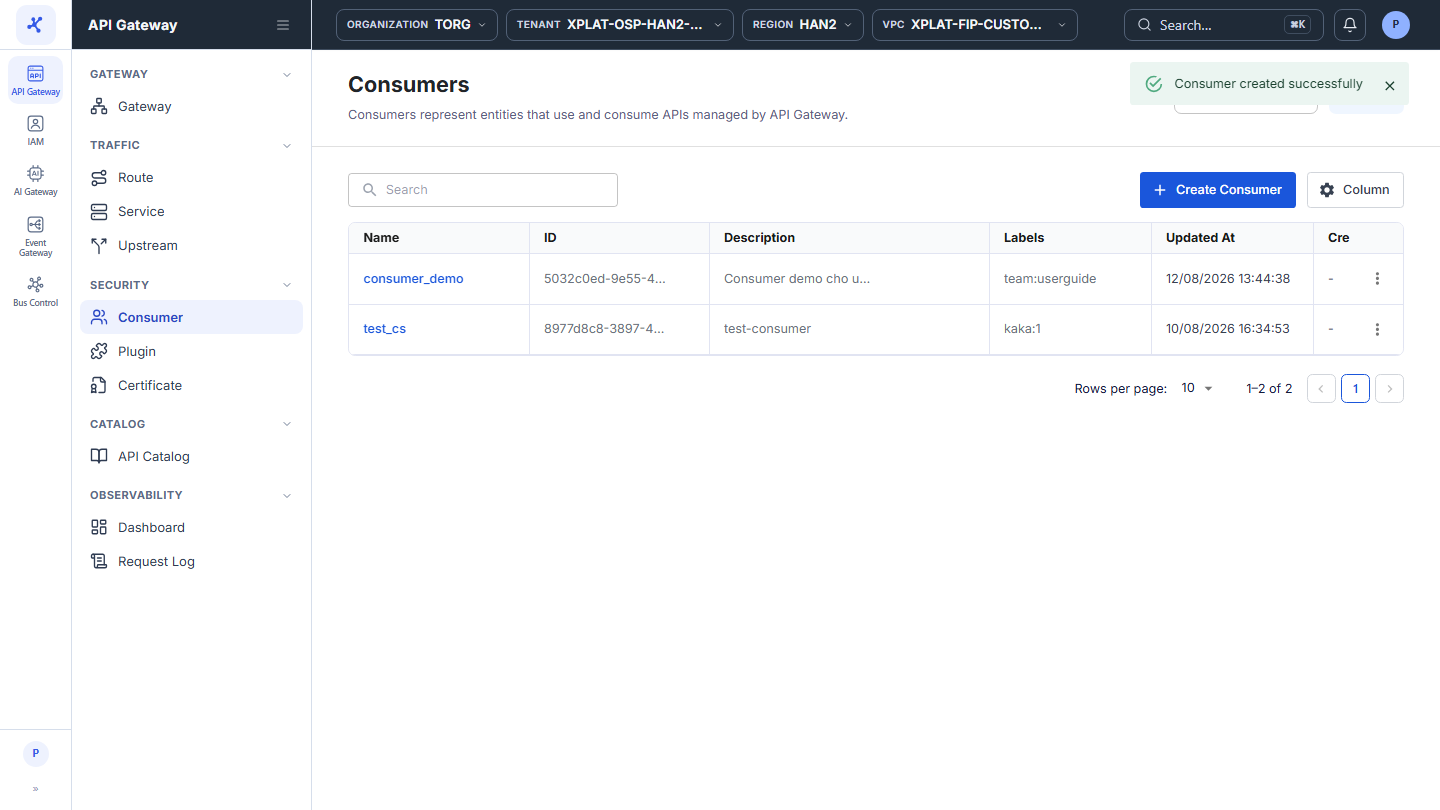
Step 1Open the Consumer screen, select the API Gateway in the top-right corner, then click Create Consumer
1 / 5
Click the image to zoom in.
Create a Consumer
To create a Consumer, follow these steps:
-
In the left menu, select API Gateway → Consumer, select the API Gateway in the top-right corner, then click Create Consumer.
-
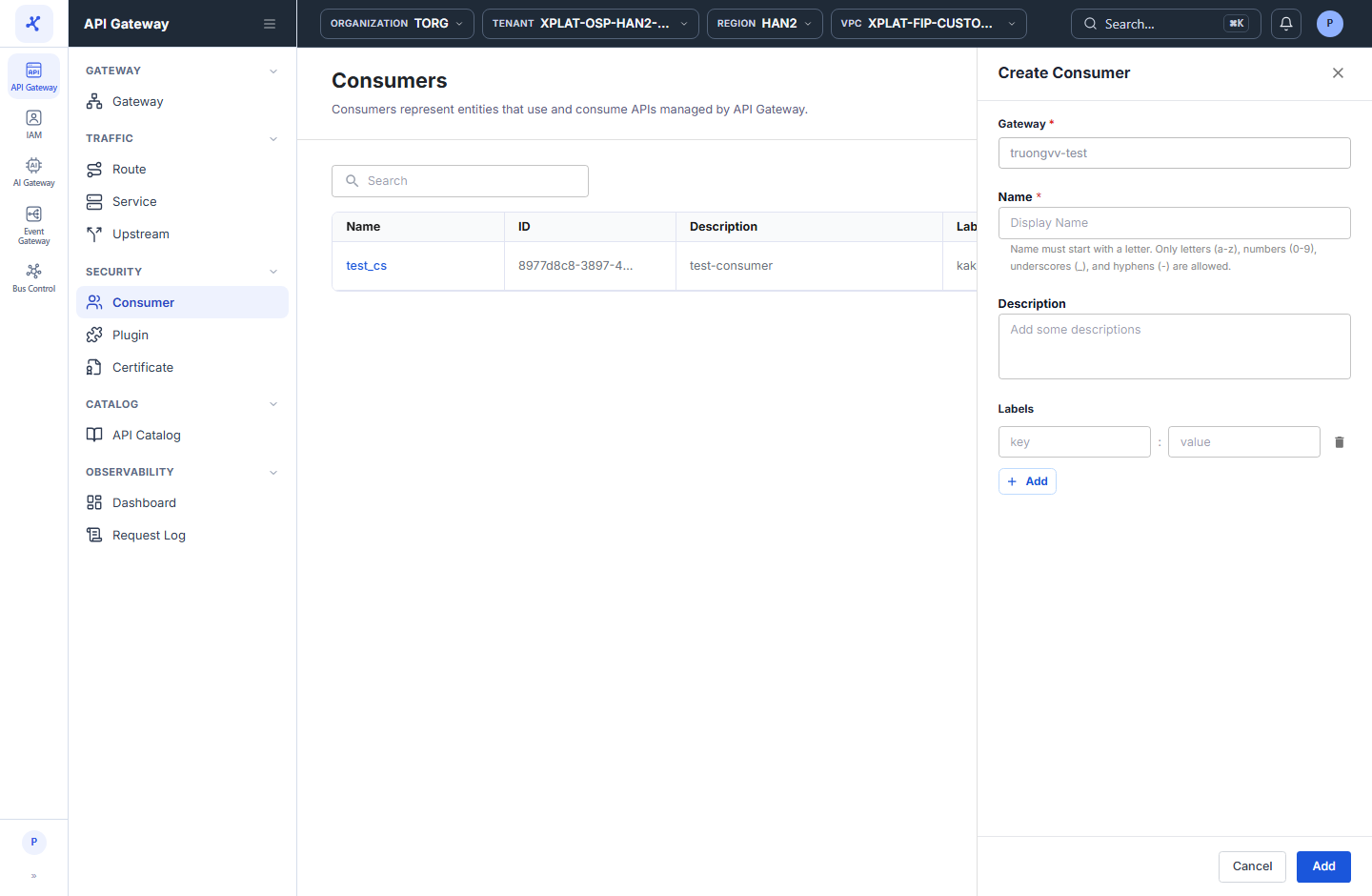
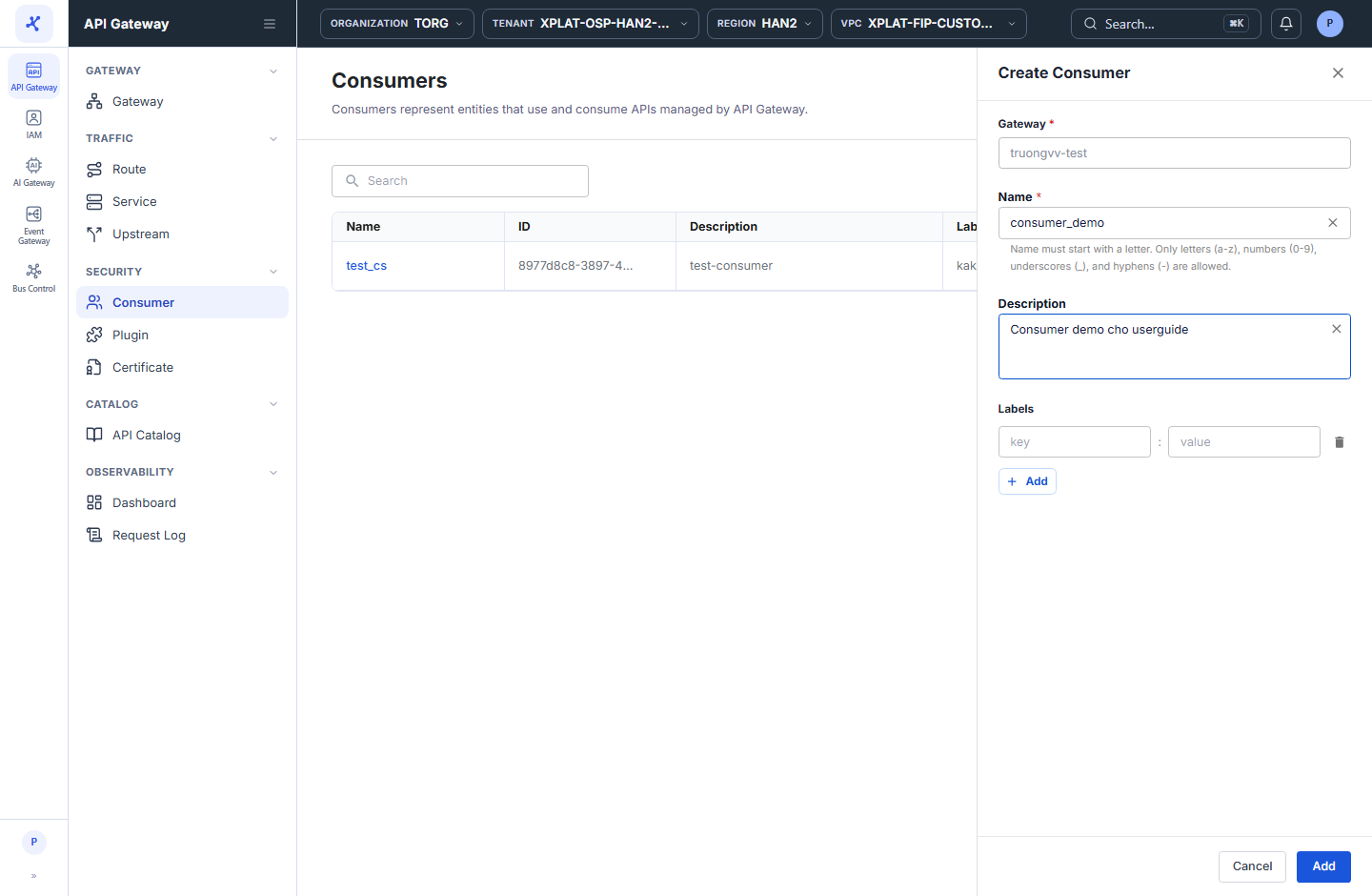
In the Create Consumer form that opens on the right, enter the following information:
| Field | Required | Description |
|---|---|---|
| Gateway | - | API Gateway the Consumer belongs to, taken from the API Gateway selected on the list screen. Read-only. |
| Name | Y | Consumer name, used to identify the Consumer when you configure authentication plugins. The name must be unique across all API Gateways, not only within the selected one. Starts with a letter and uses only letters a-z, numbers 0-9, _, and -. Name cannot be changed after the Consumer is created. |
| Description | N | Which application or partner the Consumer represents. |
| Labels | N | Key : value labels to classify and find Consumers, for example team : mobile. Click + Add to add a label, and click the trash icon to remove one. |
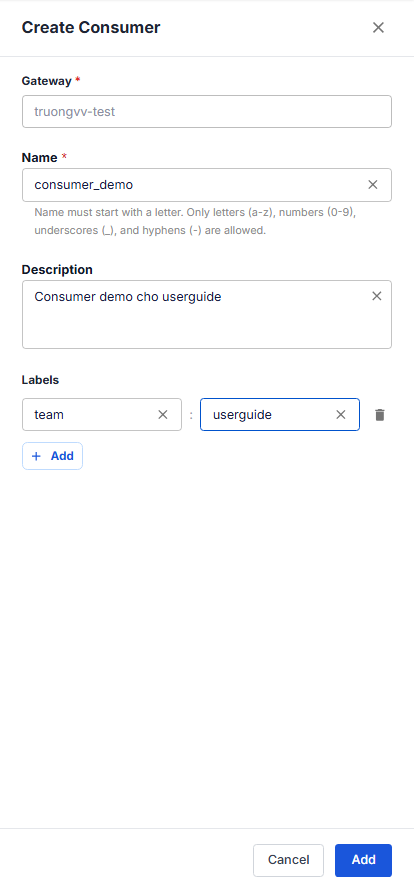
- Click Add to finish.
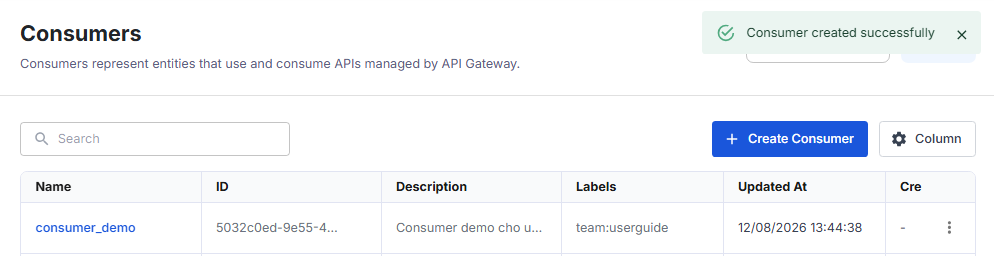
The message Consumer created successfully appears, the form closes, and the new Consumer appears in the list.