Manage JWT credentials
A JWT Credential holds what the API Gateway needs to verify a JWT sent by a client: the Key to find the right credential (and the right Consumer), and the Secret or Public Key to verify the signature. The credential takes effect when a Route or Service has the JWT Auth plugin turned on.
Add a JWT credential
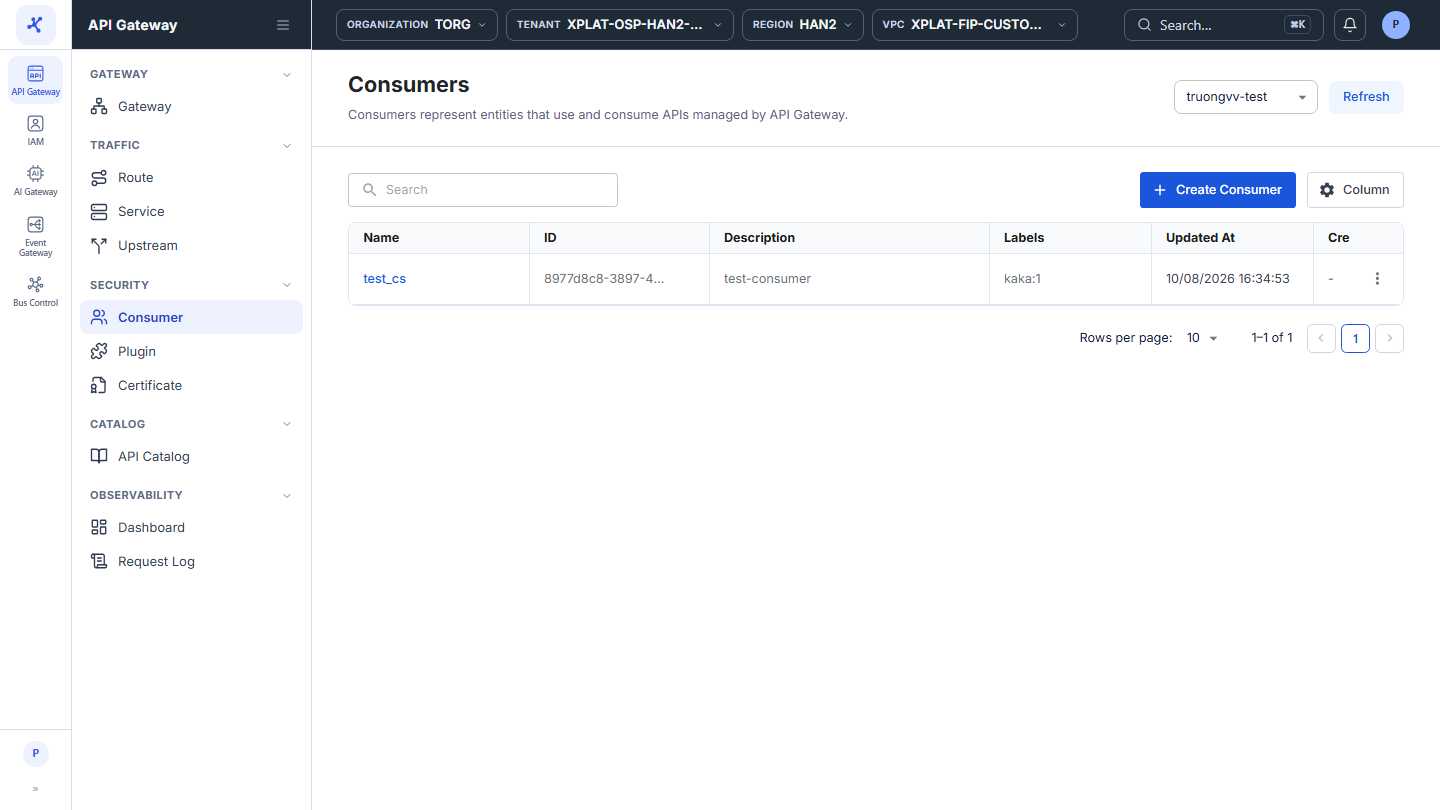
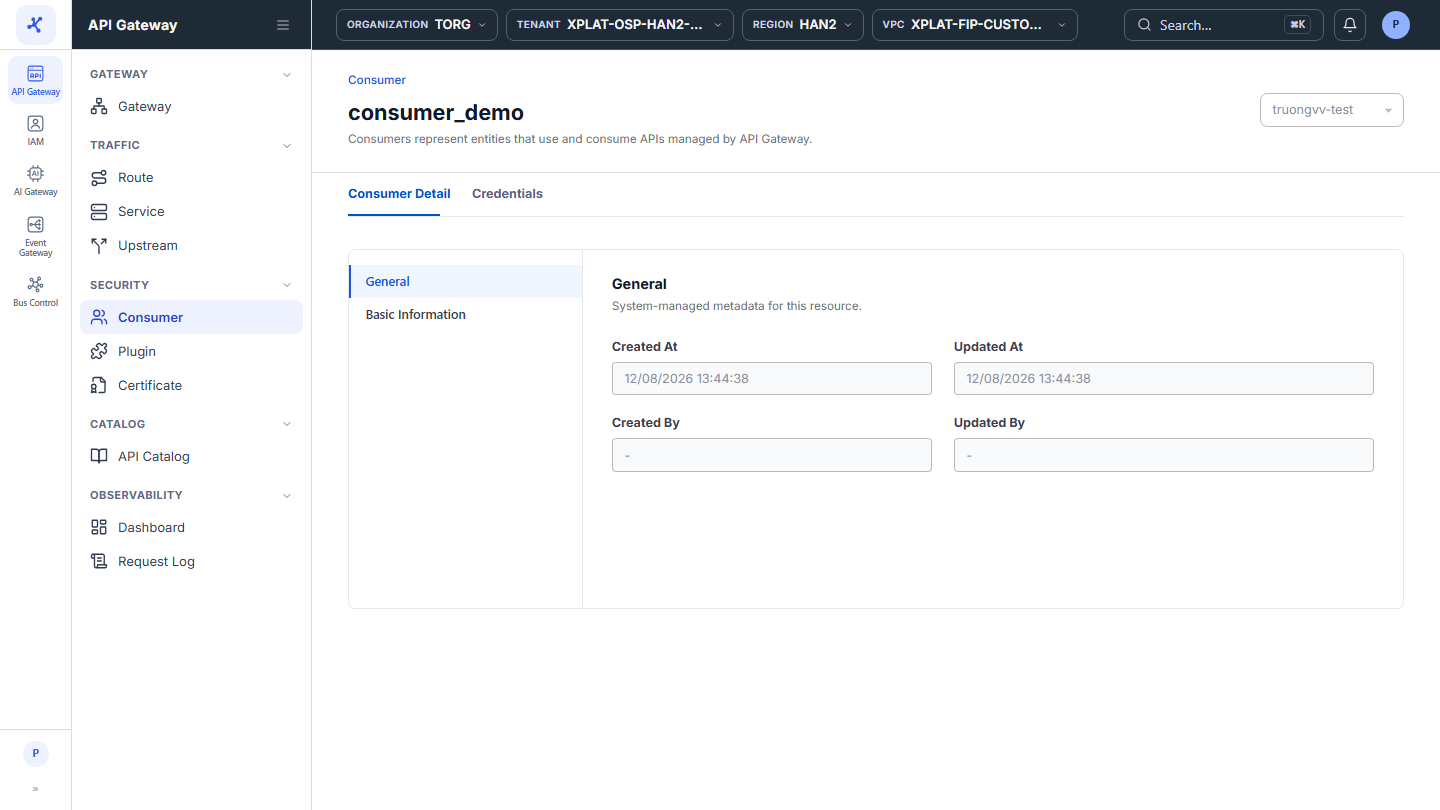
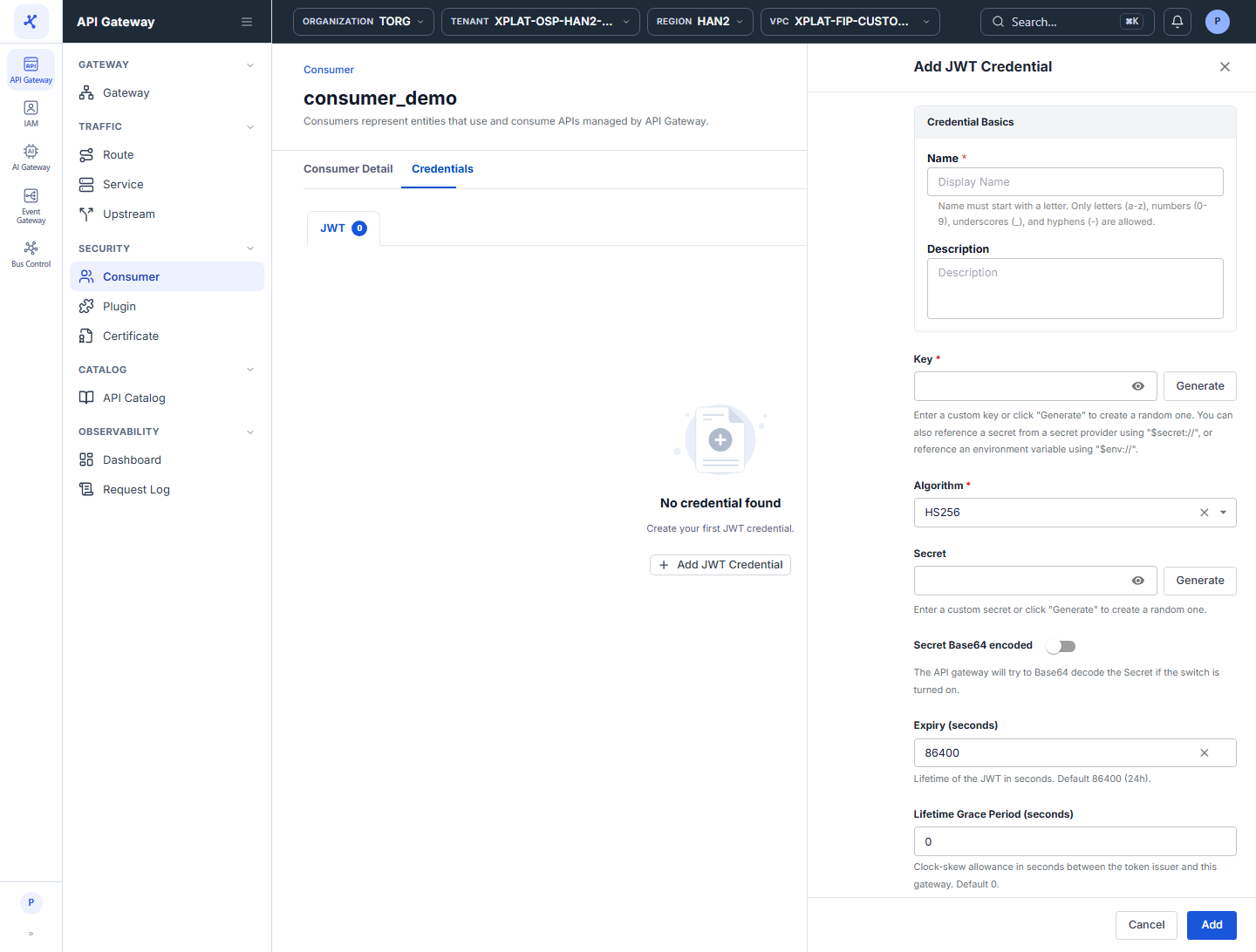
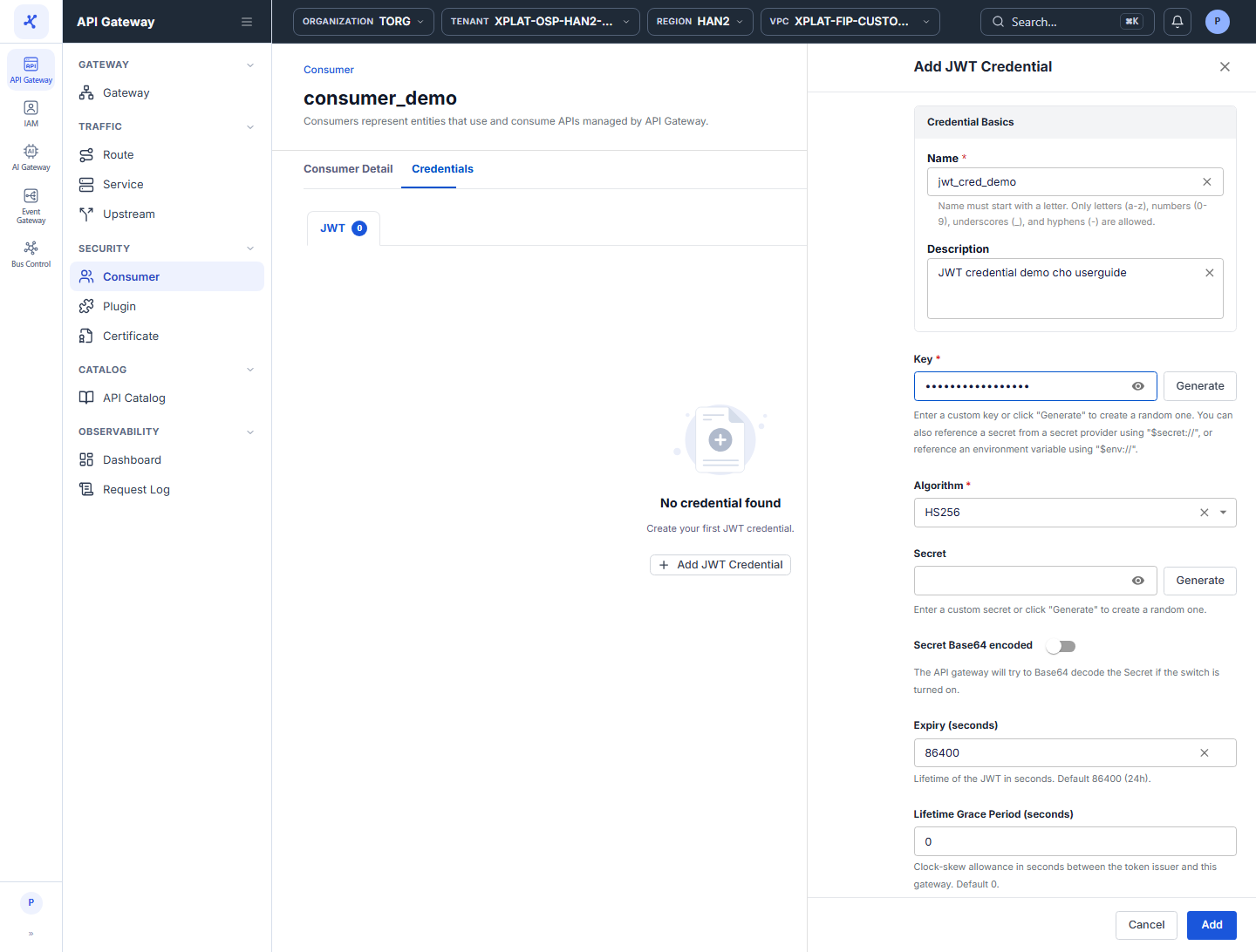
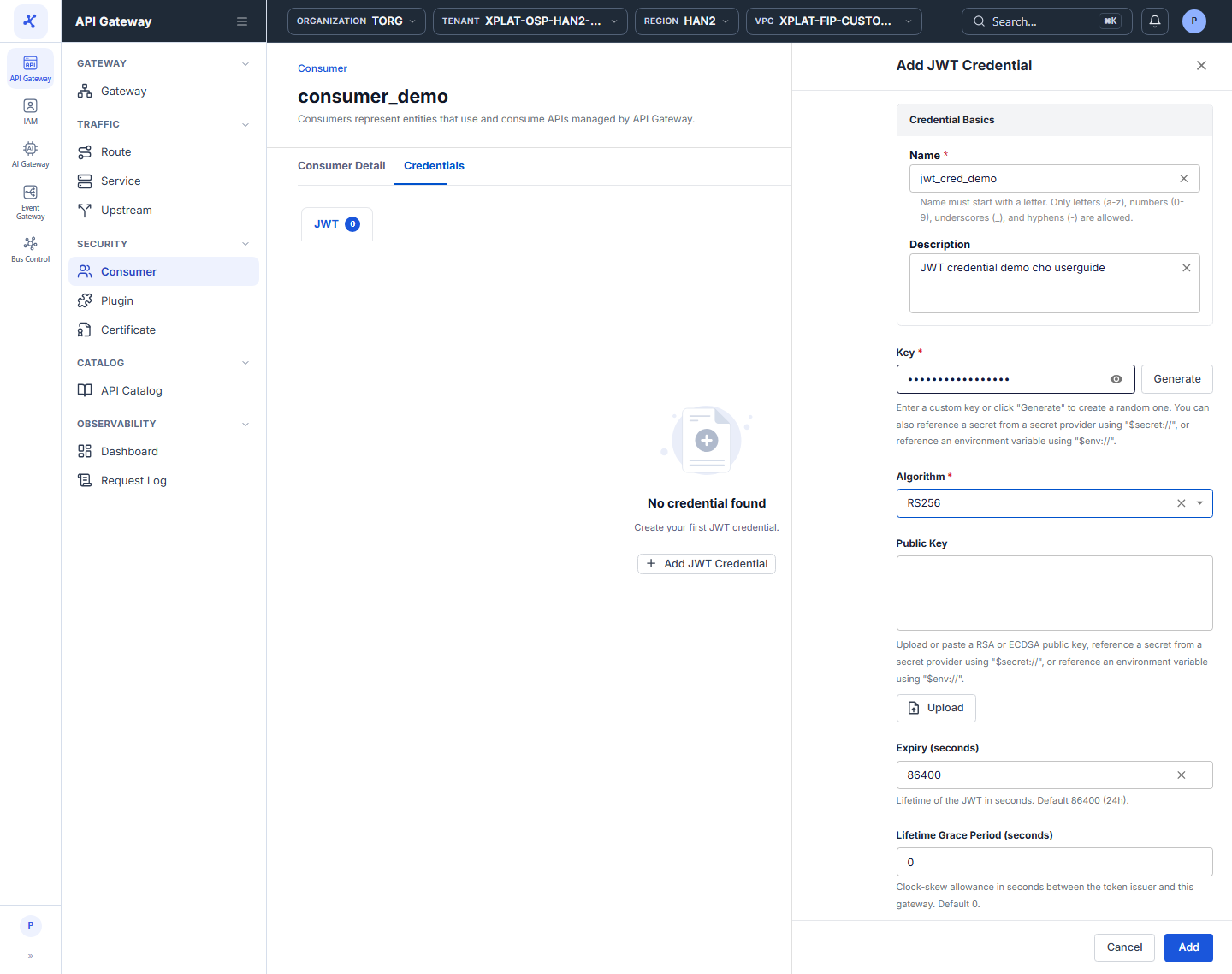
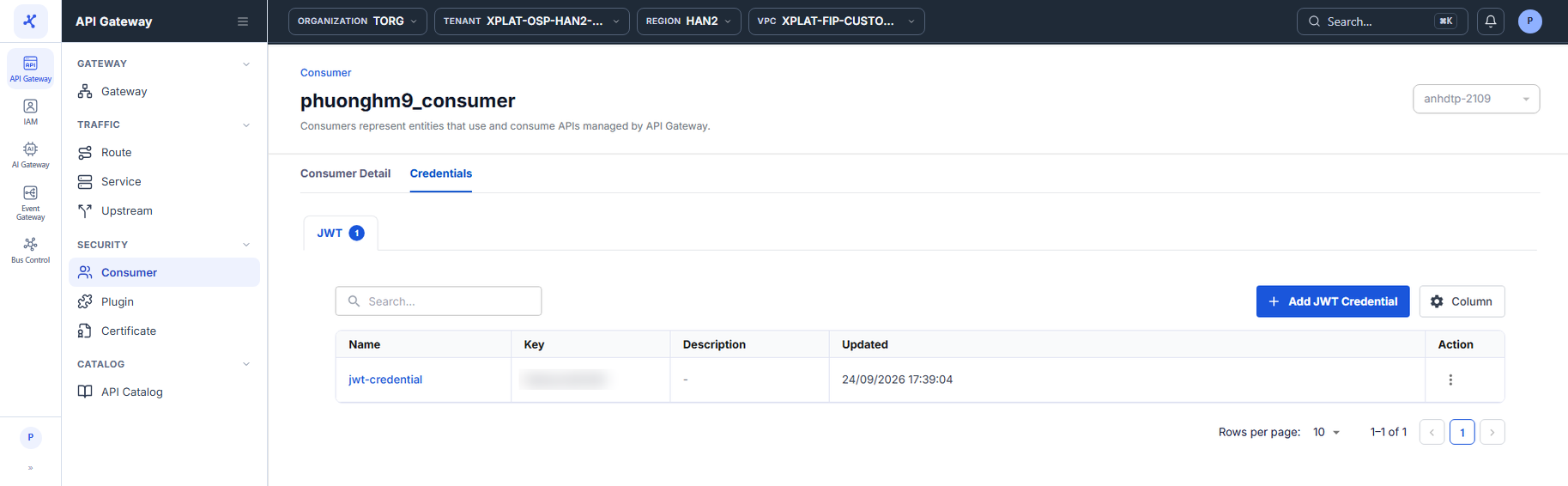
Click the image to zoom in.
To add a JWT Credential, follow these steps:
-
In the left menu, select API Gateway → Consumer, then select the API Gateway in the top-right corner.
-
Click the Name of the Consumer, then select the Credentials tab.
-
Click Add JWT Credential to open the Add JWT Credential form, then enter the following information:
| Field | Required | Description |
|---|---|---|
| Name | Y | Credential name in the credential list of the Consumer. Starts with a letter and uses only letters a-z, numbers 0-9, _, and -. |
| Description | N | Purpose of the credential. |
| Key | Y | Credential identifier. When a client sends a JWT, the API Gateway uses the Key in the token to find the right credential. Enter your own value or click Generate for a random one, and click the eye icon to show or hide it. You can reference a secret provider with $secret:// or an environment variable with $env://. |
| Algorithm | Y | JWT signing algorithm, default HS256. The algorithm decides whether you enter a Secret or a Public Key, see below. |
| Expiry (seconds) | N | JWT lifetime in seconds. Default 86400 (24 hours). |
| Lifetime Grace Period (seconds) | N | Allowance (seconds) for clock skew between the token issuer and the API Gateway when checking token expiry. Default 0. |
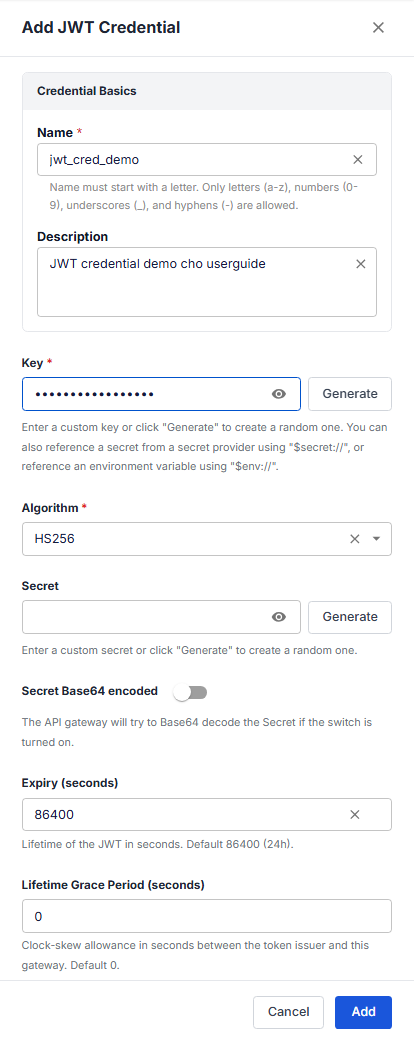
When Algorithm is HS256, HS384, or HS512 (symmetric key):
| Field | Required | Description |
|---|---|---|
| Secret | Y | Secret key used to sign and verify the JWT. Enter your own value or click Generate for a random one. |
| Secret Base64 encoded | N | Turn on when the Secret is Base64-encoded, so the API Gateway decodes it before use. |
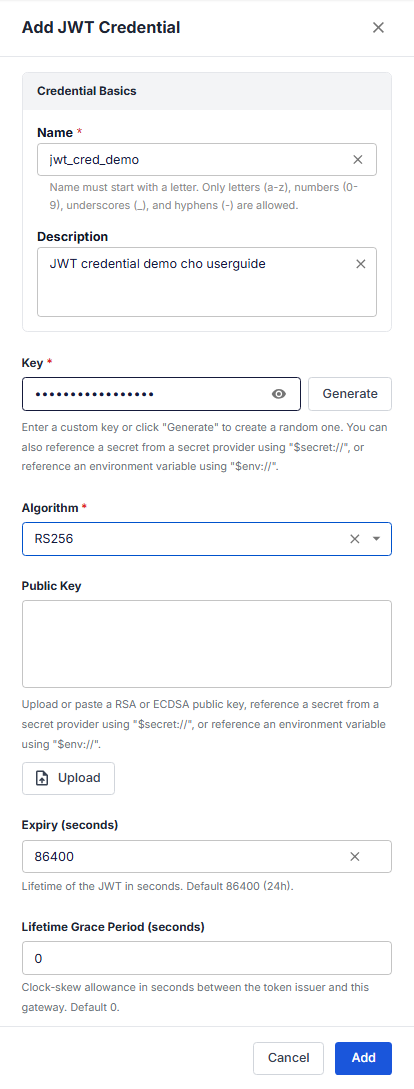
When Algorithm is RS*, ES*, PS*, or EdDSA (asymmetric key, for example RS256): the Secret field is replaced by the Public Key field.
| Field | Required | Description |
|---|---|---|
| Public Key | Y | RSA or ECDSA public key used to verify the JWT. Paste it, click Upload to load a PEM file, or reference it with $secret:// / $env://. |
- Click Add to finish.
The message Credential saved successfully appears, and the new credential is listed on the Credentials tab.
View JWT credentials
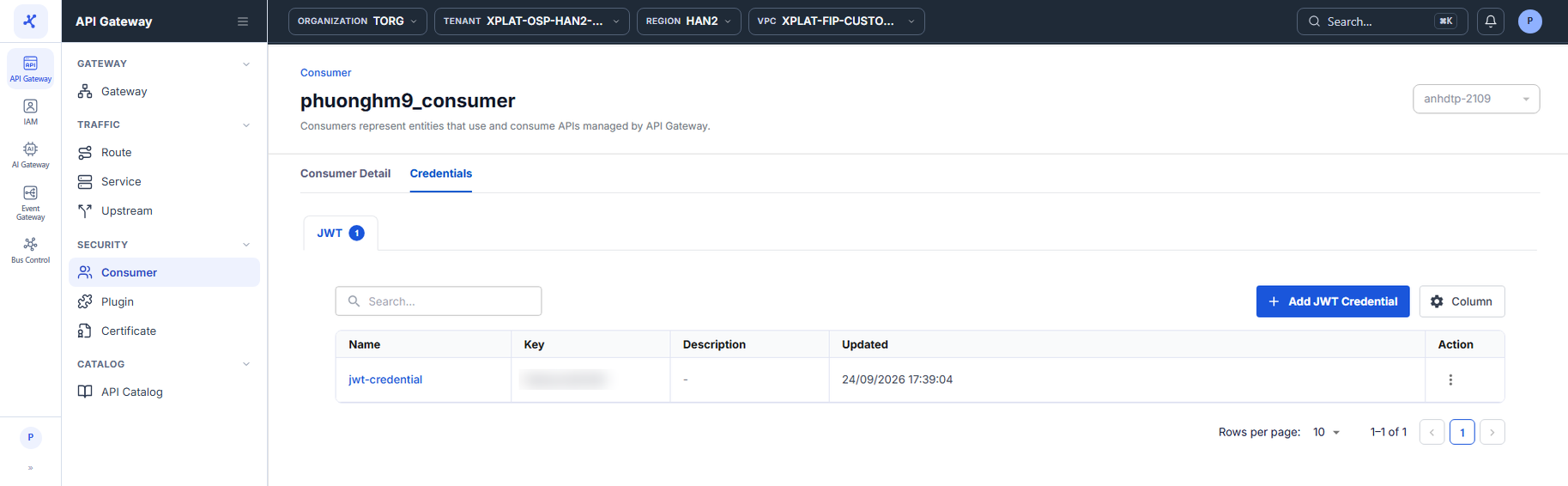
The Credentials tab of a Consumer lists its JWT credentials. The number on the JWT label is the number of credentials. The table has the following columns:
| Column | Description |
|---|---|
| Name | Name of the credential. Click the name to view its details. |
| Key | Key that identifies the credential. |
| Description | Description of the credential. |
| Updated | Time of the last update. |
| Action | The ⋮ menu with the Update and Delete actions. |
The toolbar has a Search box to find credentials, an Add JWT Credential button to add a credential, and a Column button to choose the columns to display.
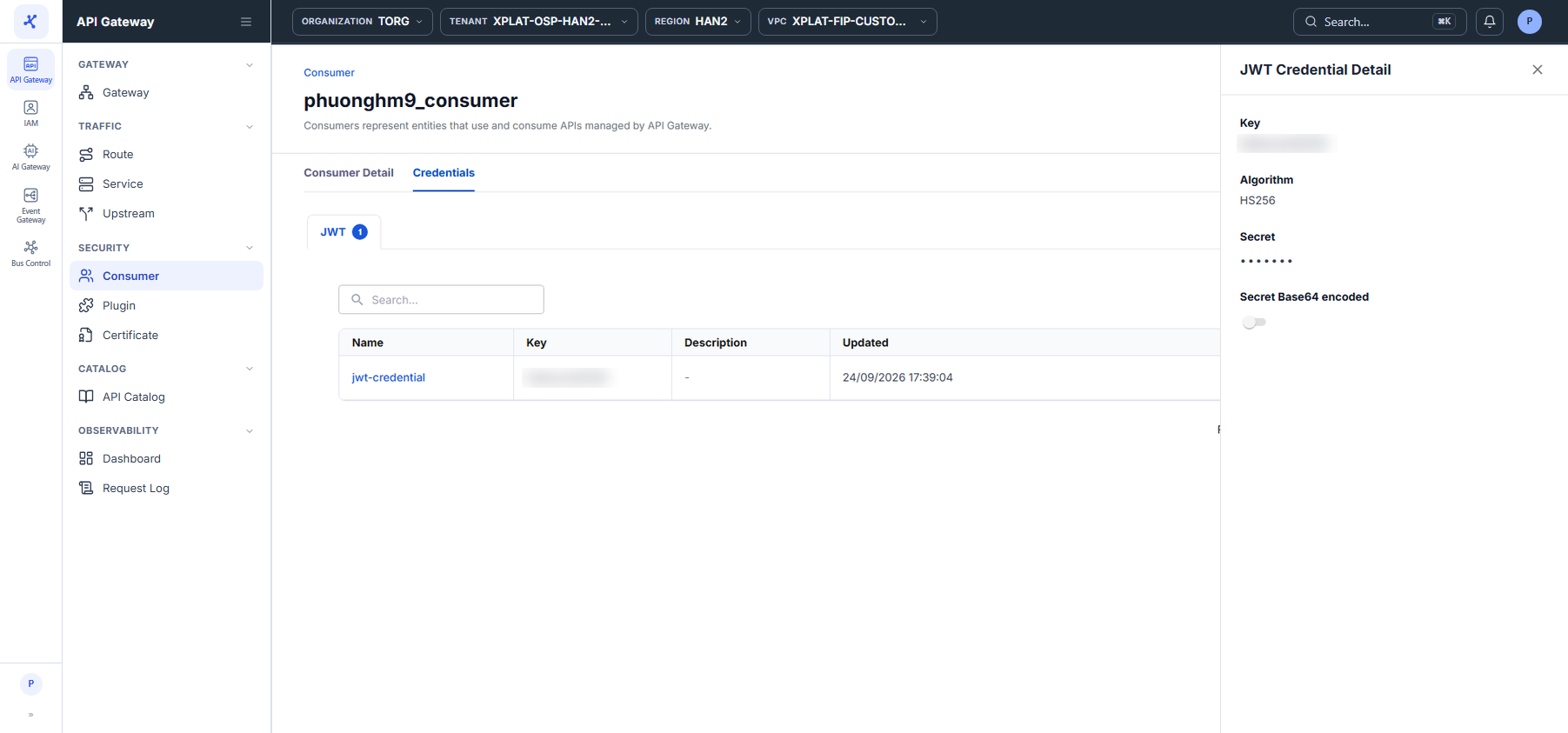
Click the Name of a credential. The JWT Credential Detail drawer opens on the right and shows the Key, Algorithm, Secret (masked), and Secret Base64 encoded status.
Update or delete a JWT credential
Click the image to zoom in.
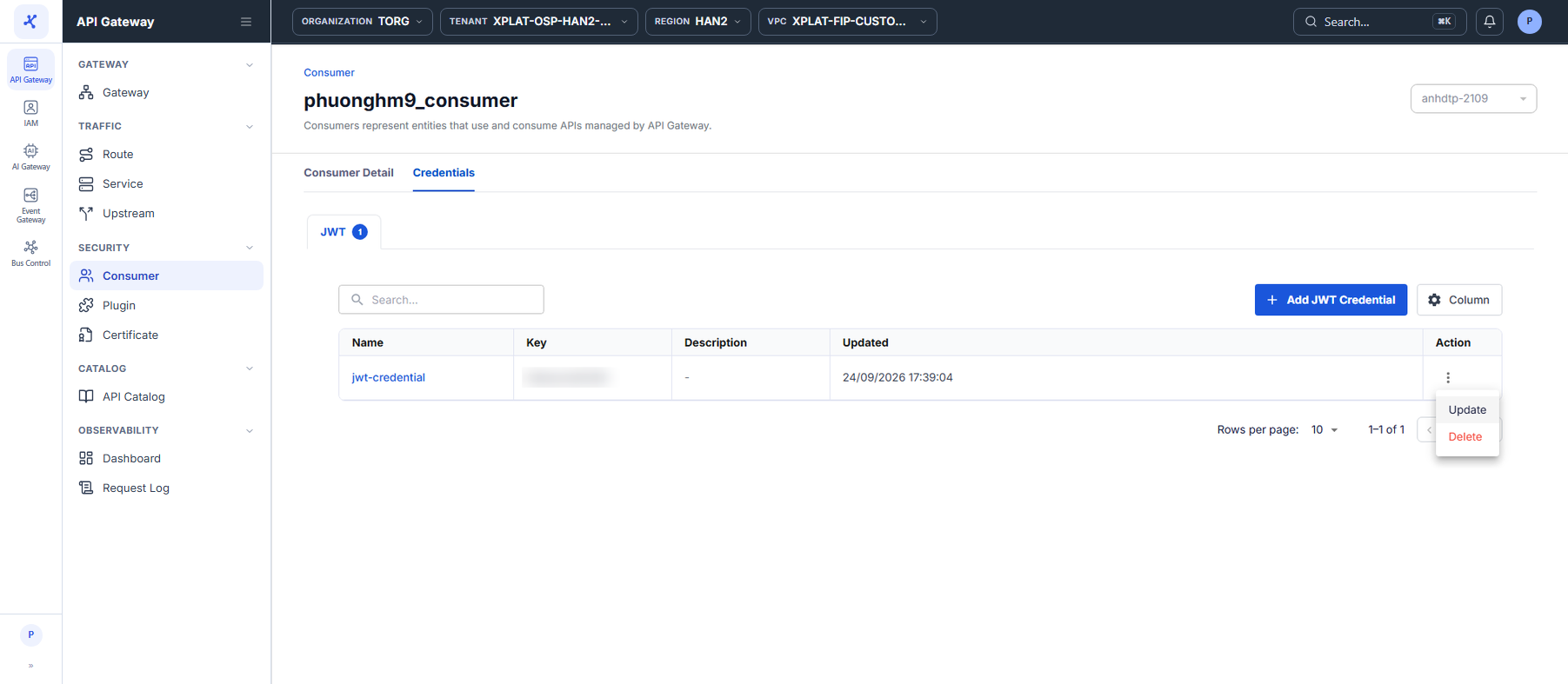
On the Credentials tab of the Consumer, click ⋮ on the row of the credential:
| Action | Description |
|---|---|
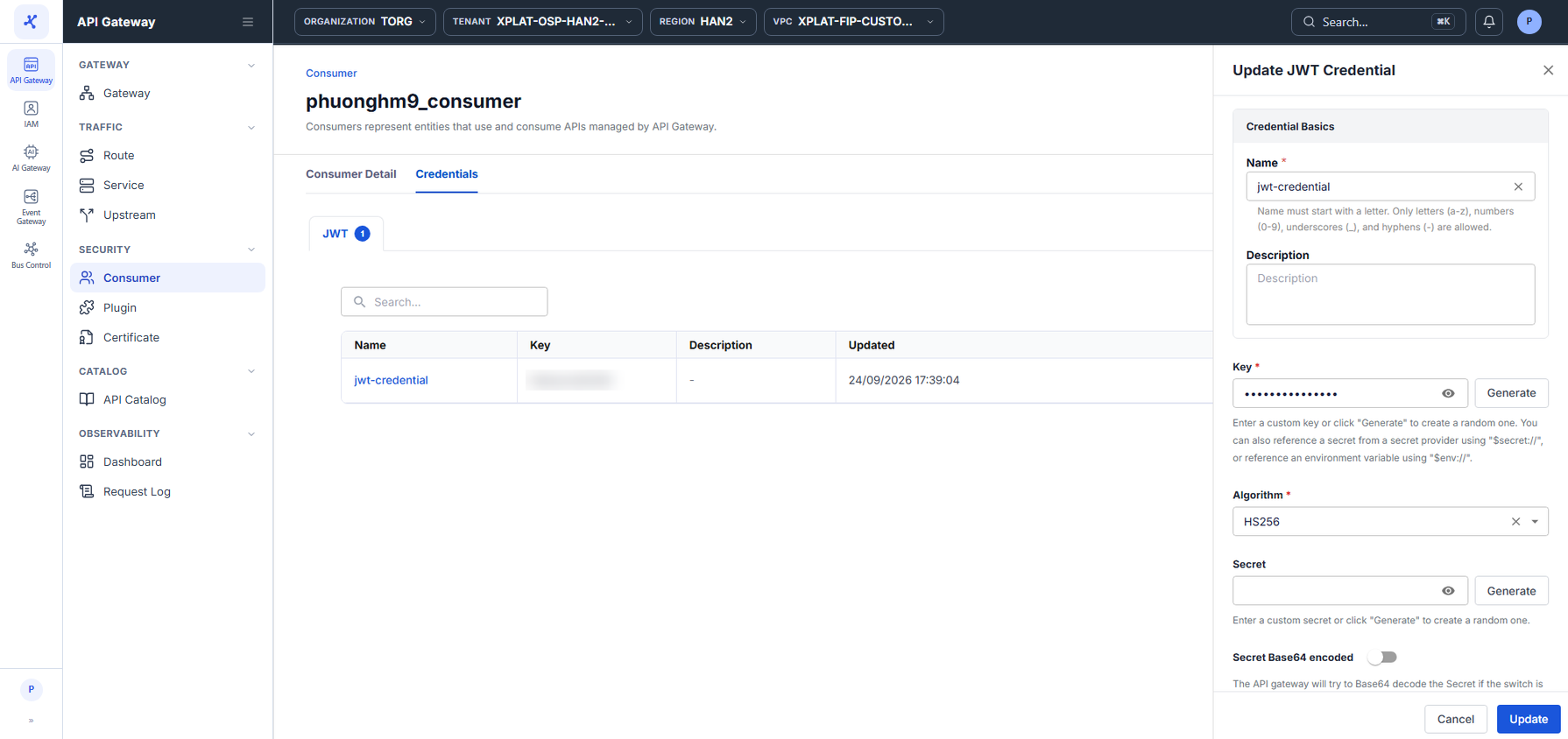
| Update | Opens the form with the current values pre-filled. You can change Name, Description, Key, Algorithm, and Secret / Public Key, then click Update to save. |
| Delete | Opens a confirmation dialog. Enter delete, then click Delete. |