Add a Custom Domain
A Custom Domain lets clients call your APIs on your own domain, such as api.yourcompany.com, instead of the default domain. The API Gateway serves the Custom Domain over HTTPS with the Certificate you select.
- You must own the domain and be able to edit its DNS records.
- Your organization needs a Certificate whose Domains (SAN) include the domain to add, for example
*.yourcompany.comincludesapi.yourcompany.com. If you don't have one yet, import a Certificate first, or import it directly in Step 2.
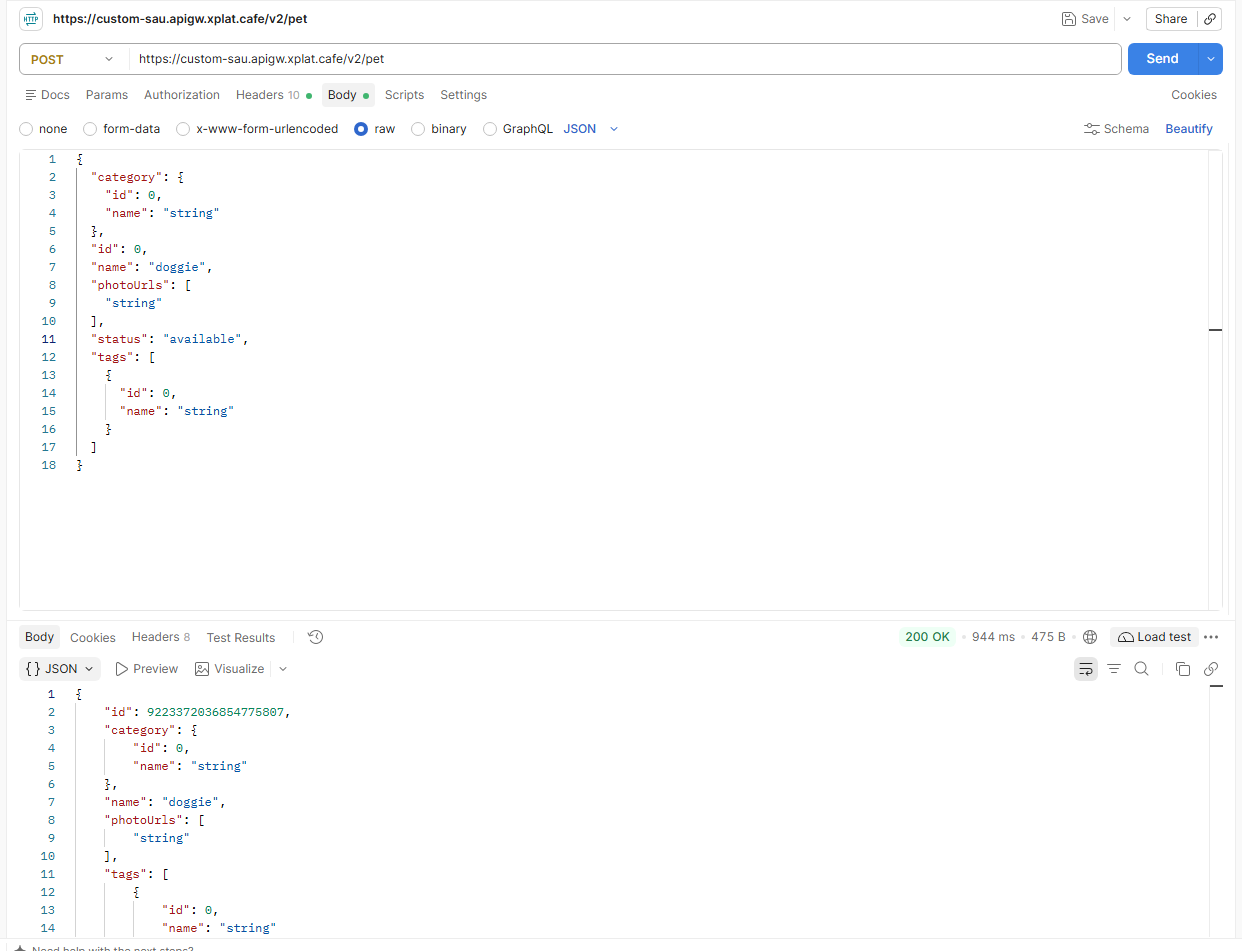
Click the image to zoom in.
Add a Custom Domain
To add a Custom Domain, follow these steps:
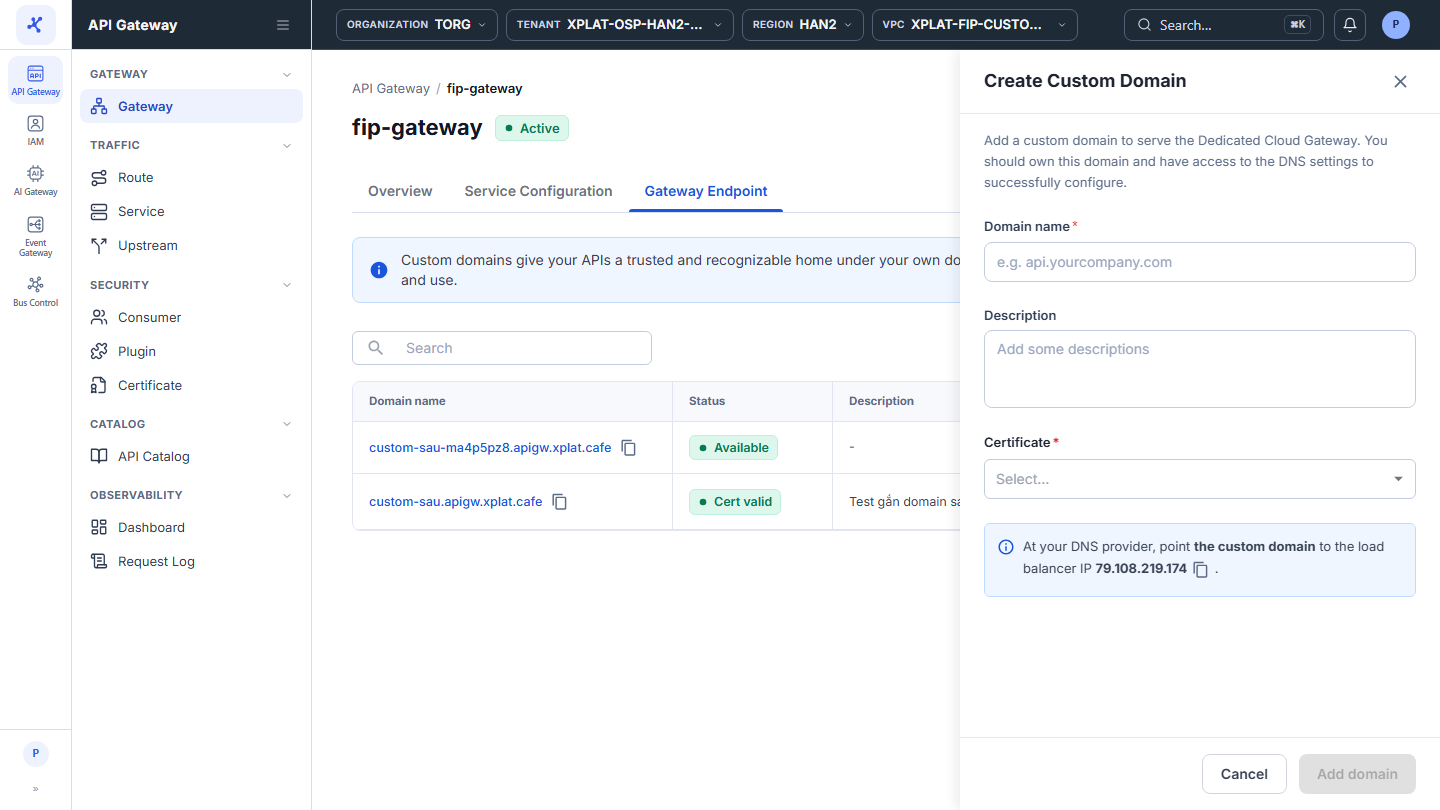
- In the left menu, select API Gateway → Gateway, click the API Gateway name, select the Gateway Endpoint tab, then click Add Domain.
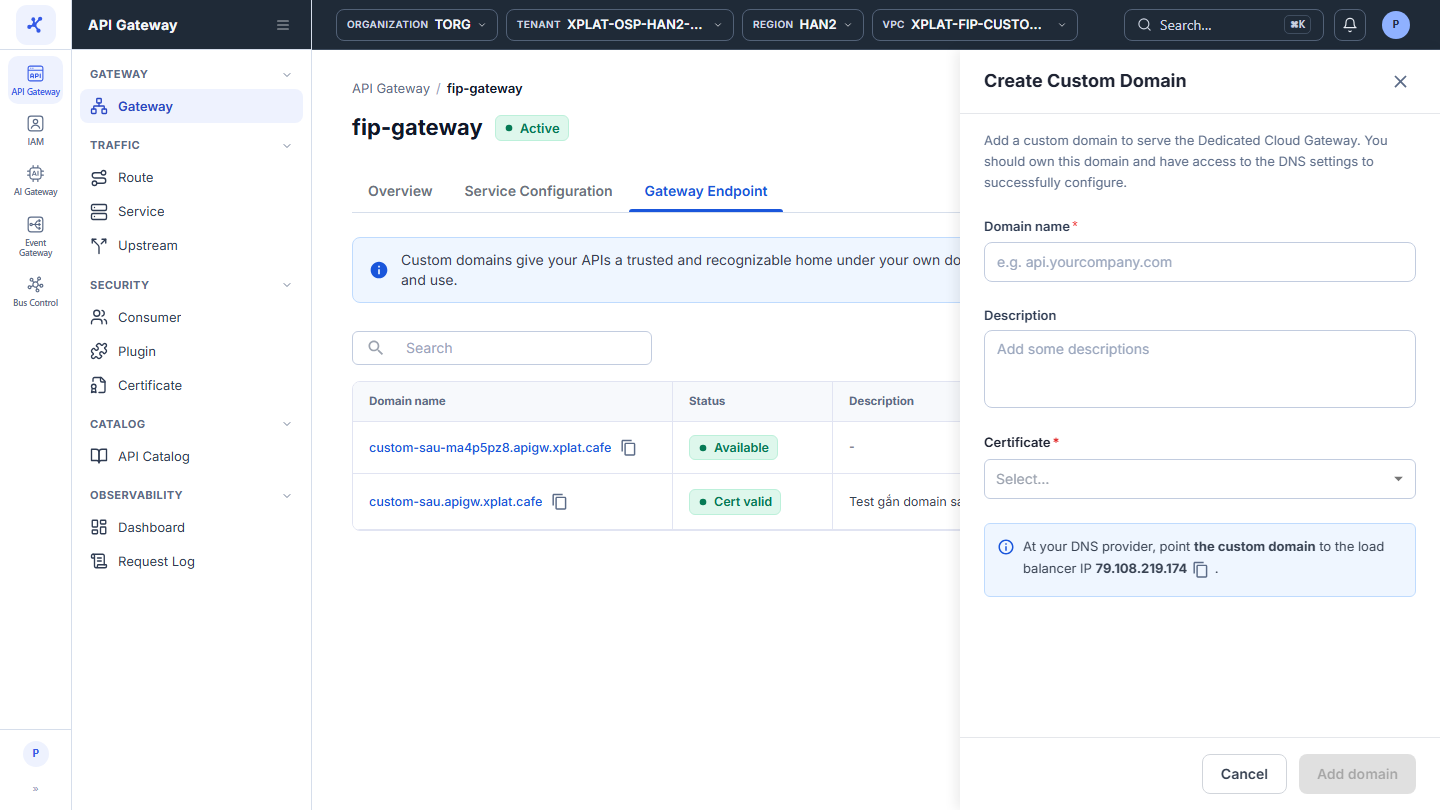
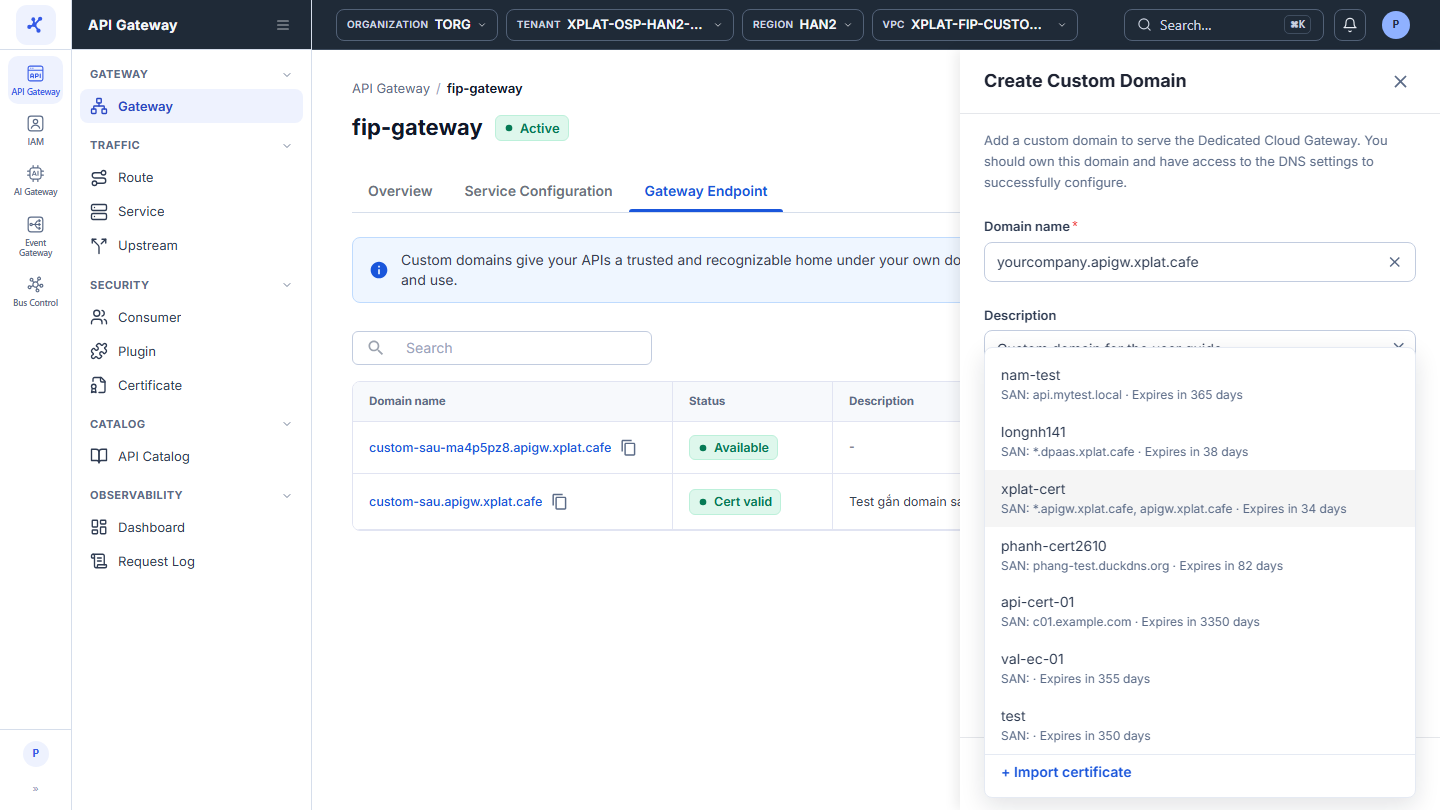
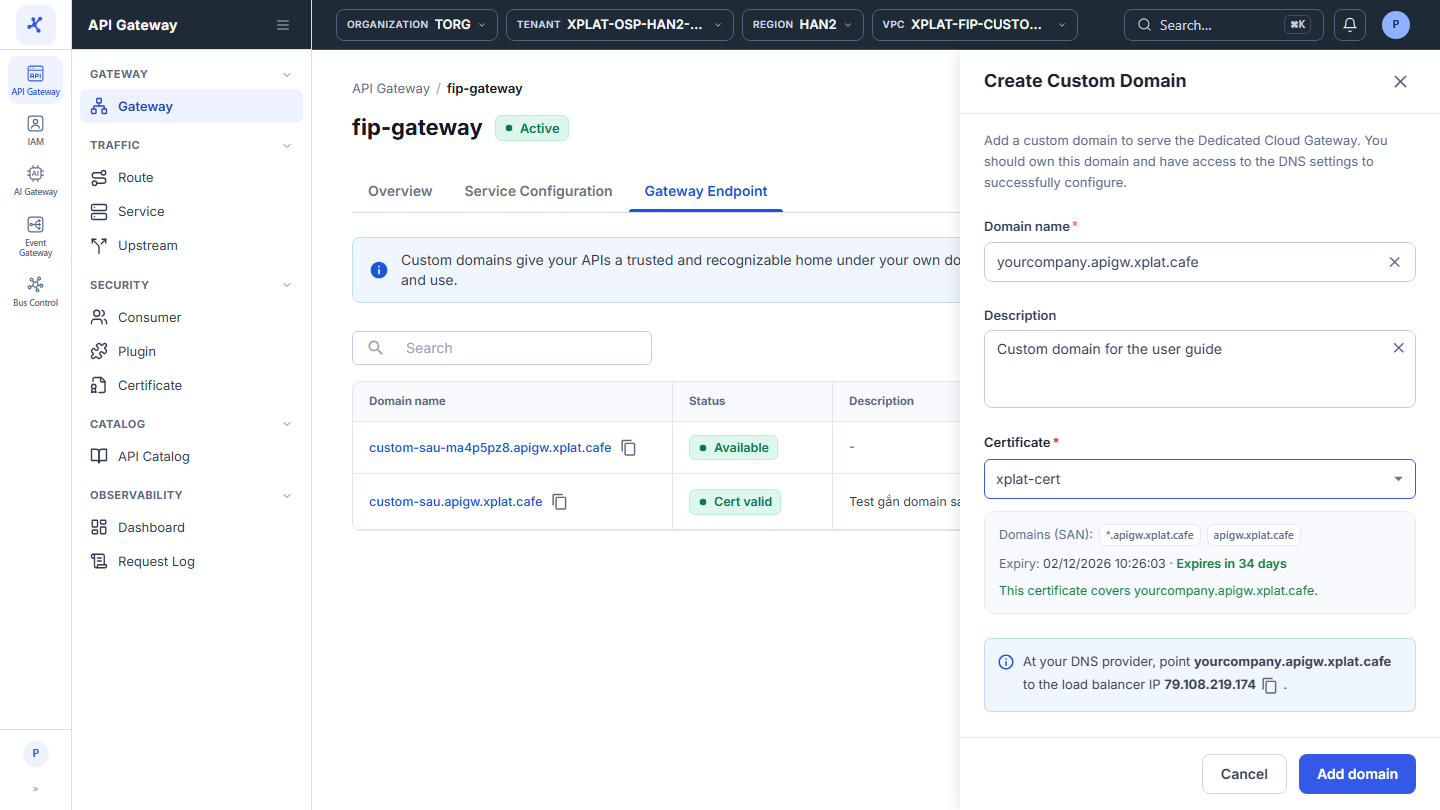
- Enter the following information in the Create Custom Domain form:
| Field | Required | Description |
|---|---|---|
| Domain name | Y | Full domain name, for example api.yourcompany.com. Without https://, without a path, and without wildcards. Must be unique among the Custom Domains of the organization. |
| Description | N | What the domain is used for. |
| Certificate | Y | A Certificate that includes the domain. Each Certificate in the list shows its Domains (SAN) and expiry date. To import a new Certificate, click + Import certificate at the bottom of the list. |
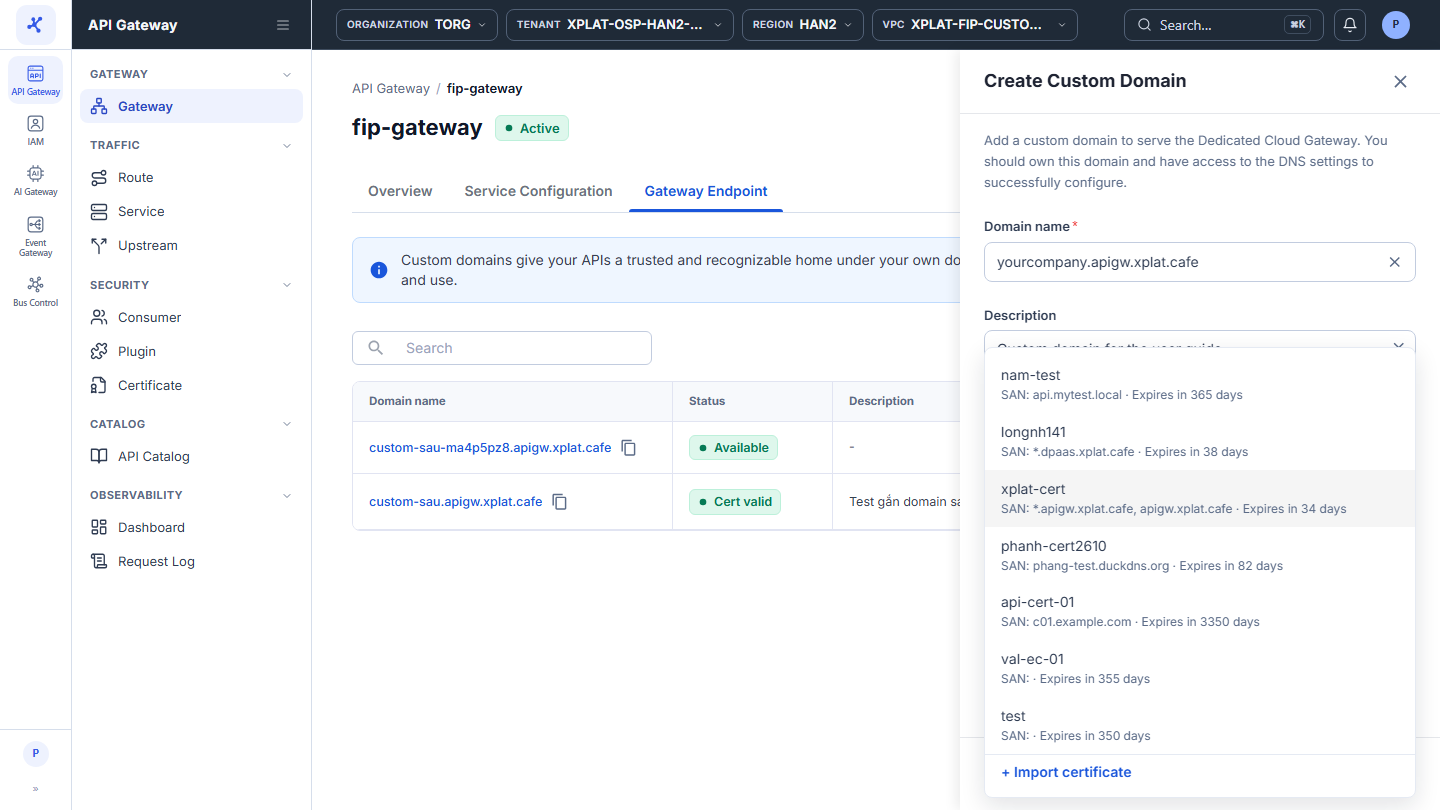
When the Certificate is valid and includes the domain, the form shows This certificate covers <domain>. The blue box below shows the Load Balancer IP of the API Gateway, with a copy icon.
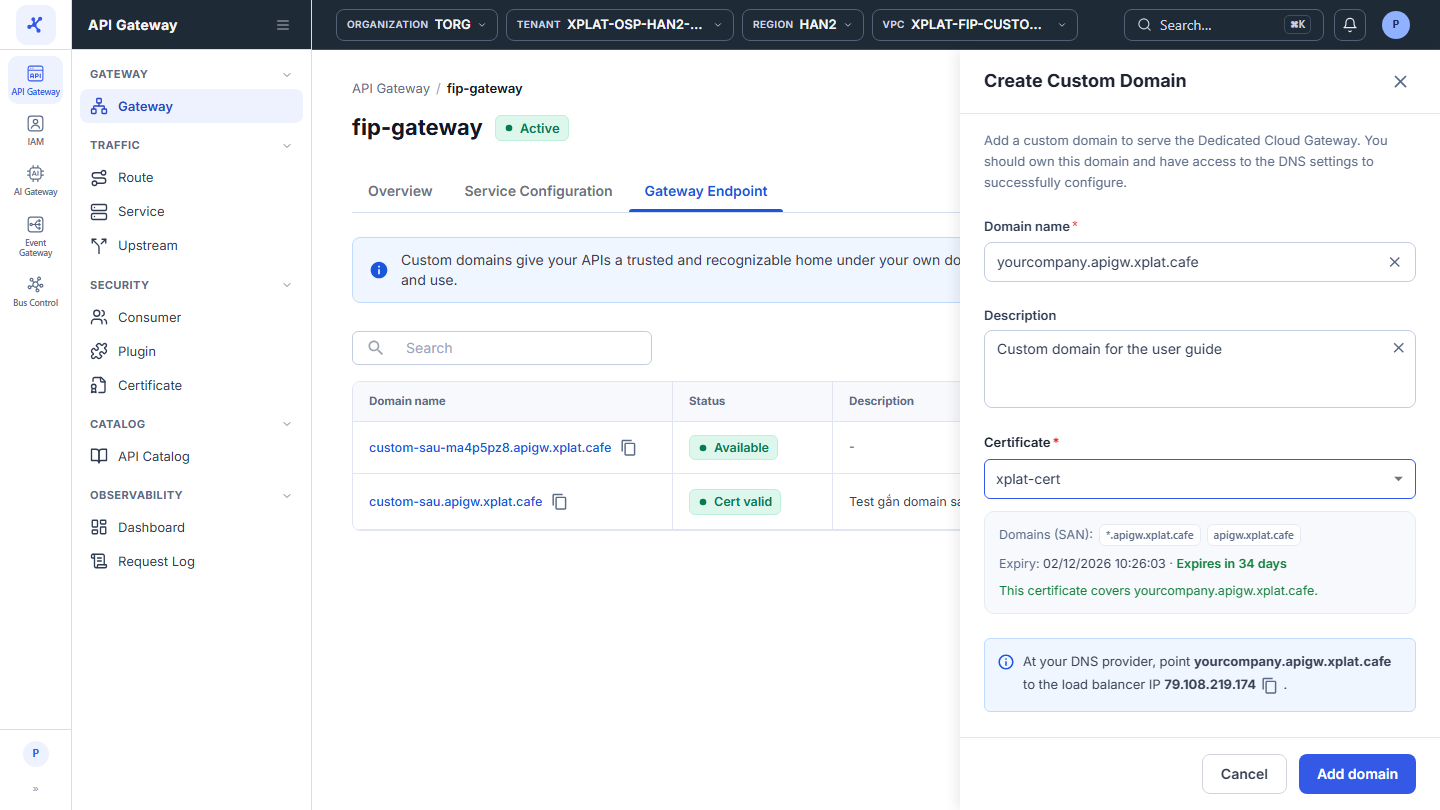
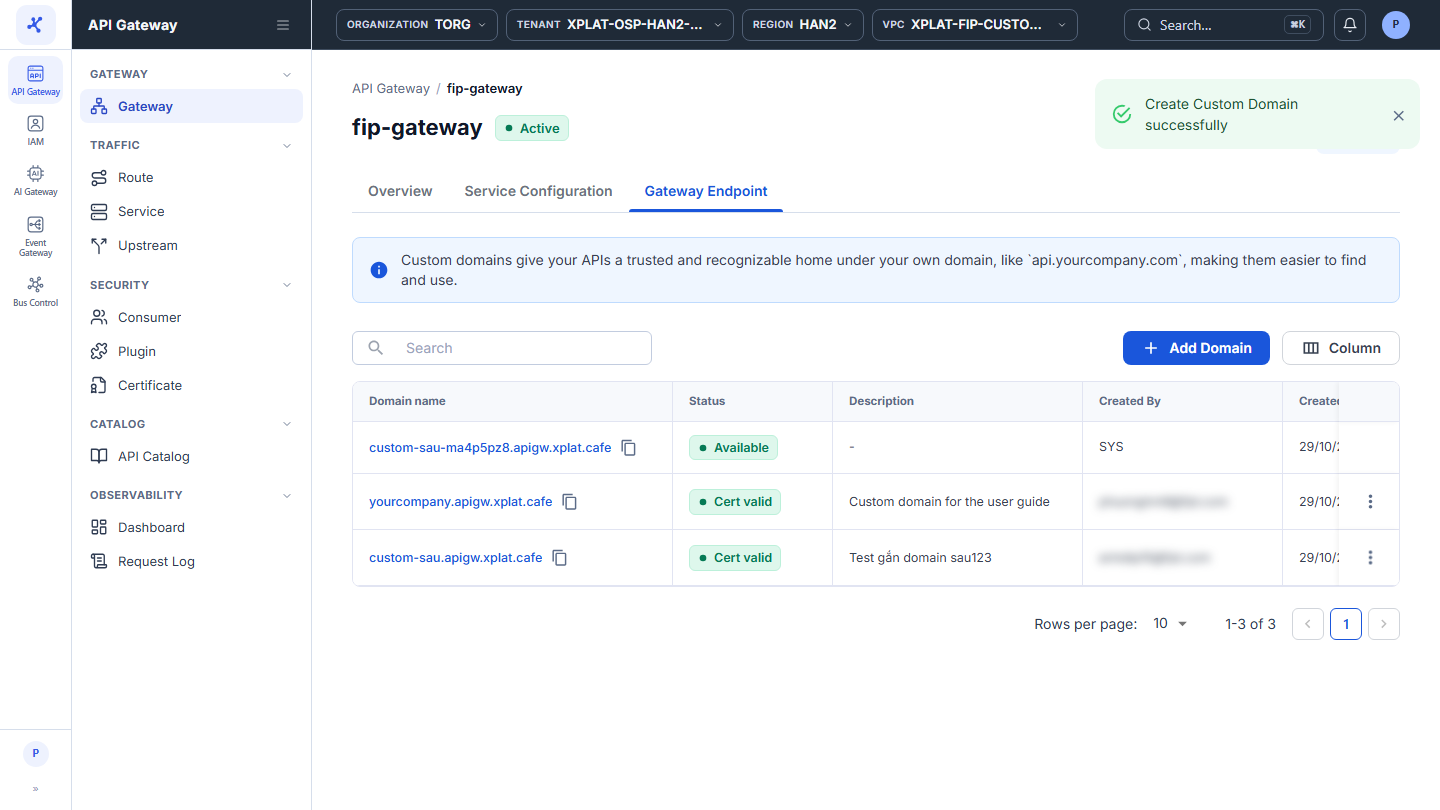
- Click Add domain. The button is enabled only when the domain and the Certificate are valid.
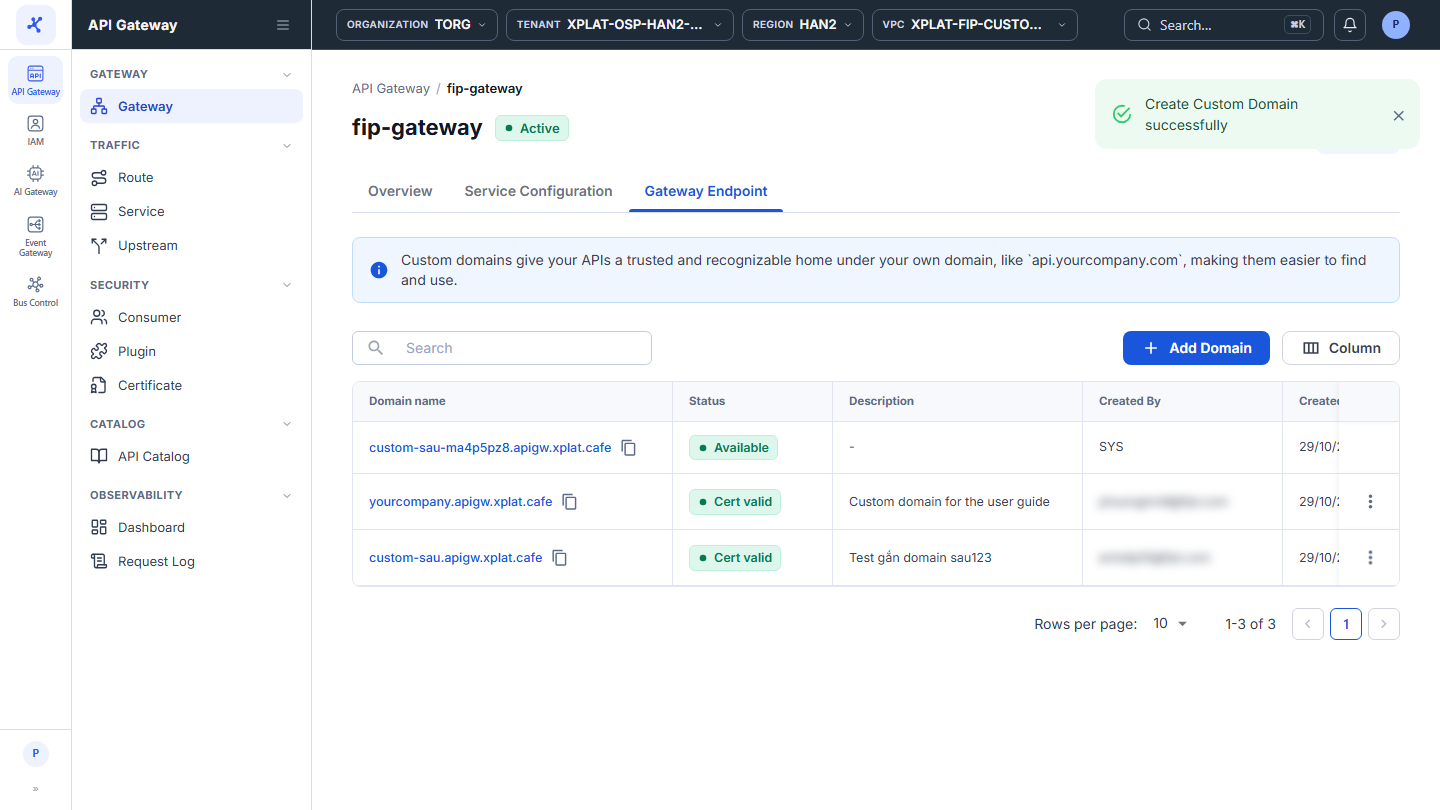
The message Create Custom Domain successfully appears. The new Custom Domain is at the top of the Gateway Endpoint tab with the Cert valid status. The domain also appears in the Gateway URL column of the API Gateway list and in the SNIs and Used by columns of the Certificate.
- Create a DNS record at your DNS provider that points the domain to the Load Balancer IP shown in the form. You can also find this IP in Service Configuration → Load Balancer Configuration → Load Balancer IP of the API Gateway.
The system does not check DNS. The domain serves traffic only after the DNS record points to the Load Balancer IP and the DNS change has finished updating.
You can also add a Custom Domain while you create an API Gateway, on the Endpoint step. See Create an API Gateway.
Common issues
| Error | Cause | Solution |
|---|---|---|
| Domain name must be a valid domain, e.g. api.example.com. | The domain has https://, a path, invalid characters, or only one level | Enter a full domain name, for example api.yourcompany.com. |
| Wildcard domains are not supported. Enter a fully qualified domain name, e.g. api.example.com. | The domain contains * | Enter one specific domain. Wildcards are used only in the Domains (SAN) of a Certificate. |
| A custom domain must be unique within the organization | The domain is already a Custom Domain of another API Gateway in the organization | Use another domain, or delete the domain from the other API Gateway first. |
| <domain> is not in the domains (SAN) of this certificate, so clients would get a certificate name mismatch. Select a certificate that covers this domain. | The Certificate does not include the domain | Select a Certificate whose Domains (SAN) contain the domain or a matching wildcard. |
| This certificate is expired. Select another certificate or renew it first. / This certificate is not yet valid … | The Certificate has expired or is not valid yet | Select another Certificate, or renew this Certificate. |
Verify the Custom Domain
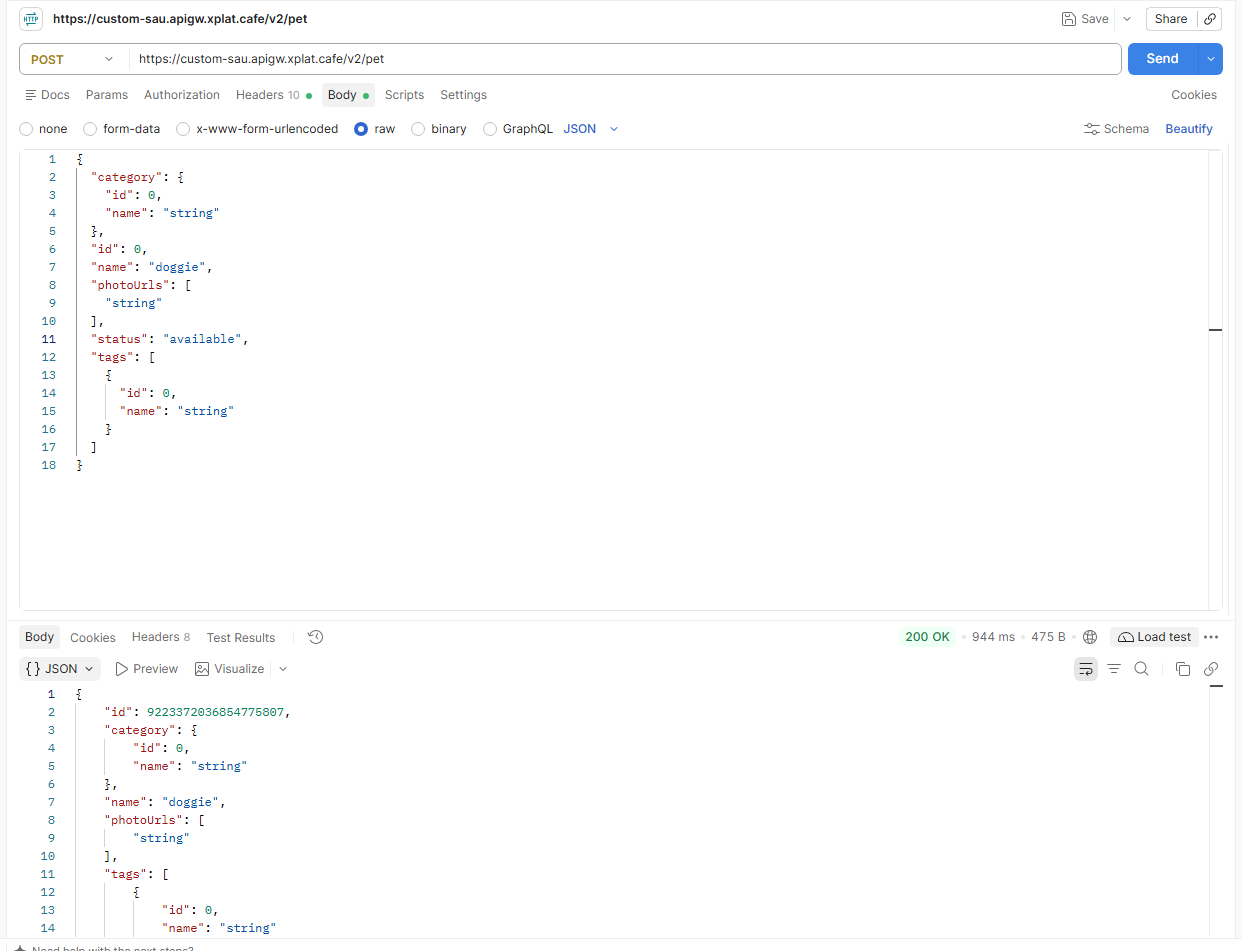
- Send a request to a Route through the Custom Domain with Postman or curl:
https://<Custom Domain>/<path of the Route>. The response must be the same as when you call the default domain.
Common issues
| Error | Cause | Solution |
|---|---|---|
| Requests to the domain fail even though the status is Cert valid | The DNS record is missing, points to the wrong IP, or the DNS change has not taken effect yet | Compare the DNS record with the Load Balancer IP and wait for DNS to update. |