Edit a Custom Domain
You can change only the Certificate of a Custom Domain. The Domain name stays the same. The change applies at once, and you don't need to update DNS because the Load Balancer IP does not change.
To replace an expiring Certificate for every Custom Domain that uses it, renew the Certificate instead of editing each Custom Domain.
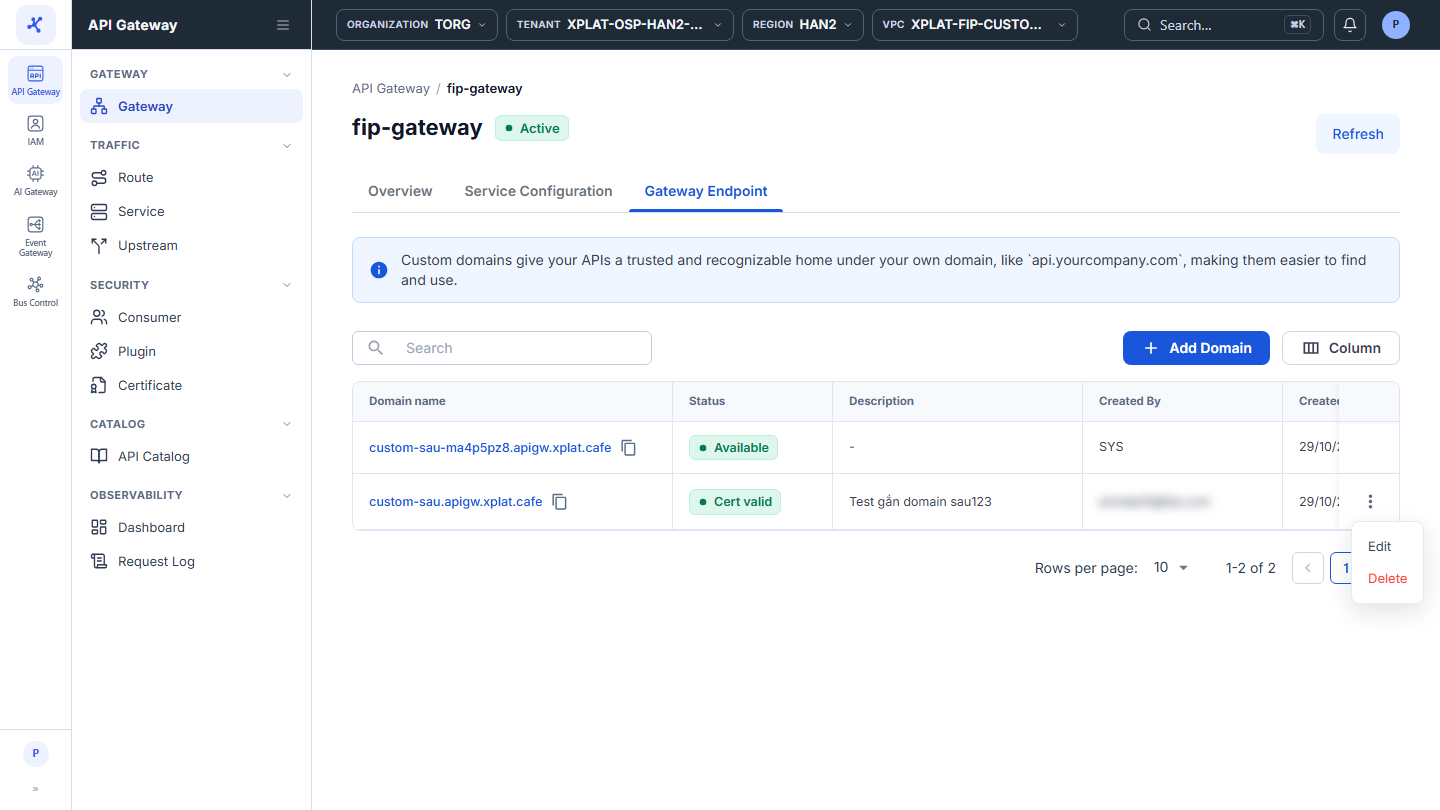
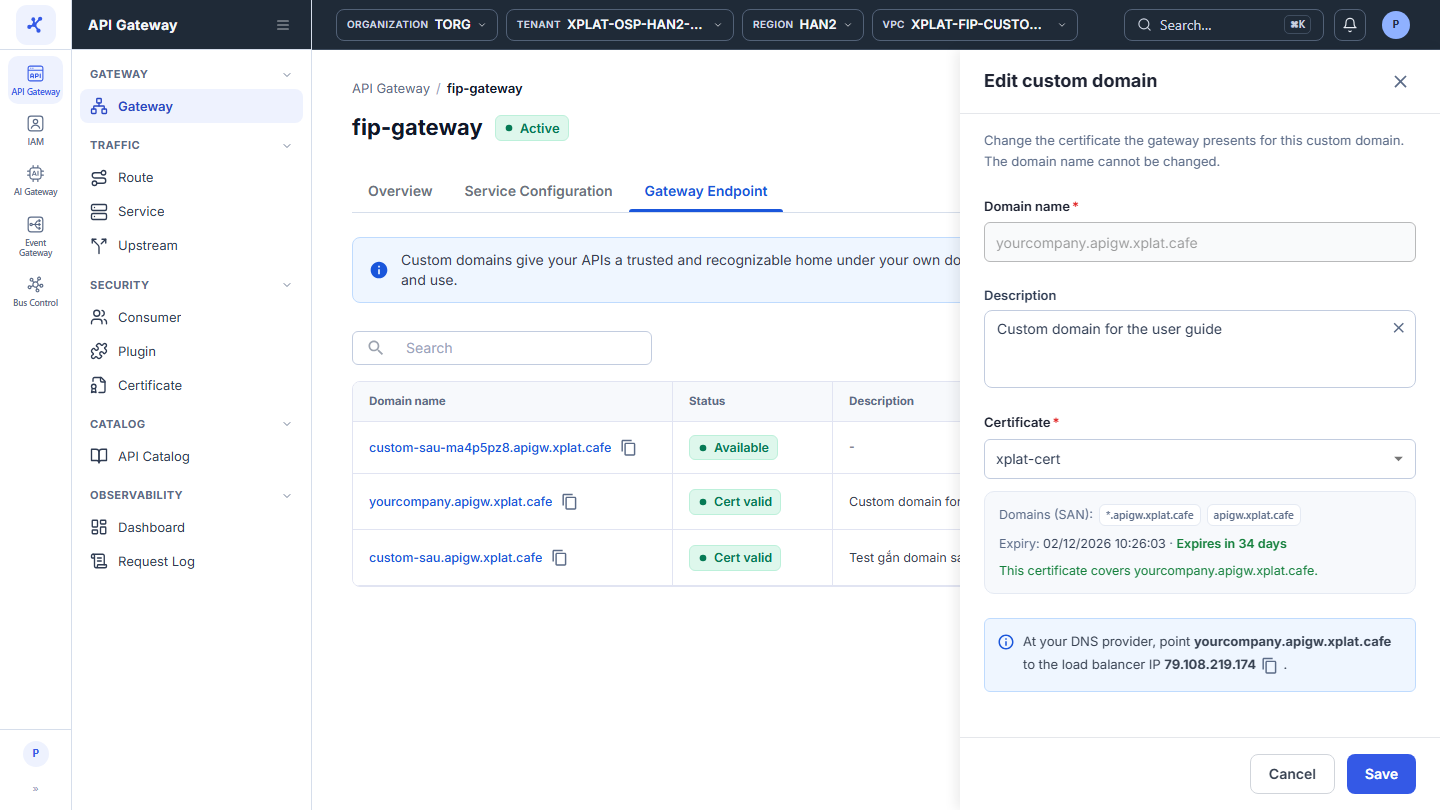
Click the image to zoom in.
Edit a Custom Domain
To edit a Custom Domain, follow these steps:
-
In the left menu, select API Gateway → Gateway, click the API Gateway name, then select the Gateway Endpoint tab.
-
On the row of the Custom Domain you want to edit, click ⋮ → Edit.
-
Select another Certificate in the Edit custom domain form. The Certificate list and the + Import certificate option are the same as when you add a Custom Domain.
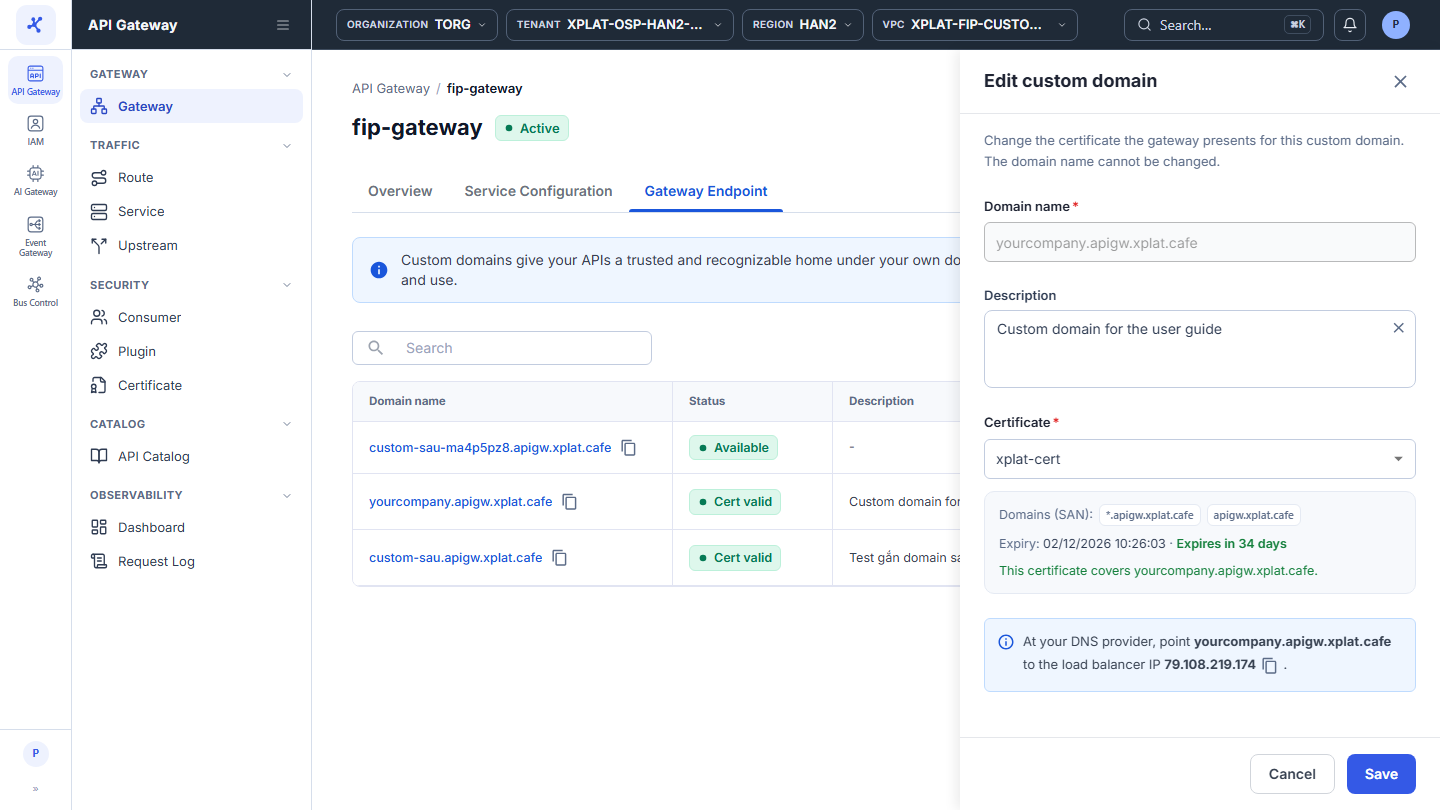
- Click Save. The button is enabled only when the selected Certificate is valid and includes the domain.
The message Update Custom Domain successfully appears. The domain moves from the SNIs and Used by columns of the old Certificate to the new Certificate, and the status of the domain is recalculated with the new Certificate.
Common issues
| Error | Cause | Solution |
|---|---|---|
| This certificate is expired. Select another certificate or renew it first. | The selected Certificate has expired | Select a valid Certificate, or renew the Certificate first. |
| <domain> is not in the domains (SAN) of this certificate … | The Certificate does not include the domain | Select a Certificate that includes the domain. |
| This custom domain has already been modified or deleted. Please check and try again later. | Someone else changed or deleted the Custom Domain | Reload the Gateway Endpoint tab. |