View API Gateway details
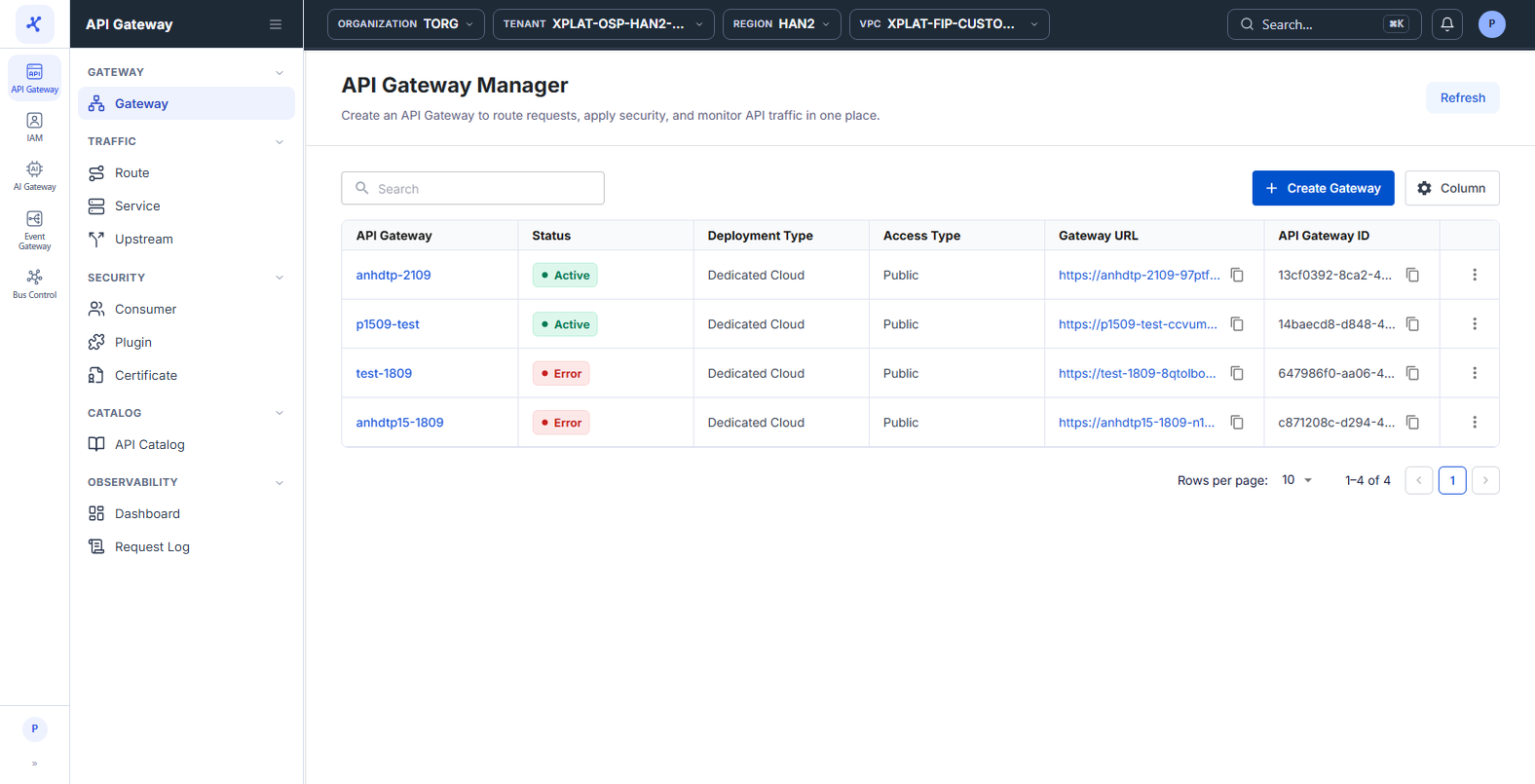
The API Gateway Manager screen lists the API Gateways of your organization, with the status, deployment type, and access URL of each API Gateway.
Click the image to zoom in.
View the API Gateway list
- Select API Gateway → Gateway in the left menu.
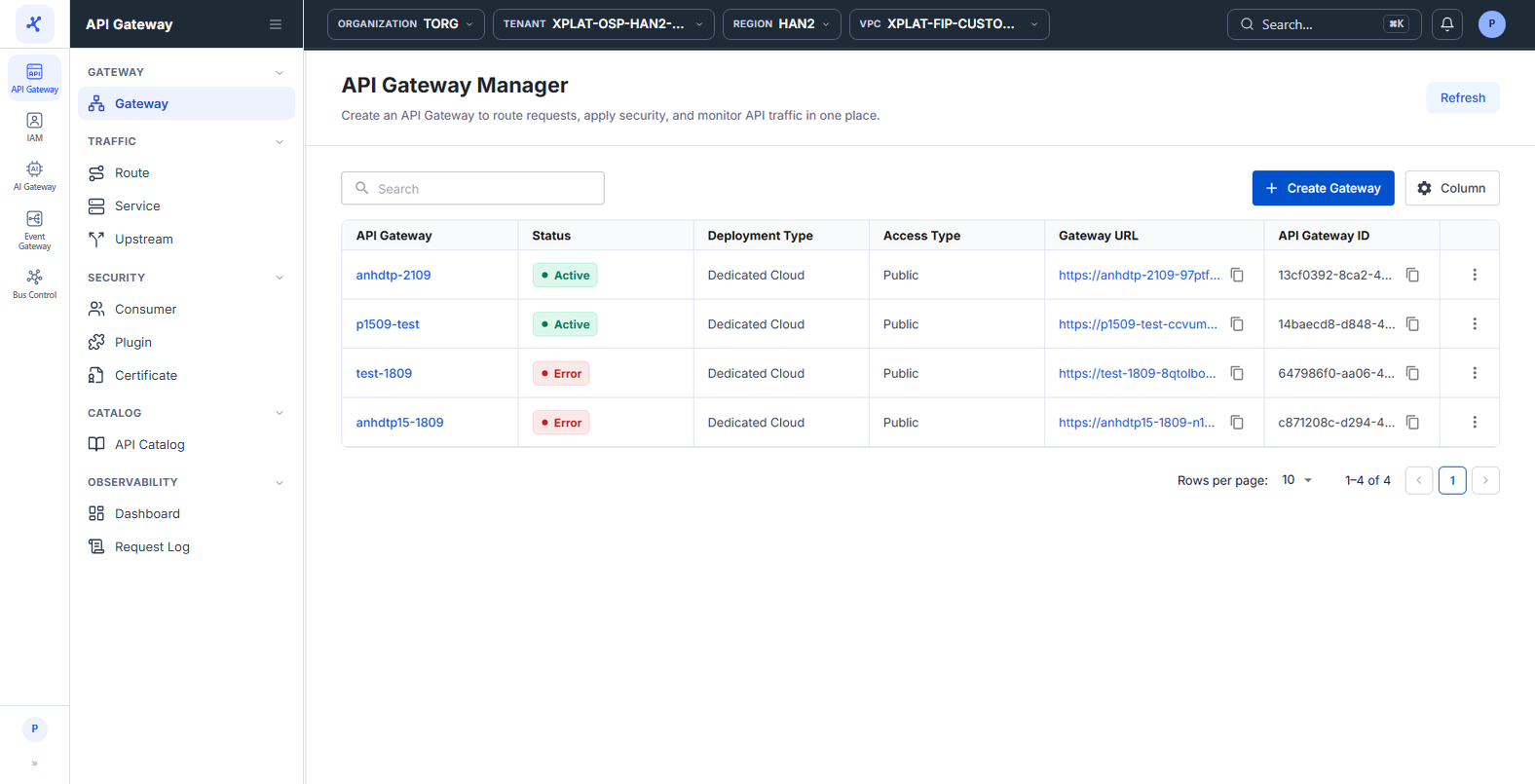
The list has the following columns:
| Column | Description |
|---|---|
| API Gateway | API Gateway name. Click the name to open the detail screen. |
| Status | API Gateway status, see API Gateway statuses. |
| Deployment Type | Deployment type, currently Dedicated Cloud. |
| Access Type | Public (public URL) or Private (accessible only within the VPC). |
| Gateway URL | Proxy URL of the API Gateway. Click the URL to open it in a new tab, or click the copy icon to copy it. Use this URL to send requests to the API Gateway, see Test a Route. |
| API Gateway ID | API Gateway identifier, with a copy icon. |
| Created By | Who created the API Gateway. |
| Created At | When the API Gateway was created. |
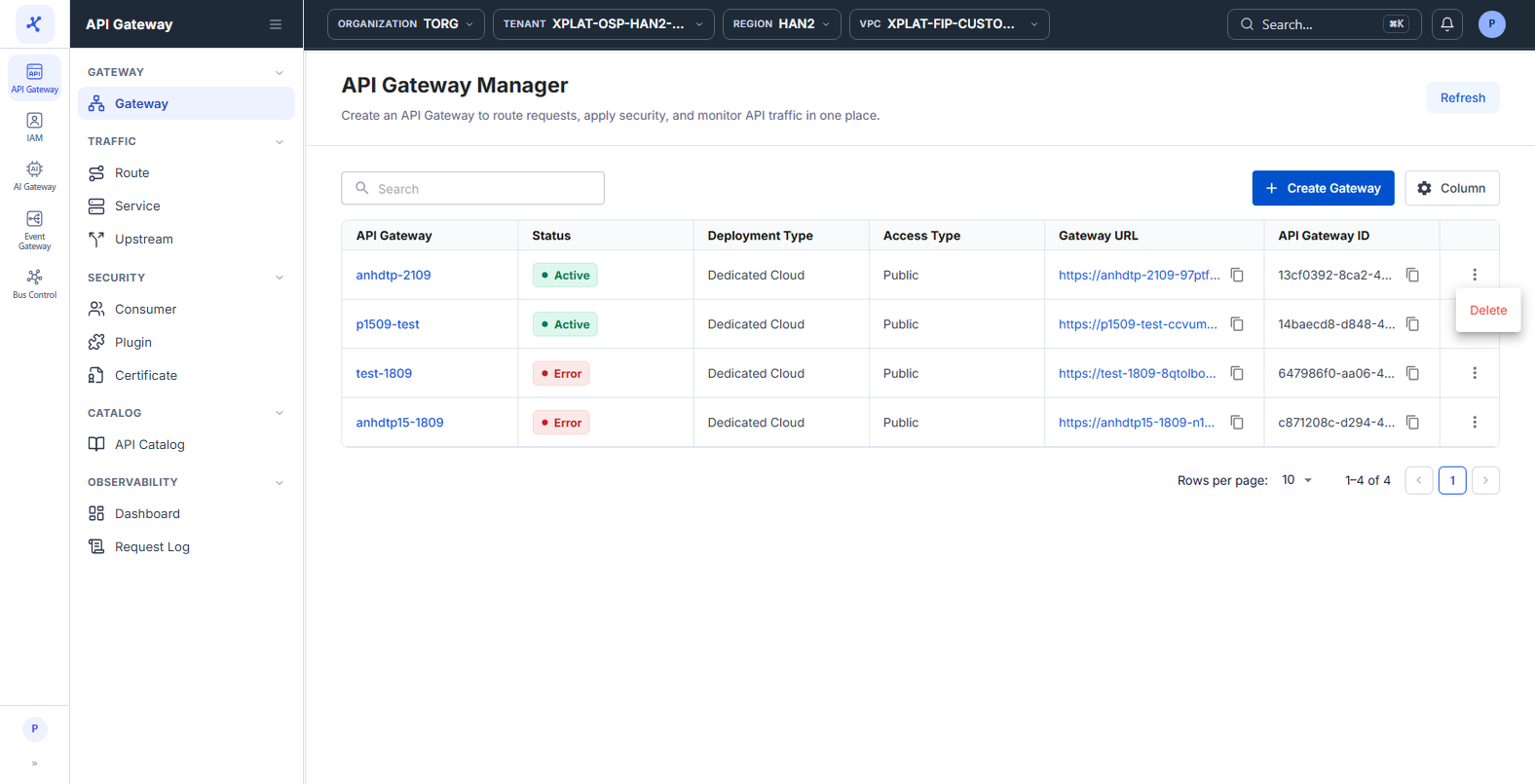
| ⋮ | Actions on each row, see the description below. |
The toolbar has the Refresh button to reload the list (useful while you wait for an API Gateway to finish provisioning), the Create Gateway button to create an API Gateway, and the Column button to choose the columns to display.
New API Gateways appear at the top of the list. At the bottom of the table, Rows per page sets 10 / 20 / 50 / 100 rows per page, default 10. When there are no API Gateways yet, the screen shows a message inviting you to create your first API Gateway.
The ⋮ menu at the end of each row currently has only the Delete action. See Delete an API Gateway.
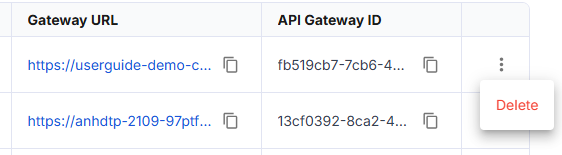
API Gateway statuses
| Status | Meaning |
|---|---|
| Active | The API Gateway is provisioned and running, ready for Routes, Services, and Plugins. |
| Processing | The API Gateway is being provisioned, updated, or deleted. |
| Error | Provisioning failed or the API Gateway has an error. |
An API Gateway in the Processing or Error status cannot be used yet. If you select it on the Route, Service, or Upstream screens, the list is empty or actions fail. Wait until the API Gateway changes to Active.
Choose the columns to display
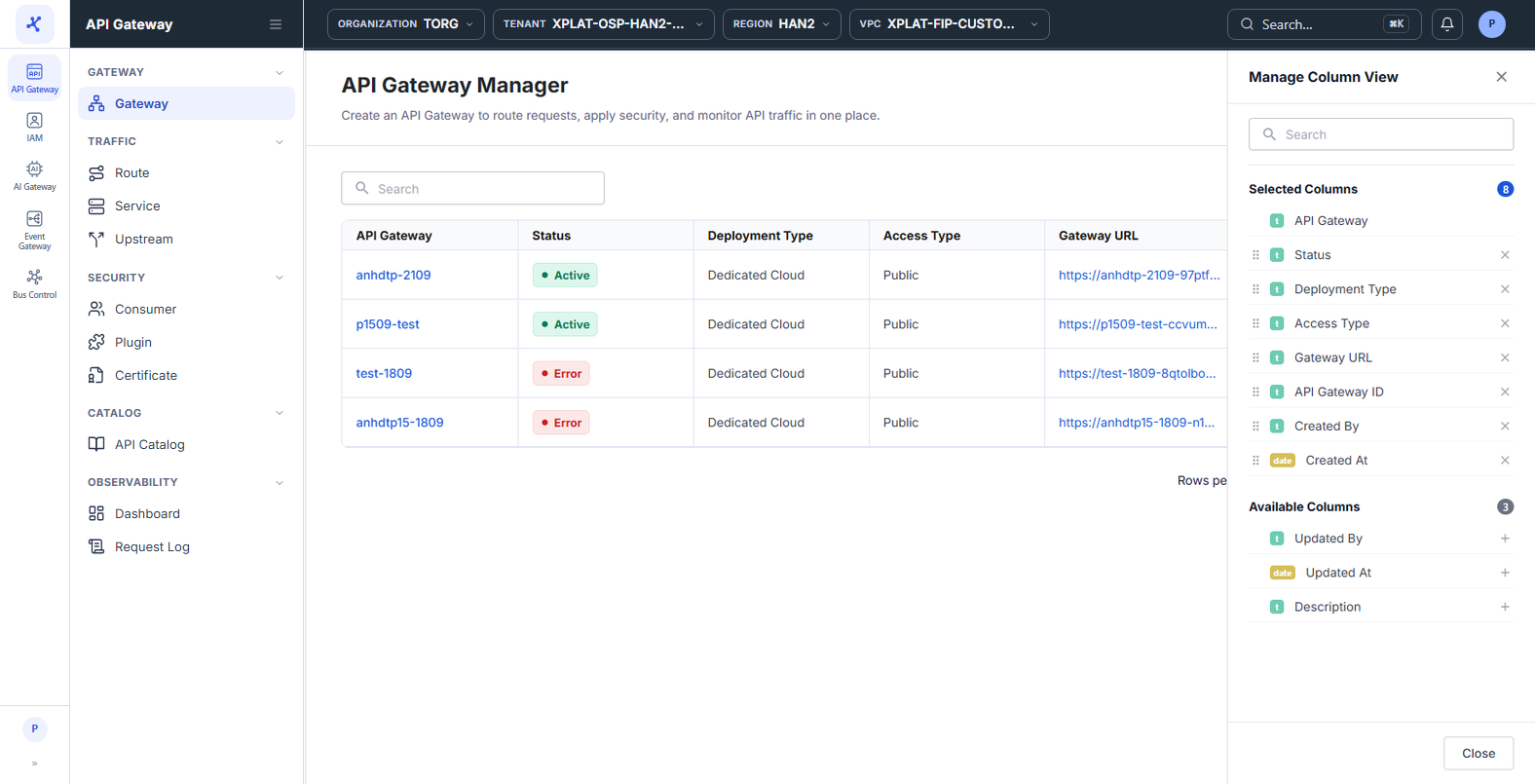
- Click Column to open the Manage Column View panel on the right.
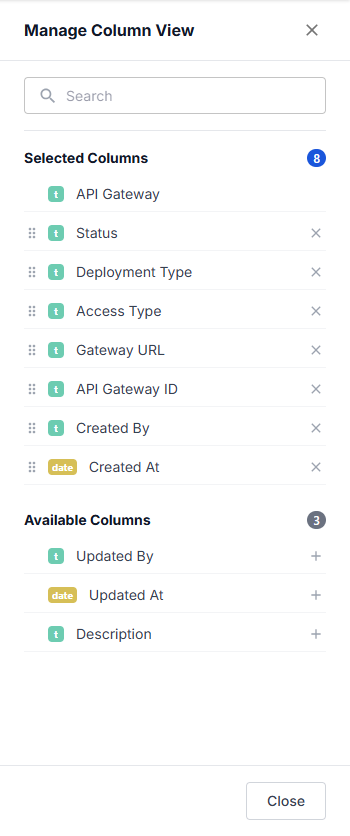
| Group | Description |
|---|---|
| Selected Columns | Columns currently shown: API Gateway, Status, Deployment Type, Access Type, Gateway URL, API Gateway ID, Created By, Created At. Click × to hide a column, and drag the ⋮⋮ icon to change the column order. |
| Available Columns | Hidden columns: Updated By, Updated At, Description. Click + to add a column to the table. |
The API Gateway column is always shown and cannot be hidden. Click Close to close the panel.
View the details of an API Gateway
- Click the API Gateway name in the API Gateway column.
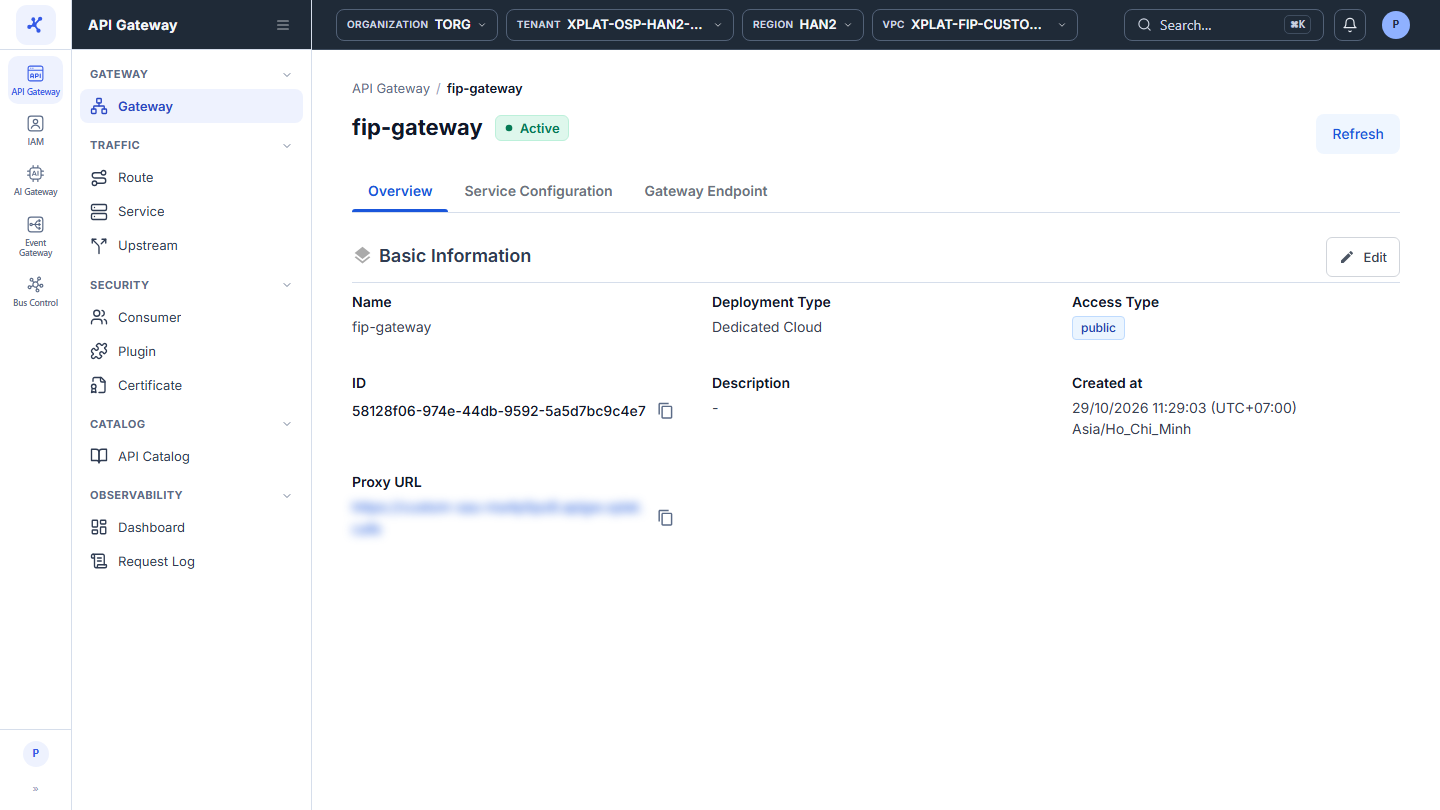
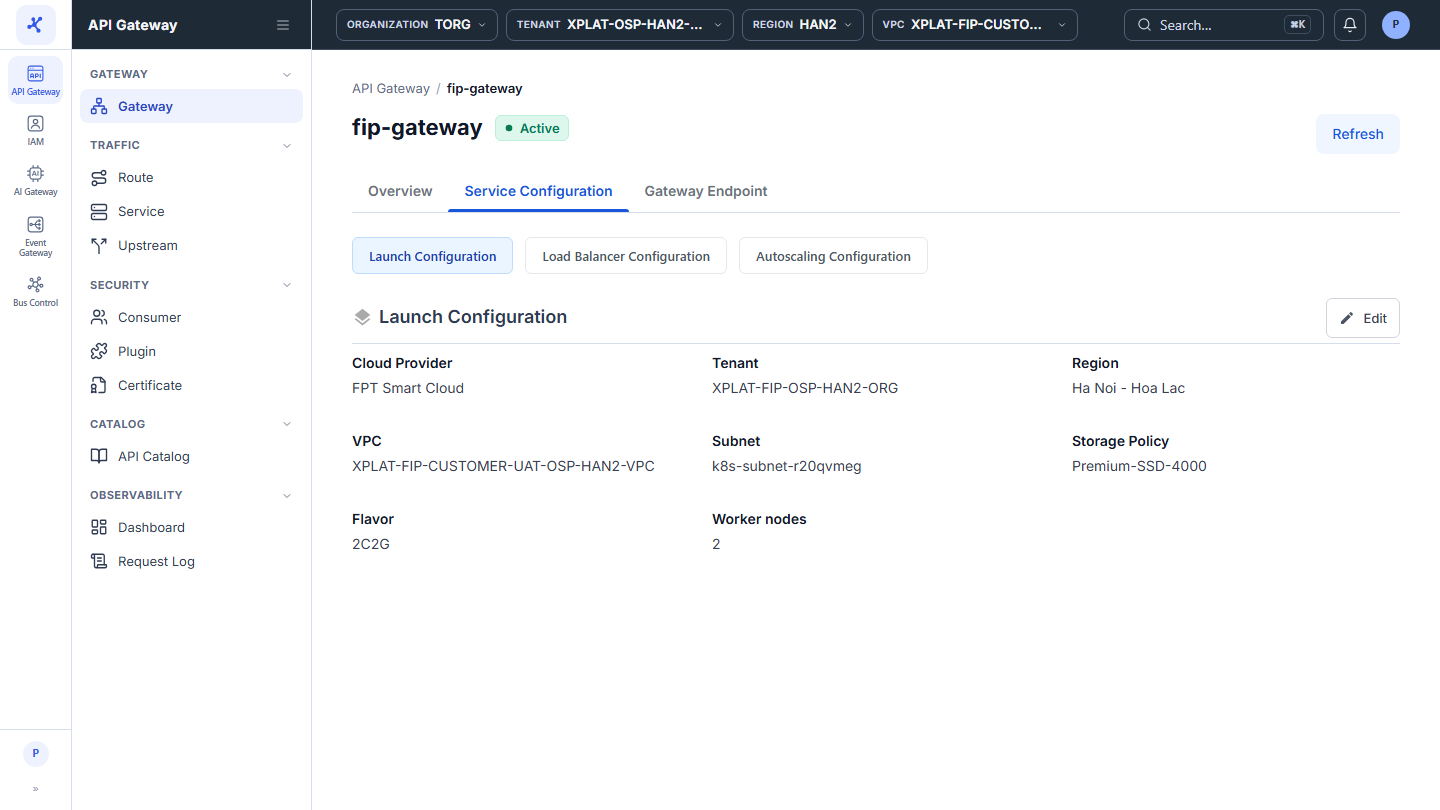
The top of the detail screen shows the API Gateway name, its status (see API Gateway statuses), and the Refresh button to reload the information. The screen has 3 tabs: Overview, Service Configuration, and Gateway Endpoint. The Basic Information section and each part of the Service Configuration tab have an Edit button on the right, see Update an API Gateway.
Overview tab
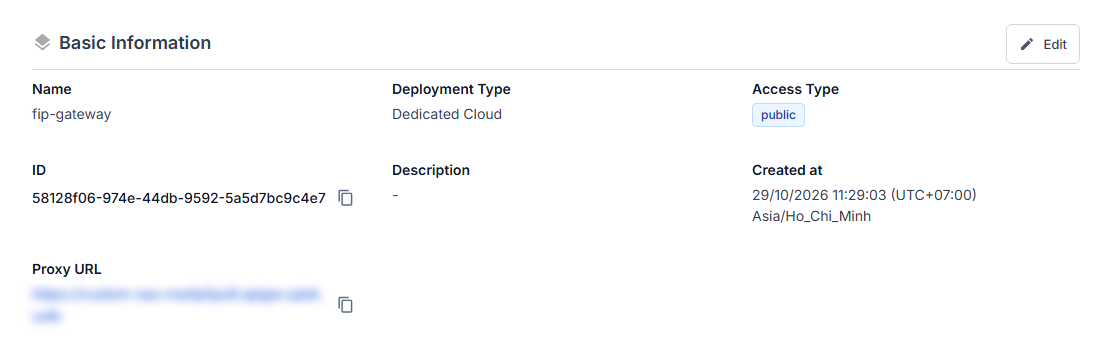
The Basic Information section has:
| Field | Description |
|---|---|
| Name | API Gateway name. |
| Deployment Type | Deployment type, for example Dedicated Cloud. |
| Access Type | public or private. |
| ID | API Gateway identifier, with a copy icon. |
| Description | API Gateway description, or - when empty. |
| Created at | Creation time with the time zone, for example 29/10/2026 11:29:03 (UTC+07:00) Asia/Ho_Chi_Minh. |
| Proxy URL | Default domain of the API Gateway, with a copy icon. |
Service Configuration tab
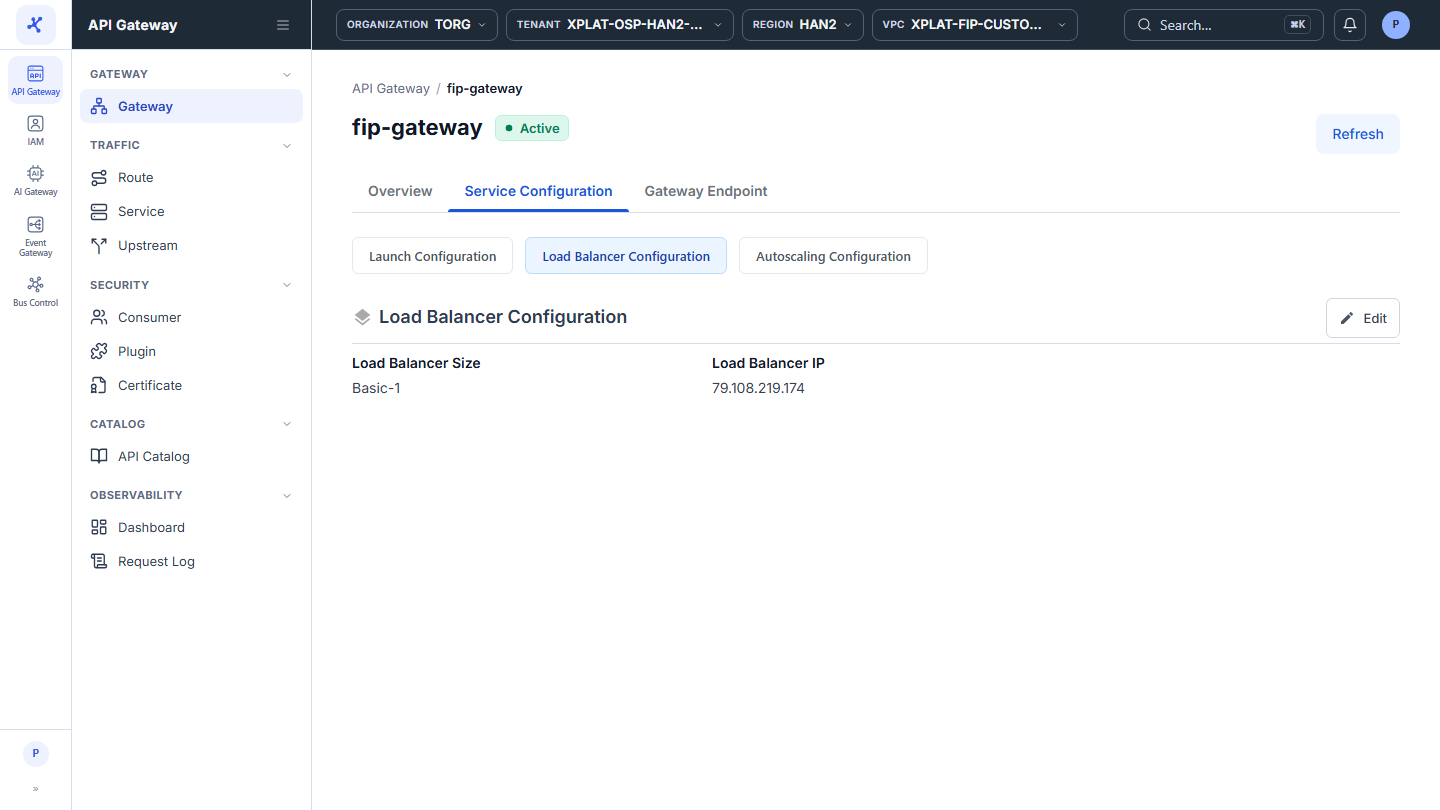
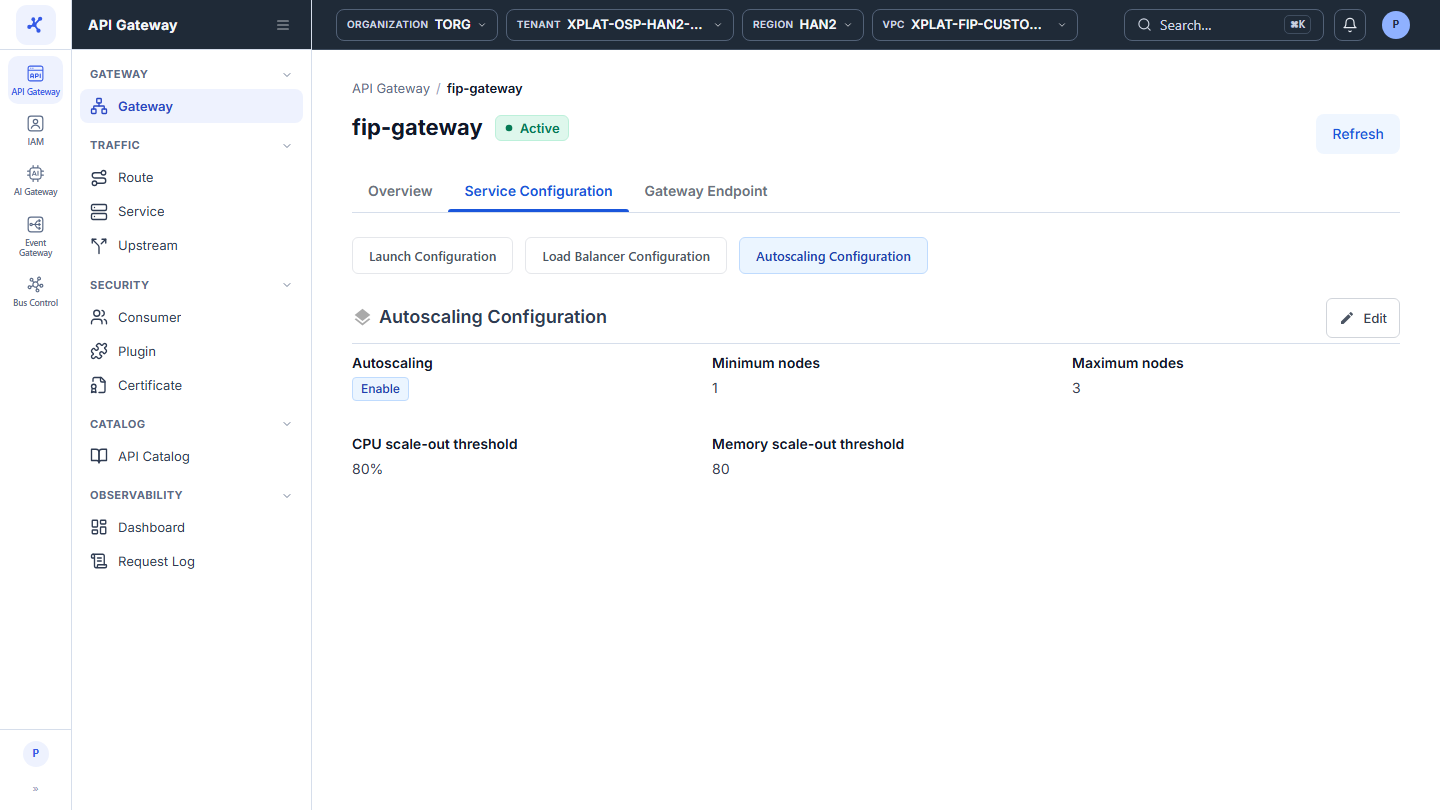
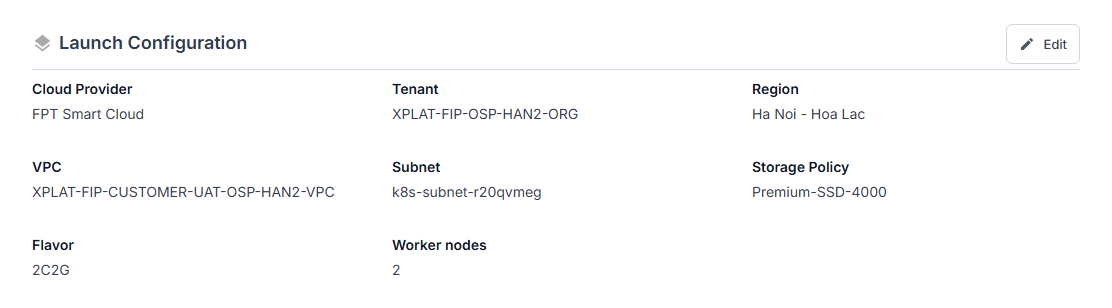
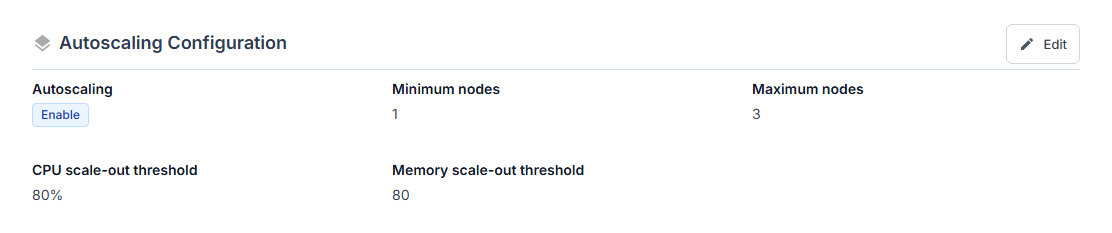
The tab has 3 buttons at the top: Launch Configuration, Load Balancer Configuration, and Autoscaling Configuration. Click a button to show that part. The fields are the same as on the API Gateway creation screen, see Create an API Gateway.
| Button | Fields |
|---|---|
| Launch Configuration | Cloud Provider, Tenant, Region, VPC, Subnet, Storage Policy, Flavor, Worker nodes. |
| Load Balancer Configuration | Load Balancer Size and Load Balancer IP. Point the DNS record of a Custom Domain to this IP. |
| Autoscaling Configuration | Autoscaling (on or off, for example Enable), Minimum nodes, Maximum nodes, CPU scale-out threshold, Memory scale-out threshold. |

Gateway Endpoint tab
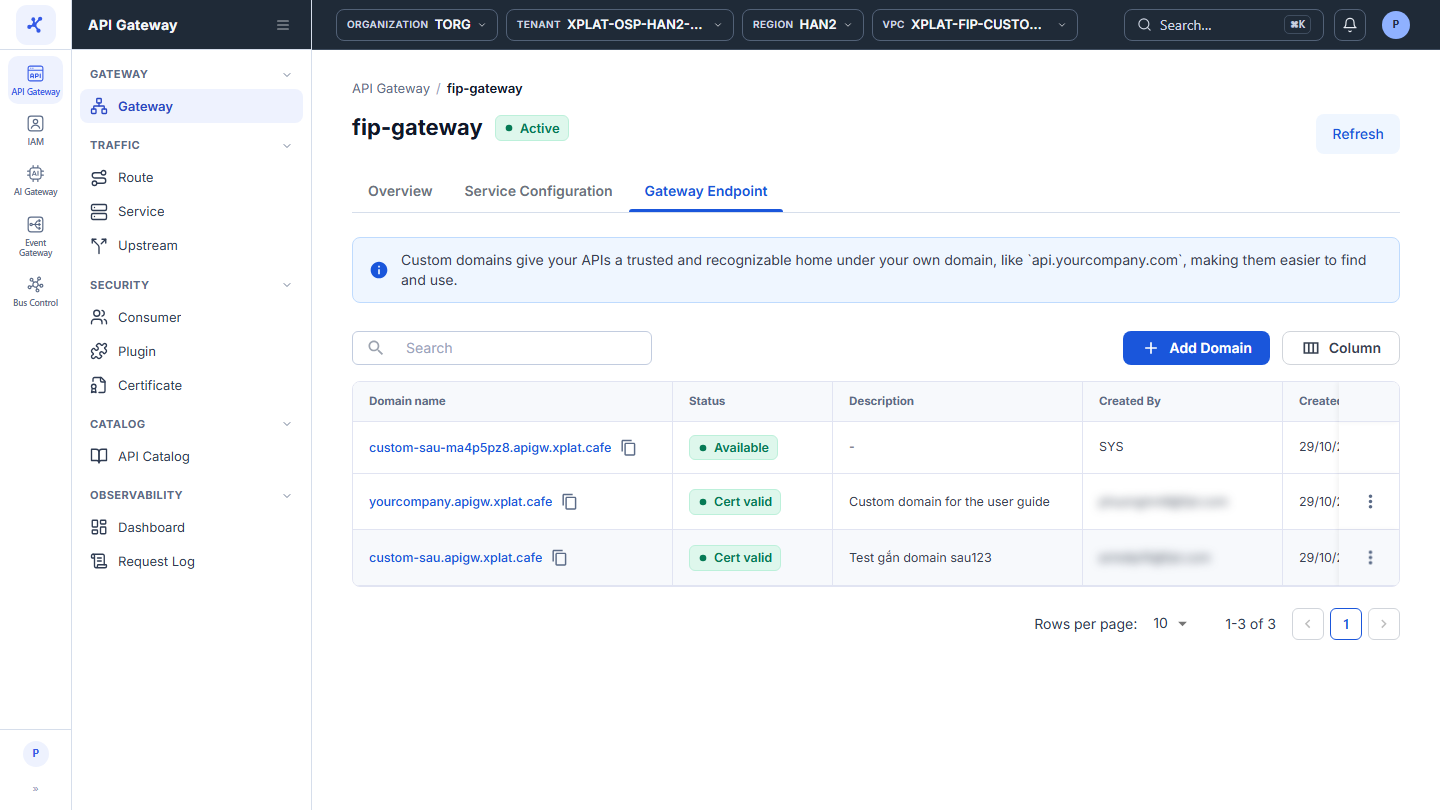
The tab lists the domains that clients use to call the API Gateway: the default domain that the system assigns, and the custom domains you add.
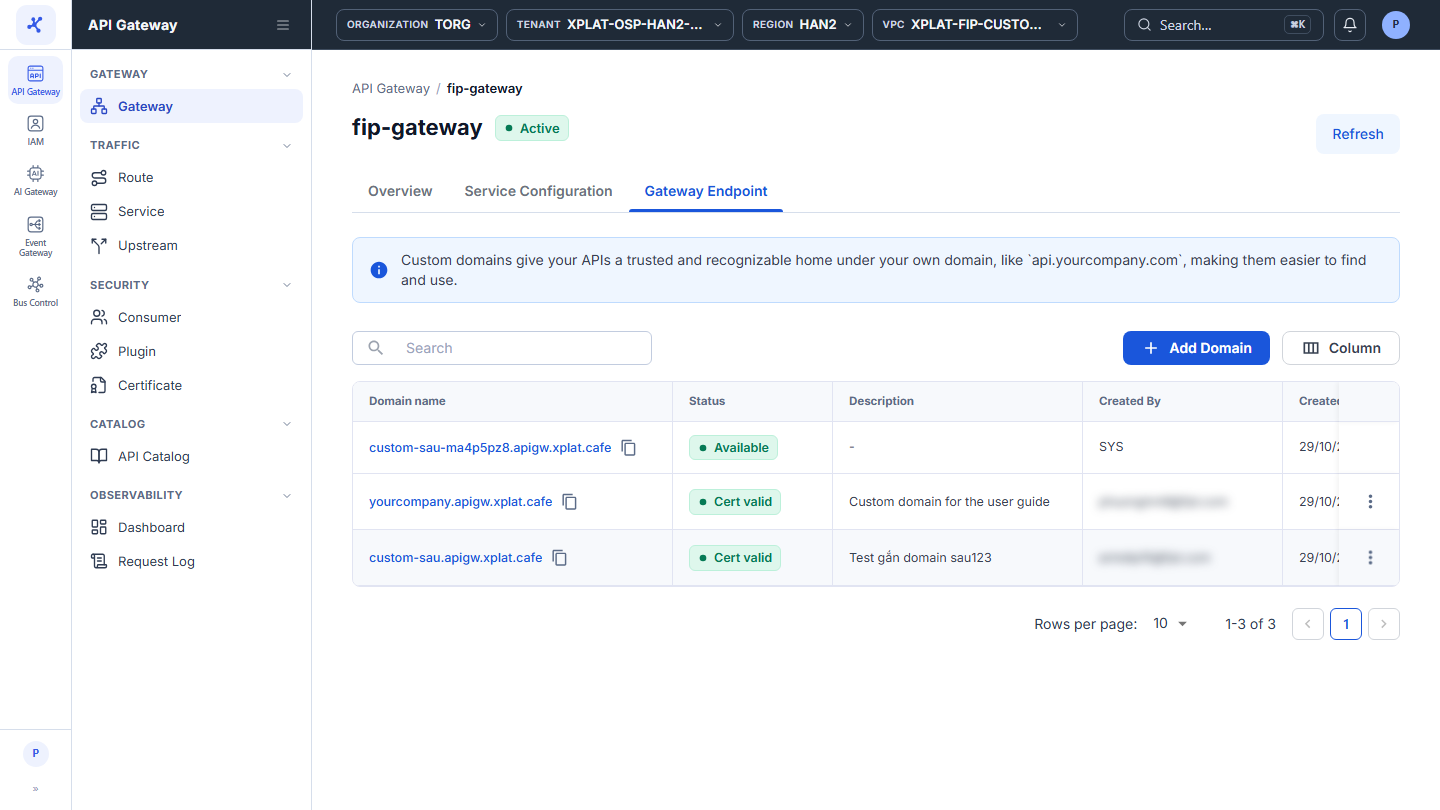
| Column | Description |
|---|---|
| Domain name | Domain of the endpoint, with a copy icon. |
| Status | Available for the default domain. For a custom domain, the status follows its certificate, for example Cert valid. |
| Description | Description of the custom domain, or - when empty. |
| Created By | Who added the domain. SYS for the default domain. |
| Created At | When the domain was added. |
To add, edit, or delete a Custom Domain, see View Gateway Endpoint details.