View member details
The Members screen lists the members of the organization, with the role and status of each member. Here you can see who can manage API Gateways in the organization.
View the member list
-
Click the logo icon at the top of the product menu on the left.
-
Select ORGANIZATION & ACCESS → Members.
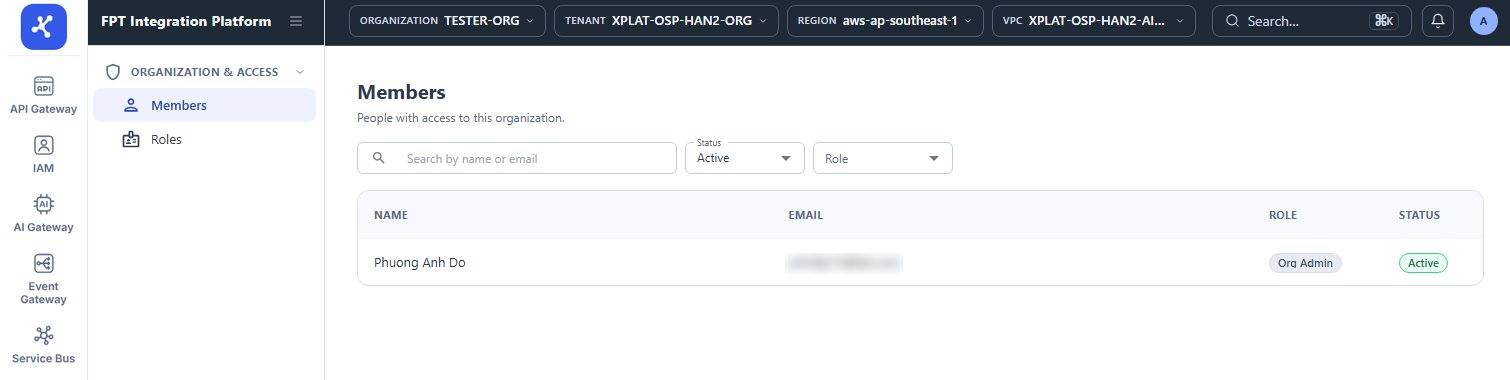
The list has the following columns:
| Column | Description |
|---|---|
| Name | Name of the member. |
| Email of the FPT ID account of the member. | |
| Role | Role of the member in the organization, for example Org Admin or Org Viewer. See Roles and permissions. |
| Status | Status of the member: Active or Inactive. |
The toolbar has 3 filters that you can combine:
| Filter | Description |
|---|---|
| Search by name or email | Finds members by name or email, not case-sensitive. |
| Status | Filters by status Active (default) or Inactive. |
| Role | Filters by role. All roles are shown by default. |
When you select another organization in the header, the list reloads for that organization.
note
The FPT Integration Platform operations team adds members to organizations and assigns their roles. To get access for a member, contact your organization administrator or FPT Cloud support at 1800 6139 / support@fptcloud.com.
Common issues
| Error | Cause | Solution |
|---|---|---|
| Permission Access Denied | Your account does not belong to this organization | Ask your organization administrator to add you to the organization. |
| Something went wrong. Please try again later. | Timeout or system error | Reload the page in a few minutes. |