View plugin details
The Plugins screen lists the plugins of the API Gateway selected in the top-right corner.
View the plugin list
- In the left menu, select API Gateway → Plugin, then select the API Gateway in the top-right corner.
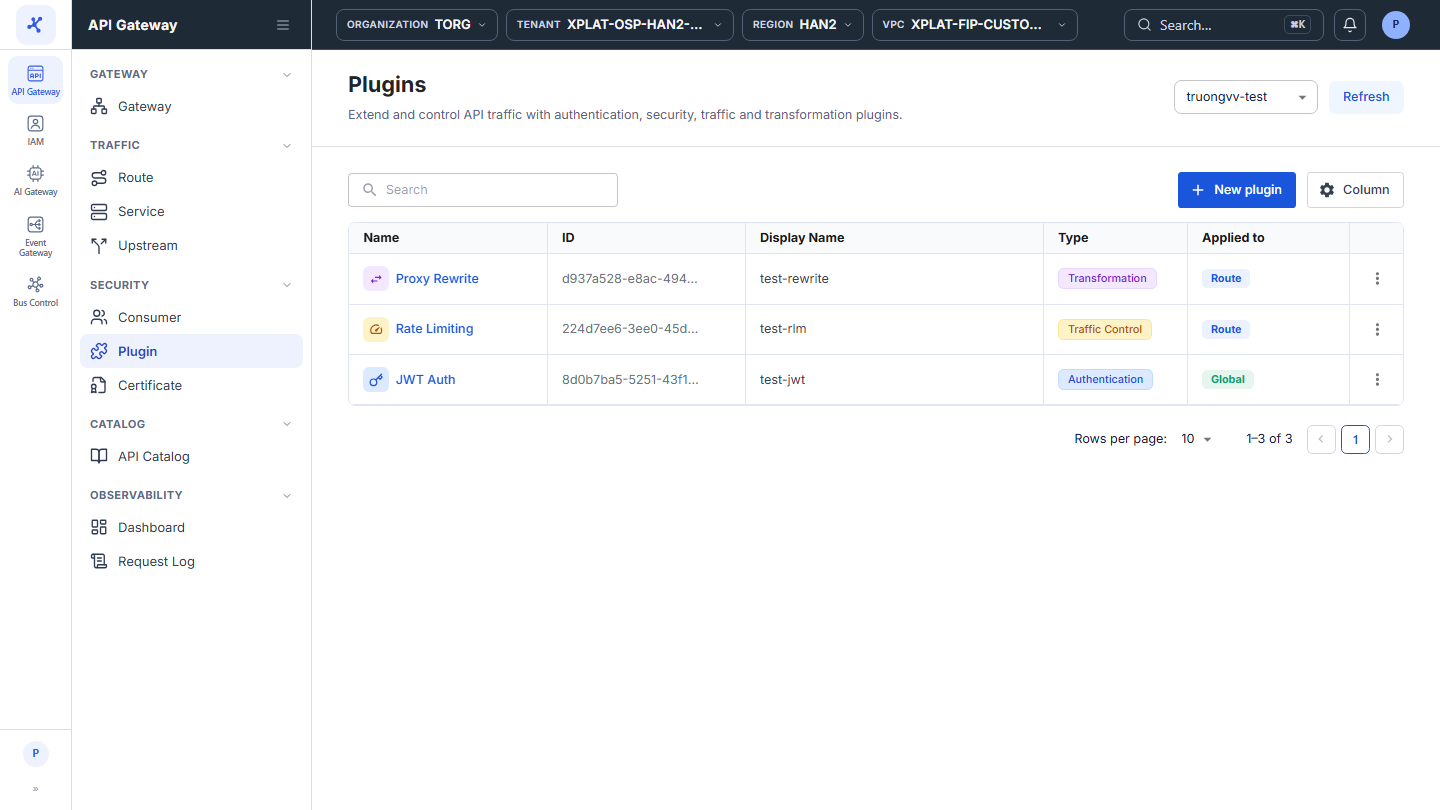
The list has the following columns:
| Column | Description |
|---|---|
| Name | Plugin type with its icon, for example JWT Auth. Click it to open the detail screen. |
| ID | Plugin identifier. |
| Display Name | Your name for the plugin. |
| Type | Plugin group: Authentication, Security, Traffic Control, Transformation. |
| Applied to | Scope: Global, Route, Service, or Route + Service. |
| Enabled | Switch to enable or disable the plugin directly in the table. See Enable or disable a plugin. |
| Ordering | Execution order of the plugin. |
| Created By | Who created the plugin. |
| Created At | When the plugin was created. |
| ⋮ | Actions on each row, see the action table below. |
The toolbar has the Search box to find plugins by name, the New plugin button to add a plugin, and the Column button to choose, hide, and order the columns. The Refresh button in the top-right corner reloads the list.
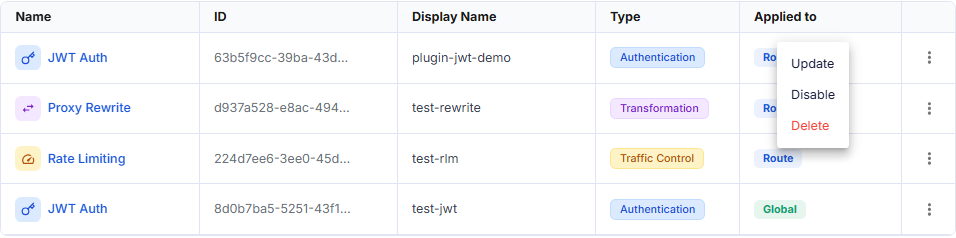
The ⋮ menu at the end of each row has 3 actions:
| Action | Description |
|---|---|
| Update | Opens the plugin update screen. See Edit a plugin. |
| Disable / Enable | Disables an enabled plugin, or enables a disabled one. See Enable or disable a plugin. |
| Delete | Deletes the plugin. See Delete a plugin. |
View the details of a plugin
- Click the Name of the plugin you want to view. The detail screen has the following sections, all read-only:
| Section | Content |
|---|---|
| General Information | System information: Plugin ID (with a copy icon), Created At, Created By, Updated At, Updated By. |
| Basic Information | Display Name, Description, and the Enabled status. |
| Scope | Global or Scoped. If Scoped, a table lists the assigned Routes / Services (and Consumers, for the Rate Limiting plugin). Click a name to open it. |
| Configuration | The configuration attributes and the matching JSON panel. |
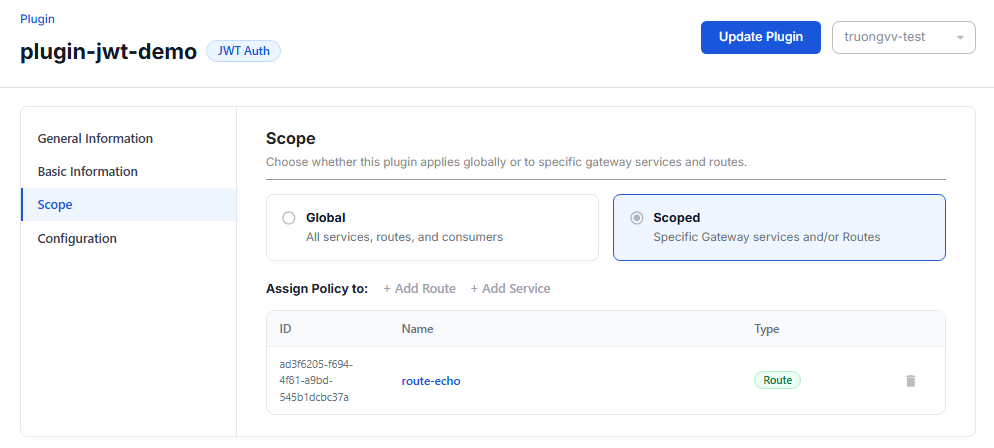
Click Update Plugin in the top-right corner to edit the plugin, see Edit a plugin.
note
A plugin attached to a Route / Service also appears on the Plugins tab of that Route / Service detail screen. See Plugin overview.