Edit a Route
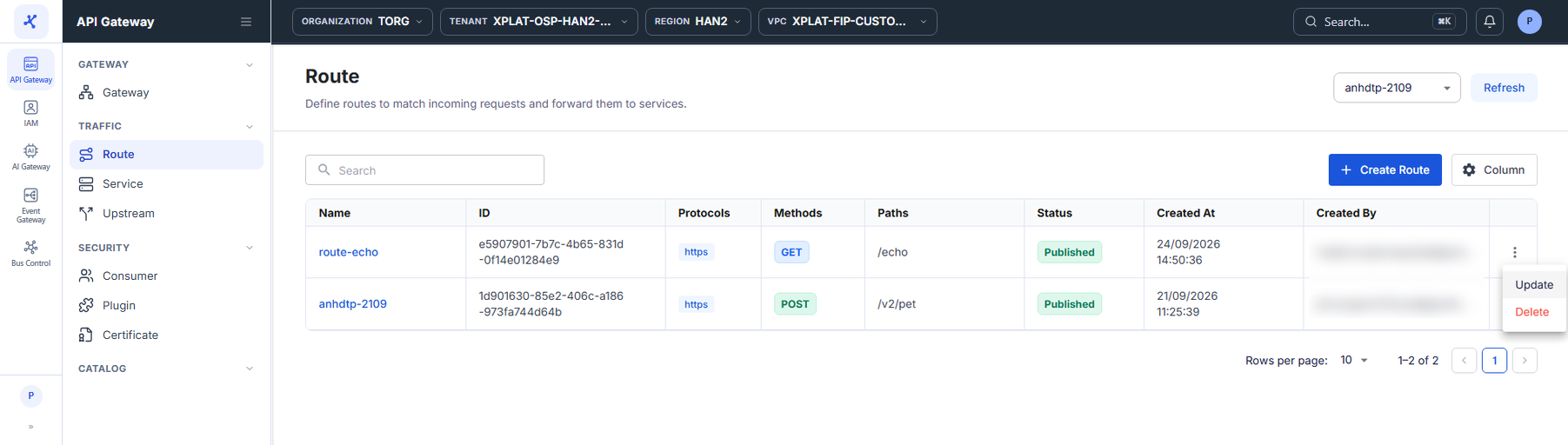
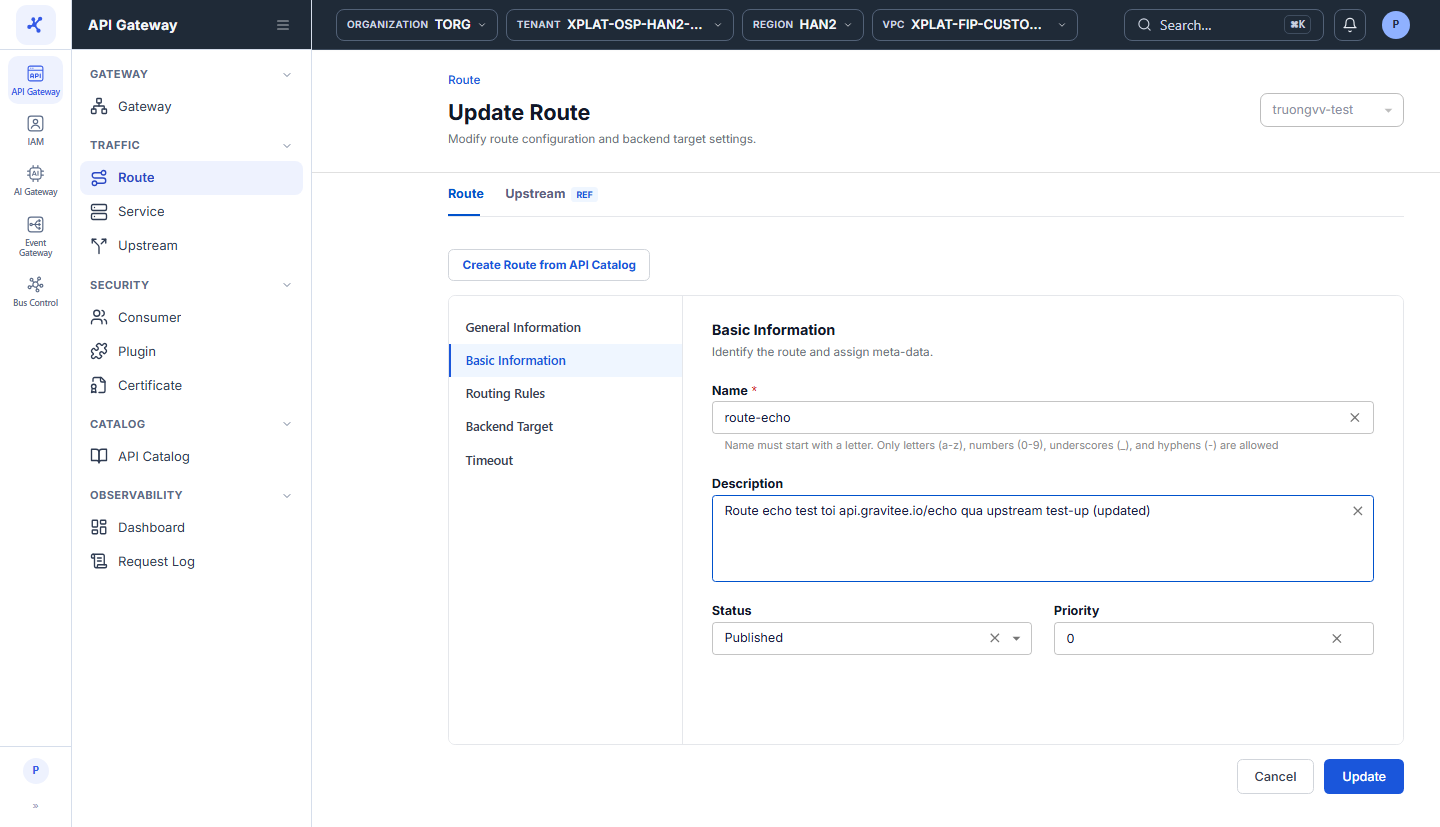
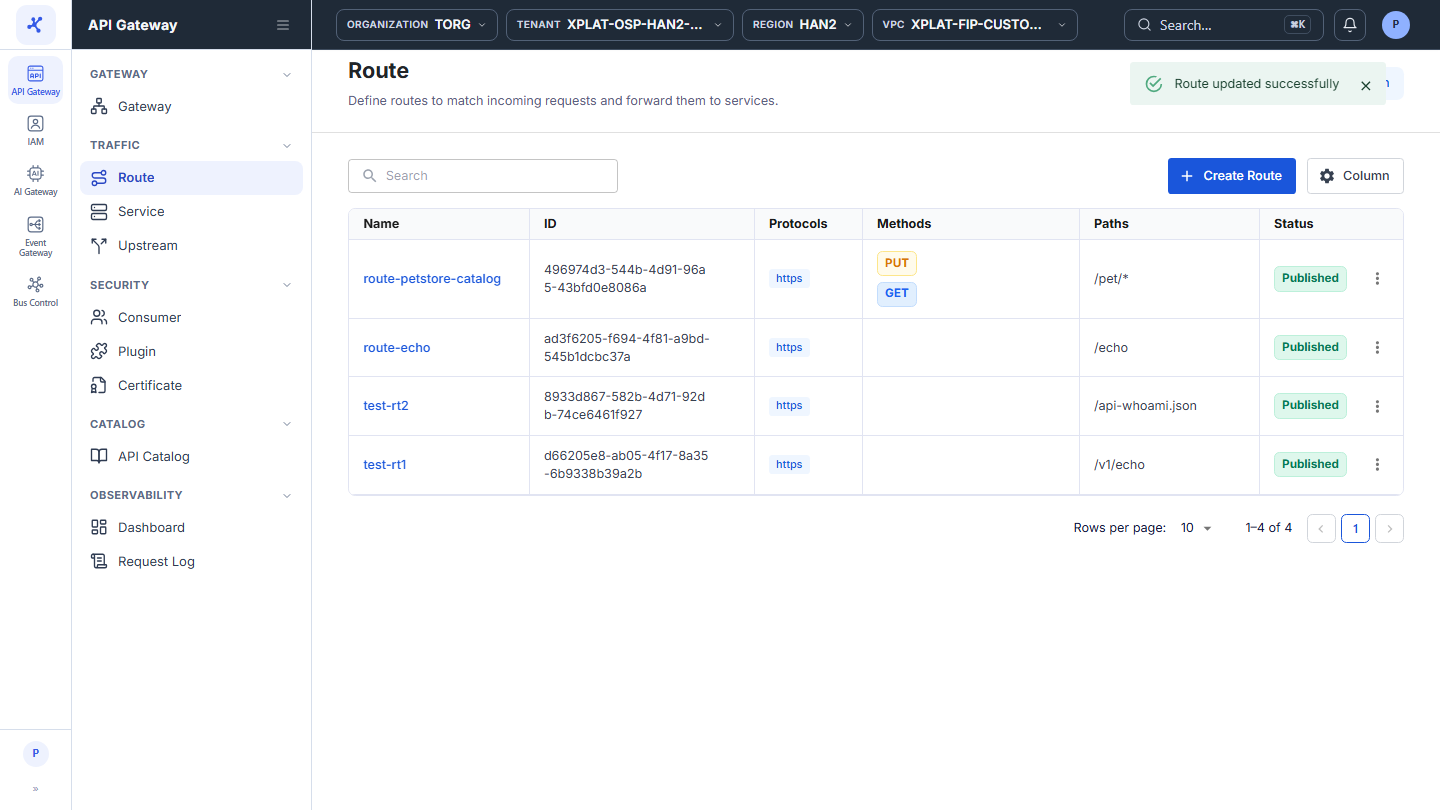
Steps 1–2Open the Route screen and click ⋮ → Update on the Route to edit
1 / 6
Click the image to zoom in.
Edit a Route
To edit a Route, follow these steps:
-
In the left menu, select API Gateway → Route, then select the API Gateway in the top-right corner.
-
On the row of the Route you want to edit, click ⋮ → Update.
note
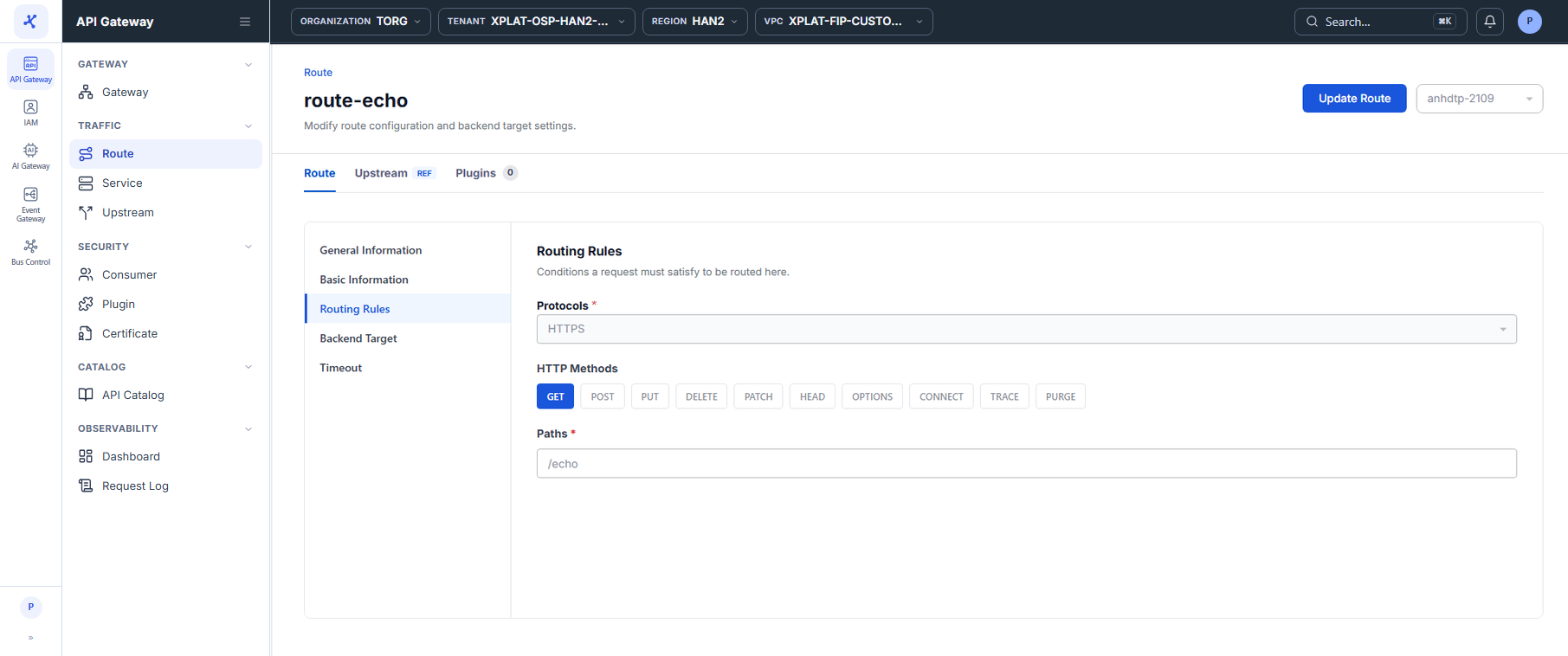
You can also open the Route detail screen and click Update Route in the top-right corner.
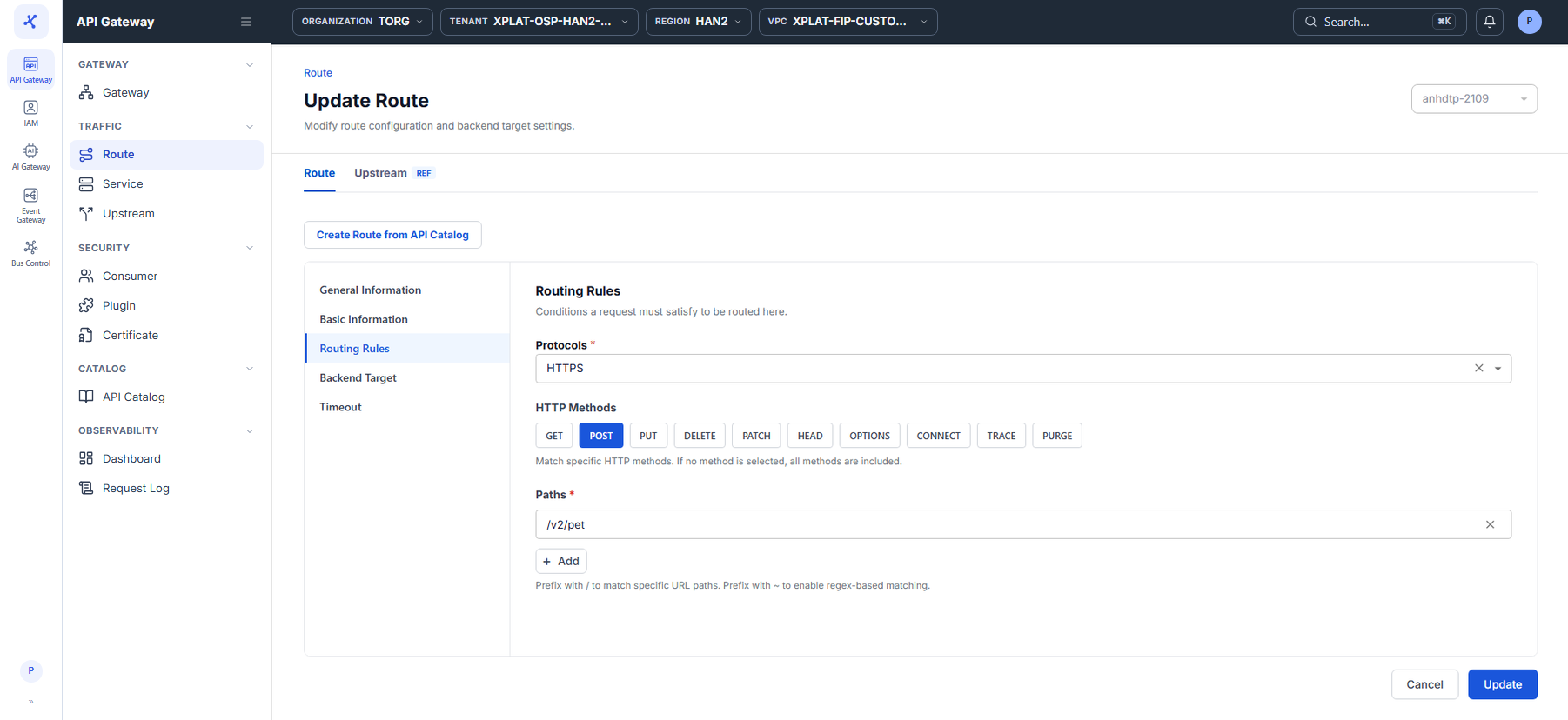
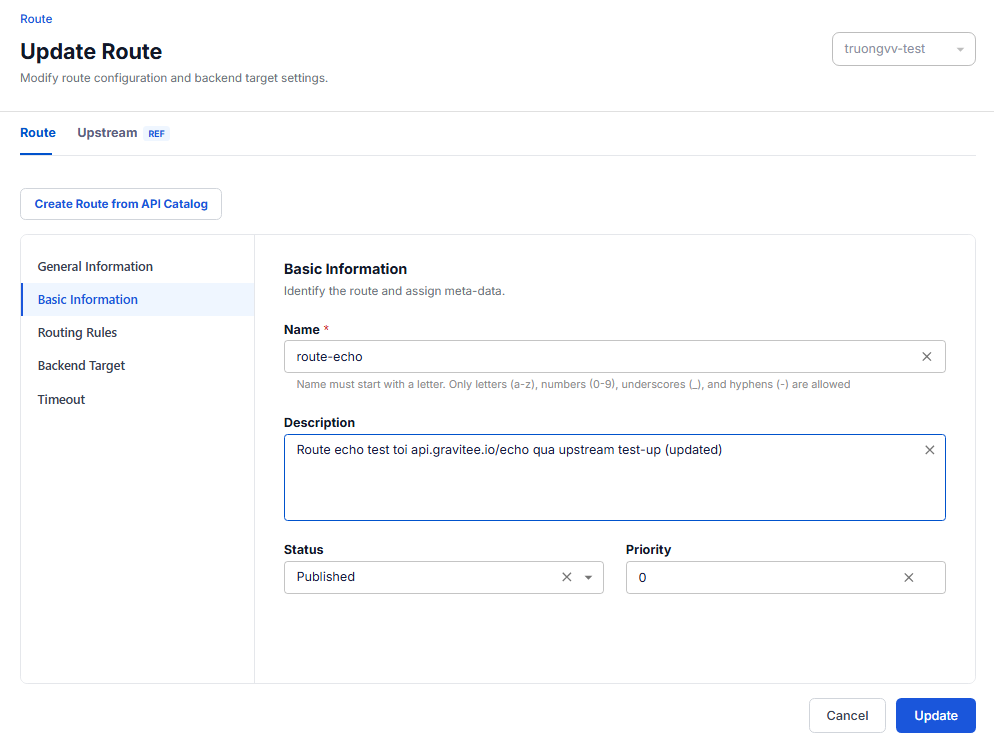
- On the Update Route screen, the current data is pre-filled. Change the sections you need: Basic Information, Routing Rules, Backend Target, Timeout. The fields are the same as on the Route creation screen, see Create a Route.
note
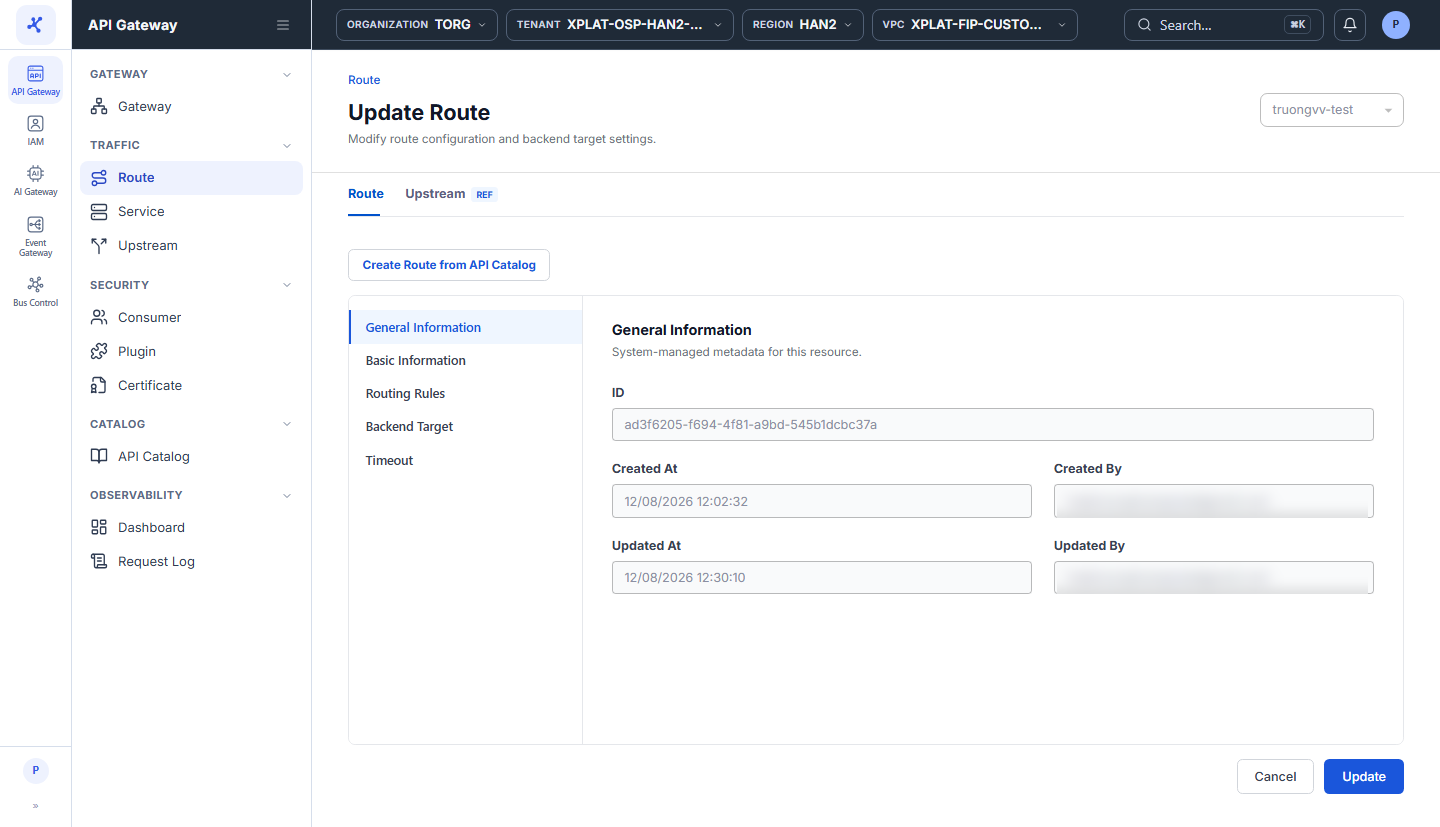
The General Information section (ID, Created At / By, Updated At / By) is read-only. The API Gateway selector at the top is locked, so a Route cannot move to another API Gateway.
- Click Update to save.
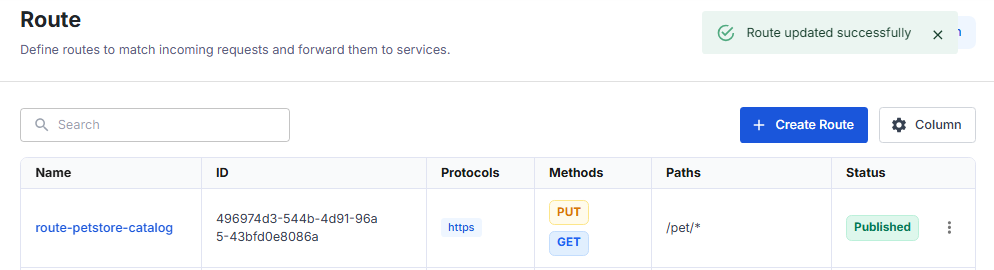
The message Route updated successfully appears and the system takes you back to the Route screen. Updated At and Updated By of the Route are updated.
Common issues
| Error | Cause | Solution |
|---|---|---|
| Route name already exists | The new name matches another Route in the API Gateway | Use another name. |
| Something went wrong. Please try again later. | System error. The form data is kept | Click Update again after a few minutes. |