Test a Route
After you create a Route, send a test request to the Gateway URL of the API Gateway to confirm that the request passes through the API Gateway and that the Route forwards it to the backend. This page uses Postman as an example, but you can use any tool that sends HTTP requests, for example curl.
Configuration used in the example:
| Component | Value |
|---|---|
| API Gateway | anhdtp-2109, with the Gateway URL https://YOUR_GATEWAY_URL |
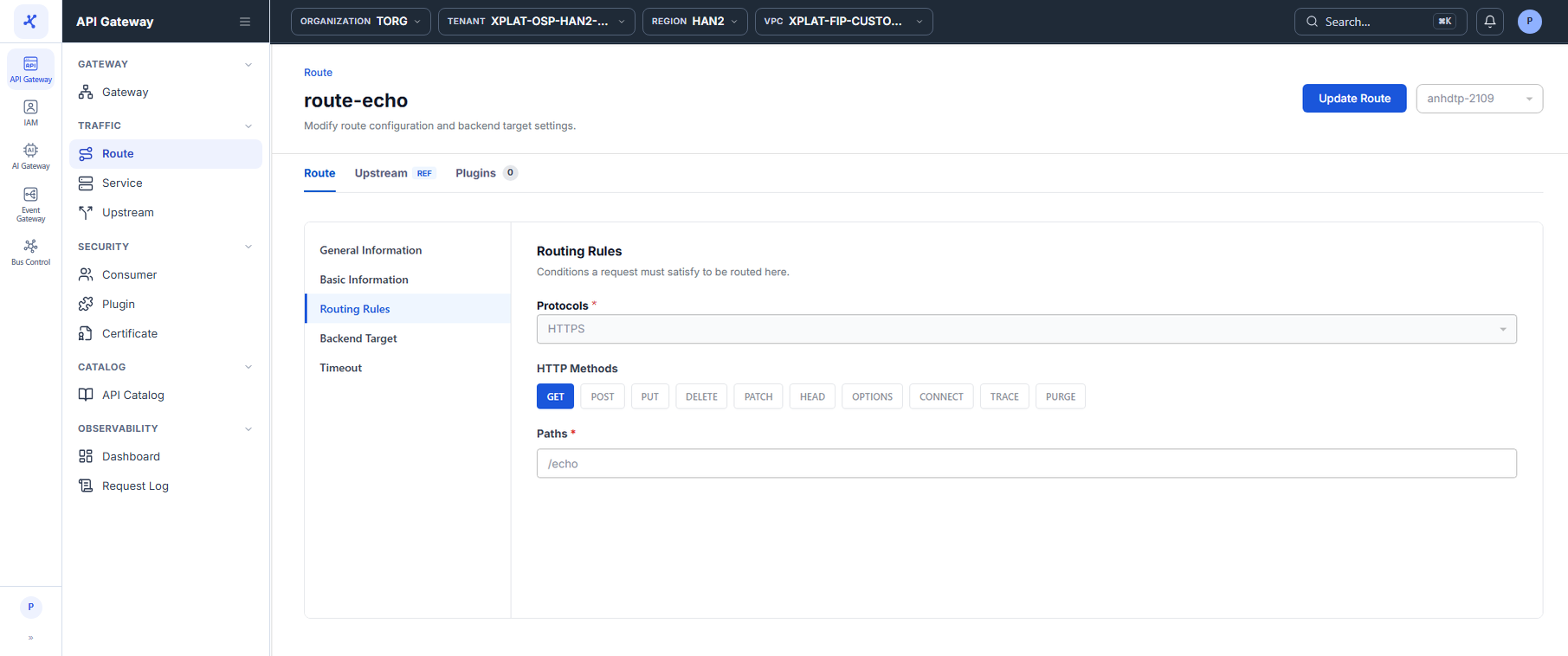
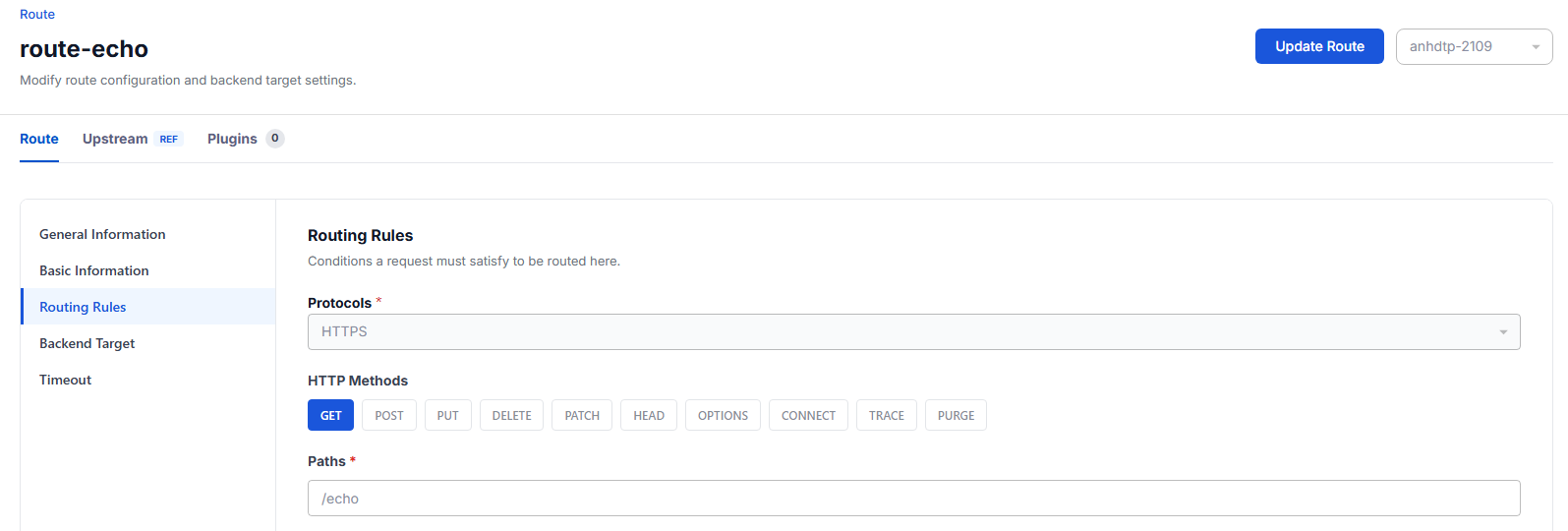
| Route | route-echo: Protocols HTTPS, HTTP Methods GET, Paths /echo |
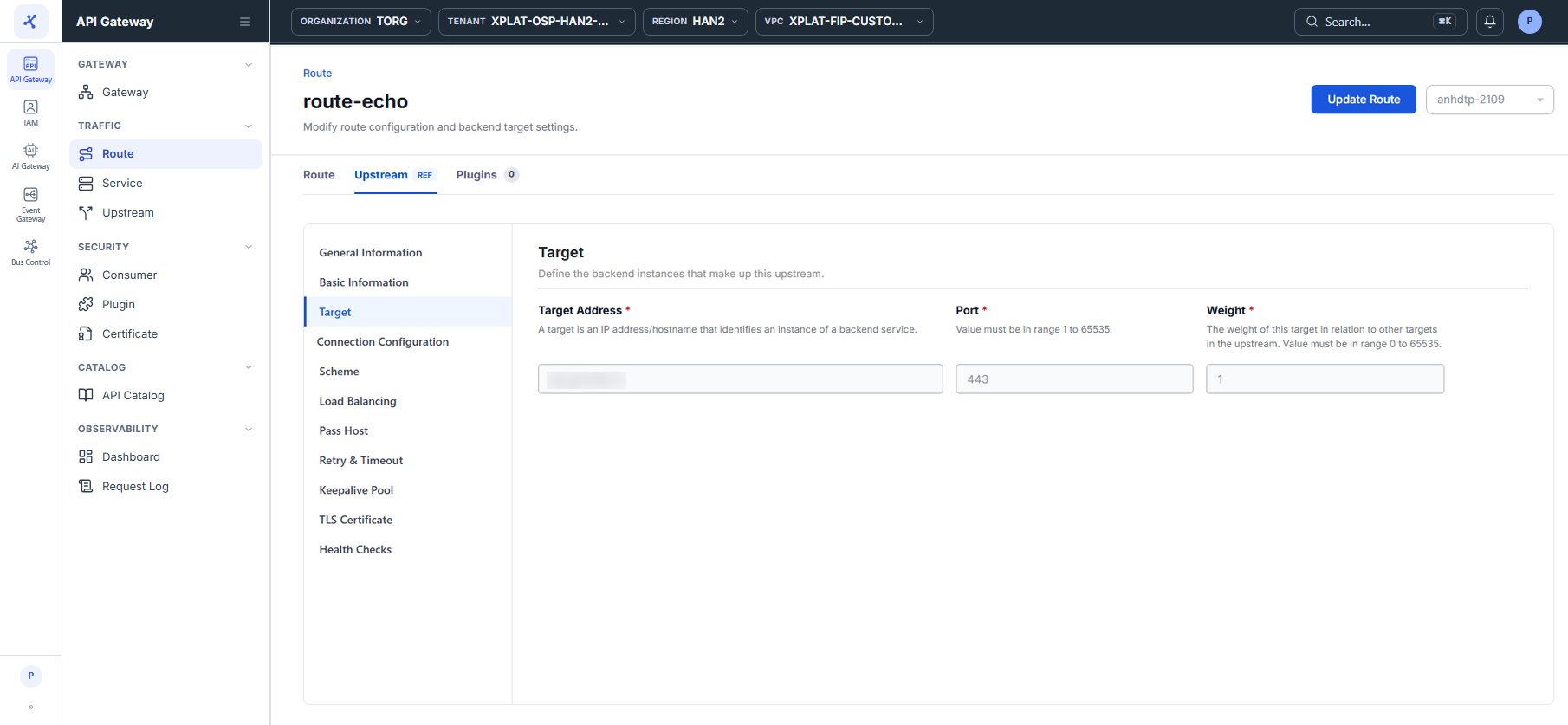
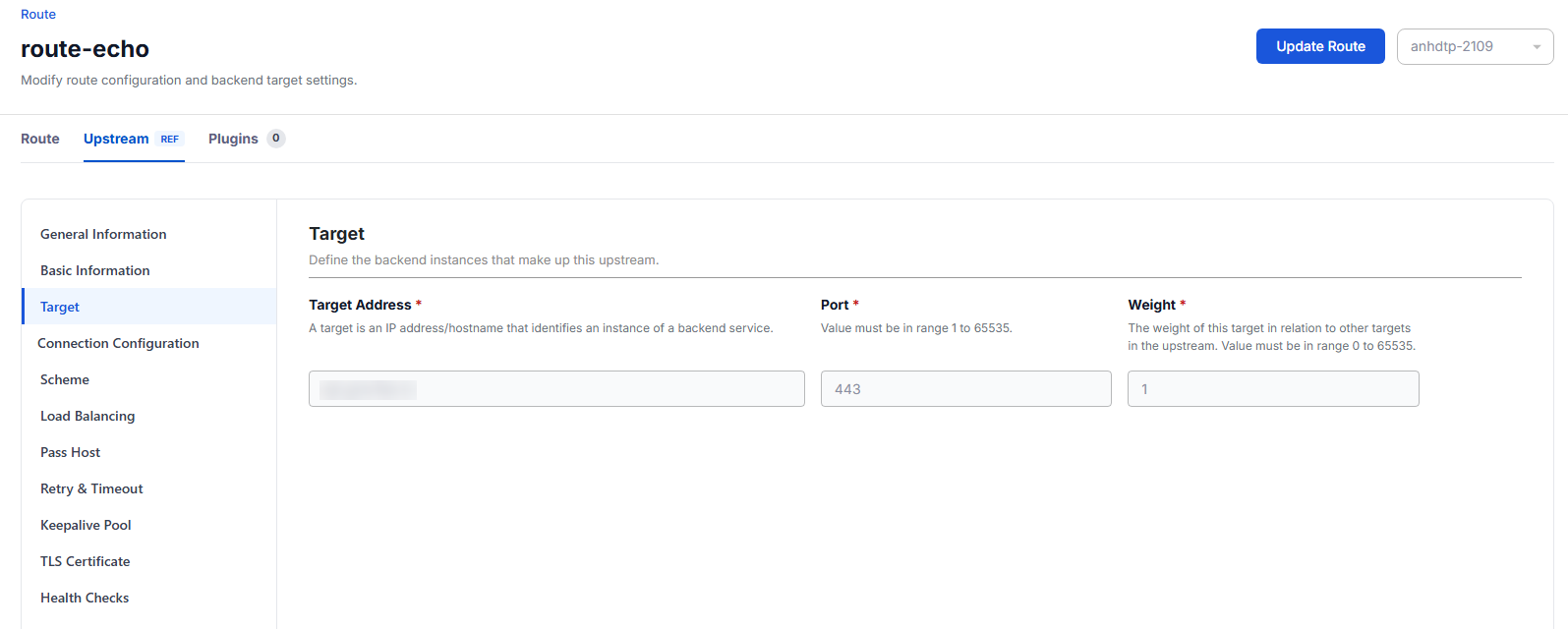
| Upstream | upstream-echo: Target Address = backend address, Port 443 |
warning
The API Gateway must be in the Active status and the Route must be in the Published status to receive requests. See View API Gateway details.
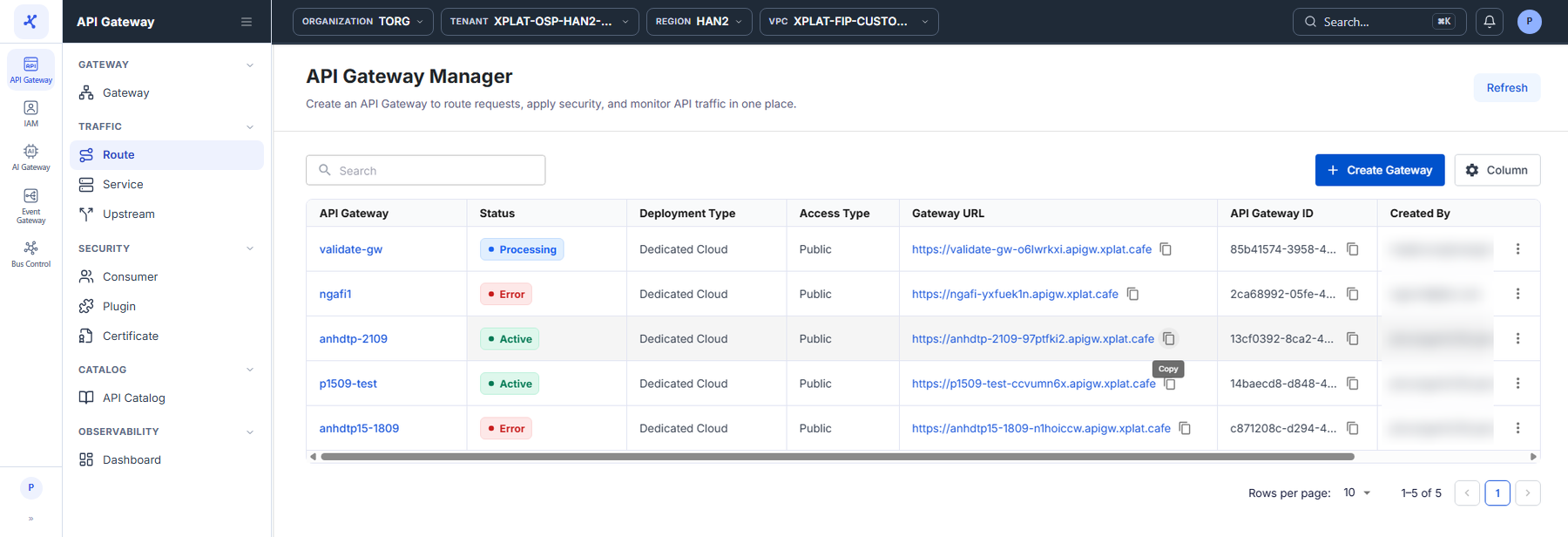
Step 1Copy the Gateway URL of the API Gateway
1 / 6
Click the image to zoom in.
Test a Route
Comparing the results before and after the Route exists shows clearly what the Route does. To test a Route, follow these steps:
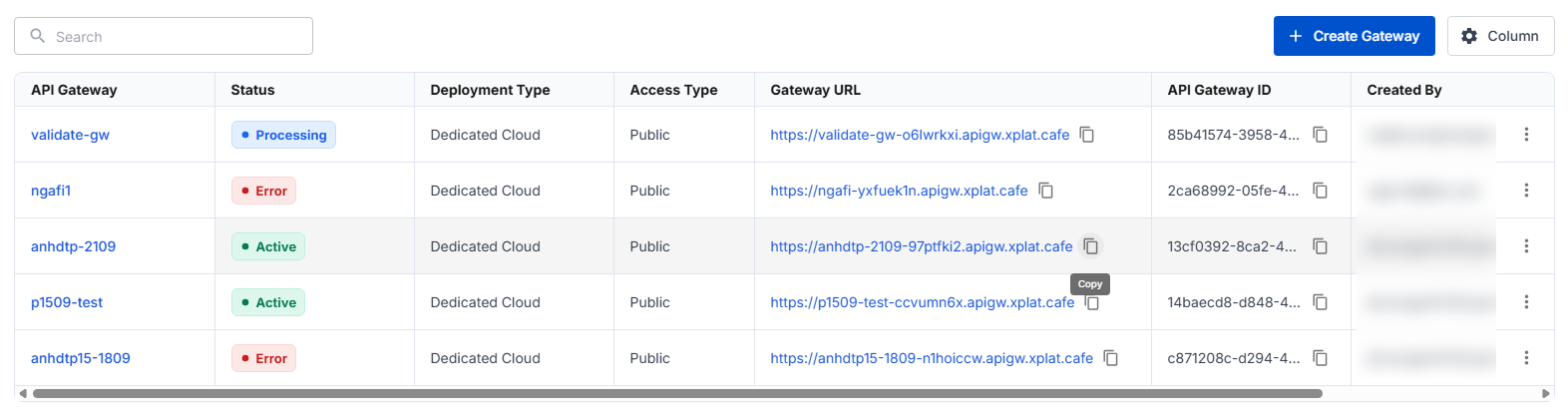
- In the left menu, select API Gateway → Gateway. On the row of the API Gateway that holds the Route, click the copy icon in the Gateway URL column.
- Send a
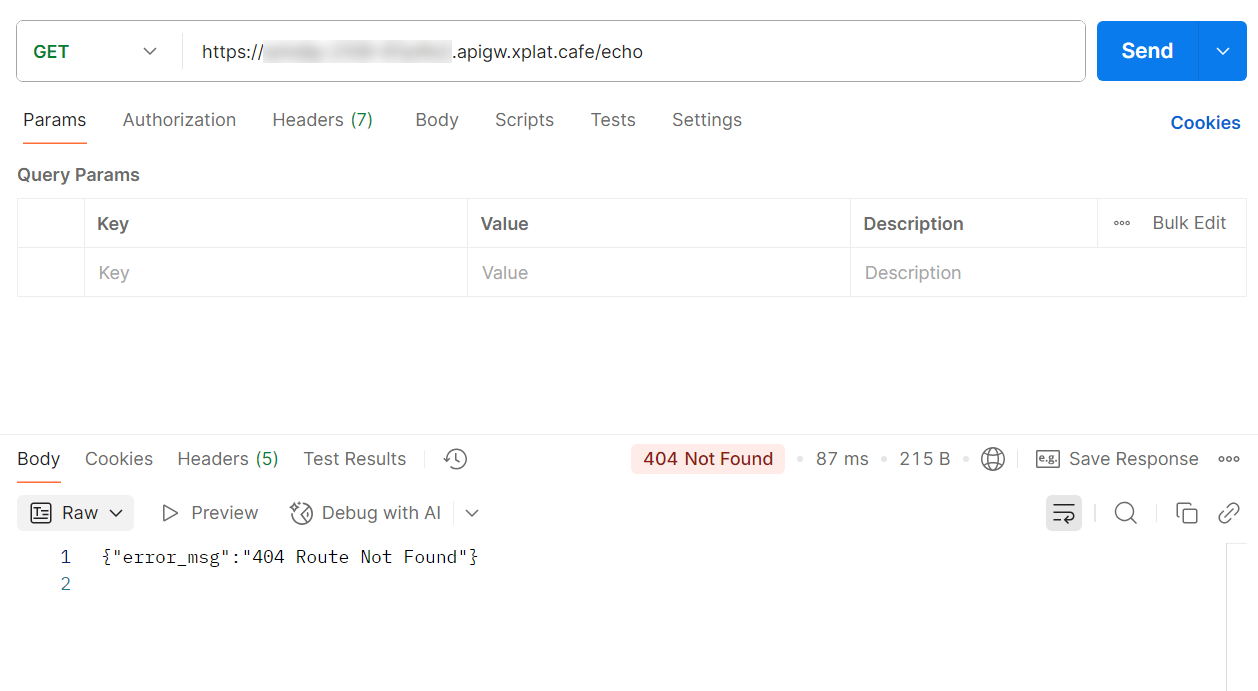
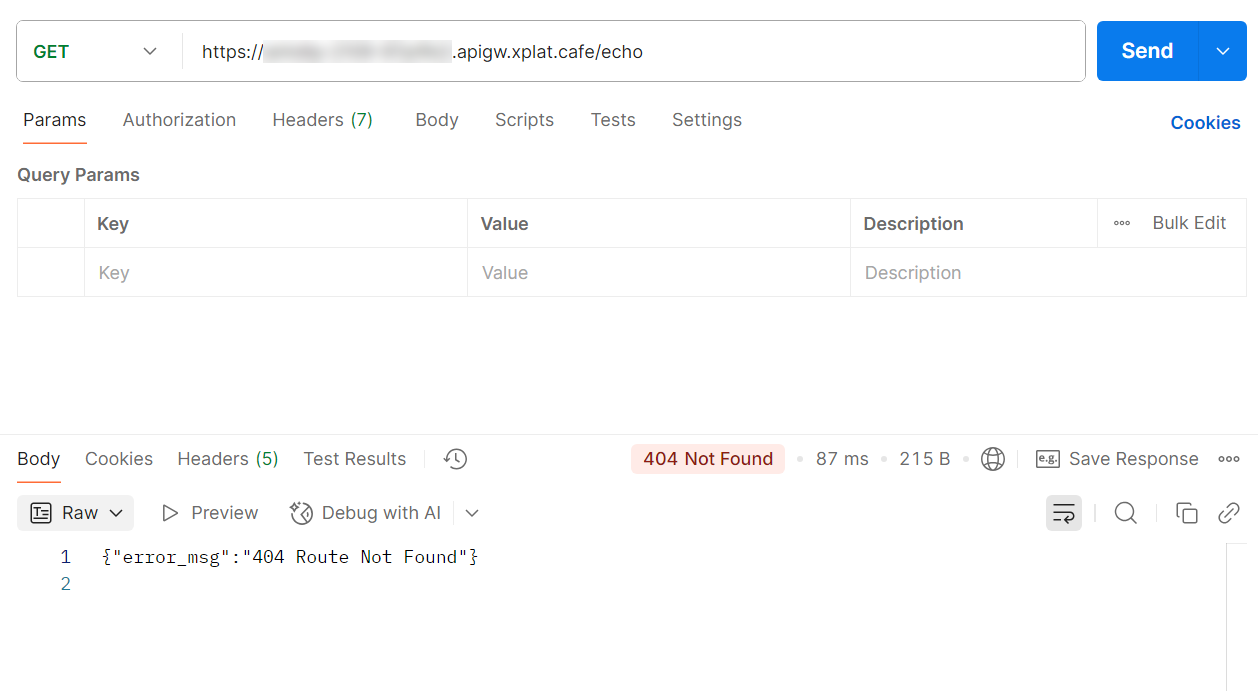
GETrequest to the Gateway URL with the path to test, for examplehttps://YOUR_GATEWAY_URL/echo. While the API Gateway has no Route that matches the/echopath, the result is404 Not Foundwith the body{"error_msg":"404 Route Not Found"}. This means the request reached the API Gateway, but the API Gateway does not know where to forward it.
- Create a Route that matches the request, see Create a Route. In the example, the
route-echoRoute acceptsGETto the/echopath overHTTPS.
On the Upstream tab (labeled REF) of the Route, check the backend address that the Route forwards requests to.
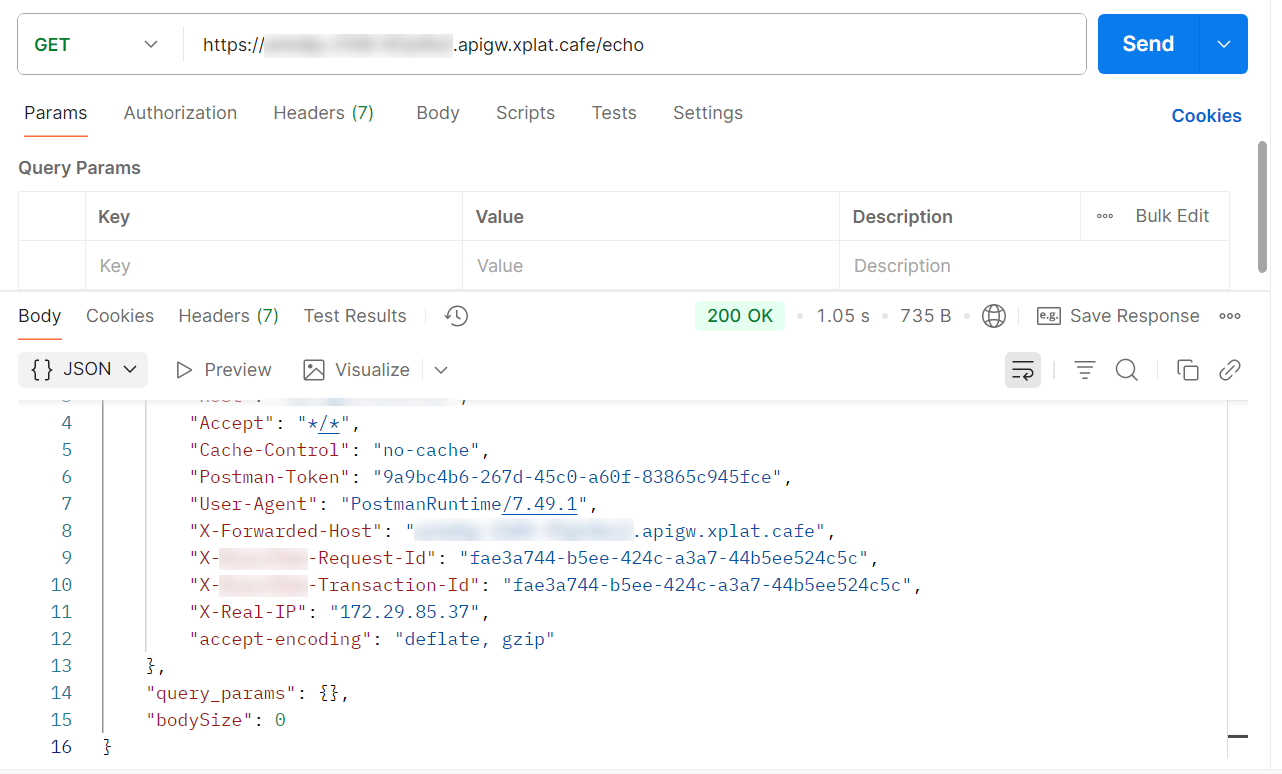
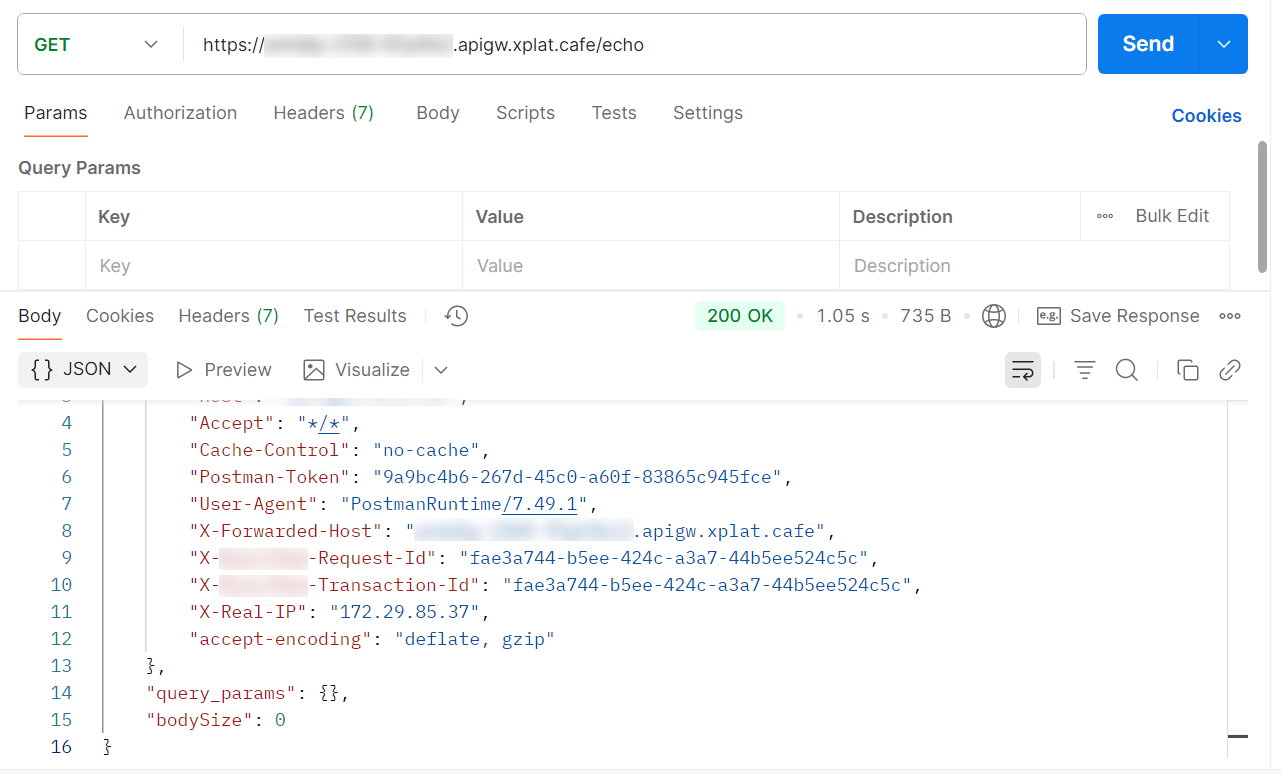
- Send the same request as in Step 2 again. The result is
200 OKwith the body returned by the backend. The response contains theX-Forwarded-Hostheader with the domain of the Gateway URL, and theX-Real-IPheader.
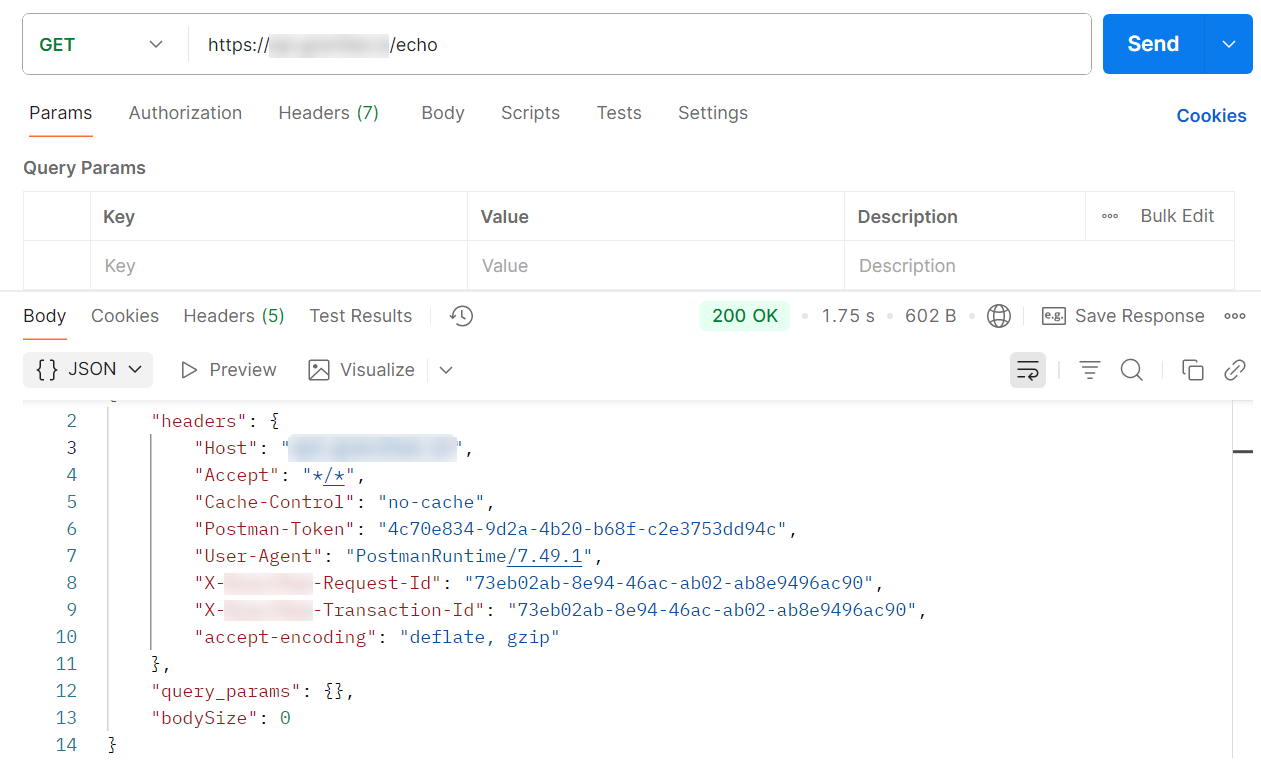
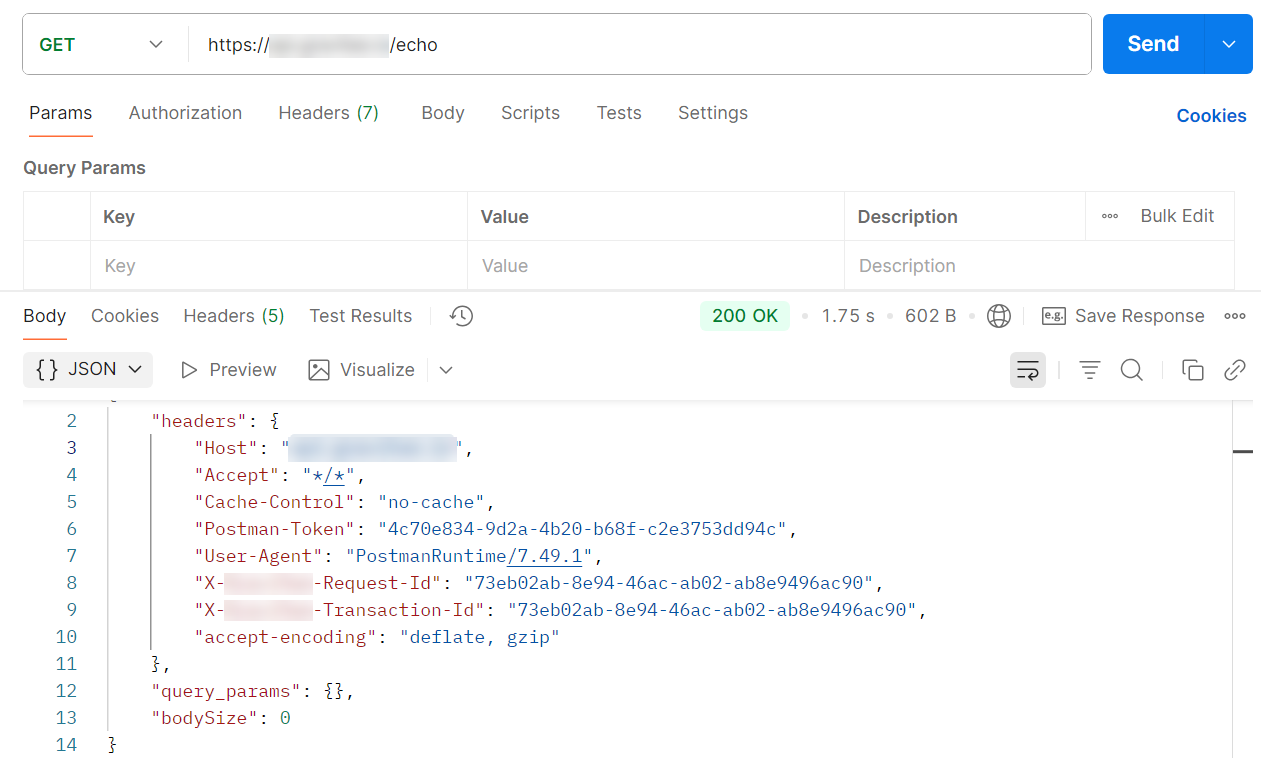
- (Optional) Call the backend address directly to compare. The result is also
200 OK, but without theX-Forwarded-HostandX-Real-IPheaders. The API Gateway adds these two headers, so the request in Step 4 went through the API Gateway.
Read the results
| Result | Meaning |
|---|---|
404 Not Found, body {"error_msg":"404 Route Not Found"} | The request reached the API Gateway, but no Route matches its protocol, method, and path. |
200 OK, and the response has the X-Forwarded-Host header with the domain of the Gateway URL | The request passed through the API Gateway, matched the Route, and was forwarded to the backend. |
Common errors
| Error | Cause | Solution |
|---|---|---|
Still 404 Route Not Found after the Route is created | The protocol, method, or path of the request does not match the Routing Rules, for example sending POST when the Route only accepts GET | Compare the request with the Routing Rules section, see View Route details. |
Still 404 Route Not Found although the request matches the Routing Rules | The Route is in the Unpublished status | Change Status to Published, see Edit a Route. |
| The request cannot reach the Gateway URL | The API Gateway is not in the Active status yet | Check the Status column in the API Gateway list, see View API Gateway details. |
Next steps
- Add a plugin to the Route, then use the steps above to check that the plugin works
- View Route details