Edit a Service
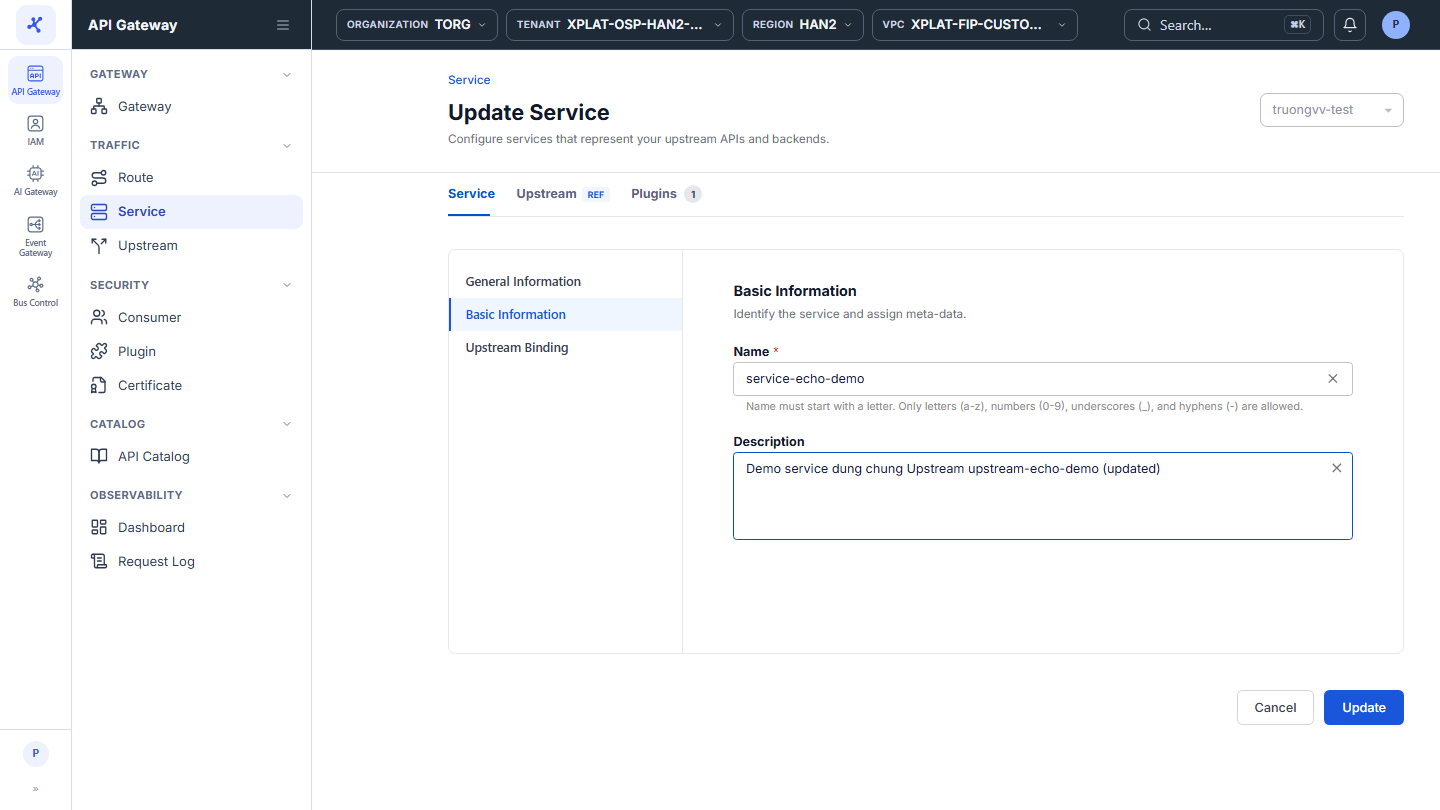
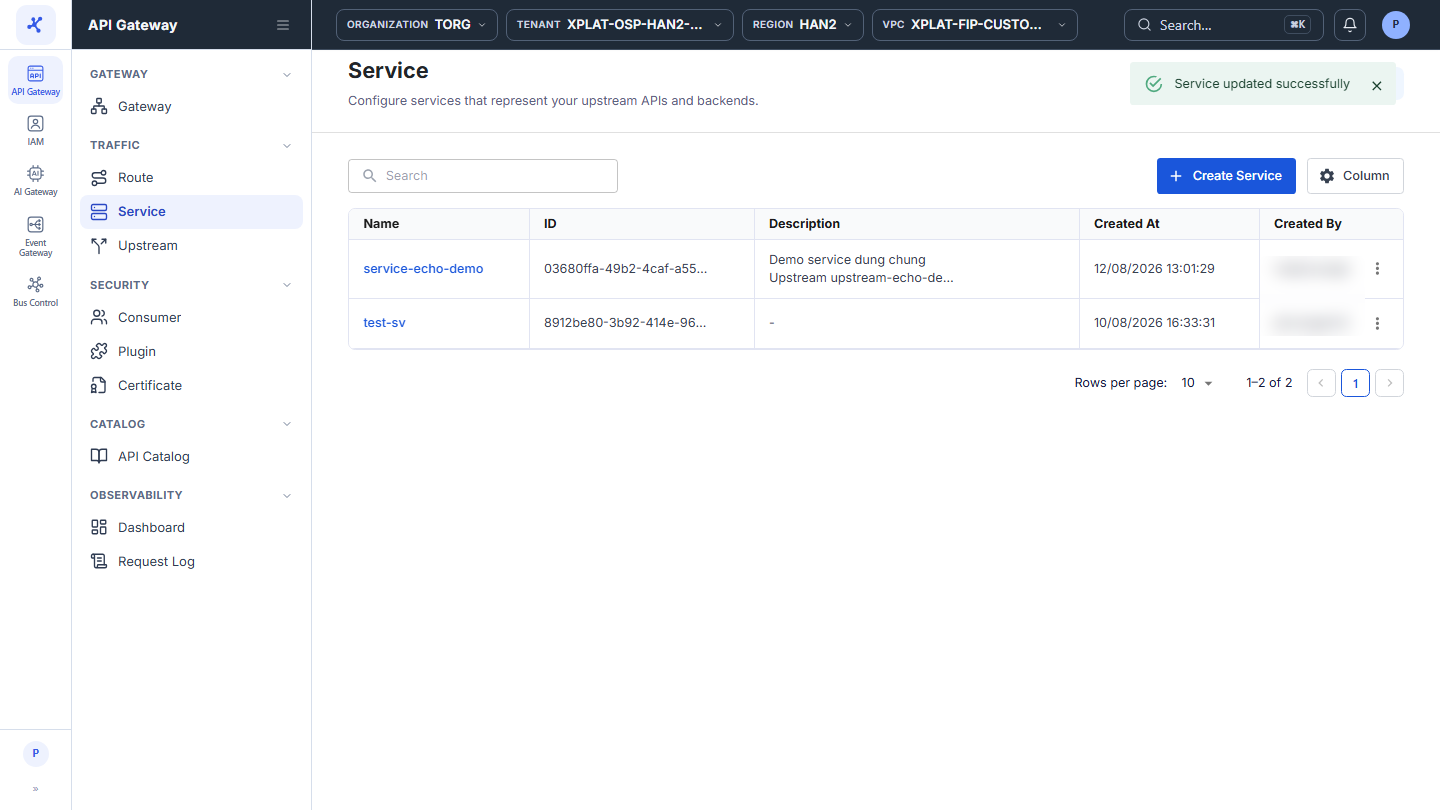
Click the image to zoom in.
Edit a Service
To edit a Service, follow these steps:
-
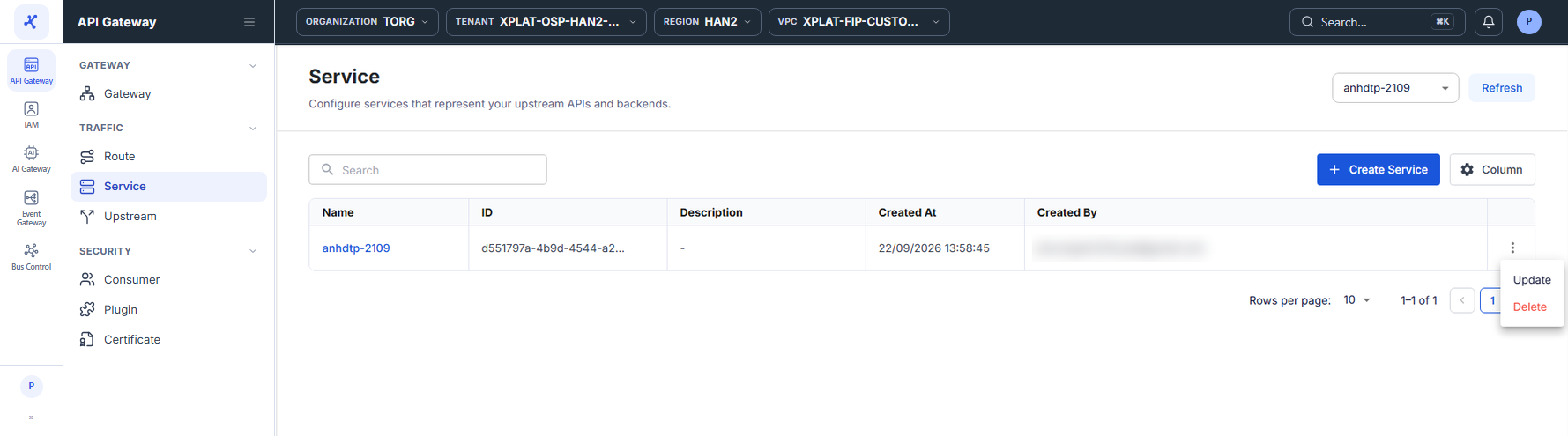
In the left menu, select API Gateway → Service, then select the API Gateway in the top-right corner.
-
On the row of the Service you want to edit, click ⋮ → Update.
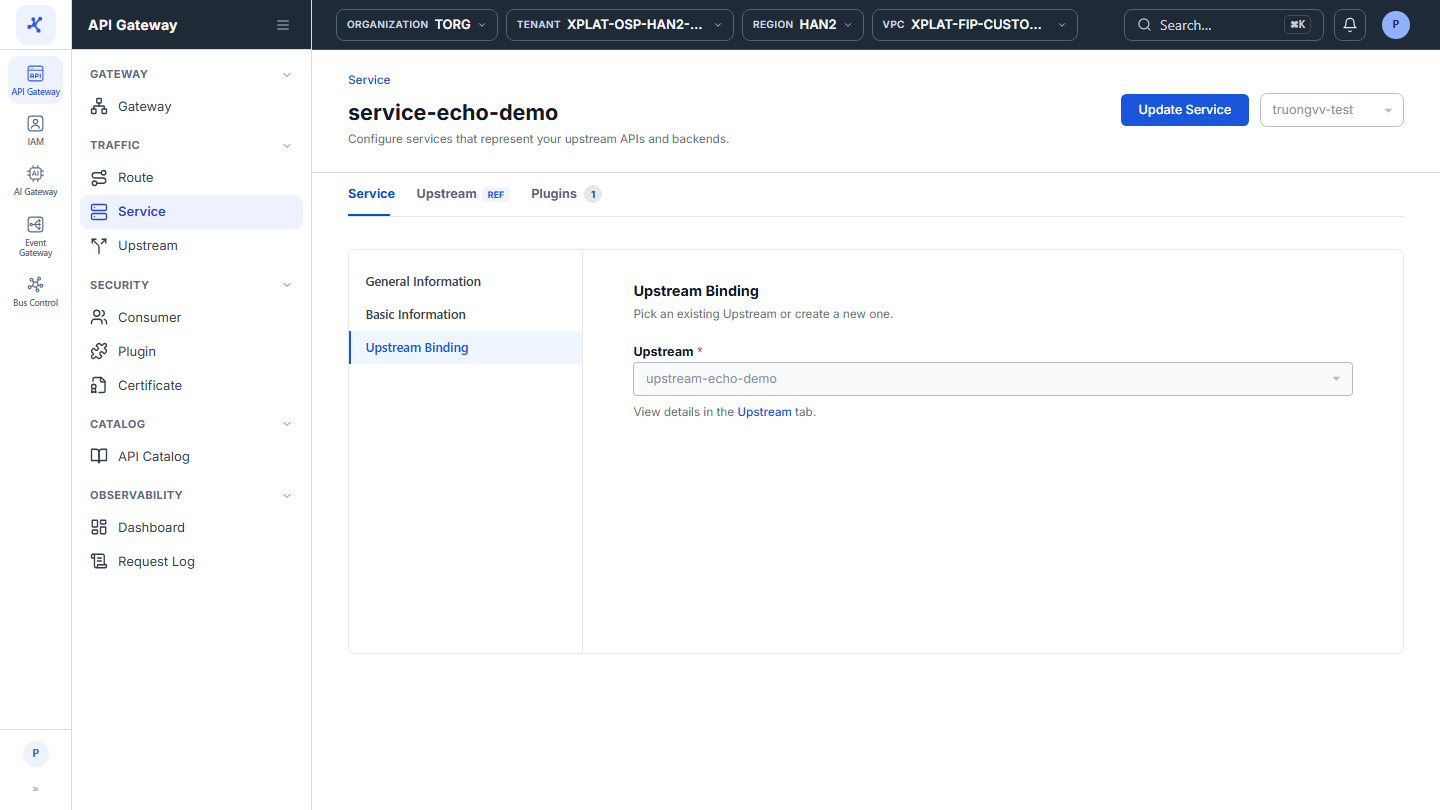
You can also open the Service detail screen and click Update Service in the top-right corner.
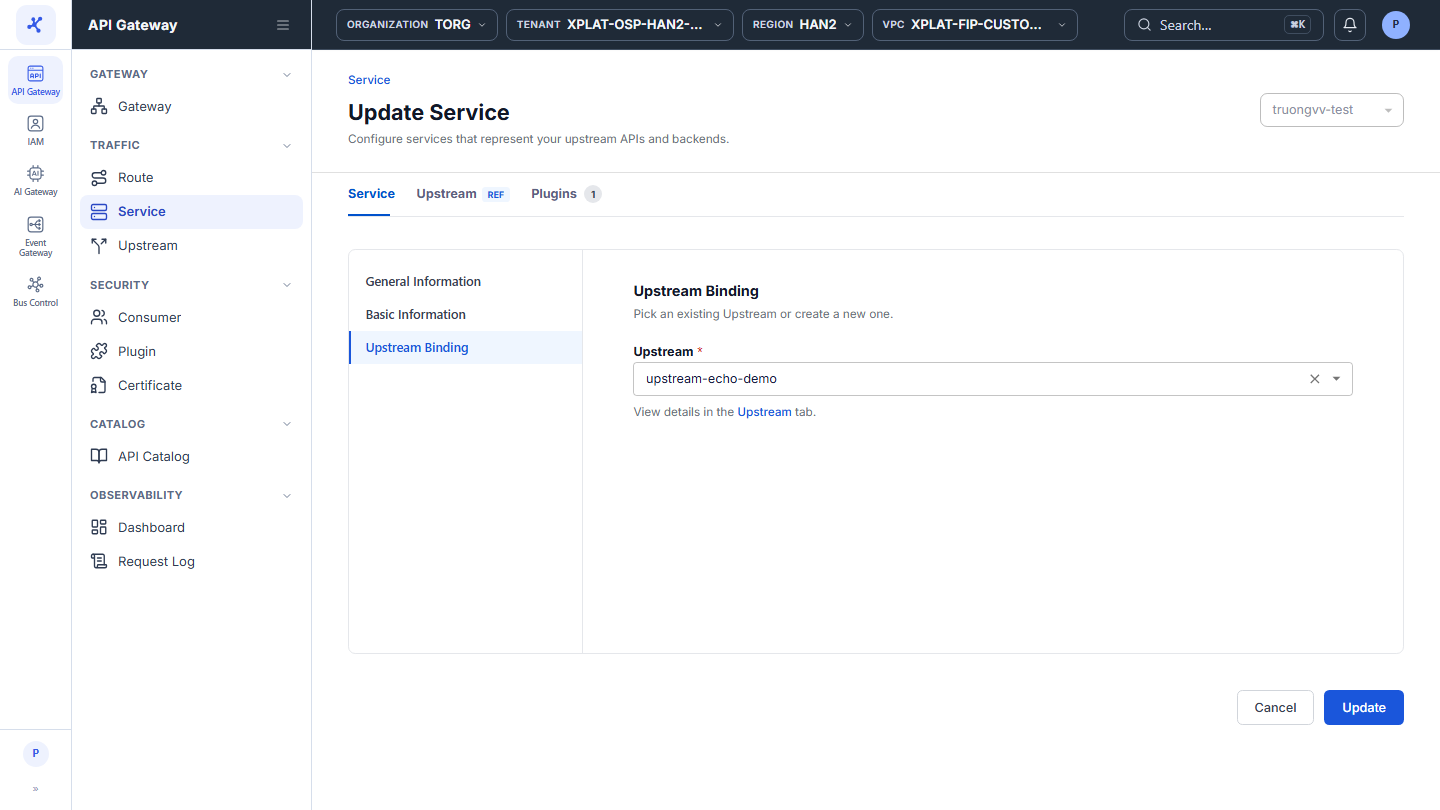
- On the Update Service screen, the current data is pre-filled. Change the sections you need:
- Basic Information: Name, Description.
- Upstream Binding: switch to another Upstream. Every Route that points to this Service through Via Service uses the new backend automatically, so you do not edit each Route.
The fields are the same as on the Service creation screen, see Create a Service. The update screen has no Review section. The General Information section is read-only.
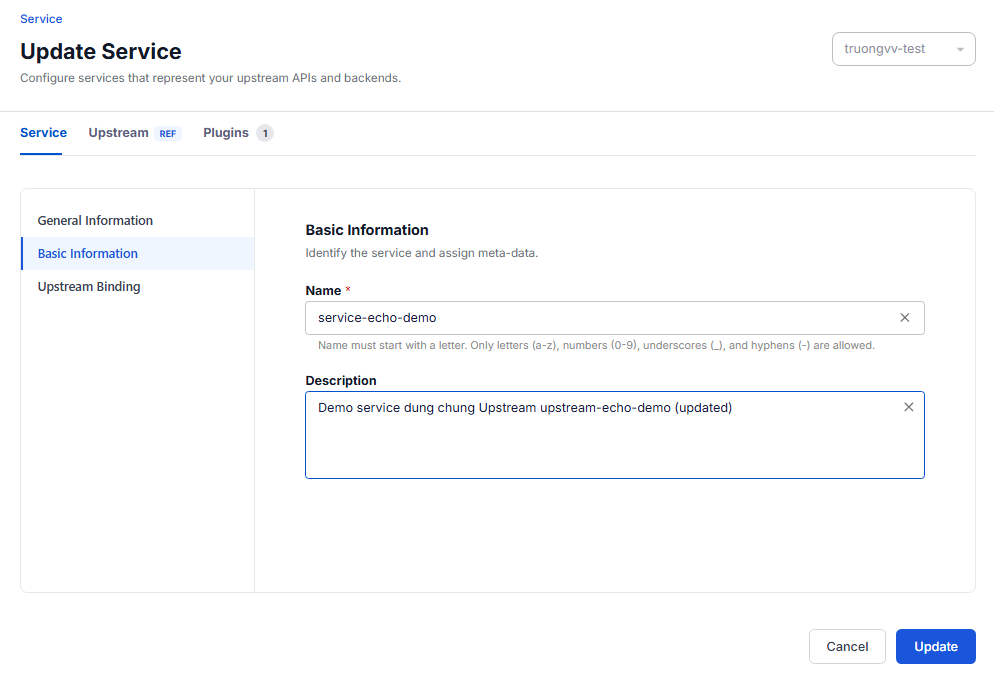
Changing Upstream Binding immediately affects every Route that uses this Service. Check the new Upstream before you save.
- Click Update to save.
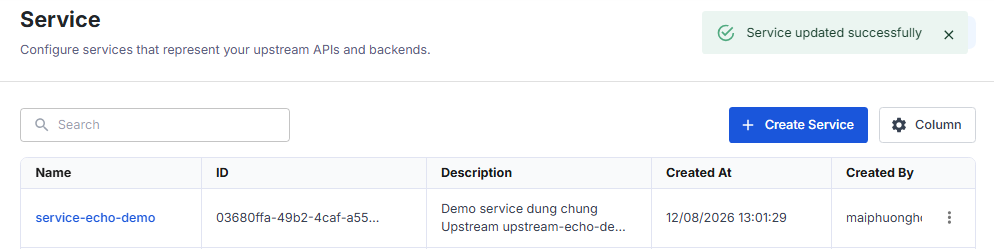
The message Service updated successfully appears and the system takes you back to the Service screen. Updated At and Updated By of the Service are updated.