View Upstream details
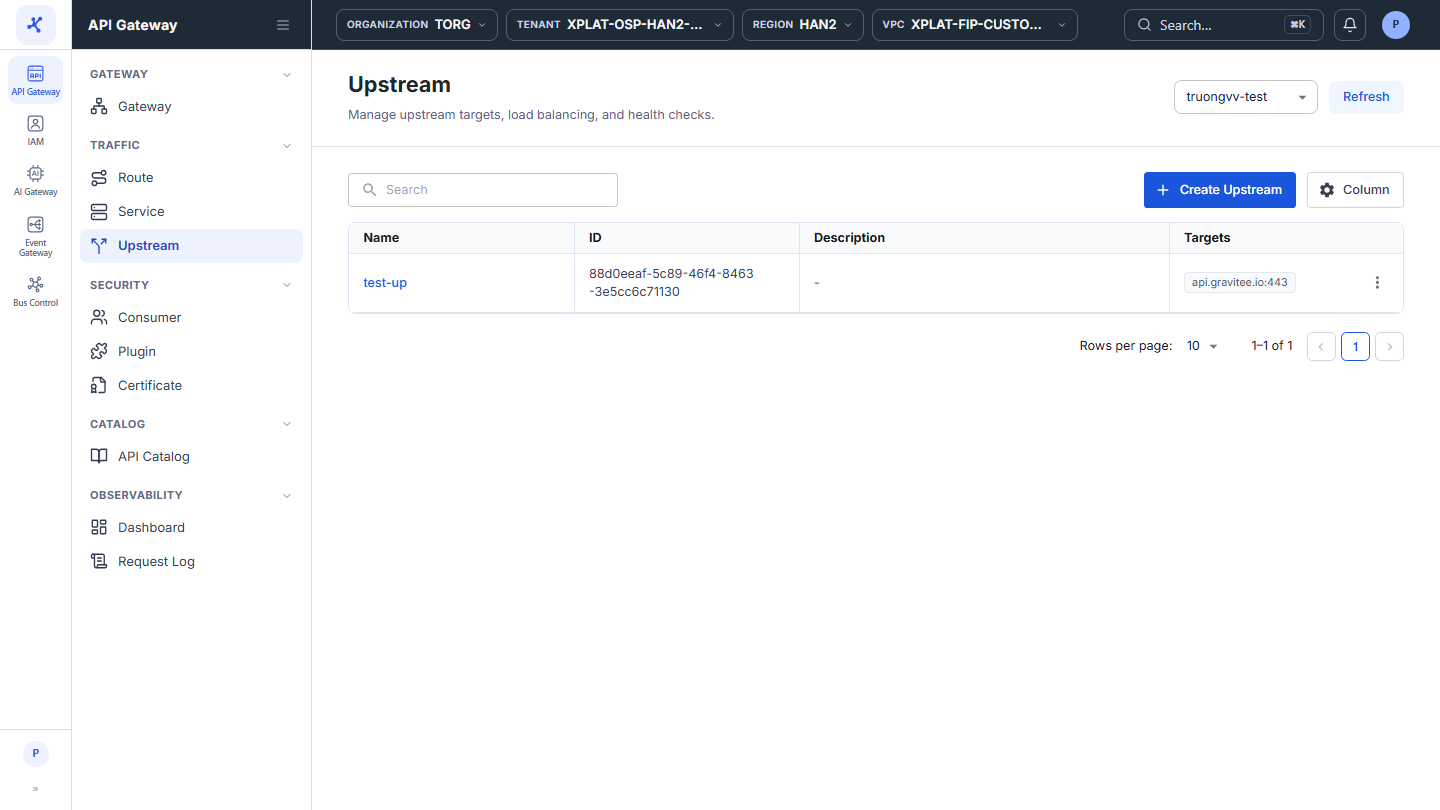
The Upstream screen lists the Upstreams of the API Gateway selected in the top-right corner.
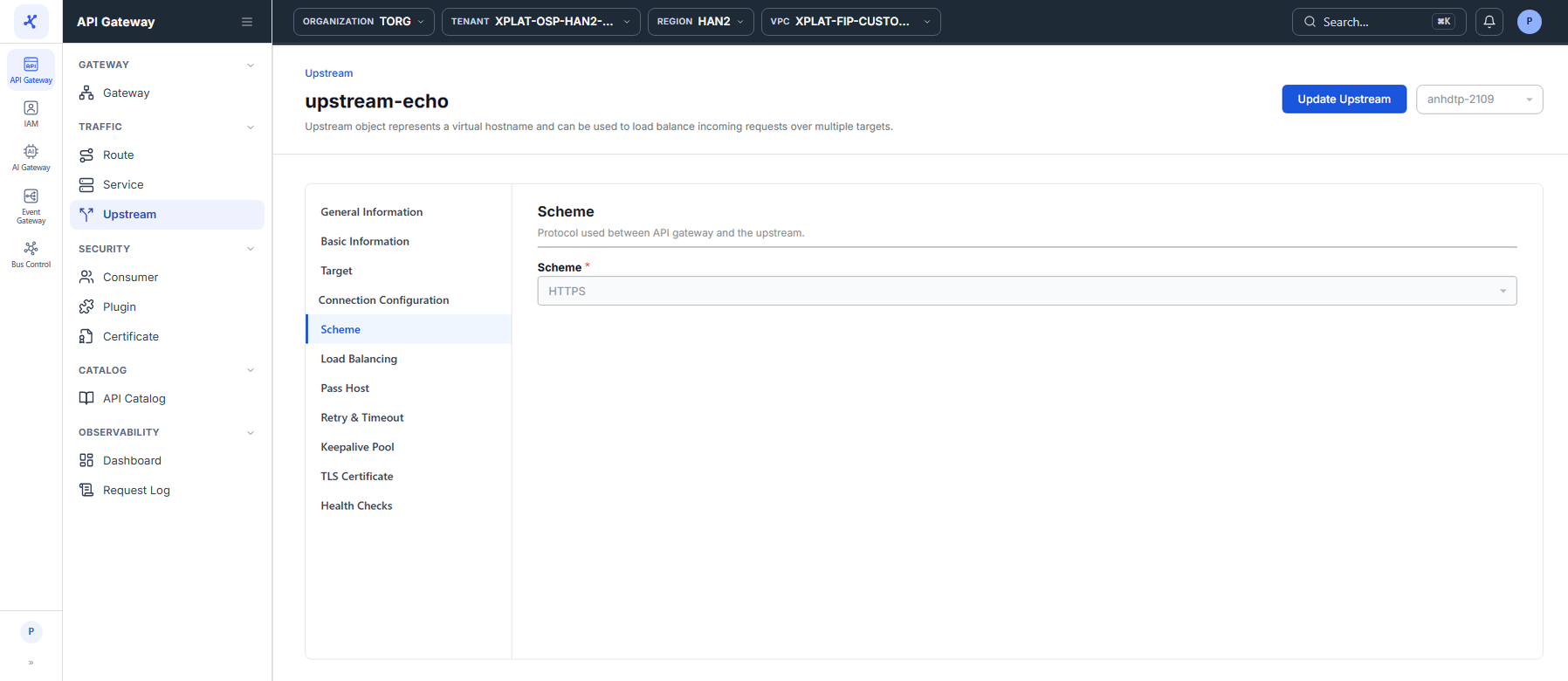
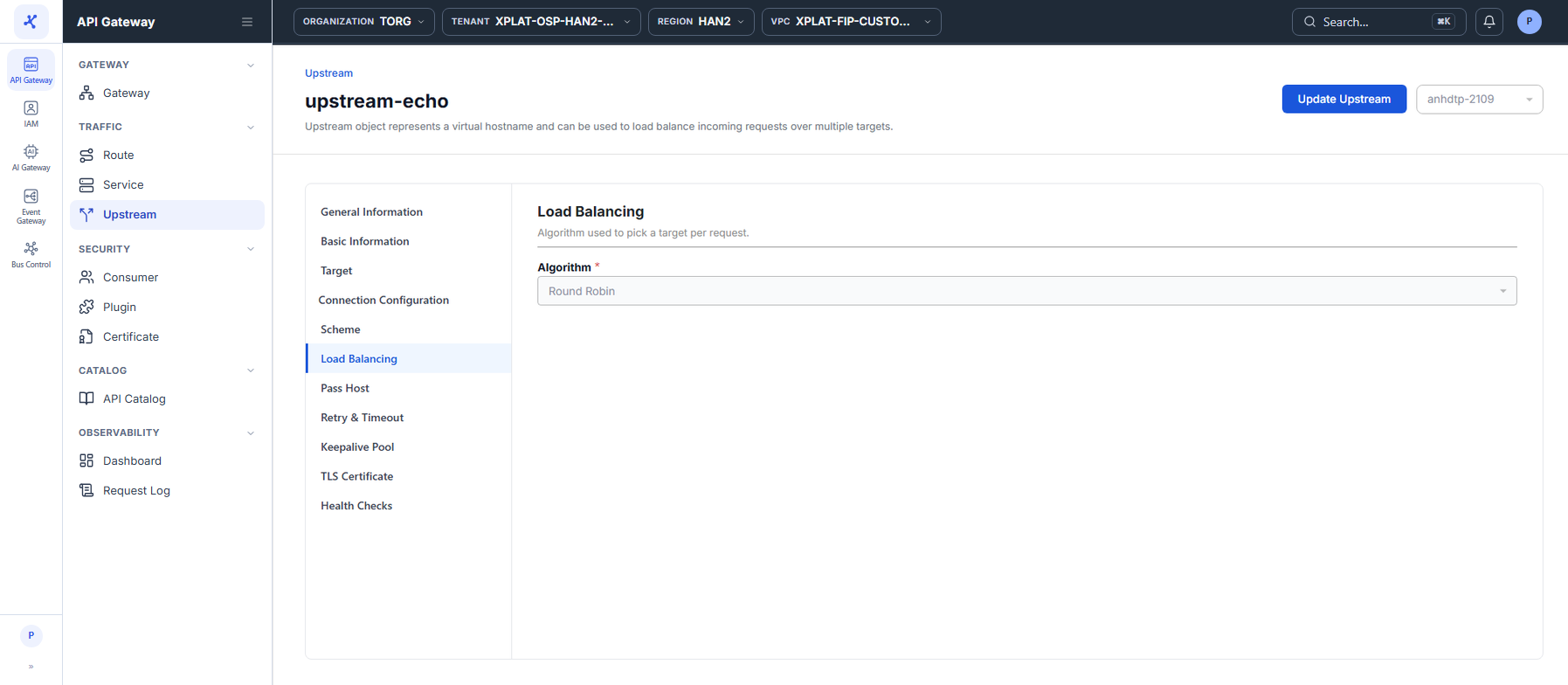
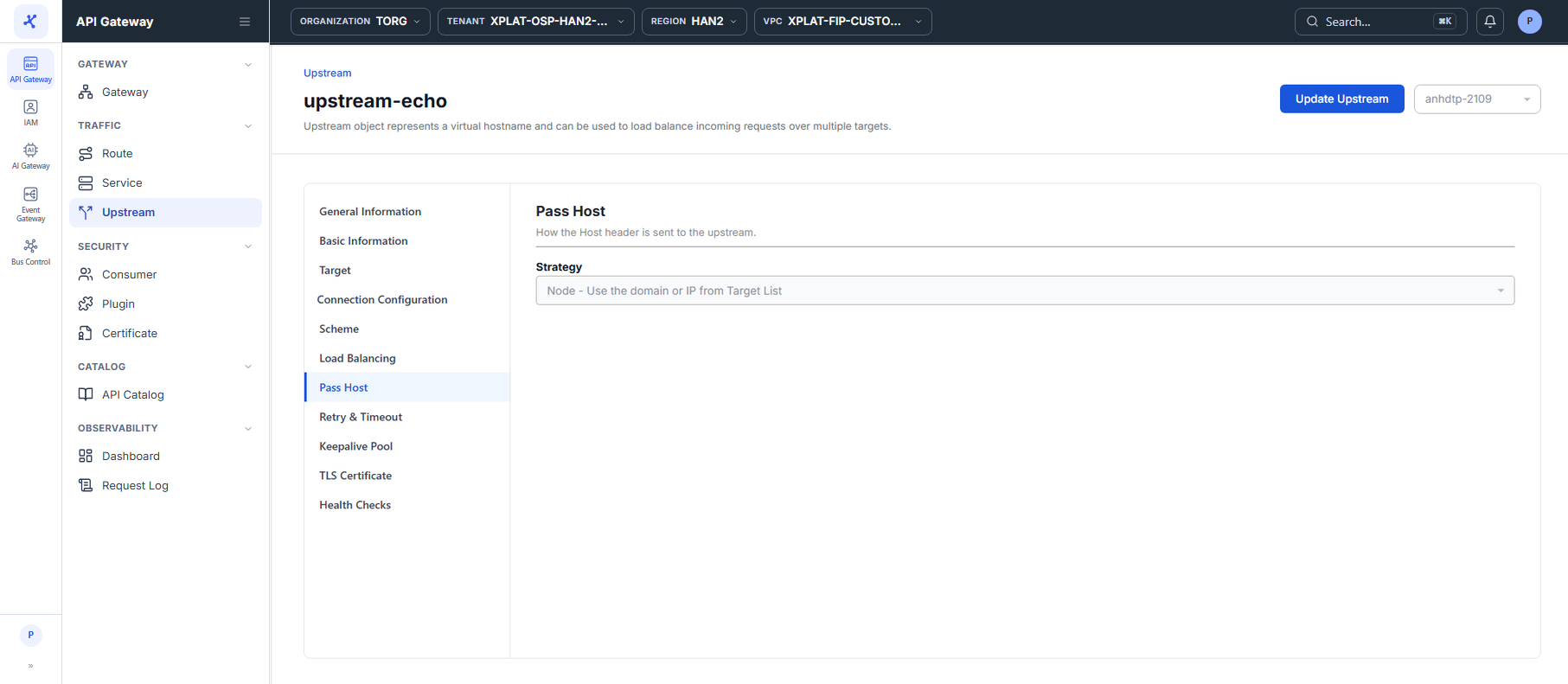
Click the image to zoom in.
View the Upstream list
- In the left menu, select API Gateway → Upstream, then select the API Gateway in the top-right corner.
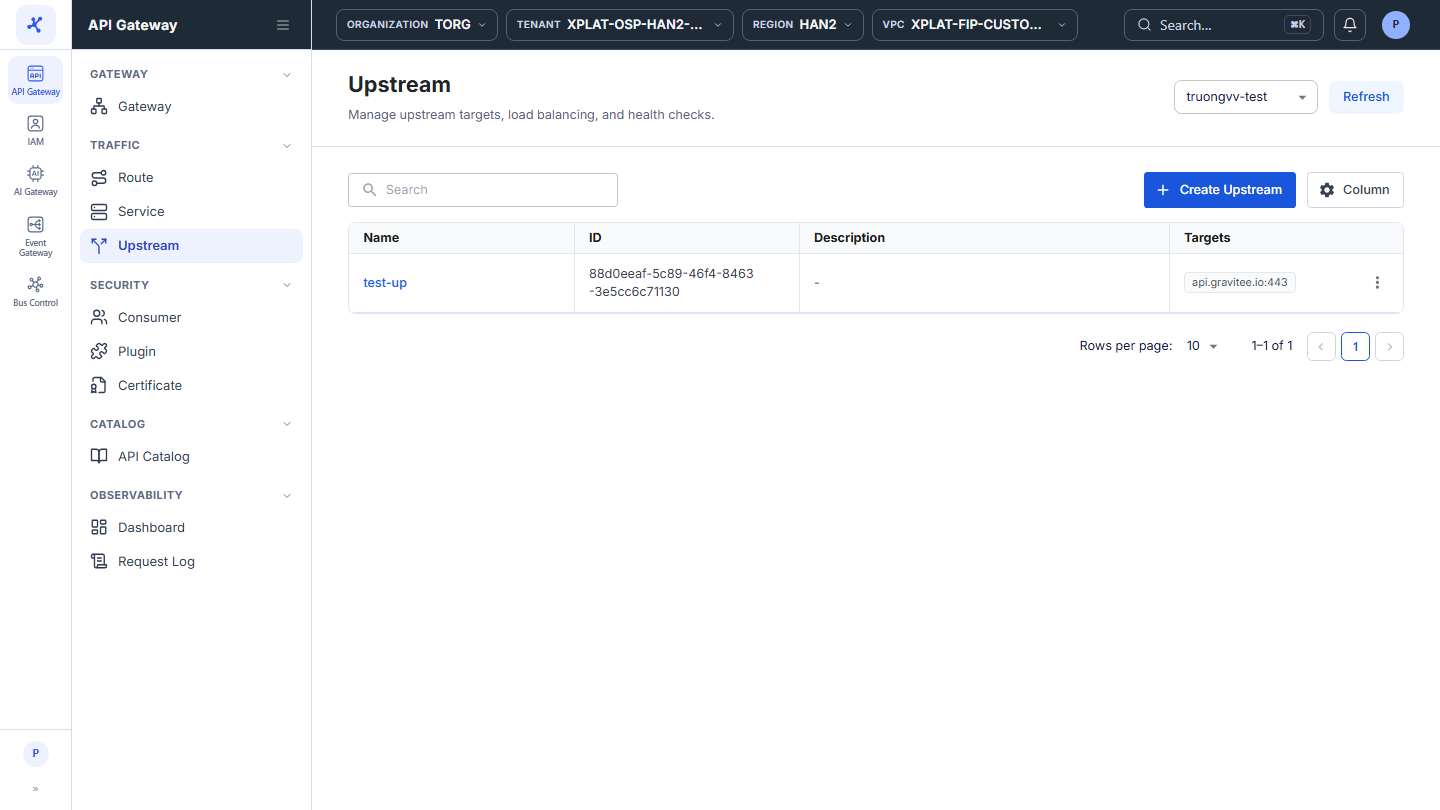
The list has the following columns:
| Column | Description |
|---|---|
| Name | Upstream name. Click the name to open the detail screen. |
| ID | Upstream identifier. |
| Description | Upstream description. |
| Targets | Targets in host:port format. |
| ⋮ | Actions on each row, see the action table below. |
The toolbar has the Search box to find Upstreams by keyword, the Create Upstream button to create an Upstream, and the Column button to choose, hide, and order the columns. The Created At, Created By, Updated At, and Updated By columns are hidden by default and can be turned on with Column. The Refresh button in the top-right corner reloads the list.
At the bottom of the table, Rows per page sets the number of rows per page, default 10. When the API Gateway has no Upstreams yet, the screen shows an illustration with the Create Upstream button.
The ⋮ menu at the end of each row has 2 actions:
| Action | Description |
|---|---|
| Update | Opens the Upstream update screen. See Edit an Upstream. |
| Delete | Deletes the Upstream. See Delete an Upstream. |
View the details of an Upstream
- Click the Name of the Upstream you want to view.
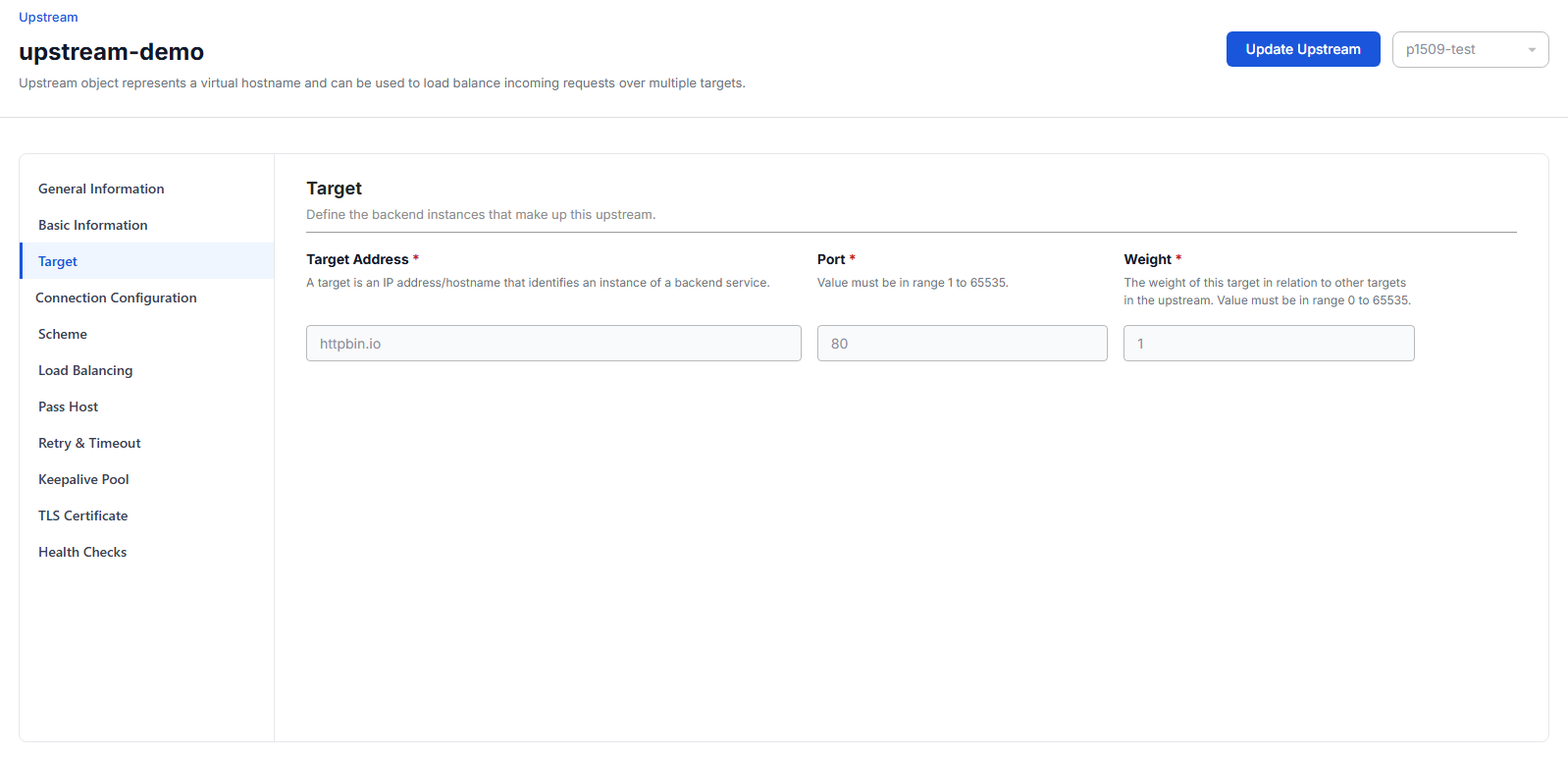
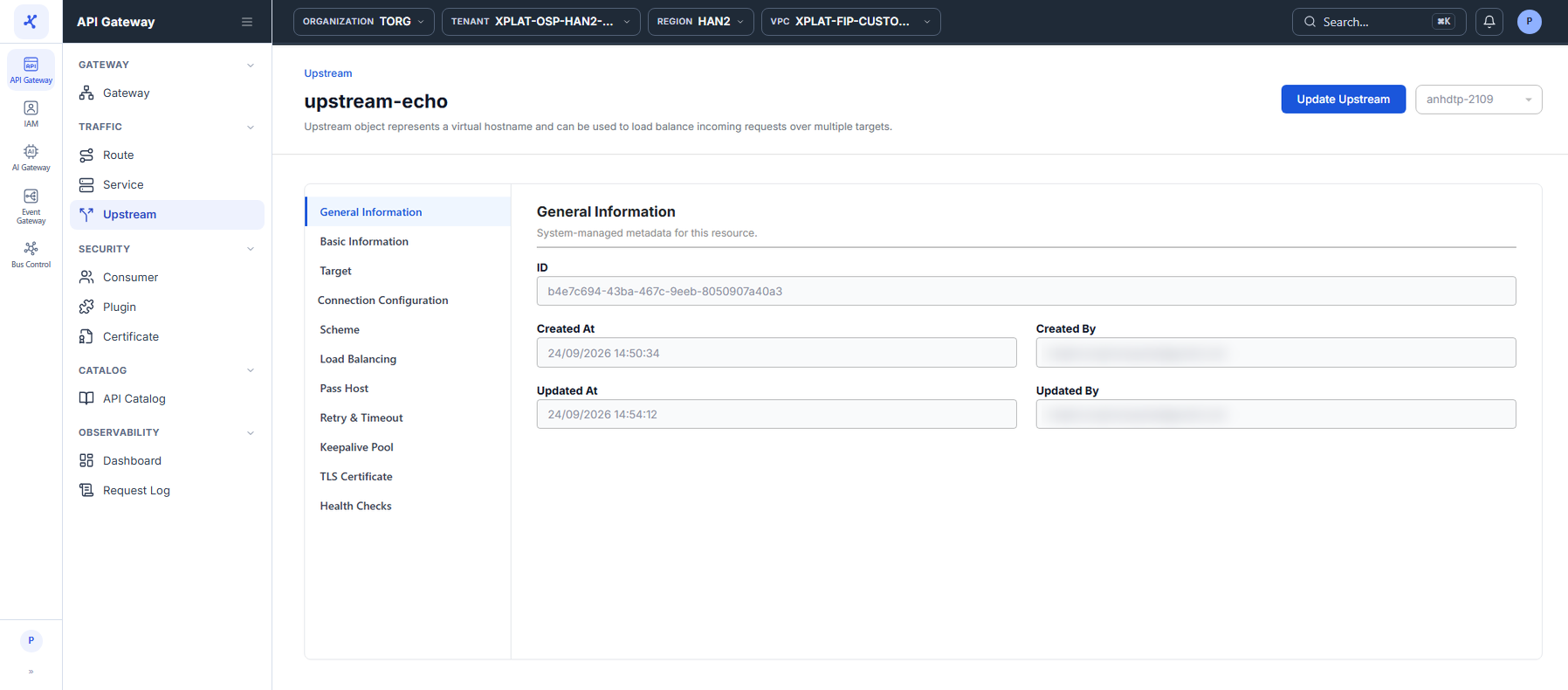
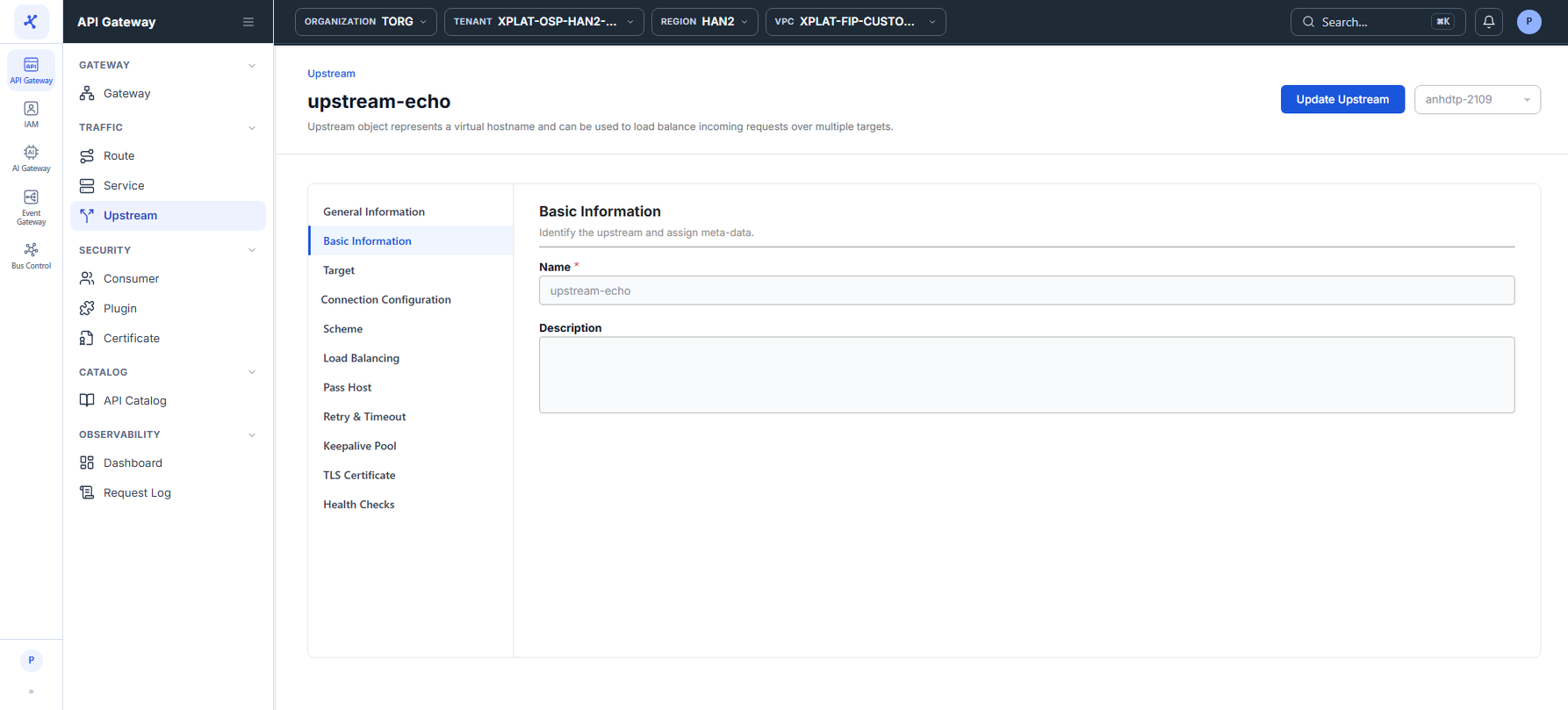
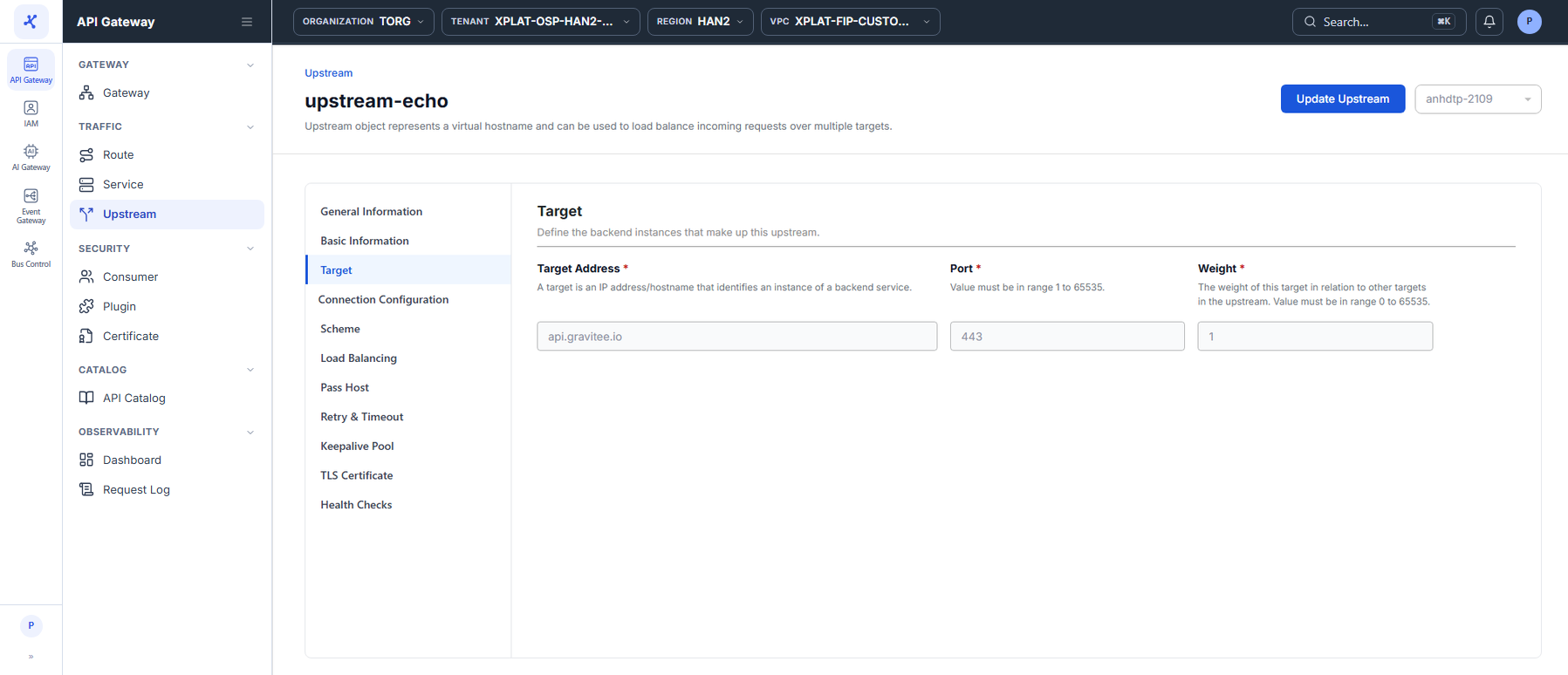
The detail screen shows the Upstream configuration in read-only mode. It opens on the Target section by default and has the following sections:
| Section | Content |
|---|---|
| General Information | System information: ID, Created At, Created By, Updated At, Updated By. |
| Basic Information | Name, Description. |
| Target | Target list: Target Address, Port, Weight. |
| Connection Configuration | Scheme, Load Balancing, Pass Host, Retry & Timeout, Keepalive Pool, TLS Certificate. |
| Health Checks | Status and settings of Active checks and Passive checks. |
On the Route or Service detail screen, the Upstream tab (labeled REF) shows the same sections for the Upstream that the Route or Service uses.
Click Update Upstream in the top-right corner to edit the Upstream, see Edit an Upstream.