Upgrade or change a package
Use this flow when a Workspace already exists and you want to change its quotas. The configuration screen is the same as the create flow, with extra rules that prevent downgrading.
Prerequisites
- ✅ You are the tenant owner of the tenant.
- ✅ The Workspace already exists and is Active.
Open the Quota and package tab
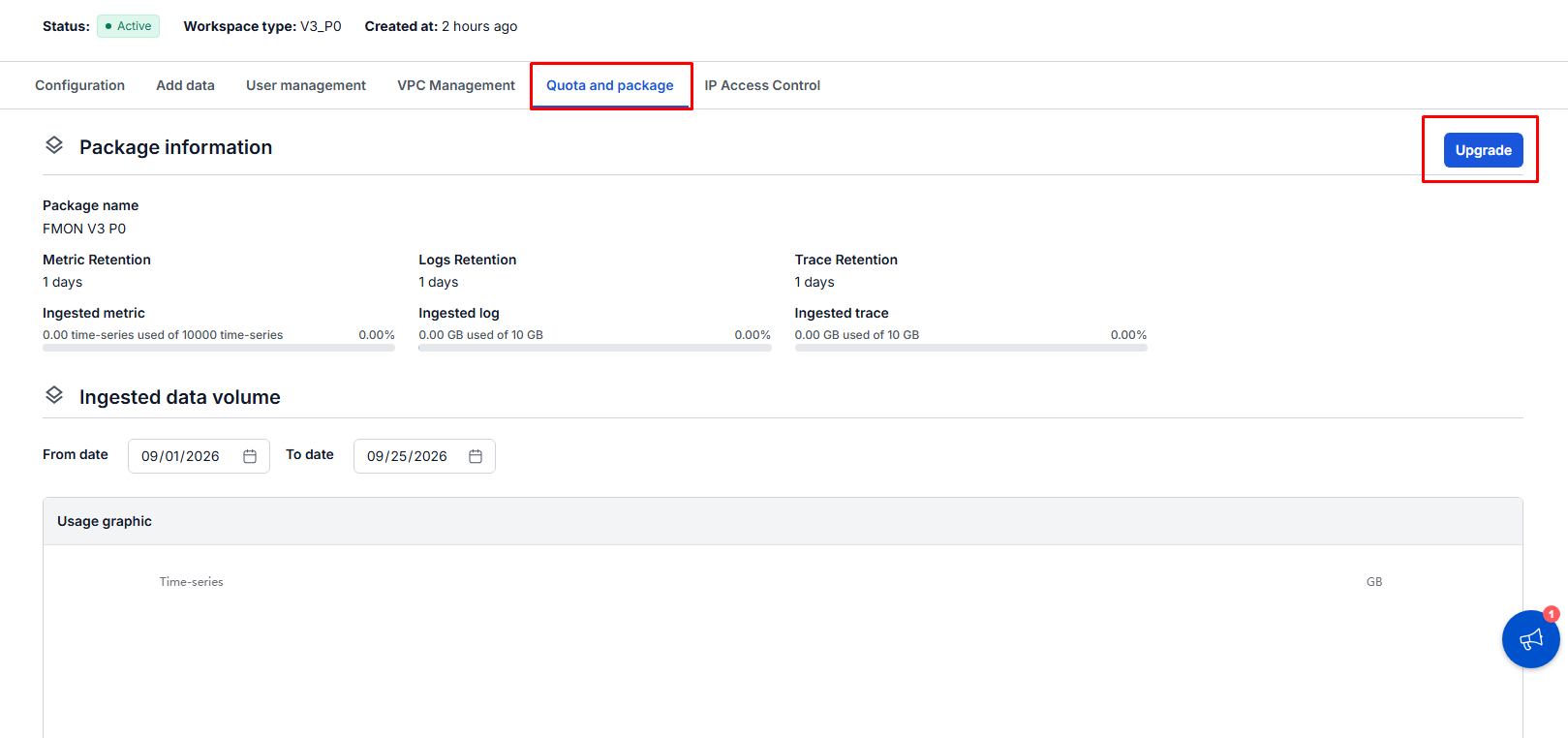
- Go to Monitoring → Monitoring workspace, then click the Workspace you want to change.
- Select the Quota and package tab, then click Upgrade.
Choose the package
- In the package table, the current package is marked Current plan.
- Packages lower than the current one are dimmed and disabled, so the Buy now button does not work, because downgrading is not allowed.
- Click V3_CUSTOM to configure it.
Adjust the quotas
- Increase the quotas as needed. You cannot enter a value lower than the current one — for example, if Dashboard is 5, entering 1 shows
The minimum value for Dashboard is 5. - Retention cannot be lowered either. Choosing a lower value and clicking Next shows
The minimum value for Retention is …. - The System performance tier cannot go below whichever is higher: the tier from your configuration or the current tier.
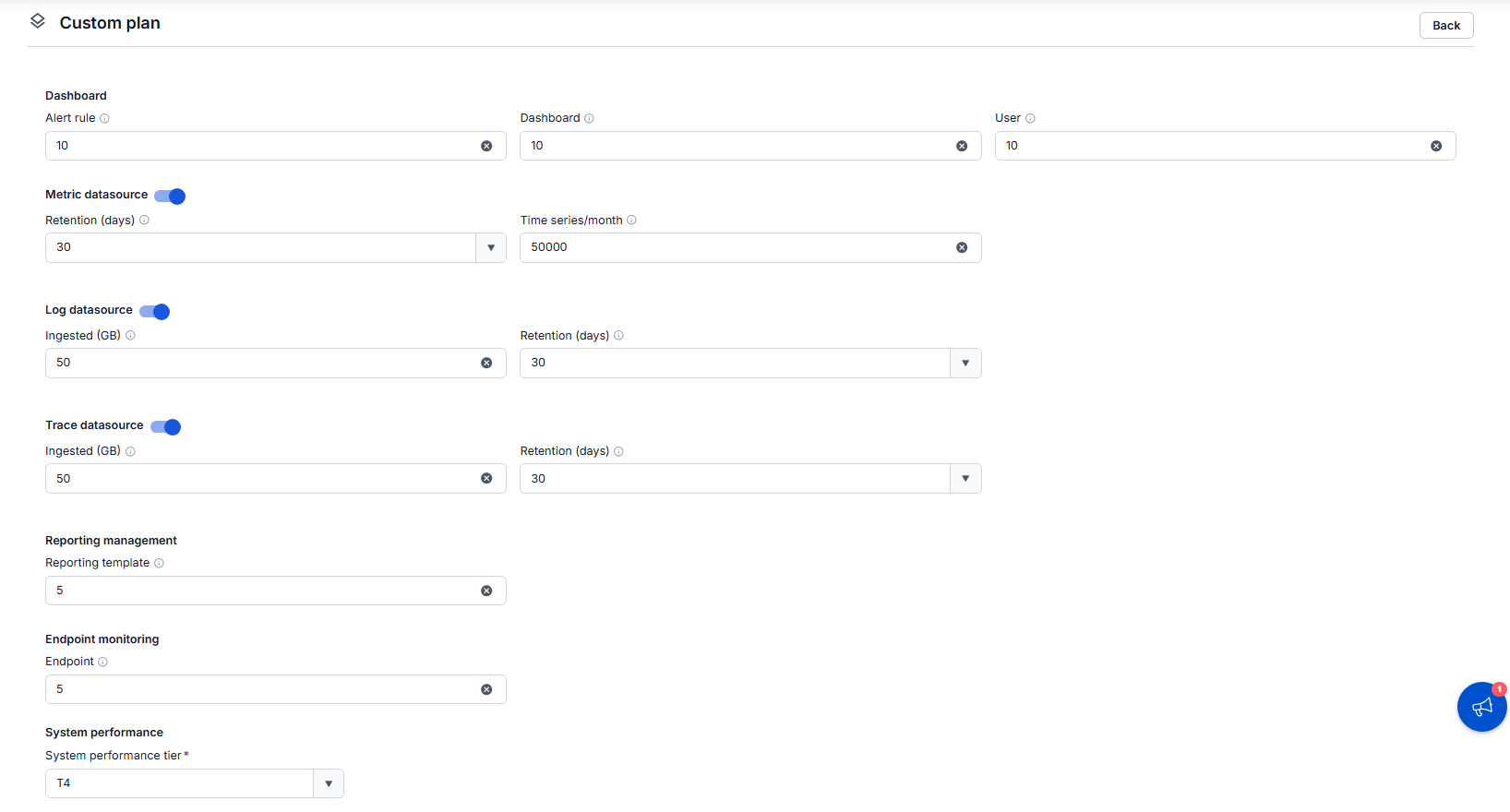
- Click Next to go to the confirmation screen.
Confirm the change
- Review the Confirmation table.
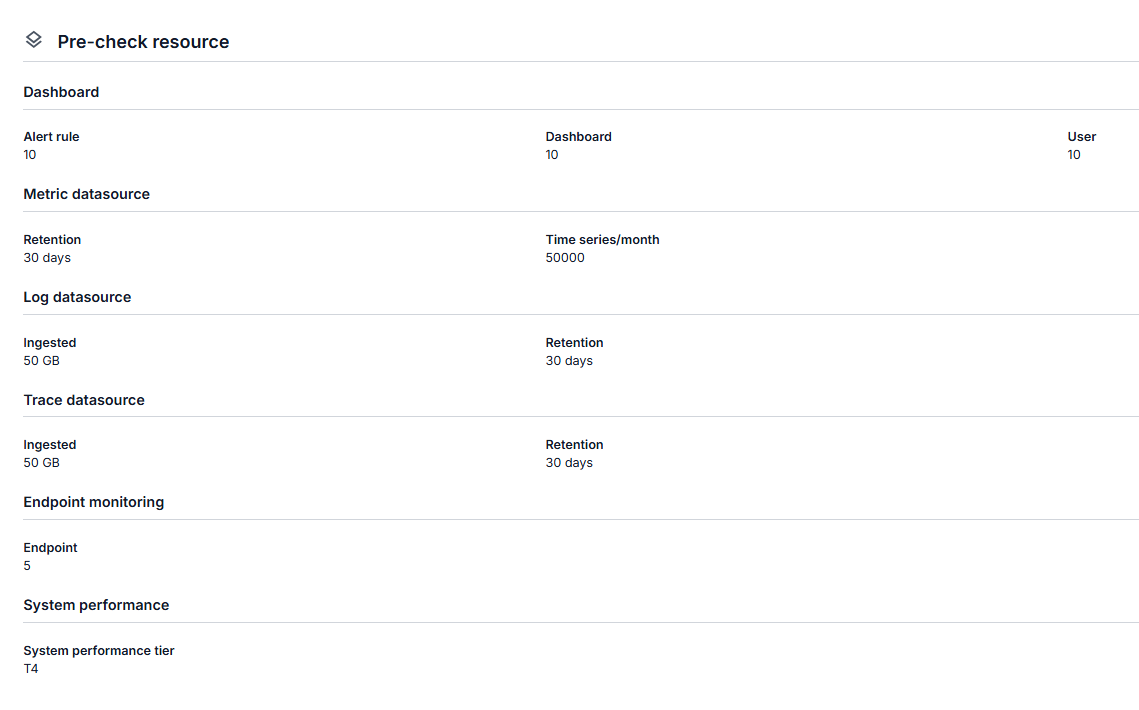
- Click Confirm. A Confirm Upgrade Plan dialog appears and warns that your monthly cost increases and the change cannot be undone.
- Type
confirmexactly into the required field, then click Confirm.
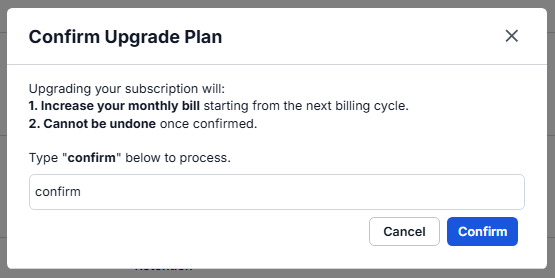
- The system shows
Package changedand the quotas are updated.
note
In the upgrade flow you can turn off a datasource (Metric, Log, Trace). When you turn it off, it is removed from the Confirmation screen, and clicking Back keeps it off.
danger
Changing a package changes your real cost and cannot be undone. Check everything carefully before you type confirm.