Create your first alert
This guide gets your first Native Alert notification to you in about 10 minutes. You create an Email recipient, then set an alert for when a Virtual Machine's CPU goes above 80%.
Prerequisites
- Native Alert open in the right VPC. See Access Native Alert.
- At least one running Virtual Machine in the VPC.
- An email address you can check right away.
What you will build
An alert named vm-cpu-high that monitors a Virtual Machine's CPU, emails you when CPU goes above 80%, and emails you again when CPU returns to normal.
Create an Email recipient
Create the recipient first so you can select it in the Notify to field when you create the alert.
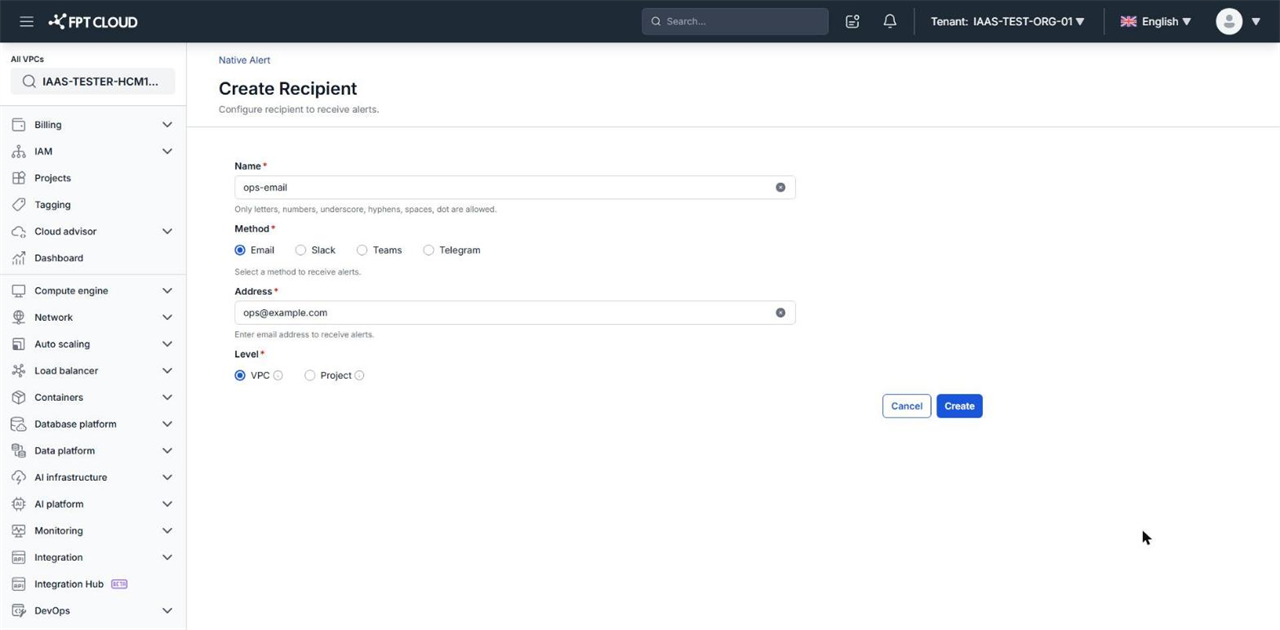
- In Native Alert, open the Recipient tab and click Create recipient.
- Enter
ops-emailas the Name. - Keep Method set to Email and enter the email address in Address.
- Keep Level set to VPC.
- Click Create.
Create a CPU Resource alert
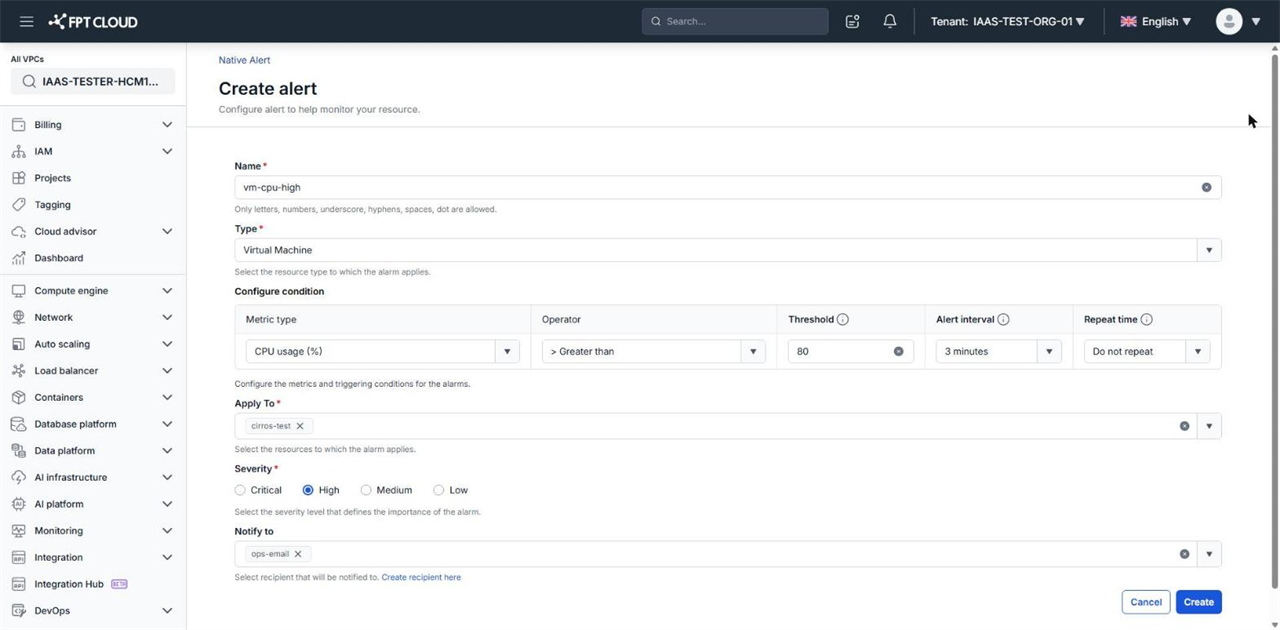
The create page already fills in a CPU above 80% condition, so you only need to pick the Virtual Machine and the recipient.
- Open the Resource alert tab and click Create resource alert.
- Enter
vm-cpu-highas the Name. - Keep the defaults: Type is Virtual Machine, Metric type is CPU usage (%), Operator is > Greater than, and Threshold is
80. - In Apply To, select the Virtual Machine to monitor.
- In Notify to, select
ops-email. - Click Create.
Check the alert
The vm-cpu-high alert appears on the Resource alert tab with State set to OK and Enable turned on.
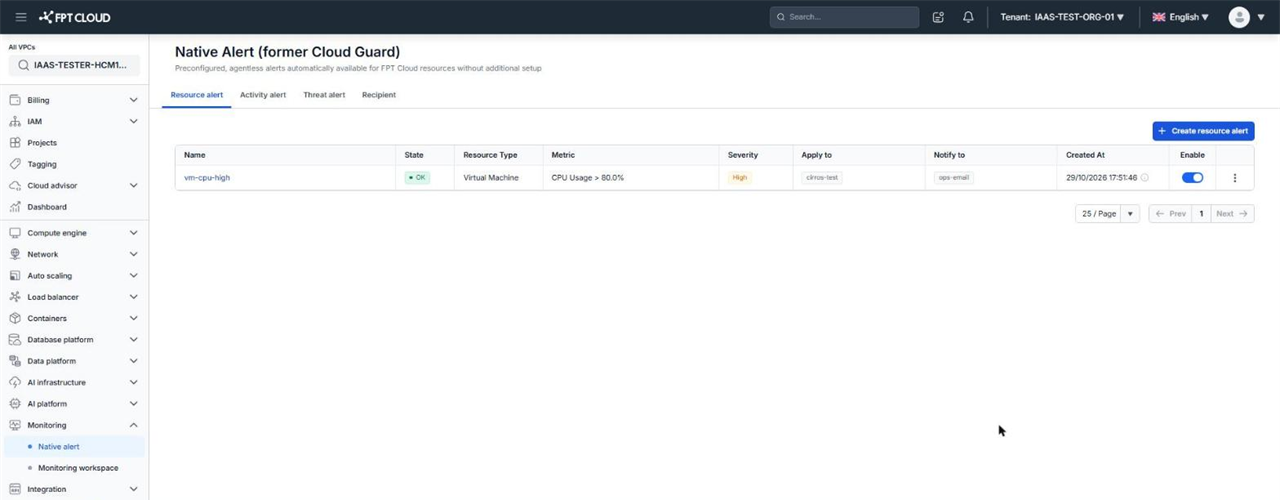
When CPU stays above 80% for one Alert interval (3 minutes by default), State changes to Alarm and an email is sent to ops-email.
To test the channel right away, temporarily set Threshold below the current CPU level, wait one interval, then set the real threshold back.
Next steps
- Manage recipients — send alerts to your on-call team's Slack, Microsoft Teams, or Telegram.
- Create a Resource alert — set alerts for Load Balancer, Object Storage, VPN Site-to-Site, and Auto Scaling.
- Manage alerts — view history, pause an alert, or change its threshold.