Create a Resource alert
A Resource alert notifies you when a resource metric crosses a threshold, for example high CPU on a Virtual Machine or a backend down on a Load Balancer. You can act on incidents without watching charts.
Prerequisites
- The
Alert:createAlertpermission. - At least one resource of the type you want to monitor in the selected VPC.
- To receive notifications: a suitable recipient. Object Storage alerts accept only
Project-level recipients, and other types useVPC-level recipients. See Manage recipients.
Create a Resource alert
- Select Monitoring → Native alert and open the Resource alert tab.
- Click Create resource alert.
- Enter a Name for the alert. The name accepts only letters, numbers, underscores, hyphens, spaces, and dots.
- Set Type to the resource type to monitor.
- Set up Configure condition as described in the table below.
- Select the resources in Apply To.
- Set Severity to
Critical,High,Medium, orLow. - Select one or more recipients in Notify to.
- Click Create.
The new alert appears on the Resource alert tab with State set to OK and Enable turned on.
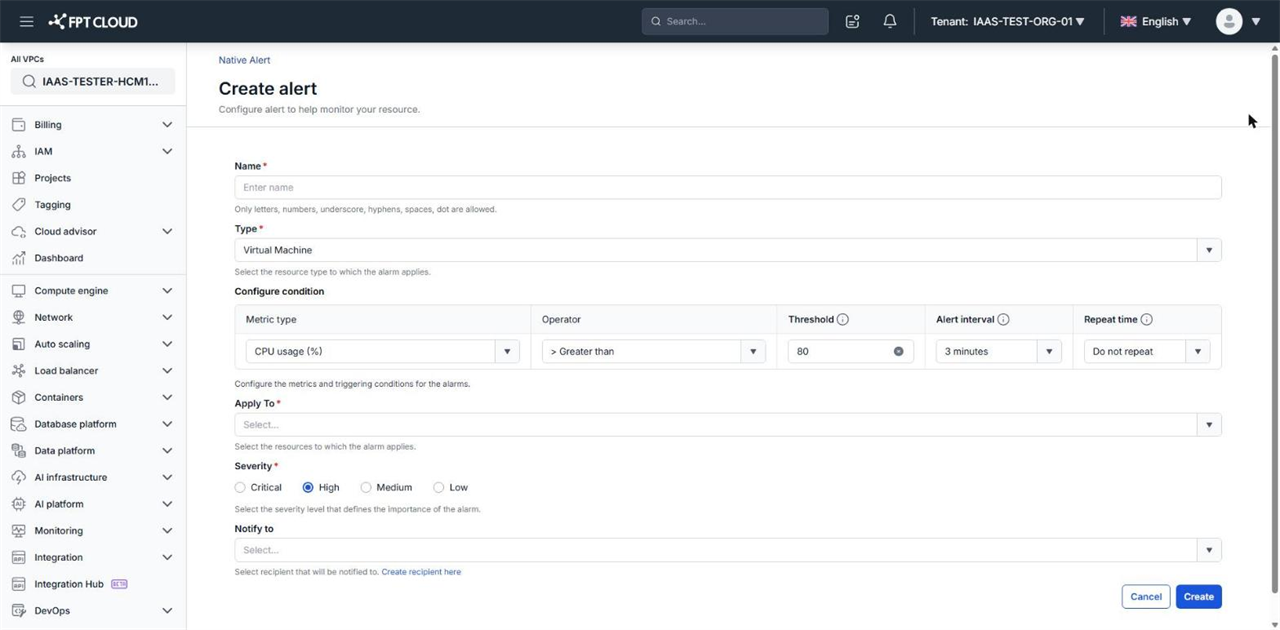
Notify to is optional. An alert without a recipient still changes State, but notifies no one. If you have no recipient yet, click Create recipient here under the field.
Configure the alert condition
| Field | Meaning |
|---|---|
| Metric type | The metric to monitor. The list depends on Type, see Resource alert metric reference |
| Operator | < (Lower than), <= (Lower than/Equal to), > (Greater than), >= (Greater than/Equal to) |
| Threshold | The alert threshold, in the unit of the selected metric |
| Alert interval | How often the system recalculates the metric: 3 minutes, 5 minutes, 30 minutes, 1 hour, 6 hours, 1 day |
| Repeat time | How often the notification repeats while the metric stays over the threshold: Do not repeat, 15 minutes, 30 minutes, 1 hour, 6 hours, 1 day |
For status metrics, such as Operating status Unhealthy for Load Balancer or VPN Gateway status Offline, the page shows only Metric type and Repeat time. The system alerts when the resource enters that status, so Operator, Threshold, and Alert interval are not needed.
Select resources in Apply To
The Apply To field depends on Type:
| Type | Apply To |
|---|---|
| Virtual Machine | All instances, or individual Virtual Machines by name |
| Load Balancer | All load balancers, or individual Load Balancers by name |
| Object Storage | The Object Storage region, for example HN-02 |
| VPN Site-to-Site | The VPC's VPN Gateway, filled in automatically for the CPU, RAM, and Packet loss metrics. Select VPN connections for status metrics |
| Auto Scaling | Auto Scaling groups in the VPC |
If Apply To shows No Options, the selected VPC has no resource of that type.
Apply To and Notify to both accept multiple values and have a search box. Type part of a name to filter quickly when the VPC has many resources.
Scale automatically with Auto Scaling
When Type is Auto Scaling, the create page adds an Action field. The alert then both notifies you and adjusts the number of instances in the Auto Scaling group.
| Action | When the metric crosses the threshold |
|---|---|
| None | Send a notification only |
| Scale Out | Add instances to the Auto Scaling group |
| Scale In | Remove instances from the Auto Scaling group |
Resize a Load Balancer automatically
When Type is Load Balancer and Metric type is Active connection, Total packet In/Out per second, or Drop packet In/Out per second, the create page also shows an Action field. Other Load Balancer metrics only send notifications.
| Action | When the metric crosses the threshold |
|---|---|
| None | Send a notification only |
| Auto-resize | Move the Load Balancer up one package tier, for example from Basic-1 to Basic-2 |
Each automatic resize briefly interrupts the Load Balancer, just like a manual resize. The system upgrades the package even when the VPC has no quota left, and the new package is billed from the next billing cycle.
For how to choose a threshold and the detailed steps, see Resize a Load Balancer.
Shortcuts from the Load Balancer page
Besides the Resource alert tab, you can create a Load Balancer alert in two other ways:
- On the Load Balancer details page, open the Monitoring tab and click View & create alarms. Native Alert opens in a new tab, and you still need to select the Load Balancer in Apply To.
- When you create a Load Balancer, the Recommended alarm step suggests two overload alerts. See Set up Load Balancer alerts with Native Alert.
Next steps
- Resource alert metric reference — metrics and units for each resource type.
- Manage alerts — view history, pause an alert, or change its threshold.