Create a Threat alert
A Threat alert notifies you when a Floating IP shows signs of an attack or compromise, so you can block traffic before the incident spreads. One alert can monitor all 4 threat types at once.
Prerequisites
- The
Alert:createAlertpermission. - At least one Floating IP in the VPC.
- To receive notifications: a
VPC-level recipient. See Manage recipients.
Create a Threat alert
- Select Monitoring → Native alert and open the Threat alert tab.
- Click Create threat alert.
- Enter a Name for the alert.
- Under Threat types, clear the threat types you do not want to monitor. All 4 are selected by default.
- In Apply To, select
All Floating IPor individual Floating IPs. - Set Severity to
Critical,High,Medium, orLow. - Select the recipients in Notify to.
- Click Create.
The new alert appears on the Threat alert tab.
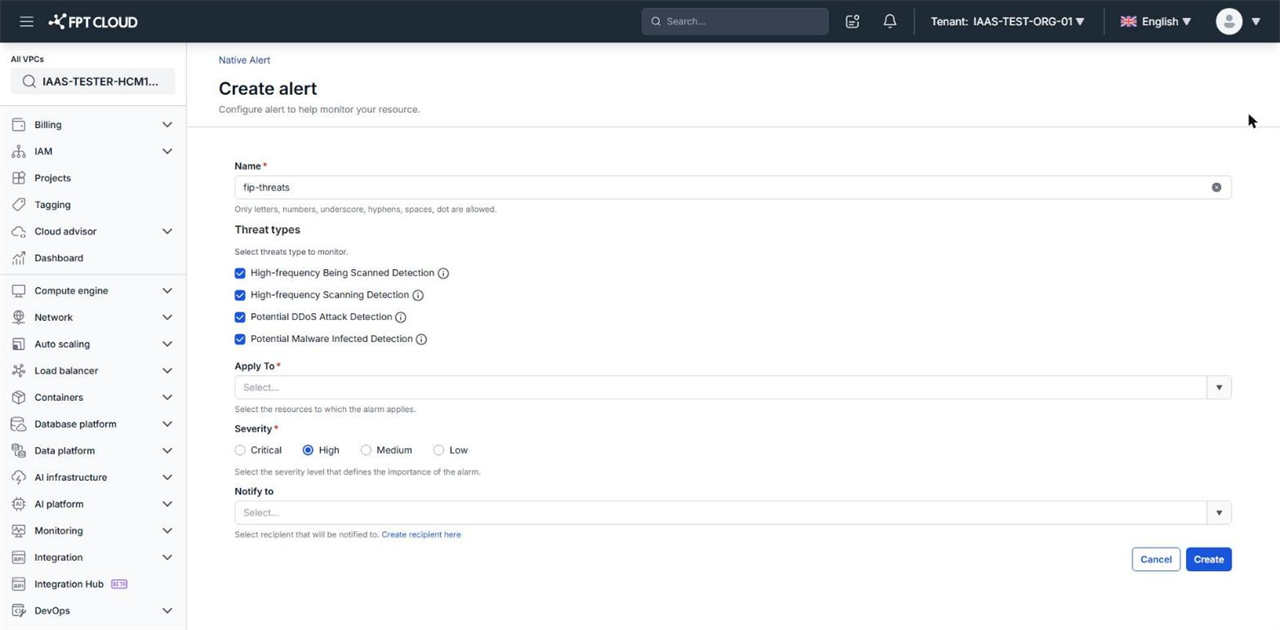
Threat types
| Threat type | When it alerts |
|---|---|
| High-frequency Being Scanned Detection | Your IP is scanned from outside at an unusually high rate on risky ports such as 22, 3389, 445 |
| High-frequency Scanning Detection | Your IP scans the internet at an unusually high rate on risky ports such as 22, 3389, 445 |
| Potential DDoS Attack Detection | Many hosts send packets to one of your IPs within 1 minute |
| Potential Malware Infected Detection | Your IP connects to a malware command-and-control (C&C) server |
note
Threat alerts monitor Floating IPs only. Private IPs in the VPC do not appear in Apply To.
Next steps
- Manage alerts — view history and pause alerts.
- Create an Activity alert — track actions on resources in the VPC.