Manage alerts
After you create an alert, monitor it and tune its threshold: too low creates noise, too high misses incidents. The actions below are on the Resource alert tab and work the same way on the Activity alert and Threat alert tabs.
Track alert state
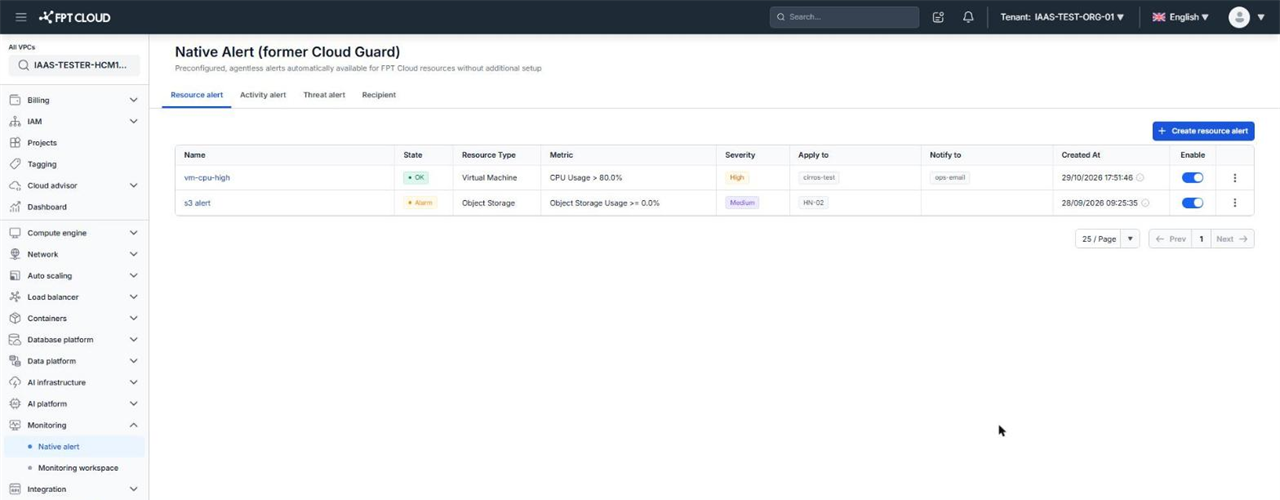
The alert list shows which alerts are firing and who they notify.
| Column | Meaning |
|---|---|
| State | OK when the metric is within the safe range, Alarm when the metric is over the threshold |
| Resource Type | The resource type of the alert |
| Metric | The configured condition, for example CPU Usage > 80.0% |
| Severity | The severity level |
| Apply to | The resources being monitored |
| Notify to | The recipients that are notified |
| Created At | When the alert was created |
| Enable | Whether the alert is on or off |
The state in the list updates every minute. Refresh the browser page to see the latest state immediately.
View alert history
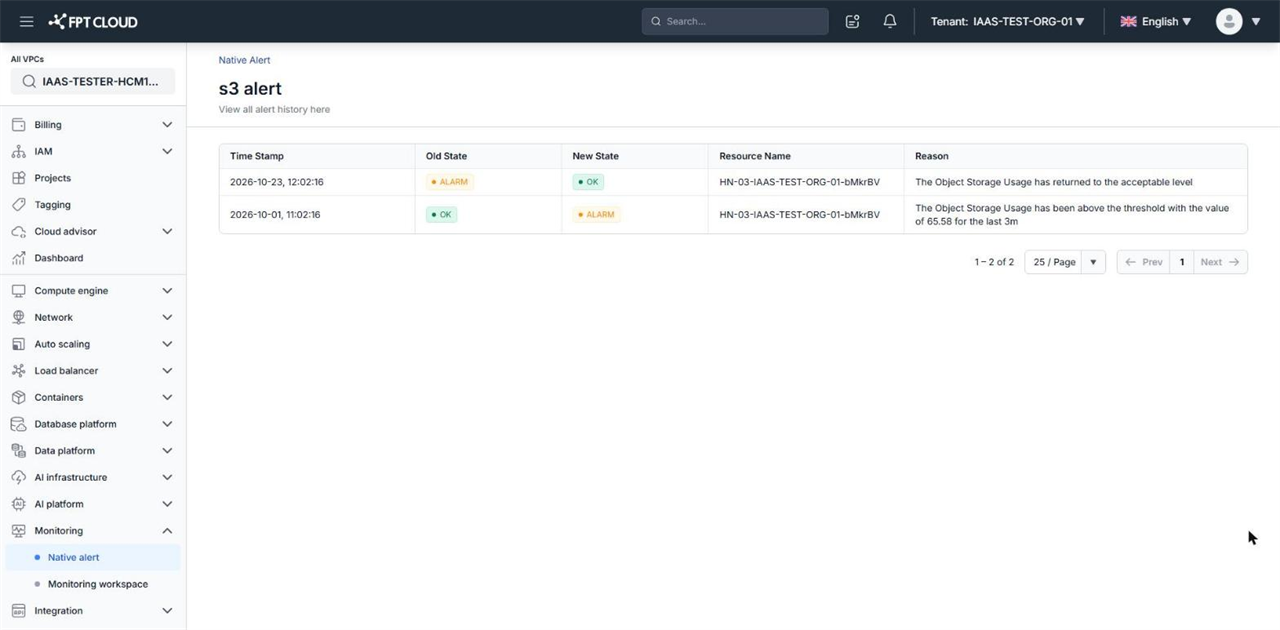
History shows when an alert fired and the measured value at that time, so you can set a realistic threshold.
- Click the three-dot icon at the end of the alert's row.
- Select View History.
The history page is titled with the alert name and has these columns:
| Column | Meaning |
|---|---|
| Time Stamp | When the alert changed state |
| Old State | The previous state, OK or ALARM |
| New State | The new state |
| Resource Name | The resource that caused the state change |
| Reason | The reason, with the measured value, for example The Object Storage Usage has been above the threshold with the value of 65.58 for the last 3m |
A new alert has no history rows until its first state change.
Enable or disable an alert
Disable an alert while you maintain a resource and do not want notifications, without losing its configuration.
- Find the alert in the list.
- Toggle the switch in the Enable column.
While disabled, the system stops evaluating the metric and sends no notifications until you enable it again.
Edit an alert
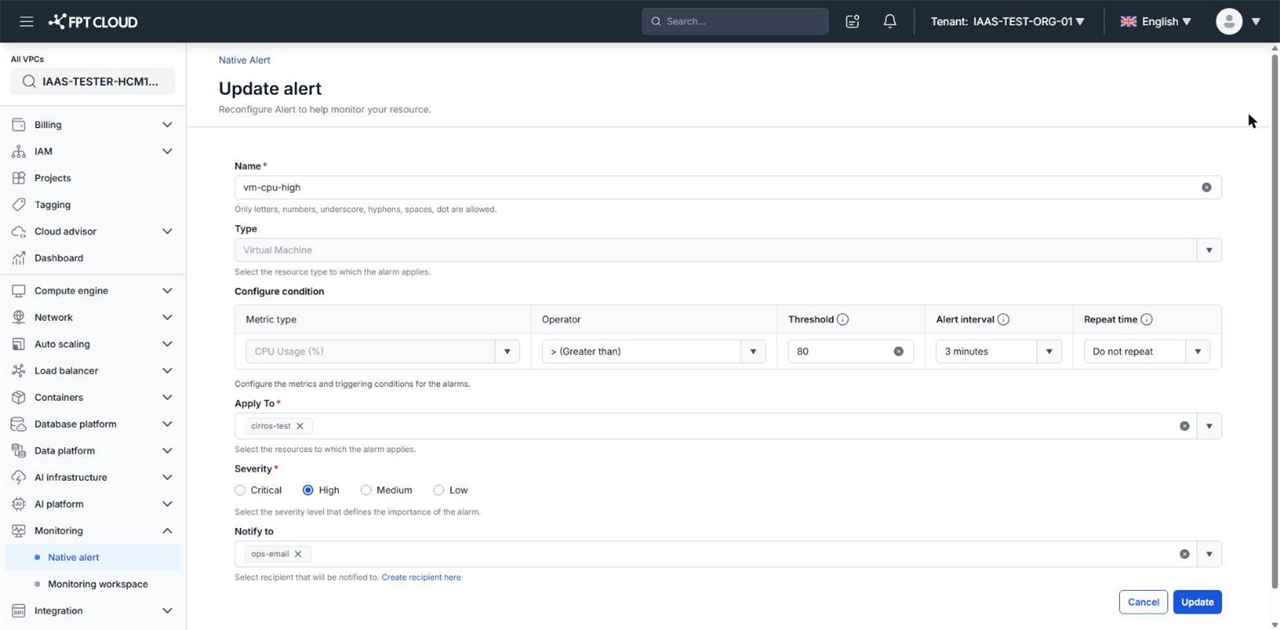
- Click the alert's name in the Name column to open the Update alert page.
- Change the values you need.
- Click Update.
The three-dot menu has only View History and Delete. Clicking the alert's name is the only way to edit it.
On the Update alert page, you can change Name, Operator, Threshold, Alert interval, Repeat time, Apply To, Severity, and Notify to. Type and Metric type are locked. To change the resource type or metric, delete the alert and create a new one.
Delete an alert
- Click the three-dot icon at the end of the alert's row.
- Select Delete.
- In the Delete alert dialog, click Delete alert.
Deleting an alert also deletes its history and cannot be undone. To stop notifications temporarily, turn off Enable instead.
Next steps
- Native Alert FAQs — why notifications do not arrive, and why State does not change.
- Resource alert metric reference — choose a better metric and threshold.