Manage recipients
A recipient decides where an alert goes, so the right recipient is the fastest way to get an incident to the person who fixes it. Create a recipient once and attach it to as many alerts as you need.
Prerequisites
- Native Alert open in the right VPC. See Access Native Alert.
- For Slack: an account in the Slack workspace that holds the alert channel.
- For Microsoft Teams: permission to create a workflow in the channel or chat that receives alerts.
- For Telegram: the recipient's Telegram account, or a Telegram group that receives alerts.
Choose the recipient level
The level decides which alert types can use the recipient. You choose it when you create the recipient, and it is shown in the Level column of the Recipient tab.
| Level | Can be used for |
|---|---|
VPC | Every alert type in the VPC where the recipient was created, except Object Storage alerts |
Project | Object Storage alerts only, in every VPC of the Project |
To receive both Object Storage alerts and other alerts at the same address, create two recipients: one at VPC level and one at Project level.
Create a recipient
- Open the Recipient tab and click Create recipient.
- Enter a Name. The name accepts only letters, numbers, underscores, hyphens, spaces, and dots.
- Select a Method and fill in the matching field. See the sections below for each channel.
- Set Level to VPC or Project.
- Click Create.
The new recipient appears on the Recipient tab with its Content, Type, and Level.
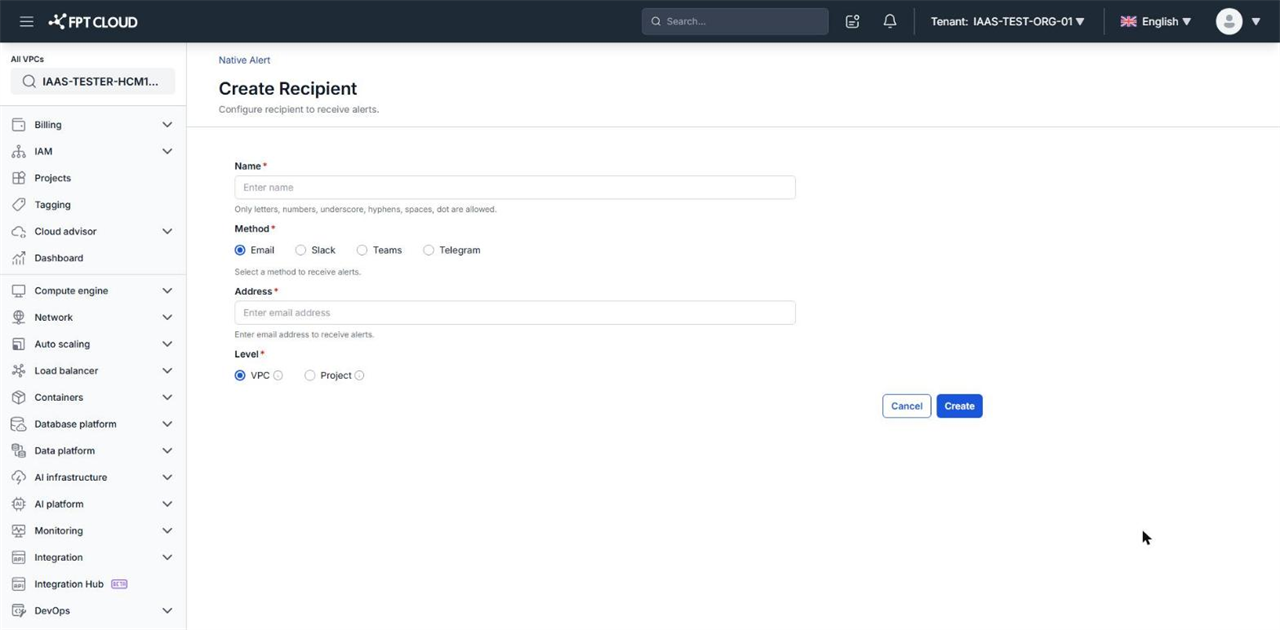
Email
Enter the email address in Address.
Slack
- Set Method to Slack.
- Click the Sign in to your workplace link to sign in to your Slack workspace.
- Select the channel in Slack channel.
Microsoft Teams
Native Alert sends alerts to Teams through a webhook, so create the webhook in Teams first.
- In Microsoft Teams, open the channel or chat that will receive alerts.
- Create a Post to a channel when a webhook request is received workflow (or Post to a chat when a webhook request is received for a chat) and copy the Webhook URL. See Microsoft's guide: Create incoming webhooks with Workflows.
- On the Create Recipient page, set Method to Teams and paste the URL into Webhook URL.
- Click Send test message and check that the test message appears in Teams.
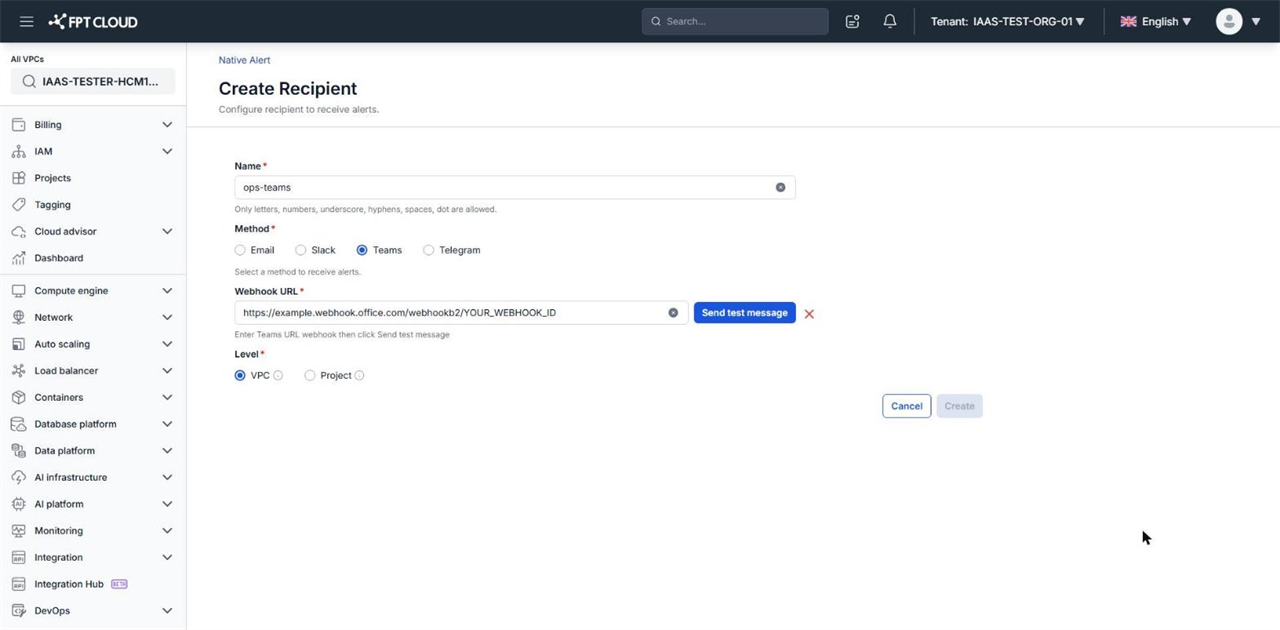
Telegram
- Set Method to Telegram.
- Click the Get Telegram chat ID link to get the chat ID, then enter it in Telegram ID.
- Click Send verification link and open the verification link in Telegram.
To receive alerts in a Telegram group, use the group's ID and add the FPT Cloud Guard bot to the group.
For Teams and Telegram, Create is enabled only after the test message or Telegram verification succeeds. For Slack, a red X next to Slack channel means you have not signed in to the workspace yet.
Edit a recipient
You can change a recipient's name and level. You can change the level only while the recipient is not assigned to any alert. To change the channel or address, create a new recipient.
- Open the Recipient tab.
- Click the recipient's name to open the Update Recipient page.
- Change Name or Level.
- Click Update.
Method and the address field (Address, Slack channel, Webhook URL, or Telegram ID) are locked on this page.
Delete a recipient
- Open the Recipient tab.
- Click the three-dot icon at the end of the recipient's row and select Delete.
- In the Delete channel dialog, click Delete channel.
You cannot delete a recipient that is assigned to an alert. The system shows the error Could not delete the recipient that has been assigned with at least an alert. Remove the recipient from the Notify to field of every related alert first, then delete it again. Deletion cannot be undone.
Next steps
- Recipient method reference — compare the 4 channels and their verification steps.
- Create a Resource alert — attach your new recipient to an alert.