Add Members to Server Pool
A member is a backend server in a Load Balancer Server pool that handles the requests the Load Balancer distributes to it. You can add or remove members at any time directly in the Server pool configuration screen.
Step 1: Open the Server pool
On the Load Balancer detail page, open the Server pool tab, then click the Server pool you want to edit to open the Update Server pool screen.
Step 2: Add or remove members
Under Add server, the existing members are listed in a table with the columns Instance, IP Address, Subnet, Operating status, Port, and Weight.
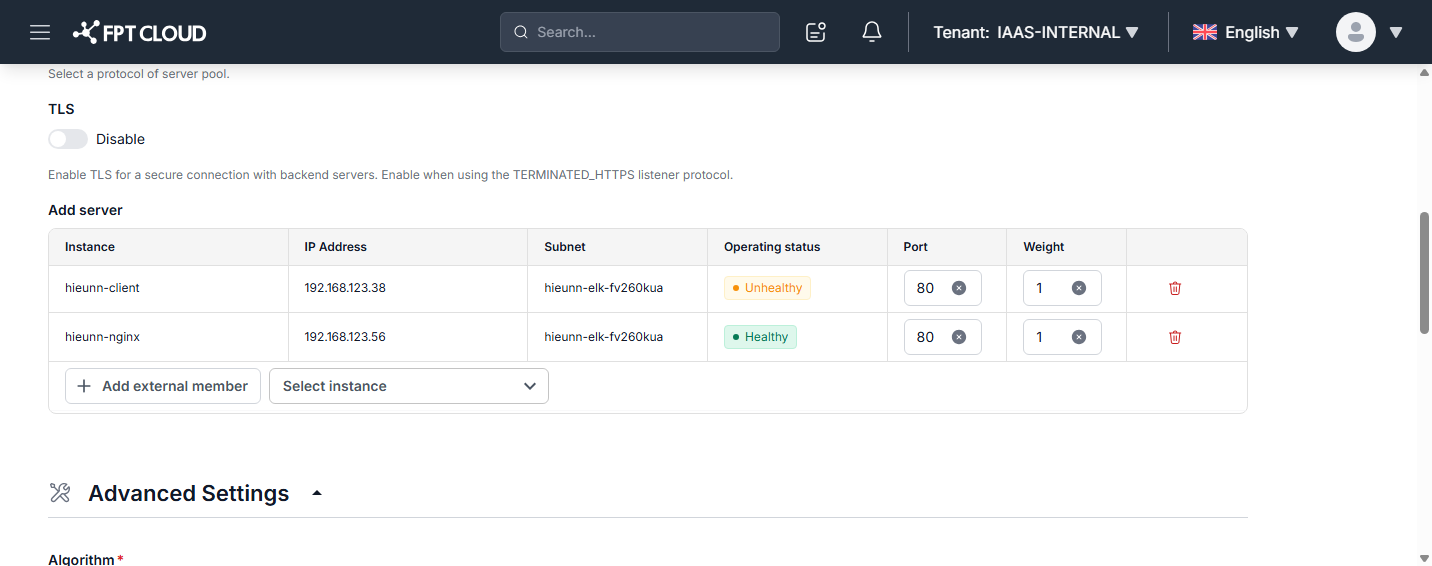
Add a member:
- Open the Select instance box and choose an Instance in the VPC to add to the pool. The selected Instance appears as a new row in the table.
- For each member, set:
- Port: The port the member listens on to receive requests. The default is 80.
- Weight: The priority weight that determines how much traffic the member receives. A member with a higher weight receives more requests. The default is 1.
- To add a server outside the VPC, click Add external member. This is available on both Internet facing and Internal Load Balancers. See Add an external member.
Remove a member:
- Click the trash icon at the end of the member row to remove that member from the table.
Step 3: Save the changes
Click Update server pool at the bottom to save. Each member's Operating status (Healthy/Unhealthy) is updated based on the health check configuration.