Import an SSL certificate
Import an SSL certificate to enable HTTPS on your Load Balancer. Once imported, the certificate can be used when you configure a TERMINATED_HTTPS listener and is shared across every Load Balancer in the VPC.
Step 1: On the Load Balancer page, select the Certificate tab.
Step 2: Click Import Certificate and enter:
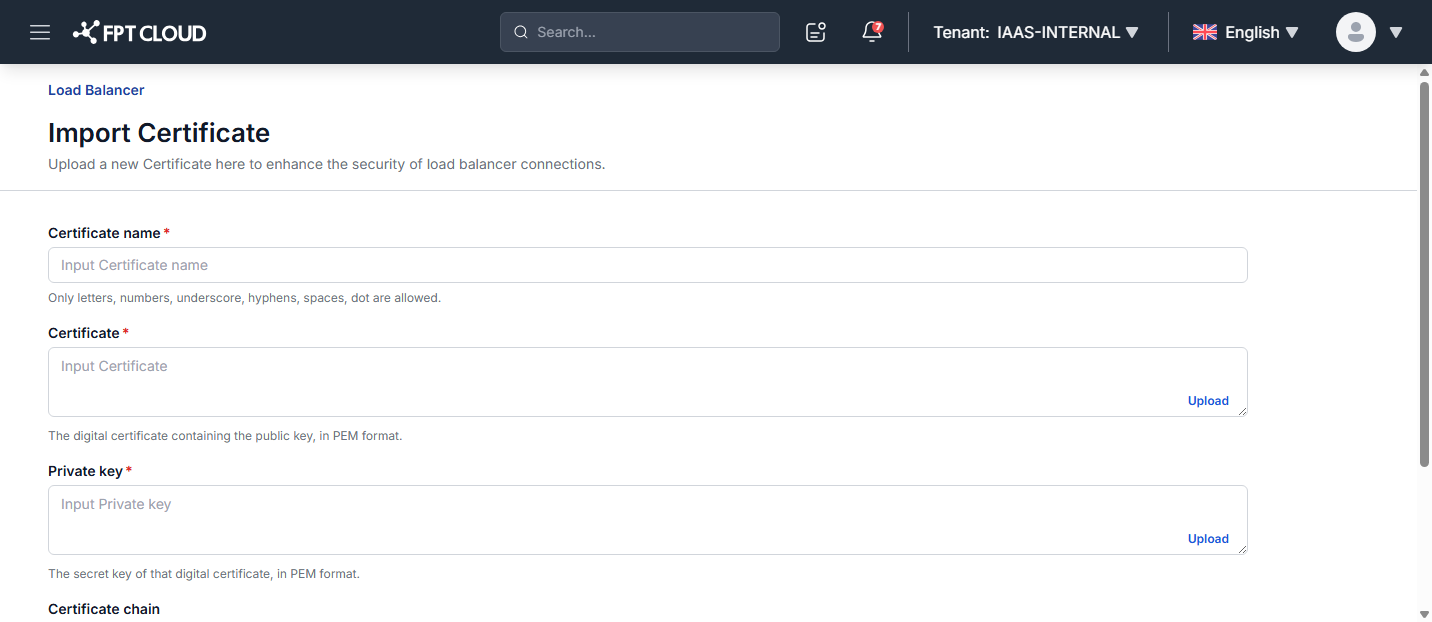
- Certificate name: A name for the certificate. Only letters, numbers, underscore, hyphens, spaces, and dot are allowed. Use a name that clearly identifies it, for example the domain name covered by the certificate.
- Certificate: The digital certificate containing the public key, in PEM format. Paste it directly or use Upload to load it from a file.
- Private key: The secret key of the certificate, in PEM format. Paste it directly or use Upload.
- Certificate chain: (Optional) The certificate trust chain — one or more certificates, in PEM format. Paste it directly or use Upload.
Step 3: Click Import Certificate to import, or Cancel to discard.
note
Both the Certificate and the Private key must be in PEM format. The private key is sensitive — enter it only over a trusted connection and never share it.
Next steps
- Manage SSL Certificates — view the certificate list and validity status.
- Configure SNI — serve multiple certificates on one Load Balancer.
- Delete an SSL certificate.