Guide: Create a Security Group
This guide describes how to create a new Security Group in a VPC. Once created, the Security Group appears in the list and is ready for you to add rules and attach to resources.
Before you begin
- You need an active VPC.
- You need permission to create network resources in that VPC.
Steps
Step 1 — Open the Security Groups list
From the left navigation panel within the VPC context, select:
Network → Security Groups
The list page displays all existing Security Groups with the following columns: Name, Tags, Firewall Type, Resource type, Apply to, Status, Created at.
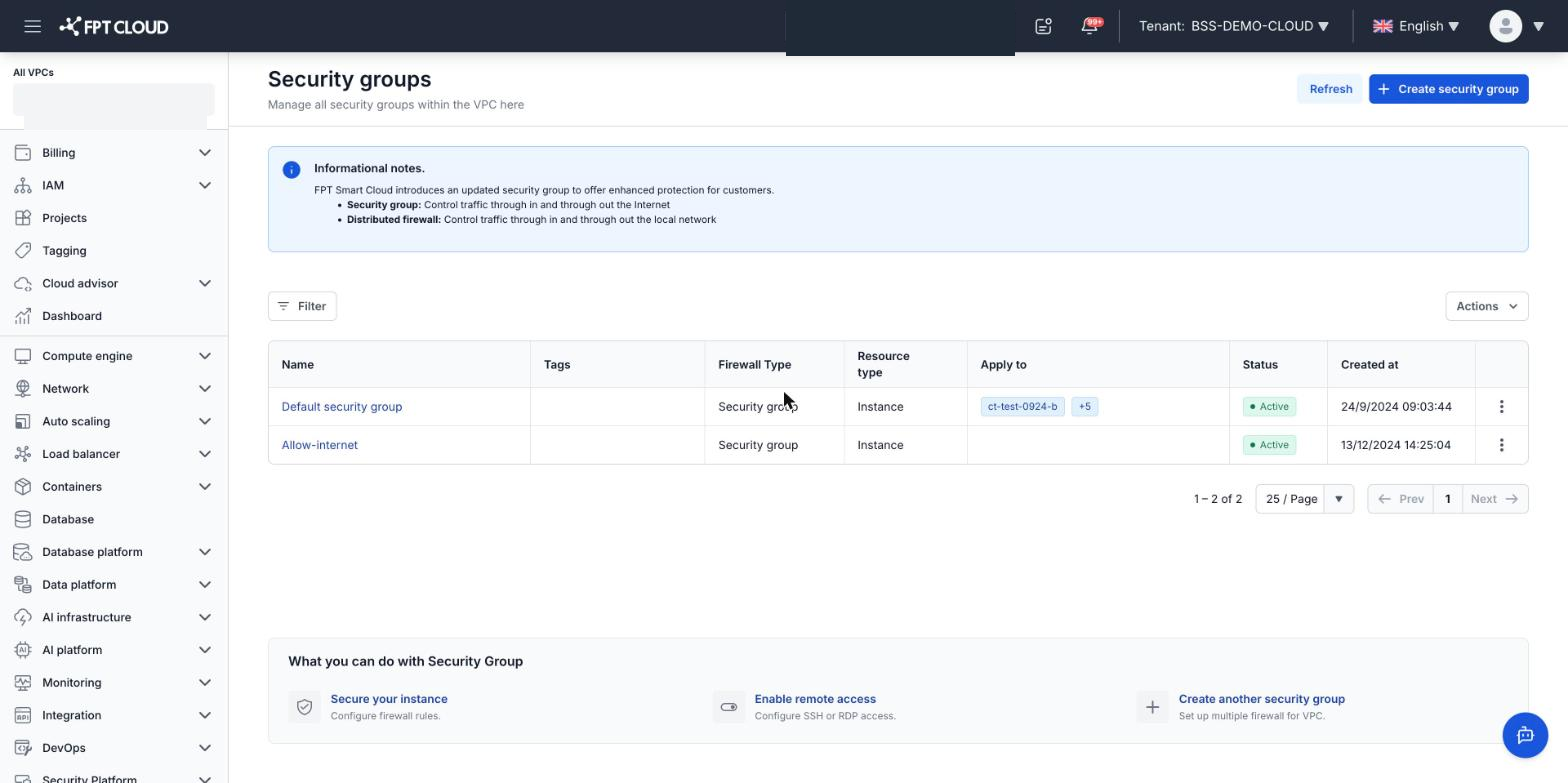
Step 2 — Click "Create security group"
In the upper-right corner of the list page, click Create security group.
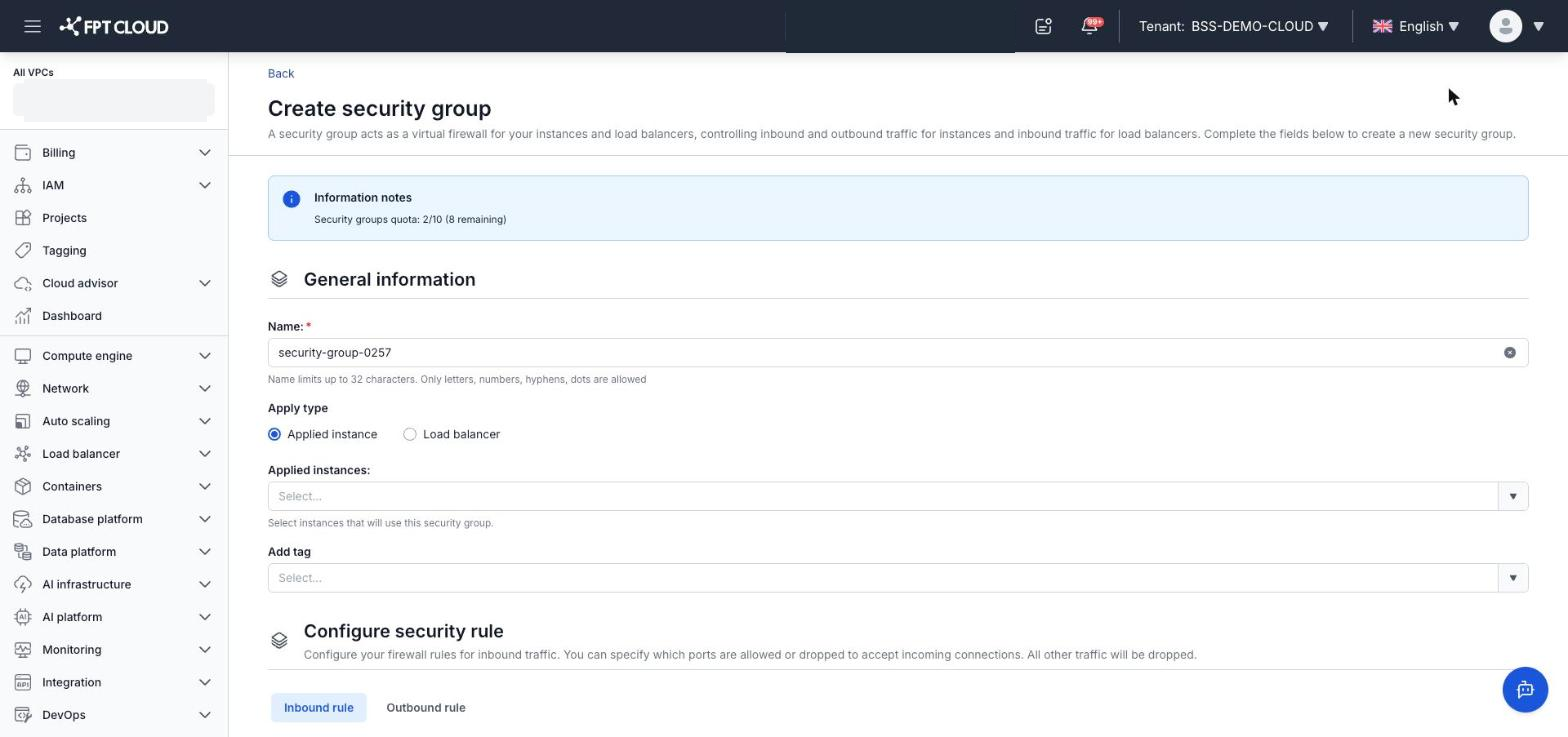
The create panel or page opens.
Step 3 — Fill in the Security Group information
Complete the fields in the General information section:
| Field | Required | Description |
|---|---|---|
| Name | Yes | The Security Group name. Maximum 32 characters. Use only letters, digits, hyphens (-), and periods (.). |
| Apply type | Yes | The resource type to apply: Applied instance (virtual server) or Load balancer. |
| Applied instances | No | Shown when Apply type = Applied instance. Select the Instances to attach to this Security Group at creation time. You can attach more later. |
| Applied load balancers | No | Shown when Apply type = Load balancer. Select the Load Balancers to attach to this Security Group at creation time. |
| Add tag | No | Labels for categorizing and searching the Security Group. |
Step 4 — Configure rules (optional)
The Configure security rule section lets you add rules while creating the Security Group. You can skip this step and add rules after creation.
Click + Add rule to add each rule.
- Apply type = Applied instance: there are 2 tabs — Inbound rule and Outbound rule.
- Apply type = Load balancer: only the Inbound rule tab is available.
Inbound rule — controls inbound traffic:
| Column | Description |
|---|---|
| Type | Traffic type (for example: HTTP, HTTPS, SSH, Custom TCP…) |
| Protocol | Protocol (TCP, UDP, ICMP…) |
| Port range | The port range the rule applies to |
| Rule Action | Fixed to Allow — cannot be changed |
| IP type | IPv4 or IPv6 |
| Sources | Allowed source (IPv4/IPv6 or CIDR) |
| Description | Optional note for the rule |
Outbound rule — controls outbound traffic (same structure as Inbound, with Sources replaced by Destination).
Note: Rule Action is always Allow. The system does not support Deny rules.
Step 5 — Confirm creation
After filling in all required information, click Create to finish.
The system creates the Security Group and returns you to the list. The new Security Group appears in the list with the status Active.
Result
The newly created Security Group is ready for you to:
- Add Inbound rule and Outbound rule entries — see Manage rules.
- Attach to resources (virtual servers, etc.) through the respective resource configuration page.