Connect FCI to AWS via Transit Gateway
This guide explains how to connect VPNaaS between the AWS and OPS platforms on the Unify portal.
- I. Configure VPN Site-to-Site on AWS
- II. Update VPN Site-to-Site configuration on FCI Cloud with the new AWS VPN IP
In this example, we will create a VPN Site-to-Site connection using the parameters shown in the topology below:

Configure VPN Site-to-Site on AWS
Step 1. Create a Customer Gateway. A Customer Gateway is a resource in AWS that represents the gateway device at the on-premises network. To create a Customer Gateway:
- Go to: https://console.aws.amazon.com/vpc/
- Select Customer gateways > Create customer gateway.
Enter the required fields. For IP address, use the Local IP public of the FCI VPN Gateway.

- Select Create Customer gateway.
Details of the created Customer gateway:

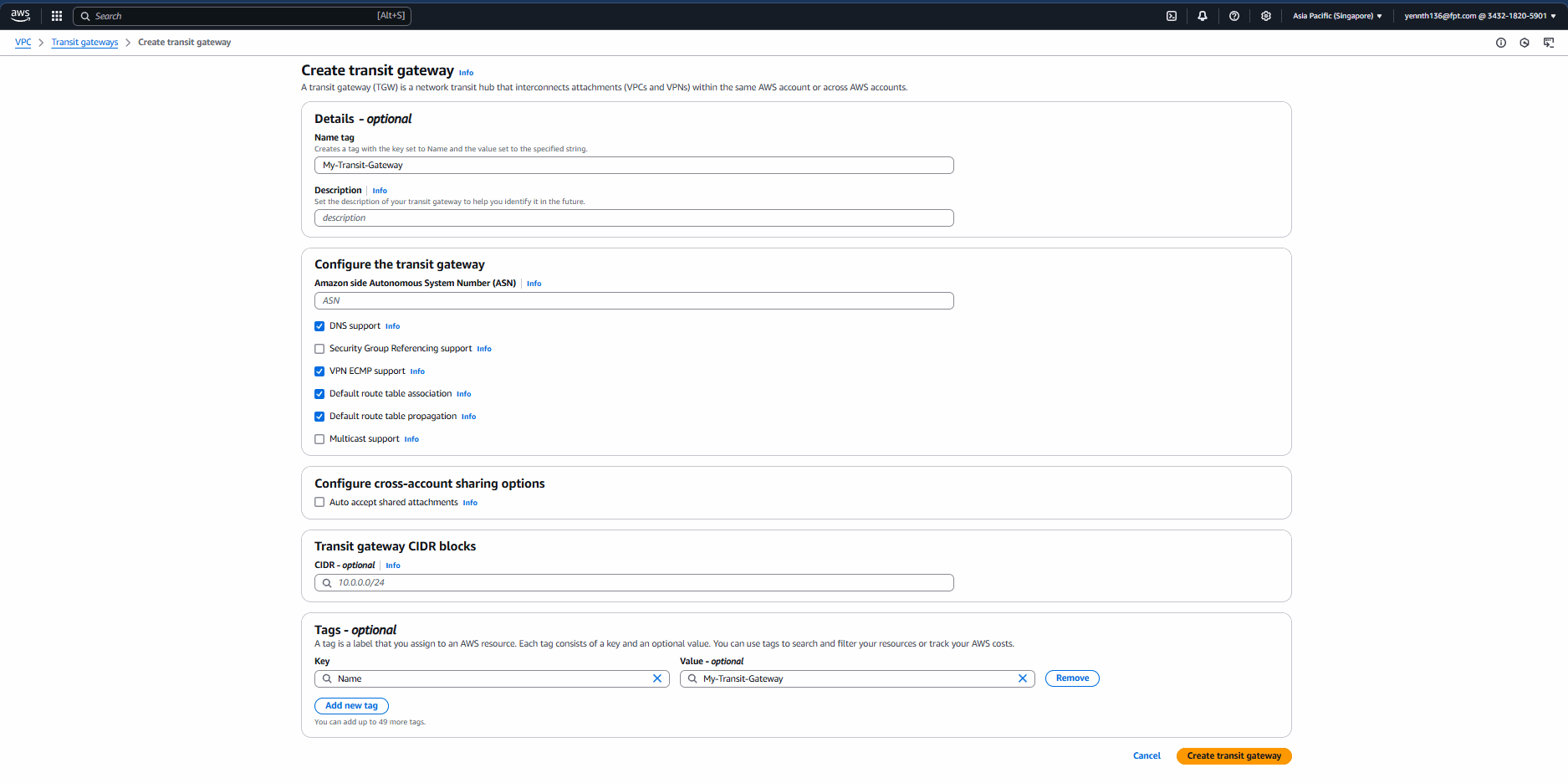
Step 2. Create a Transit Gateway. To create a Transit Gateway:
-
On the navigation pane, select Transit gateway > Create transit gateway.
-
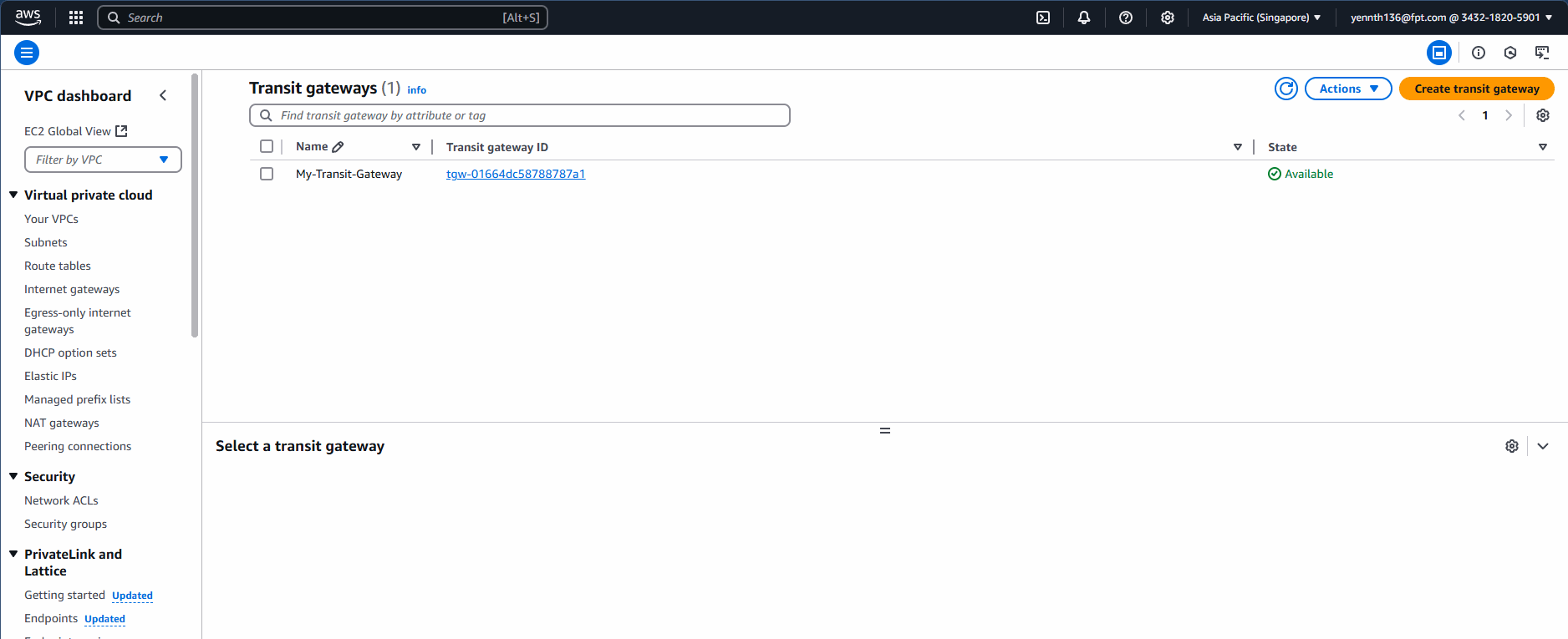
Result after creation.
-
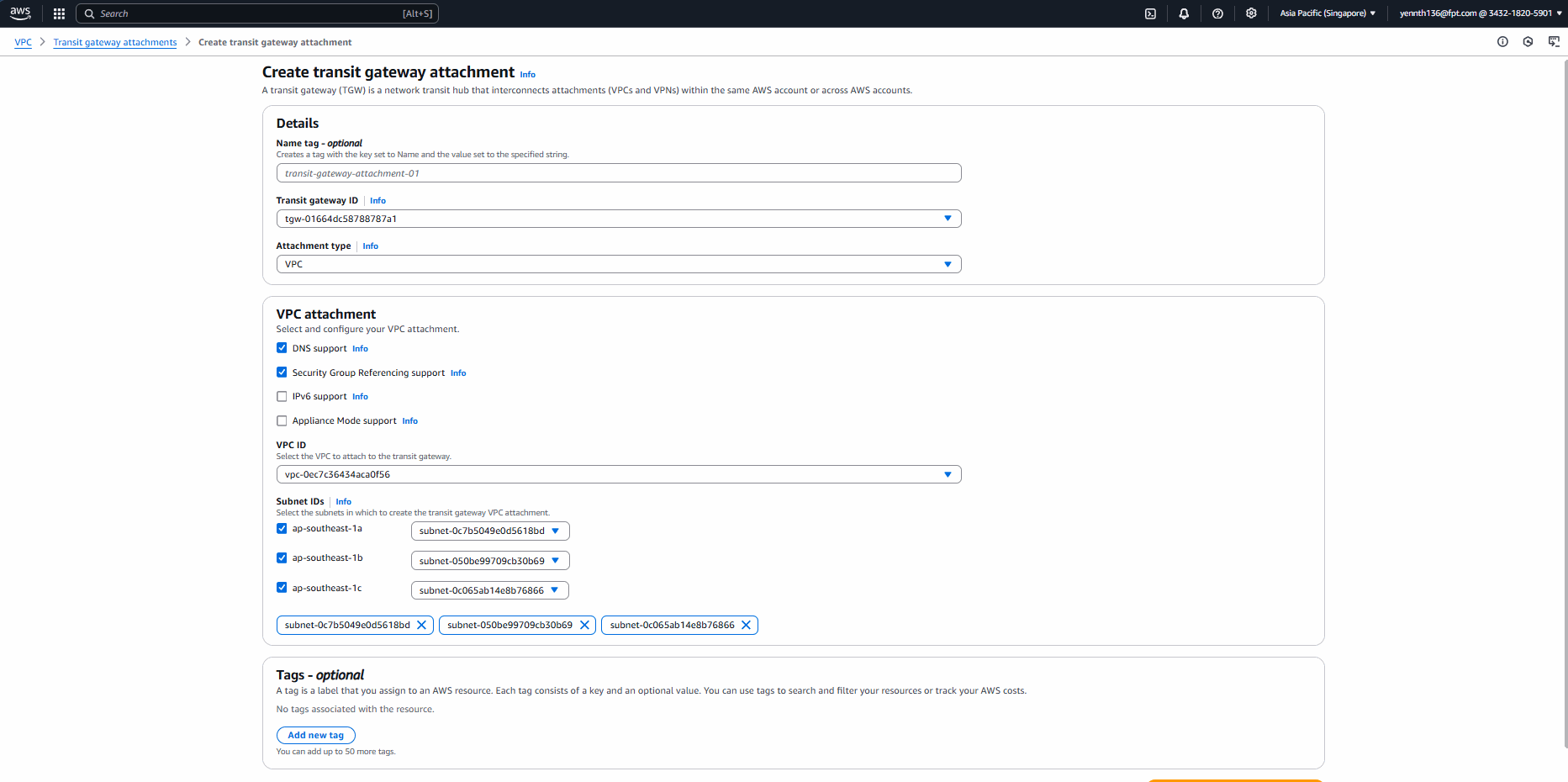
Attach the Transit Gateway just created to the VPC.


Step 3. Create a VPN connection.
3.1 Create a VPN connection using the Customer Gateway (Section I.4.3) and the Transit Gateway created above. To create a VPN connection:
- On the navigation pane, select Site-to-Site VPN connections.
- Select Create VPN connection.
- Set Target gateway type to Transit Gateway.
- Select the Transit Gateway and the Customer Gateway created earlier.
- For Routing option, select Static. For static IP prefixes, enter the FCI subnet range (172.16.8.0/24).
- Enter Local IPv4 network: enter the FCI subnet range.
- Enter Remote IPv4 network: enter the AWS subnet range.
- Edit the parameters for tunnel1 and tunnel2.
- Select Create VPN connection.


3.2 Attach the Transit Gateway to the VPN connection.

Result:

Step 4. Configure routing. Configure routing to direct traffic from the VPC (AWS) to the Customer Gateway (FCI) through the Transit Gateway. Add routes from the VPN connection to the route table (FCI subnet: 172.16.8.0/16).

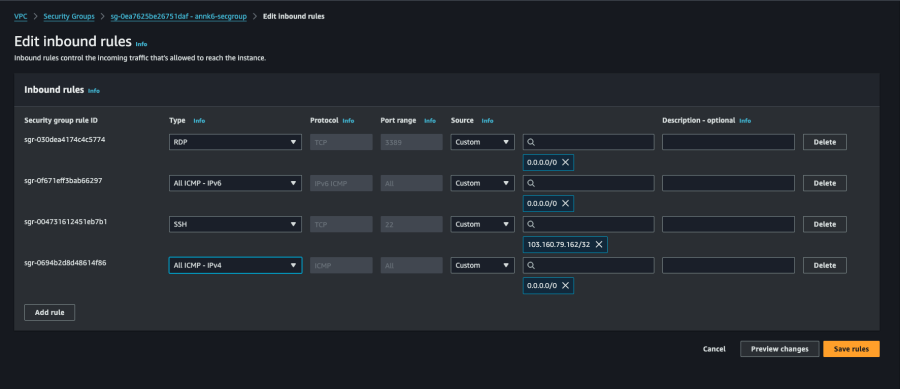
Step 5. Update Security groups. Update Security groups to allow SSH, RDP, and ICMP access. To add a rule to a Security group:
-
On the navigation pane, select Security groups.
-
Select the security group for instances in the VPC you want to allow access to.
-
On the Inbound rules tab, select Edit inbound rules. Allow the FCI subnet range with All Traffic.
-
Add rules to allow inbound SSH, RDP, and ICMP, then select Save rules.
The VPN Connection is successfully initialized with status 'Available'. Next, verify that the Route table is correctly configured.

Step 6. Download the configuration file. After creating the VPN connection, you can download a configuration file to use for configuration on the FCI VPC. To download the configuration file:
-
Go to the VPN connection page.
-
Select the connection just created > select Download configuration.
-
Select Vendor: pfSense, IKE version: IKEv1 (or IKEv2) > select Download.
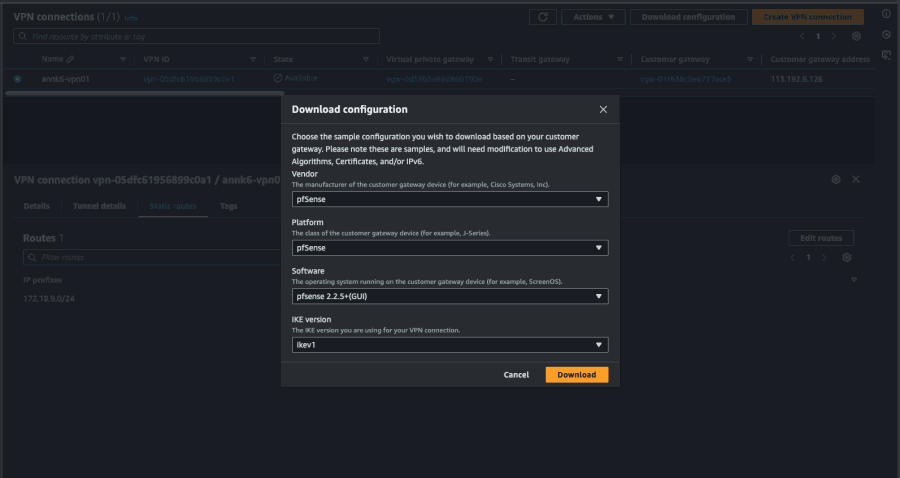
Use this configuration file to create the VPN Site-to-Site on the FCI side.

Update VPN Site-to-Site configuration on FCI Cloud with the new AWS VPN IP
-
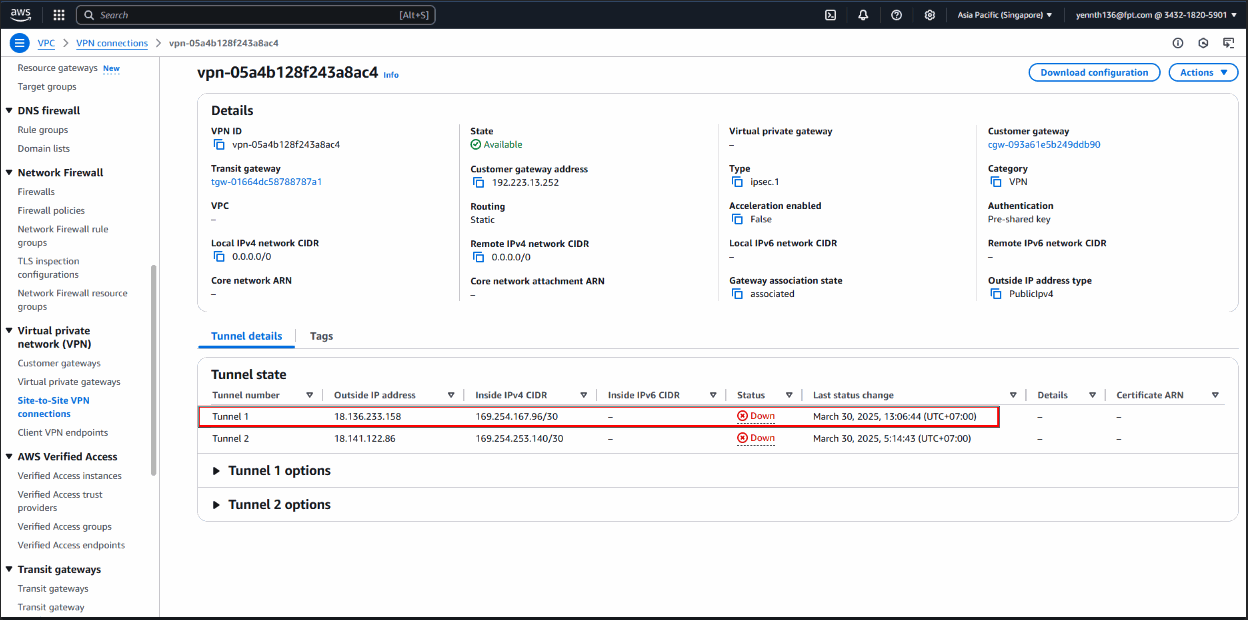
Use the Tunnel 1 IP to update the configuration on the FCI side:
-
Edit the Customer Gateway and enter the AWS tunnel IP in the Remote IP public field.

Now configure the VPN Connection on FCI Cloud so that it matches the AWS parameters above — the tunnel IP, the pre-shared key, and the IKE/IPsec settings from the configuration file you downloaded from AWS. For detailed steps, see Create VPN connection.
Once both sides match, the connection is complete:
- On FCI Cloud, the Operating status of the VPN connection shows Online.
- On AWS, go to VPN connections > select the VPN connection > Tunnel details. Tunnel 1 shows UP.
Verify the result
Start a VM in each VPC using the network ranges configured in the VPN Site-to-Site, then ping between them from both sides.