Connect FCI to VMware
This guide explains how to connect VPNaaS between the VMware and OPS platforms on the Unify portal.
- Step 1: Configure VPN on OpenStack
- Step 2: Configure VPN on VMware Cloud
- Step 3: Verify the connection Ensure the following prerequisites are met:
- VPNaaS on OPS configured on the Unify Portal
- VMware Cloud
In this example, we will create a VPN Site-to-Site connection using the parameters shown in the topology below.

Step 1: Configure VPN on OpenStack
On the FPT Cloud Portal, create a Customer Gateway and a VPN Connection for the VMware side:
- Customer Gateway — Remote IP public: the Floating IP of the VMware VPN gateway. Remote private network: the LAN subnet range to peer with from VMware.
- VPN Connection — set Providers to
others, enter the provider nameVMWare, then enter the IKE and IPsec settings and the Delay / Max failures values.
For detailed steps, see Create Customer Gateway and Create VPN connection.
Save the Pre-shared key value — you will need it when creating the VPN Connection on the VMware side in Step 2.
Step 2: Configure VPN on VMware Cloud
-
Sign in to the VMware system to set up the VPN Site-to-Site connection information.
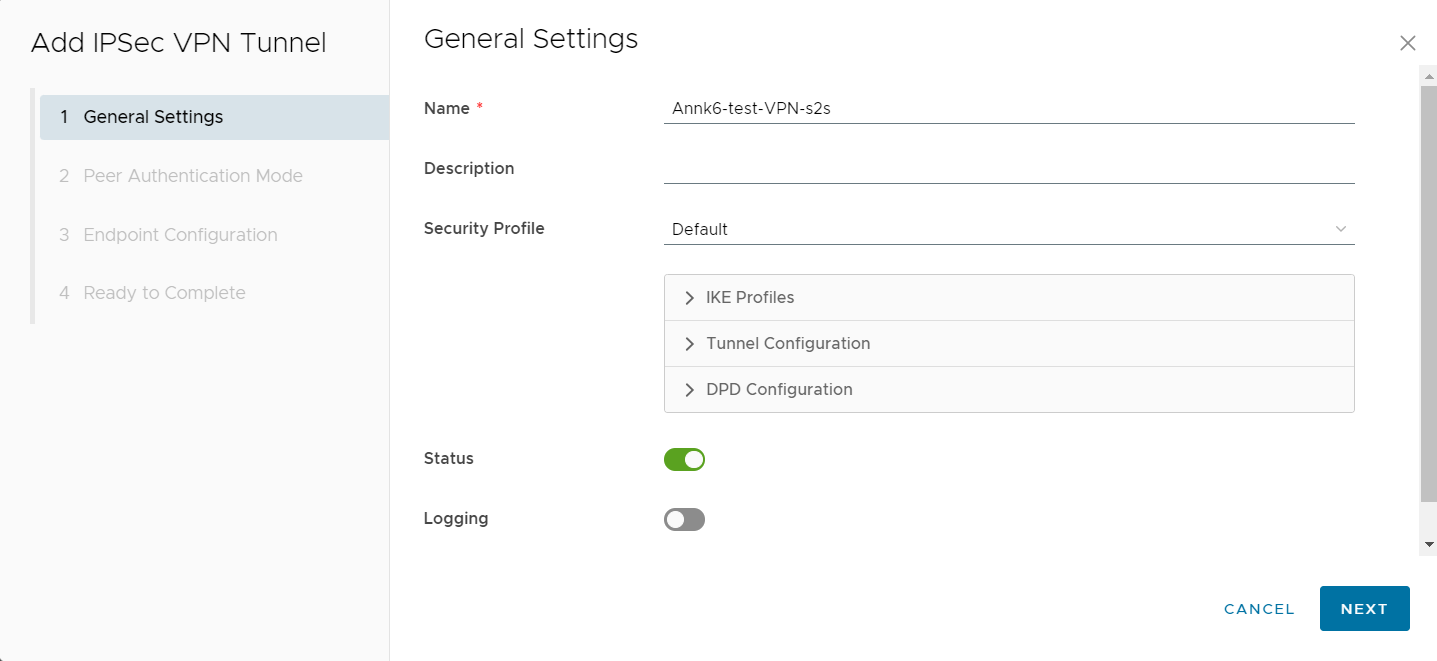
-
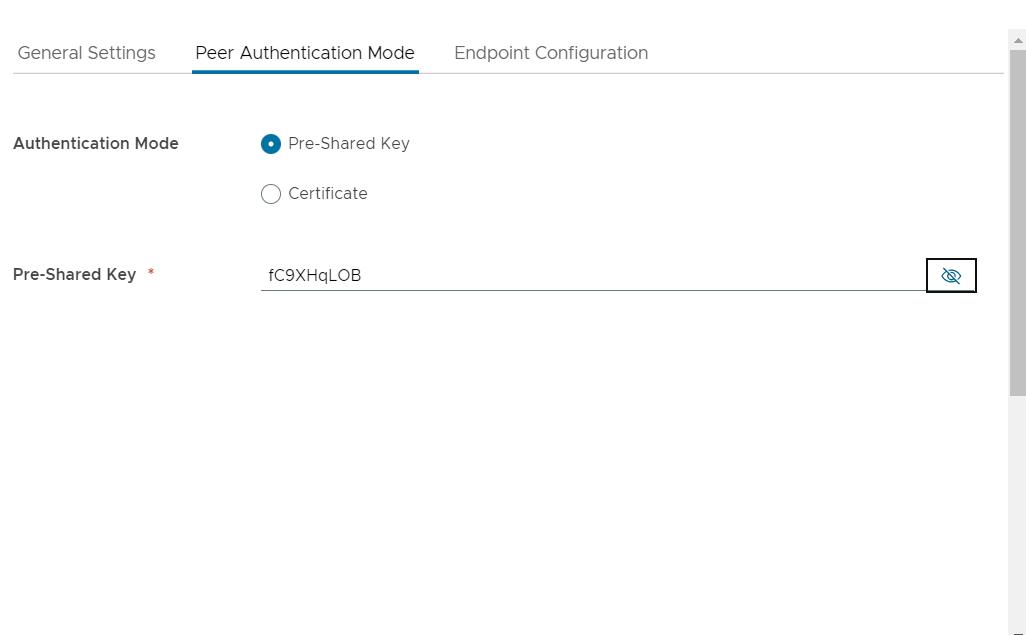
On the Peer Authentication tab, enter the Pre-shared key created on the OPS side, then select Next.
-
Enter the Endpoint Configuration fields.
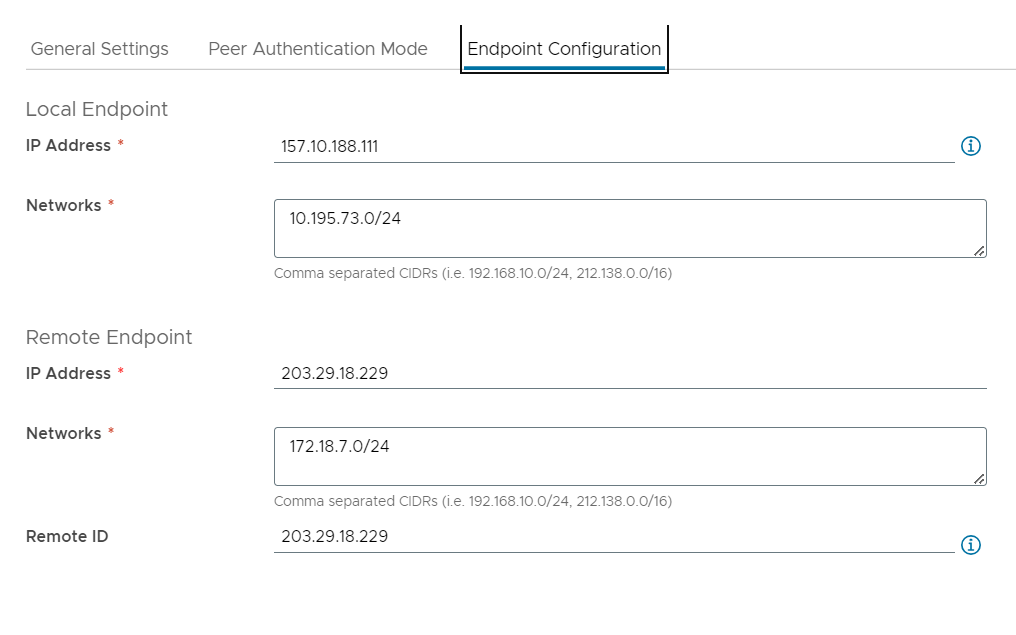
-
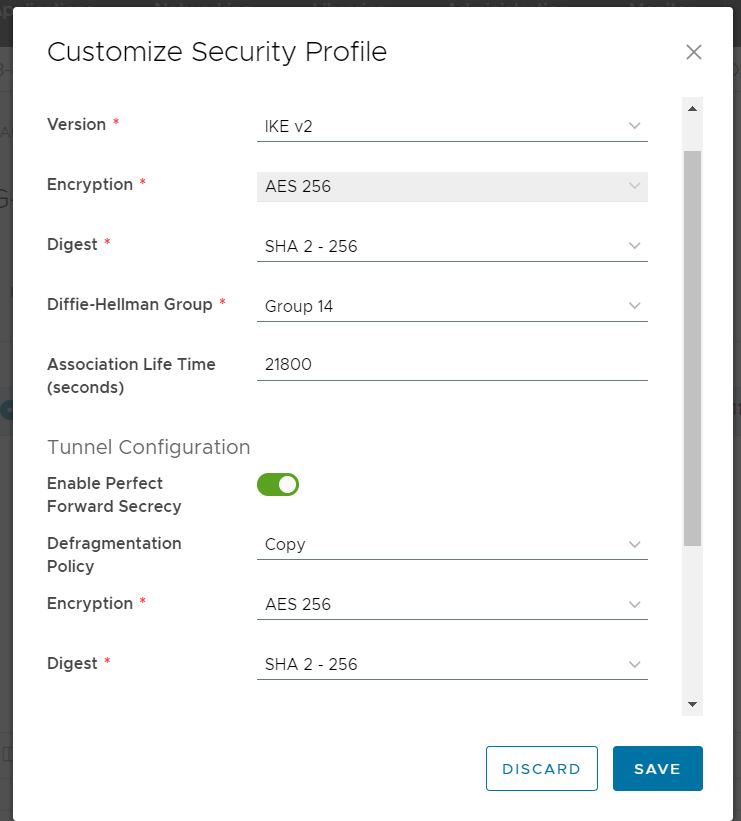
After creation, select Customize Security Profile to update the IKE policy and IPSec policy to match the IKE policy and IPSec policy created on OPS.
-
-
Select View statistics to check the connection status. If the status shows UP, the connection between the two sites is established successfully.


Step 3: Verify the connection
-
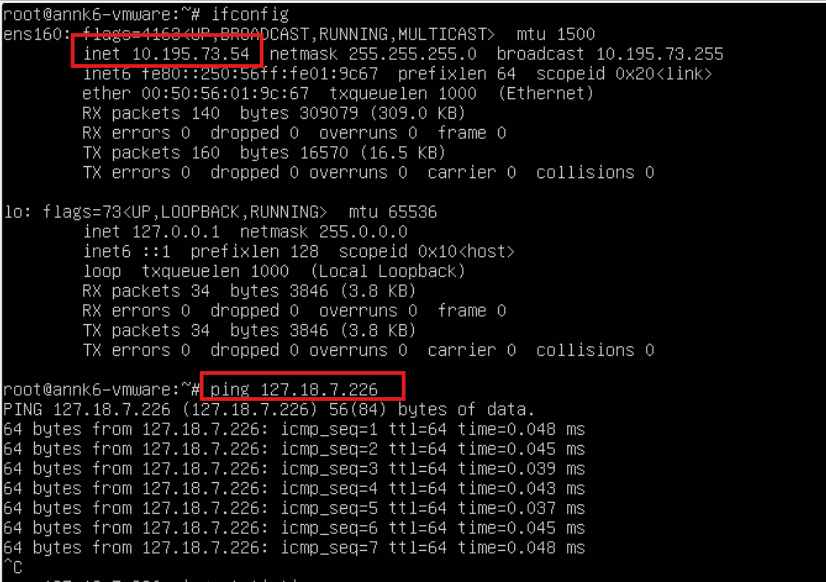
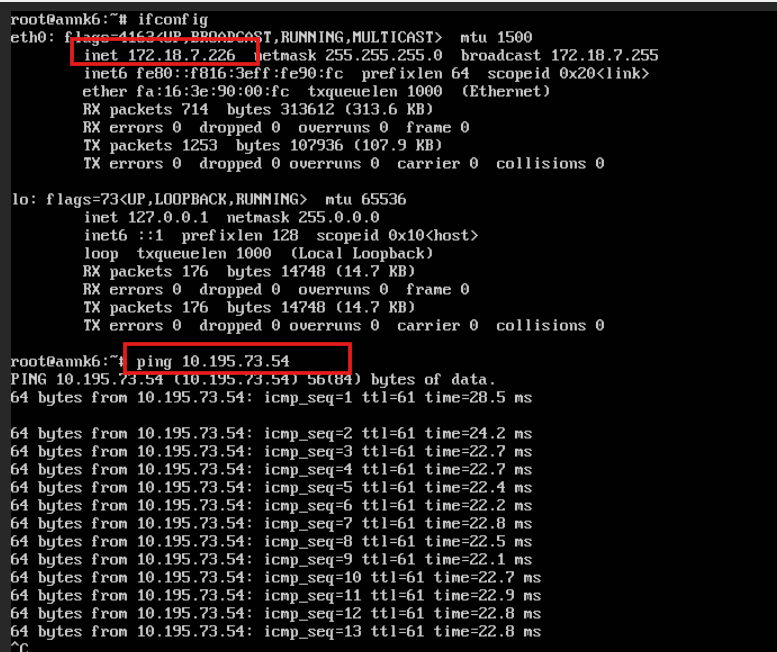
Ping from OPS VM to VMware VM.
-
Ping from VMware VM to OPS VM.