AI Review
AI Review automatically analyzes security findings after each scan and marks Critical, High, and Medium severity issues as false positives when applicable — reducing manual triage time for your AppSec and DevSecOps teams.
Prerequisites
Before using AI Review:
- Your Source Control integration (GitHub or GitLab) must be configured under Integration.
- AI Review must be enabled for the target repository (see Enable AI Review below).
- At least one scan must have completed after enabling AI Review.
Enable AI Review
There are two ways to enable AI Review, depending on how the scan is triggered.
| Trigger | Where to enable |
|---|---|
| CI/CD pipeline (DevSecOps) | Integration → View Config → DevSecOps AI Review section |
| Manual scan from the portal | Popup shown during Add Asset or Rescan |
Enable via Integration → View Config
Use this method to manage AI Review for specific repositories when scans run from a CI/CD pipeline.
- Select Integration in the sidebar.
- Select a team from the dropdown in the top-right corner.
- Find the Source Control integration (GitHub or GitLab) with status Configured, then click View Config.
- Scroll down to the DevSecOps AI Review section.
- In the Not Applying AI Review panel, use Search by repository to locate the target repository.
- Select one or more repositories, then click > to move them to the Applying AI Review panel.
- Click Save Changes. A toast message confirms: "Changes saved successfully."
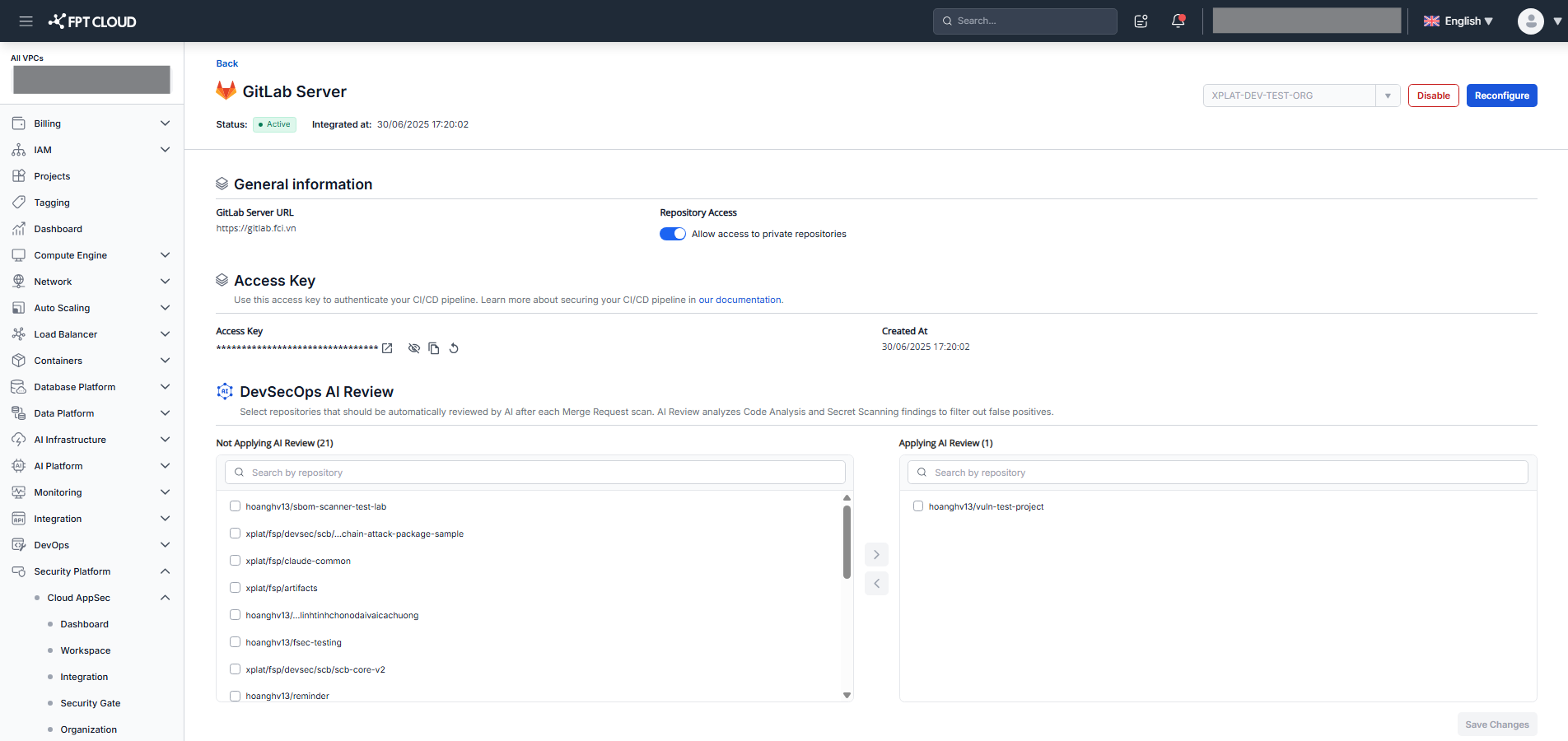
To disable AI Review for a repository: select it in the Applying AI Review panel, click <, then click Save Changes.
Enable via Add Asset / Rescan popup
Use this method when triggering a scan manually from the portal.
- On the Workspace screen, click Add Asset or Rescan.
- A popup appears with the title Add assets to Workspace or Rescan assets.
- Select one of the following options:
- Enable AI Review (selected by default) — AI will automatically review Code Analysis and Secret Scanning findings to filter false positives.
- Skip for now — proceed without enabling AI Review. You can enable it later via View Config (see above).
- Click Add assets or Rescan to confirm.
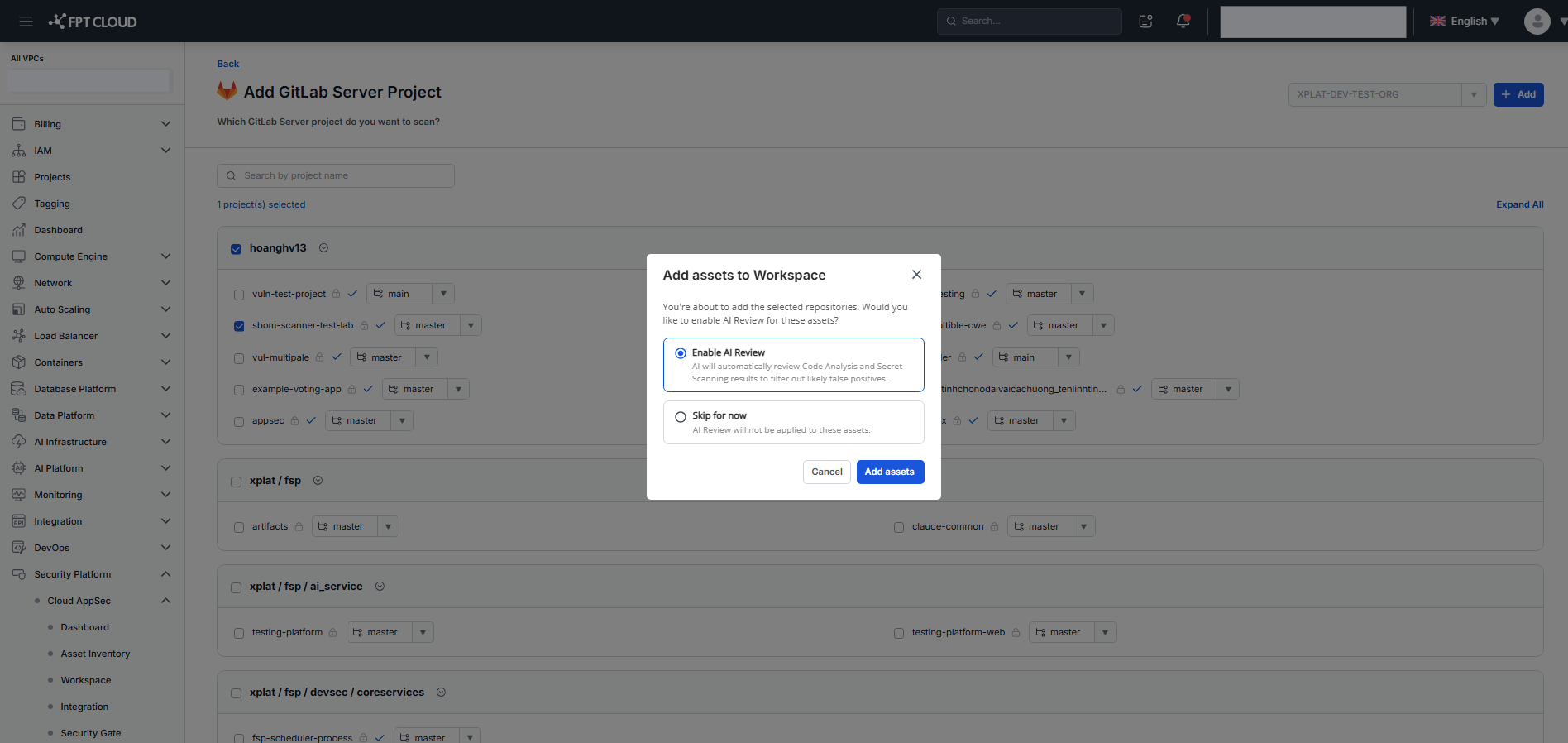
Clicking Cancel or the X icon cancels both the action and any change to AI Review configuration.
Monitor AI Review status after a scan
After a scan completes, AI Review begins automatically. The status appears inline in the scan's metadata row — the same row that shows scan type, scan ID, and timestamp.
| Status | Meaning |
|---|---|
AI Review: In Progress (spinner) | AI is analyzing findings from this scan |
AI Review: Success | Analysis completed successfully |
AI Review: Failed | Analysis encountered an error |
To check the status:
- Go to Workspace → select an asset → open the Code Analysis or Secret Scanning tab.
- Locate the metadata row for the scan and read the AI Review status.
- If the status is
AI Review: Failed, hover over the text to see the error tooltip.
If you do not see an AI Review status, verify that the repository has AI Review enabled.
View issues flagged as false positive
When AI Review concludes that an issue is a false positive, it automatically sets the issue status to Ignored AI and displays a distinctive badge in the Status column.
- Go to Workspace → select an asset → open the Code Analysis or Secret Scanning tab.
- In the Status column, look for issues showing:
- Ignored badge (gray) and AI badge (blue) on the same row
- False Positive label below the badges
- A help text appears above the table when AI Review is enabled: "AI Review automatically marks False Positives on Critical, High, and Medium findings. Findings flagged as False Positive are shown in the Status column."
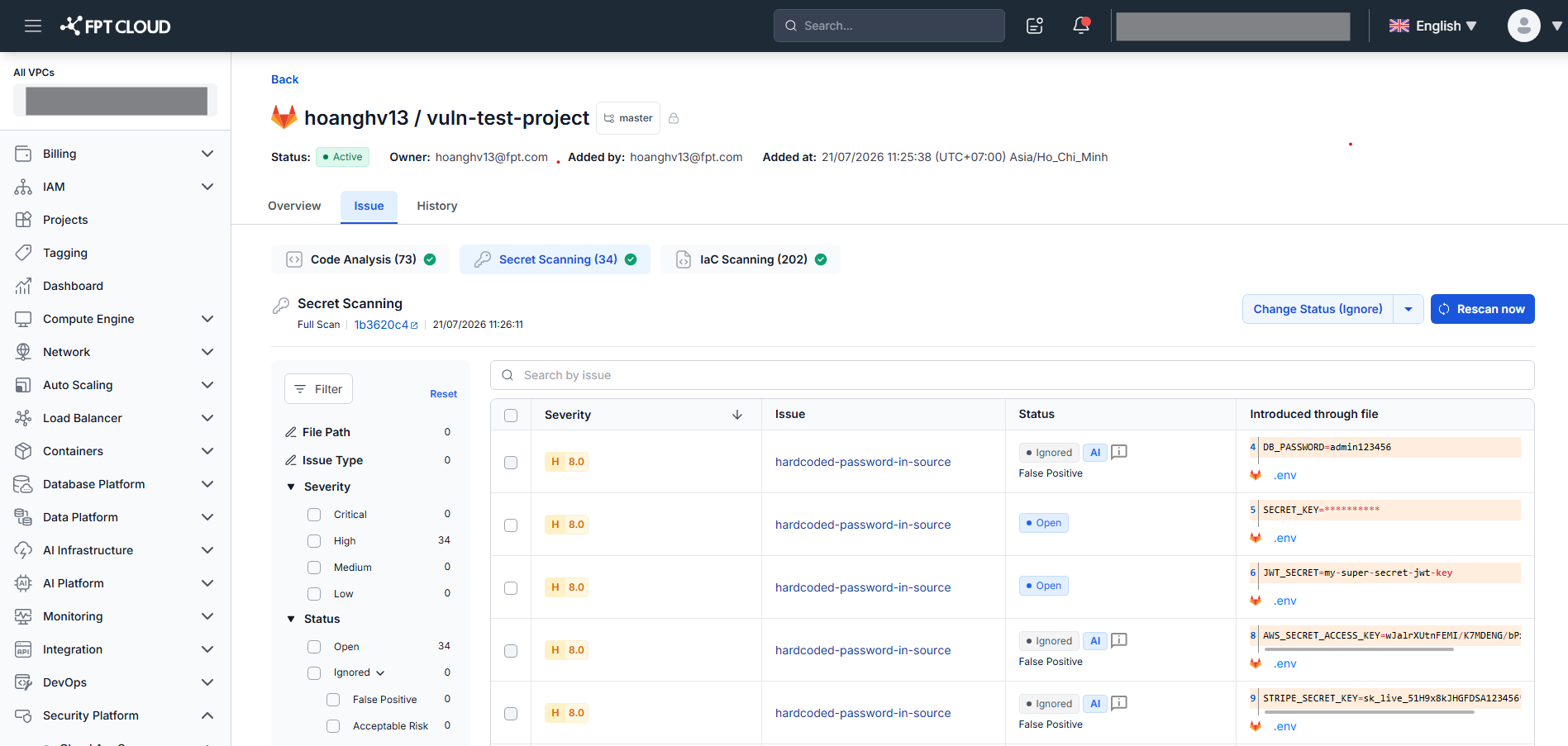
The AI badge distinguishes automated false positives from manually set statuses (False Positive, Accepted Risk, or Other).
View AI analysis details in Issue Detail
For each issue flagged as a false positive, the Activity section in Issue Detail shows the full AI analysis.
- From the Issue List, click an issue that has the AI badge in the Status column.
- The Issue Detail popup opens. Scroll down to the Activity panel.
- Find the AI Review entry, which contains:
- Label:
Ignored - Subtitle:
Ignored as False Positive by AI Review - Timestamp: date and time when AI completed the analysis
- Reasoning: AI's explanation for the false positive conclusion
- Label:
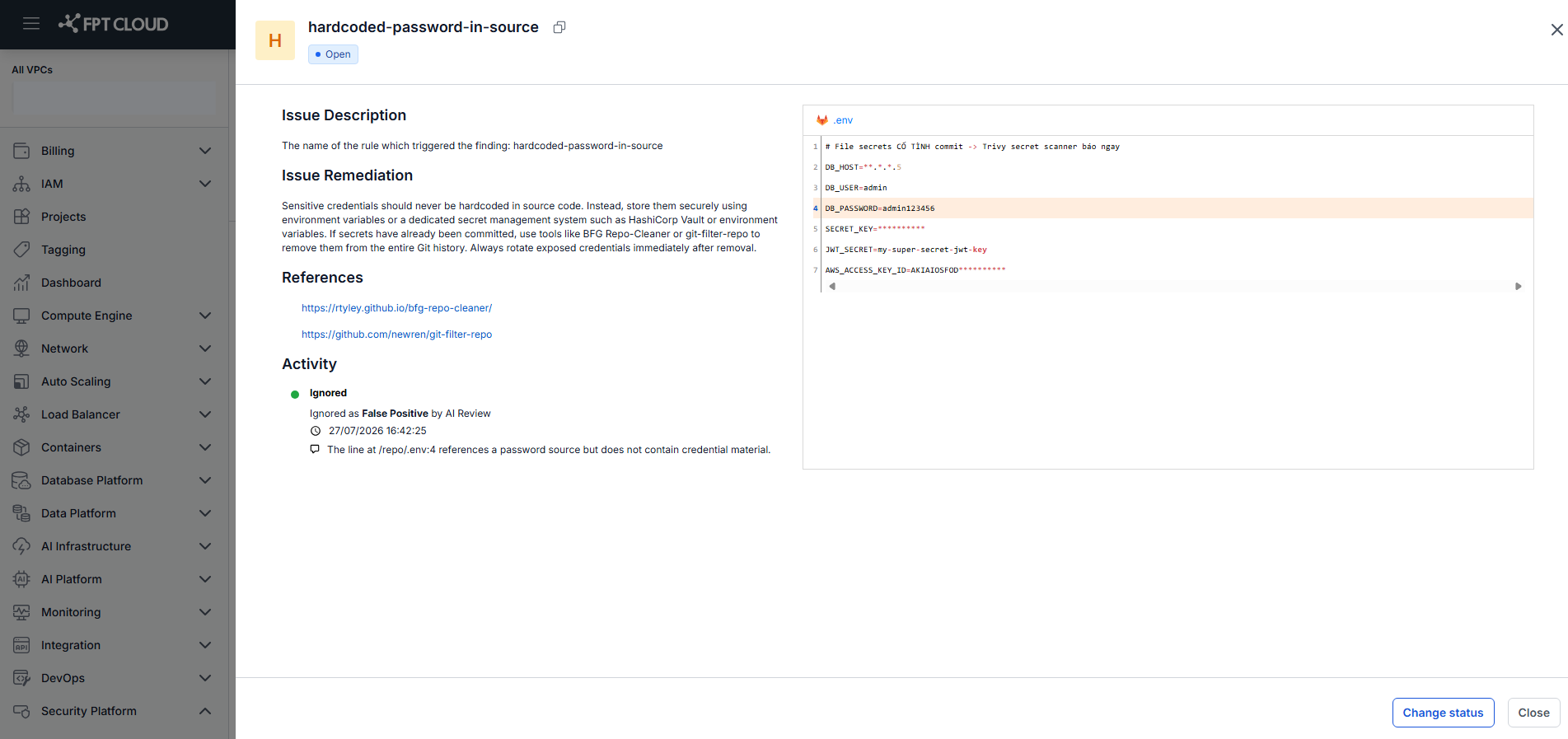
The AI Review entry is read-only and cannot be edited or deleted.
Reopen an issue flagged by AI Review
If you disagree with AI's conclusion, you can return the issue to Open status for manual review.
- From the Issue List, click an issue with the AI badge to open Issue Detail.
- Click Change Status.
- Select Reopen.
- Confirm the action.
The issue returns to Open status and the AI badge is removed from the Status column.
The AI Review entry in the Activity section is preserved after reopening — it remains as a historical record of the analysis. AI Review does not re-run automatically after a reopen; the issue will be analyzed again in the next scan.
Important notes
- AI Review applies only to Source Control (GitHub and GitLab) — Code Analysis and Secret Scanning findings only.
- AI Review only analyzes issues with severity Critical, High, or Medium. Low and Info severity issues are not analyzed and do not show the AI badge.
- AI Review skips issues that are already in an Ignored state before the scan runs — only issues with Open status are analyzed.
- AI reasoning is generated automatically and may vary between runs.
- AI Review reflects the most recent scan; new issues are analyzed in the next scan.