Asset Inventory
Asset Inventory provides a unified view of every asset added to the system — Source Code Repositories, Container Images, and DAST APIs — grouped by repository, image, or domain. Use it to track scan status and severity across all branches, image tags, and endpoints without opening each Workspace individually.
Navigate to Asset Inventory
- Select App Security → Asset Inventory in the navigation menu.
- Select a team from the dropdown in the top-right corner. The + Add Asset button is enabled only after selecting a team.
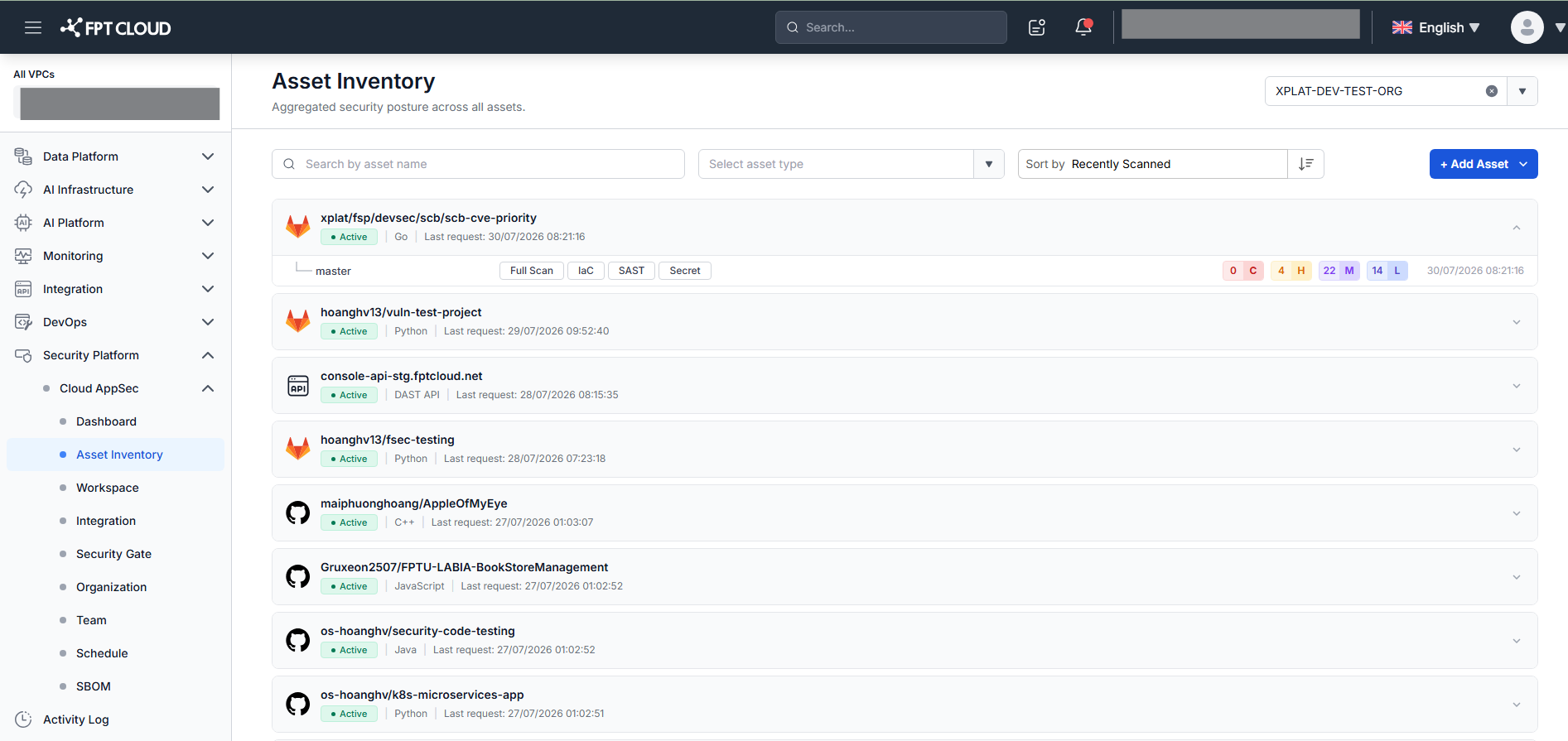
The screen displays all asset cards for the selected team, sorted by Recently Scanned (most recent first) by default. The first card is expanded automatically; all others are collapsed.
View asset card details
Each card represents one asset grouped by repository path (SCM), image repository name (Container Image), or root domain (DAST API). Click the chevron icon (∨ / ∧) to expand or collapse a card.
An expanded card shows up to 5 items. Each item type displays different information:
| Asset type | Information shown per item |
|---|---|
| SCM (Repository) | Branch name, scan type chips (Full / MR / Commit Scan, SAST / Secret / IaC), severity count (C H M L), last scan timestamp |
| Container Image | Image tag (image:tag), Image Scan chip, severity count, last scan timestamp |
| DAST API | Full endpoint URL, API source name, severity count, last scan timestamp |
If a card has more than 5 items, click View more to go to the Workspace screen with the asset name pre-filled in the search box.
Click a branch name, image tag, or endpoint URL to go to the Asset Detail screen for that item.
Search, filter, and sort
Search by name:
- Type the asset name in the Search by asset name field.
- Press Enter to apply.
- SCM: searches by repository path
- Container Image: searches by image repository name
- DAST API: searches by root domain
- Search is case-insensitive. No results shows
"No records found".
Filter by asset type:
- Select a value from the Asset Type dropdown:
Repository,Container Image, orDAST API. - To clear the filter, click X inside the dropdown.
Search and filter combine with AND logic.
Sort order:
- Select a sort option from the Sort by dropdown:
Recently Scanned(default) orName(A → Z). - Click the arrow icon to toggle ascending or descending order.
When search, filter, or sort criteria change, the first card in the updated results is automatically expanded.
Add a new asset
Click + Add Asset in the top-right area of the toolbar (enabled after selecting a team). This uses the same flow as the Add Asset button on the Workspace screen.
Permissions
- Org Admin: can view all teams and all assets.
- Standard user: can only view teams they have been assigned to.
Pagination defaults to 10 items per page. You can change it to 10 / 25 / 50 / 100 using the Row per page selector.