GitHub Personal/Enterprise Cloud integration
Only Org Admin has permission to edit the GitHub integration.
See permission details.
Configure GitHub
Step 1: After selecting an org/team, click GitHub to go to the GitHub integration screen.
Step 2: Configure access to Private/public repositories, then click Create a personal access token. You will be redirected to GitHub to create a token.
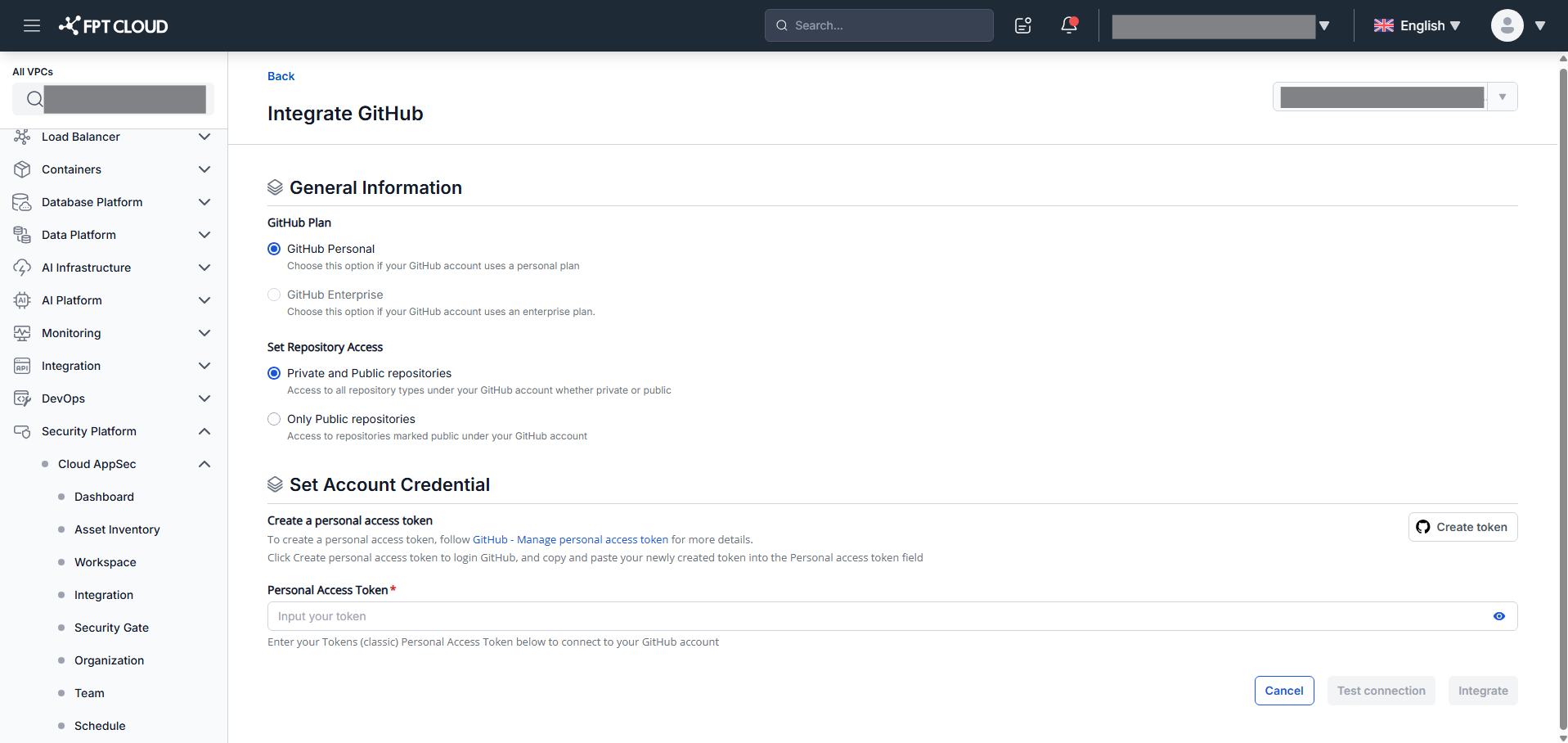
Step 3: On GitHub, select Tokens (classic) in the left menu and click Generate new token (Classic).


Step 4: Fill in a Note and select the repo scope to enable all features.

Step 5: Click Generate Token.

Step 6: Copy the token.

Step 7: Return to FPT AppSec. Paste the token into the Personal Access Token field and click Test Connection.
The system validates the token. If successful, Test connect successfully is displayed. If it fails, Test connection Failed appears.
Step 8: Click Integrate.
View details
Only Org Admin or Team Manager can view integration details.
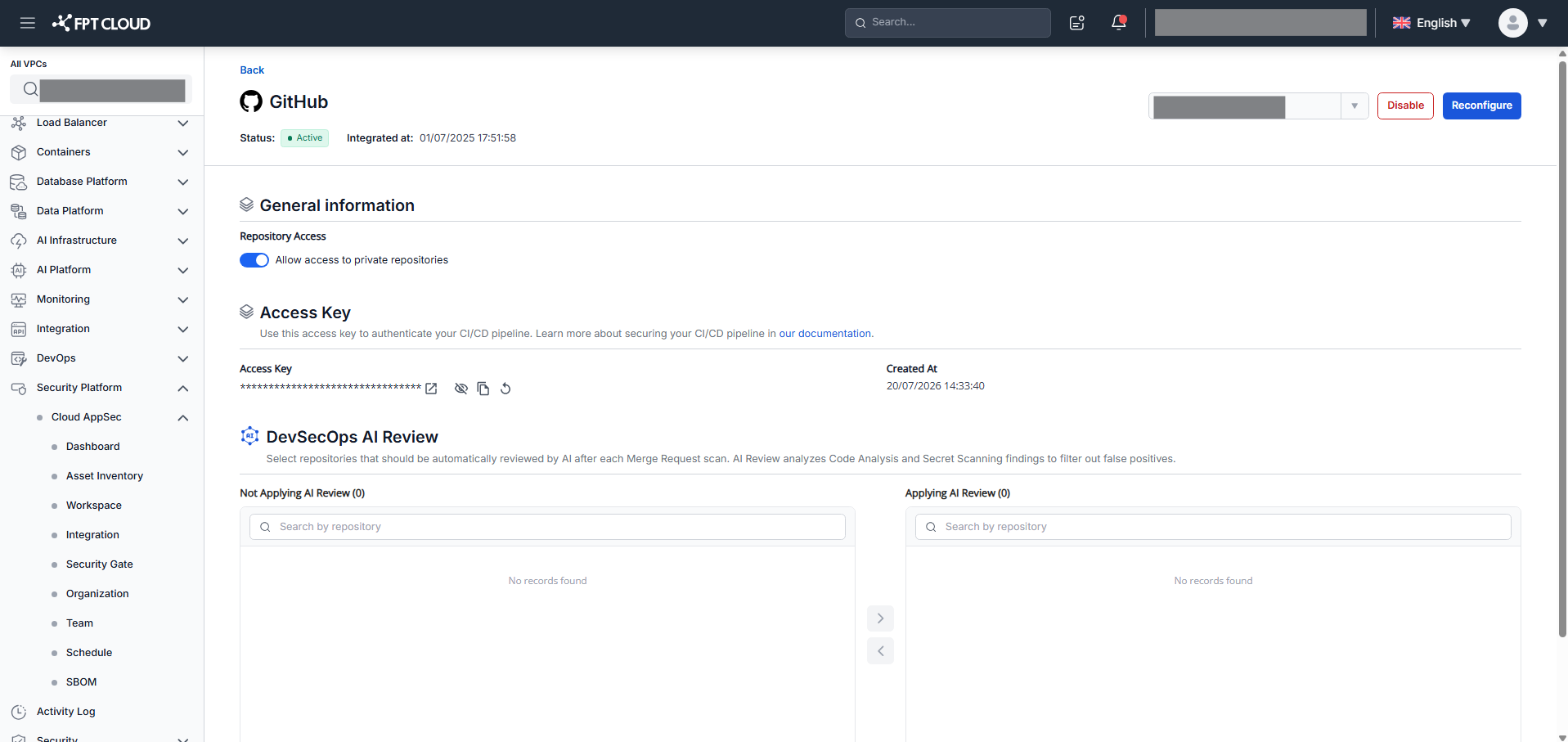
After selecting your org/team, click Configured GitHub to view the integration status, including Personal Access Token, Repository Access, Integrated at, and the Access Key for CI/CD integration.
You can also Reintegrate or Disable the GitHub integration from this screen.
Reconfigure GitHub
Click Reconfigure on the GitHub integration detail screen, then follow the same steps as the initial GitHub integration.
Disable GitHub integration
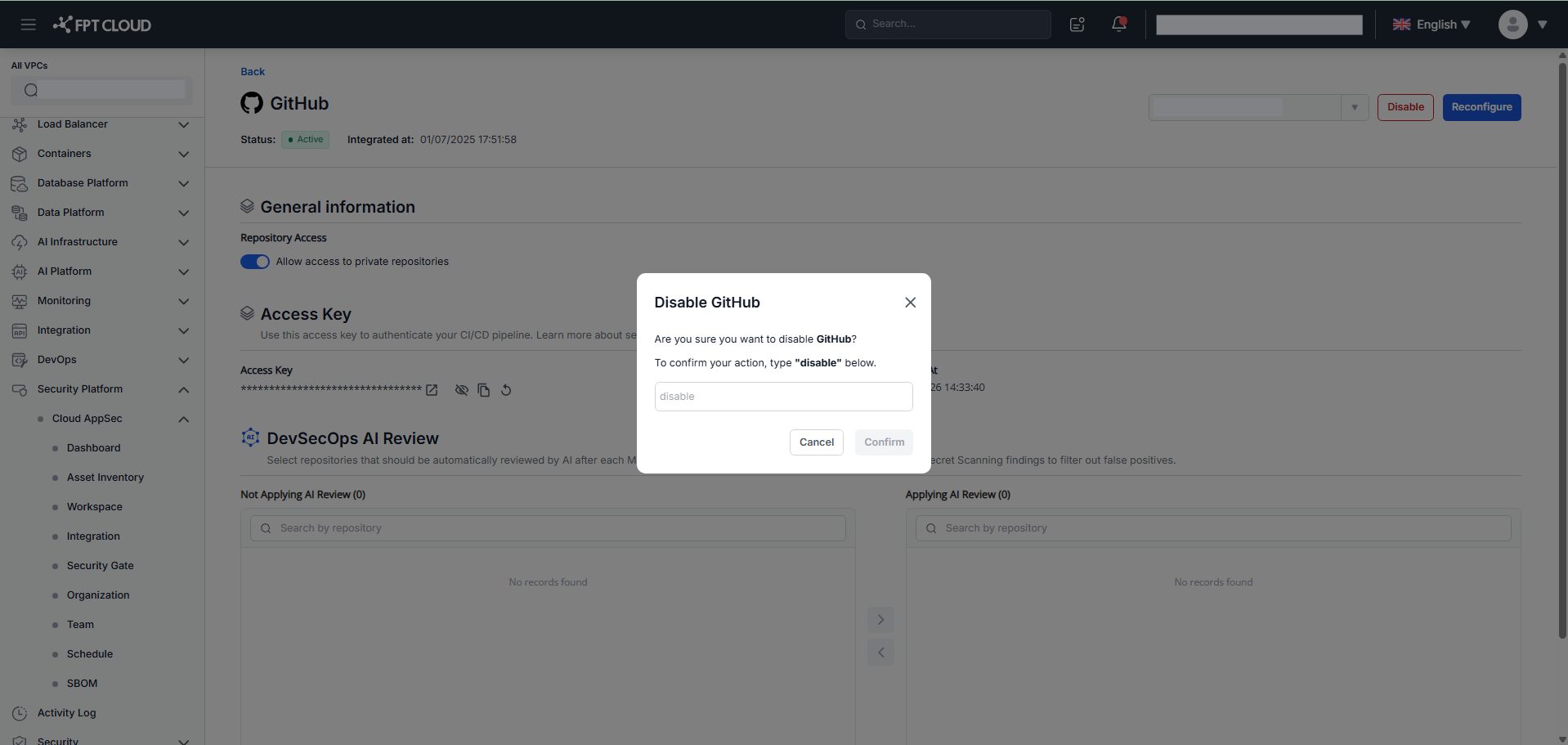
Step 1: Click Disable on the GitHub integration detail screen.
Step 2: Type disable and click Confirm.
Access key for CI/CD pipeline
In the detail screen you will find an access key to use in your CI/CD pipeline. See the CI/CD integration guide.
You can copy or reset the access key for CI/CD pipeline integration.