Components View
SBOM (Software Bill of Materials) Inventory shows every software component detected during source code, container image, and VM scans. The Components workflow lets you browse components and drill into detailed risk analysis.
SBOM data is collected from 3 asset types:
| Asset type | Collection method | Context displayed |
|---|---|---|
| Source Code | Source code scan — prioritizes main/master branch | Branch name (e.g., main, master) |
| Container Image | Image scan — from the most recent scan per image | Version/tag (e.g., 1.42.0) |
| VM (Virtual Machine) | Agentless Scan — no agent required | VPC name containing the VM |
Access via SBOM → SBOM Inventory → Components tab.
SBOM Inventory — Components tab
- Select SBOM → SBOM Inventory. The Components tab is active by default.
- Select a Team from the dropdown.
- Review the component list.
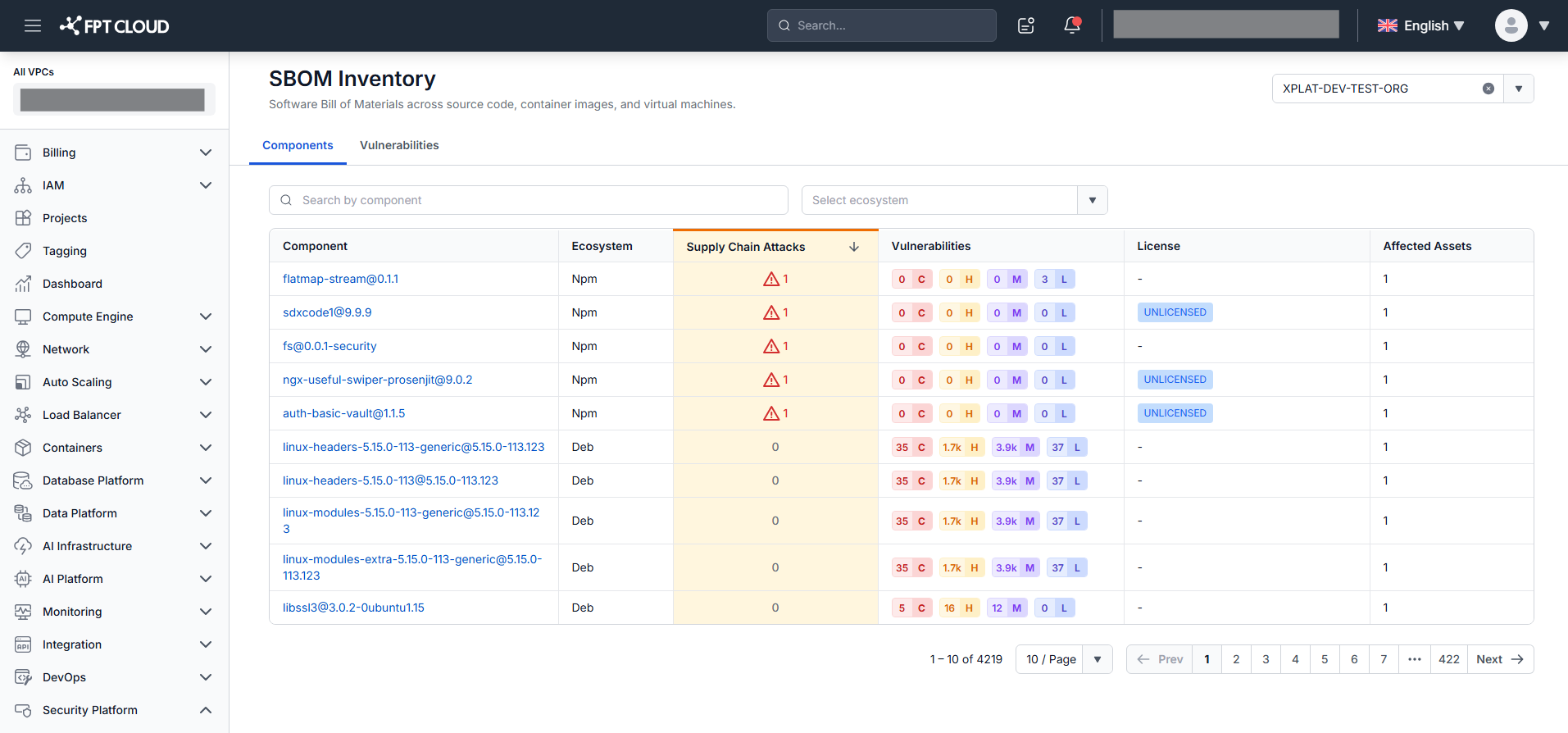
| Column | Description |
|---|---|
| Component | Name and version in Name@Version format. Click to open Component Detail. |
| Ecosystem | Package ecosystem (e.g., Debian, npm, PyPI). |
| Supply Chain Attacks | Campaign count. Shown in red with warning icon when > 0. |
| Vulnerabilities | CVE count by severity: Critical / High / Medium / Low. Counts of 1,000+ are rounded down to the nearest hundred. |
| License | Licenses. Excess collapsed to +N — hover to view all. |
| Affected Assets | Number of assets using this component. |
Sort: default by Supply Chain Attacks descending. Also sortable by Vulnerabilities and Affected Assets.
Filter and search: Ecosystem, License; Search by component (case-insensitive).
All filters and search combine with AND logic. The matched count updates in real time above the table.
Pagination: 10 / 25 / 50 / 100 items per page.
Special cases: No source code or container image ever scanned → No records found. System error → "System is busy. Please try again later." No permission → "You do not have sufficient permissions to view this page!"
Component Detail
Click any component name to open Component Detail. The header shows Name@Version + Ecosystem badge. Team is read-only — inherited from SBOM Inventory. Click ← Back to return to the Components tab.
Three tabs are available. Tab badge counts show total records and do not change with filters.
Tab Supply Chain Attacks (default)
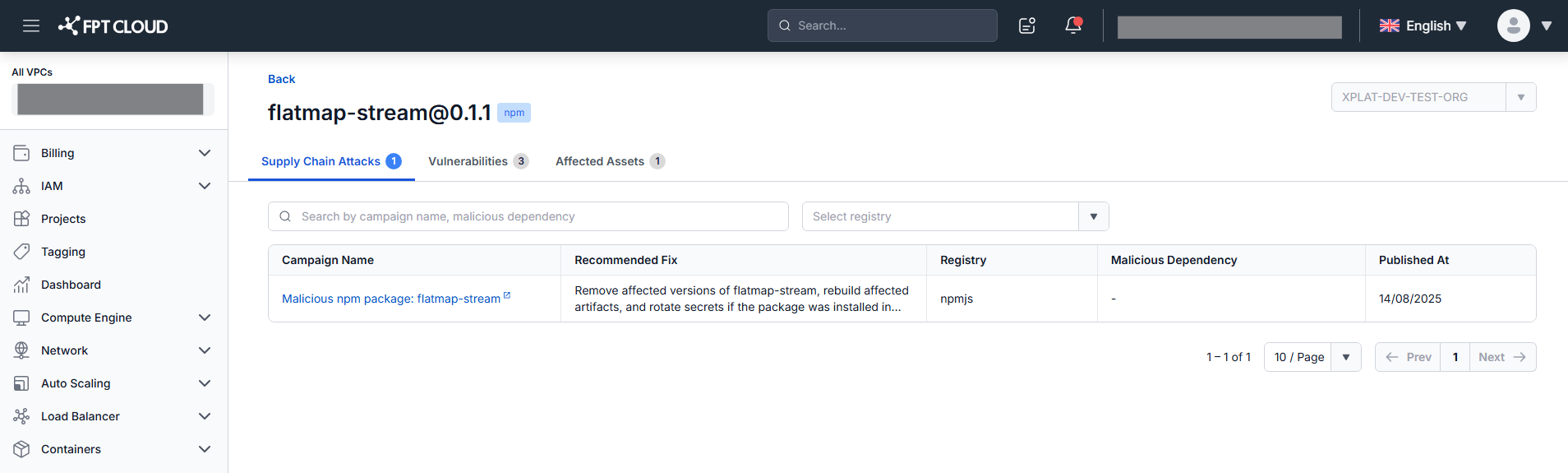
| Column | Description |
|---|---|
| Campaign Name | Click to open reference in a new tab. |
| Recommended Fix | Fix or remediation. Truncated after 2 lines — hover to read. |
| Registry | Package registry containing the affected component. |
| Malicious Dependency | Compromised dependency. Shows - if not applicable. |
| Published At | Date published (dd/MM/yyyy). |
Sort: Published At descending. Filter: Registry. Search: campaign name or malicious dependency. No attacks → No records found.
Tab Vulnerabilities
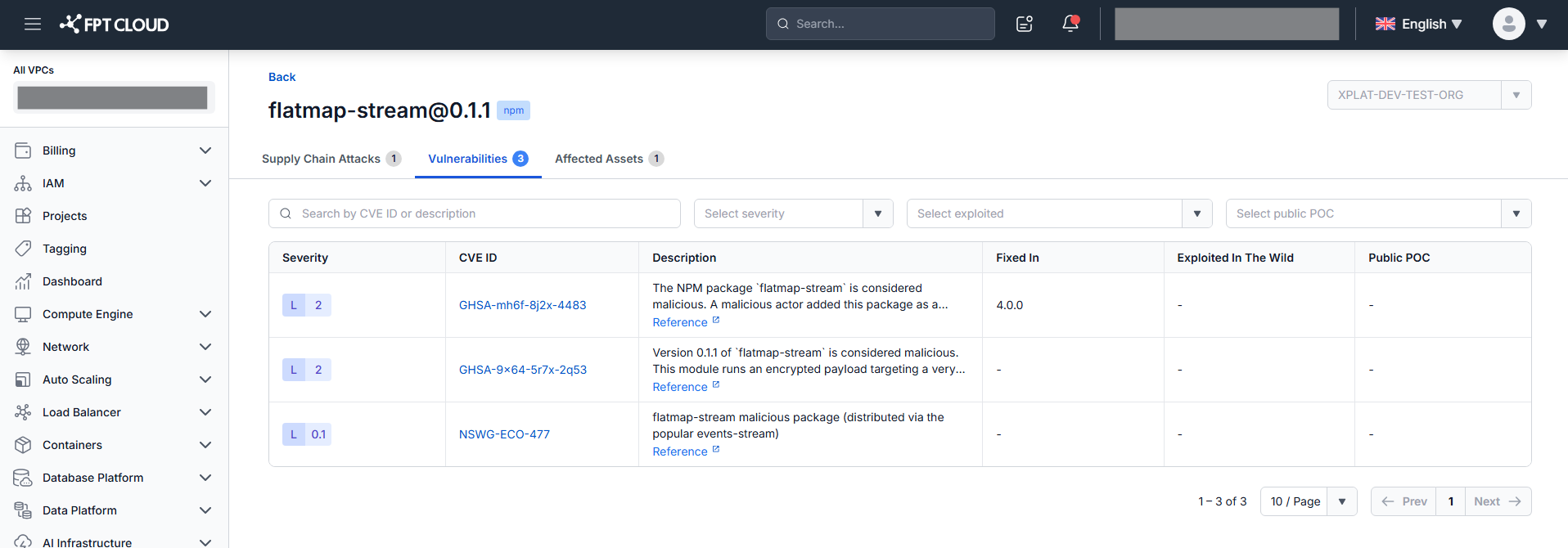
| Column | Description |
|---|---|
| Severity | Severity with CVSS score — e.g., C 9.8, H 7.5, M 5.8, L 1.8. |
| CVE ID | CVE identifier (text only — not a hyperlink). |
| Description | Truncated after 2 lines — hover to read. Reference link opens external source in a new tab. |
| Fixed In | Fix version(s), comma-separated. Shows - if none. |
| Exploited In The Wild | Warning icon if confirmed real-world exploitation. Shows - if not. |
| Public PoC | Icon if a public proof-of-concept exploit exists. Shows - if not. |
Sort: Severity Score descending. Filter: Severity, Exploited, Public POC. Search: CVE ID or description.
Prioritize CVEs marked Exploited In The Wild or with Public PoC regardless of severity score — these carry active exploitation risk.
Tab Affected Assets
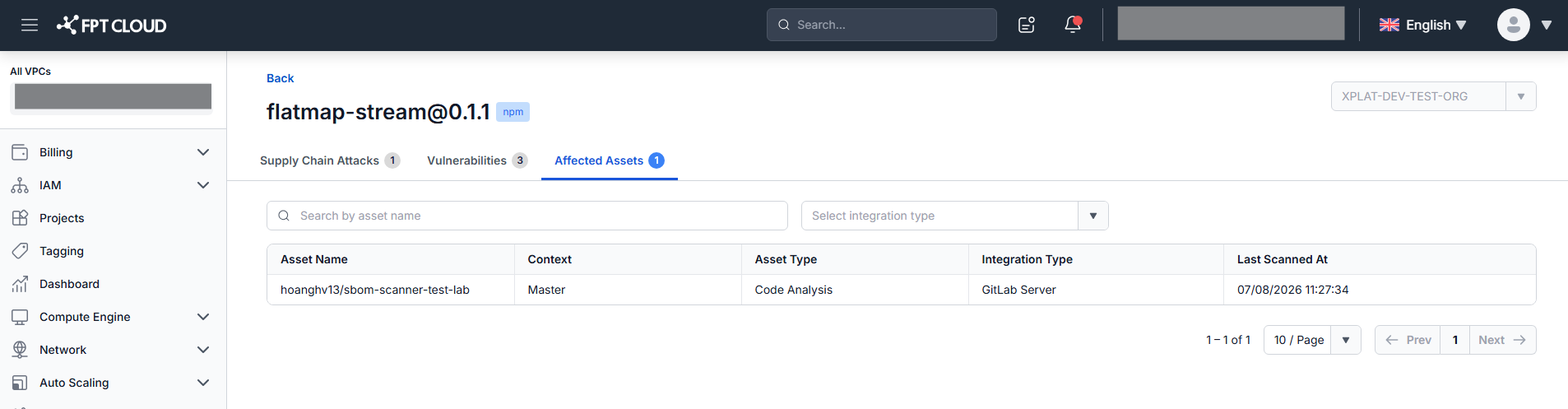
Each row is an asset that uses this component — including VMs discovered via Agentless Scan.
| Column | Description |
|---|---|
| Asset Name | Truncated in the middle if long — hover to see full value. |
| Context | Branch name (Source Code), image version/tag (Container Image), VPC name (VM). |
| Asset Type | Source Code / Container Image / VM. |
| Integration Type | GitHub / GitLab / GitLab Server / Harbor / FPT Container Registry / Agentless Scan. |
| Last Scanned At | Most recent scan timestamp (dd/MM/yyyy HH:mm:ss). |
Sort: Last Scanned At descending. Filter: Asset Type, Integration Type. Search: asset name.
A higher Affected Assets count means the component is used more widely across the organization — including virtual machines. Combine with Exploited In The Wild status to prioritize remediation.
What's next
Switch to Vulnerabilities View to see all CVEs aggregated across the full SBOM and drill into CVE Detail by specific vulnerability.