Vulnerabilities View
The Vulnerabilities workflow lets you approach risk from a CVE-first perspective — see all CVEs across the full SBOM without drilling into each component, then drill into CVE Detail to identify exactly which components and assets are affected.
Access via SBOM → SBOM Inventory → Vulnerabilities tab.
SBOM Inventory — Vulnerabilities tab
- Select SBOM → SBOM Inventory.
- Click the Vulnerabilities tab.
- Select a Team from the dropdown.
- Review the CVE list.
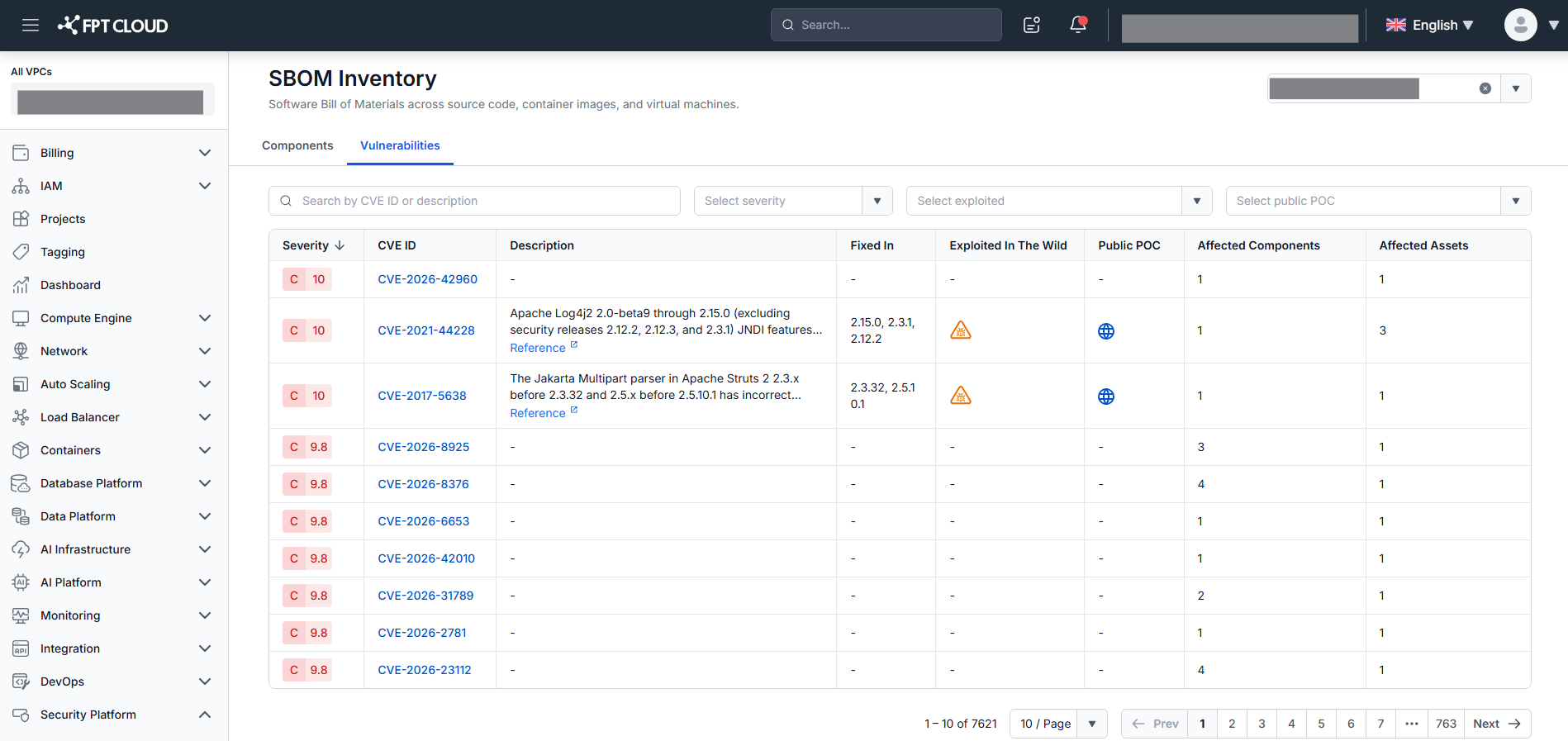
| Column | Description |
|---|---|
| Severity | Severity with CVSS score — e.g., C 9.8 (Critical), H 7.5 (High), M 5.8 (Medium), L 1.8 (Low). Sortable. |
| CVE ID | CVE identifier. Click to open CVE Detail (Affected Components tab by default). |
| Description | Truncated after 2 lines — hover to read. Reference link opens external source in a new tab. |
| Fixed In | Fix version(s), comma-separated. Shows - if none. |
| Exploited In The Wild | Warning icon if confirmed real-world exploitation. Shows - if not. |
| Public PoC | Icon if a public proof-of-concept exploit exists. Shows - if not. |
| Affected Components | Number of components affected by this CVE. Sortable. |
| Affected Assets | Number of assets affected by this CVE. Sortable. |
Sort: Severity Score descending. Also sortable by Severity, Affected Components, Affected Assets.
Filter and search: Severity, Exploited, Public POC; Search by CVE ID or description.
All filters and search combine with AND logic. Matched count shown as "X CVEs found" when active.
Special cases: No CVEs or no filter/search match → No records found. System error → "System is busy. Please try again later." No permission → "You do not have sufficient permissions to view this page!"
CVE Detail
Click any CVE ID to open CVE Detail. The header shows CVE ID (CVE-YYYY-NUMBER) + Severity badge with score. Team is read-only — inherited from SBOM Inventory. Click ← Back to return to the Vulnerabilities tab.
Two tabs are available. Tab badge counts show total records and do not change with filters.
Special cases: CVE no longer exists (reload/direct URL) → redirect to SBOM Inventory (Vulnerabilities tab) + "CVE not found" message.
Tab Affected Components (default)
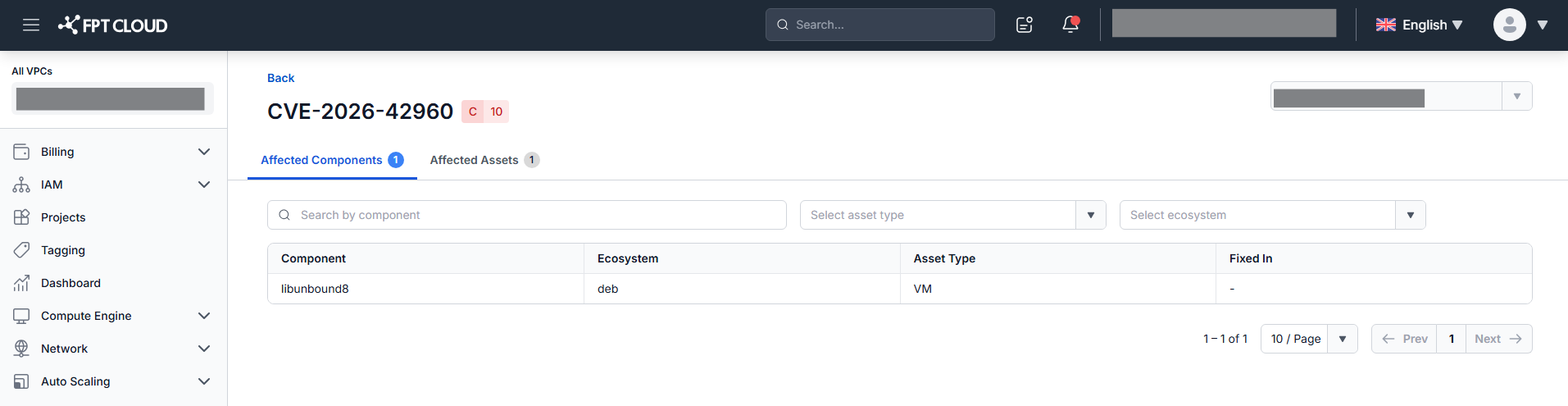
| Column | Description |
|---|---|
| Component | Name and version in Name@Version format (text only — not a hyperlink). |
| Ecosystem | Package ecosystem (e.g., Debian, npm, PyPI). |
| Asset Type | Asset type containing this component: Source Code / Container Image / VM. |
| Fixed In | Fix version for this CVE in the specific component. Shows - if none. |
Sort: Component name ascending (A → Z). Filter: Asset Type, Ecosystem (dynamic). Search: component name. Matched count shown as "X Components found". AND logic.
Initial load always has at least 1 component (navigated from existing CVE list). No filter/search match → No records found.
Tab Affected Assets
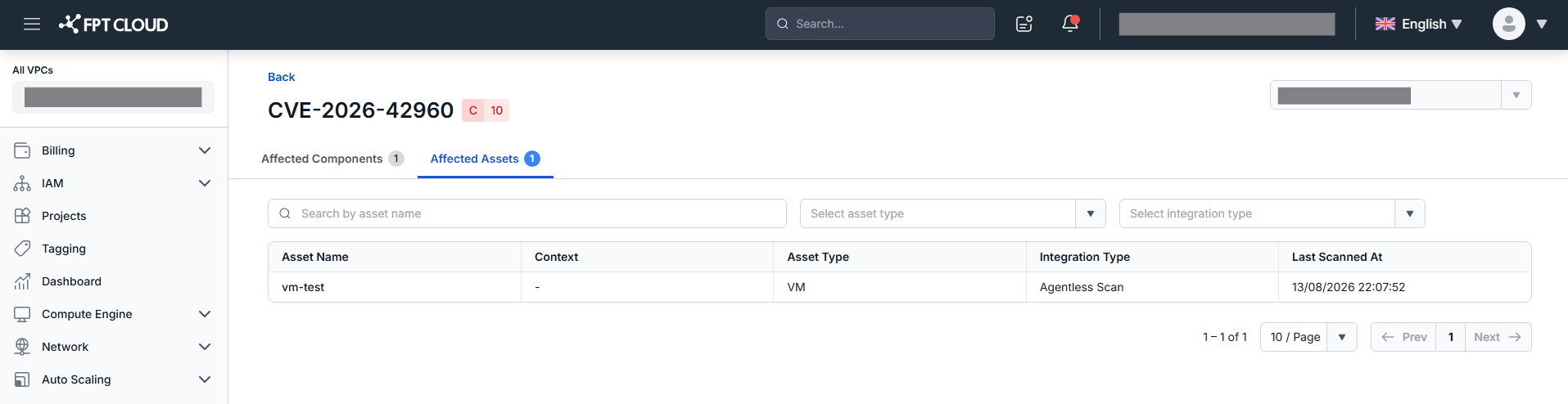
Each row is an asset containing at least one component affected by this CVE.
| Column | Description |
|---|---|
| Asset Name | Truncated in the middle if long — hover to see full value. |
| Context | Branch name (Source Code), image version/tag (Container Image), VPC name (VM). |
| Asset Type | Source Code / Container Image / VM. |
| Integration Type | GitHub / GitLab / GitLab Server / Harbor / FPT Container Registry / Agentless Scan. |
| Last Scanned At | Most recent scan timestamp (dd/MM/yyyy HH:mm:ss). |
Sort: Last Scanned At descending. Filter: Asset Type, Integration Type. Search: asset name. Matched count shown as "X Assets found". AND logic.
What's next
Switch to Components View to browse components individually and see their supply chain attacks, vulnerabilities, and asset exposure.